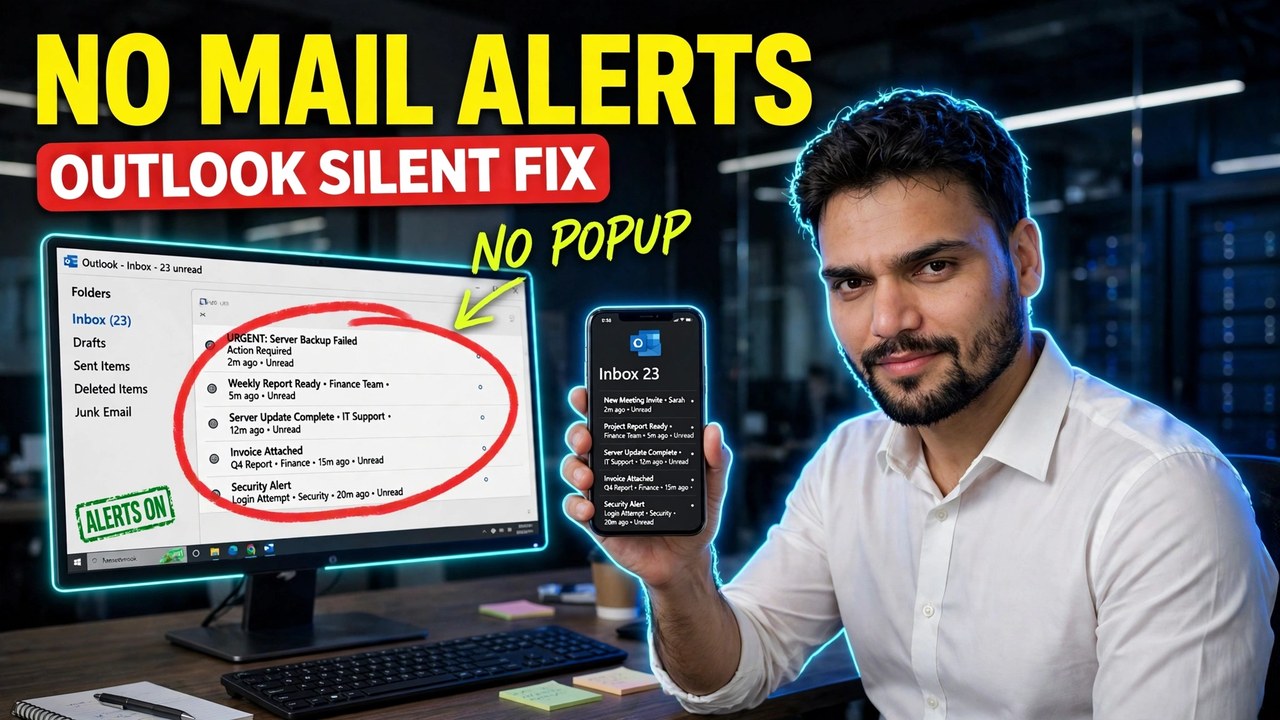
Outlook notifications depend on a chain: Outlook must be set to show a Desktop Alert, Windows must allow Outlook to post notifications, and Focus / Do Not Disturb must not be holding them back. Break any one link and alerts vanish silently. There is also a classic Outlook behaviour behind many reports: desktop alerts fire for mail that lands in the Inbox - mail moved away by a rule to another folder does not alert unless the rule itself asks for an alert. Work through the layers in order and test with a mail from your phone after each fix.
X Mail arrives normally when you open Outlook, just without any alert
X Other apps show notifications on the same PC - or none do
X Alerts stopped after a Windows update or after turning on Focus once
X Alerts work for some mail but never for mail moved by rules
NO ALERTS A broken link in a three-layer chain - Outlook alert setting, Windows permission, or Focus holding notifications back.
The fingerprint of this problem: the mail flow is healthy; only the announcement of new mail is missing.
Turn On Desktop Alerts Inside Outlook
Outlook has its own mail-alert switches, and the main one is off by default on some installs after an upgrade.
- In classic Outlook, go to File > Options > Mail and scroll to Message arrival.
- Tick Display a Desktop Alert. Also tick Play a sound if you want the sound, and Show an envelope icon in the taskbar if you use that cue.
- Click OK, then test with a mail from your phone. If alerts appear, stop here.
- In the new Outlook app instead: open Settings > General > Notifications and turn on notifications for mail, including the desktop notification banner option.
Allow Outlook in Windows Notification Settings ⭐
Windows can silence one app completely while every other app alerts normally - and an Office reinstall or Windows update can flip this off.
- Go to Settings > System > Notifications and make sure the main Notifications switch at the top is on.
- Scroll the app list to Outlook (or Microsoft Outlook / Outlook (new)) and open it: turn its switch on, and tick Show notification banners and Play a sound when a notification arrives.
- If Outlook is missing from the list entirely, send yourself a test mail once more and re-check - Windows registers the app after its first alert attempt; if it never appears, the profile repair in Fix 5 is your route.
- Also confirm notifications are allowed on the lock screen if you expect alerts while the PC is locked: tick Show notifications on the lock screen on the same page.
Turn Off Focus, Do Not Disturb and Battery Saver Holds
Focus and Do Not Disturb are designed to hide exactly these banners, and both can be left on by a schedule or a presentation without you noticing.
- Click the date and time on the taskbar to open the notification centre: if Do Not Disturb is highlighted (a bell with a slash), click it to turn it off.
- In Settings > System > Focus, check for an active session and automatic rules (during specific times, when duplicating the display, when playing a game). End the session or adjust the rule.
- Check Battery saver: while it is on, background activity and notifications are reduced. Test once while plugged in with battery saver off.
- Send the phone test mail again after each change - one of these three is the cause in most sudden cases.
Check Rules That Move Mail Out of the Inbox
By design, the standard desktop alert is tied to mail arriving in the Inbox. A rule that files mail into folders can quietly take the alert with it.
- Go to File > Manage Rules & Alerts and review rules that move incoming mail to another folder.
- If you want an alert for that mail, edit the rule and add the action display a Desktop Alert (or show a specific notification) in the rule's action list.
- Also check Focused Inbox: mail sorted to the Other tab is easy to perceive as no notification. Test with Focused Inbox off under View > Show Focused Inbox if this matches your case.
- Remember server-side rules (created in webmail) move mail before Outlook sees it - check the same rules in Outlook on the web if the desktop list looks clean.
Repair the Profile and Reset the New Outlook App
If every layer is set correctly and alerts still never fire, the notification registration itself is damaged.
- For classic Outlook: create a test profile via Control Panel > Mail > Show Profiles > Add, add the account, and test alerts there. A working test profile means the old profile's registration was damaged - note the PST location before switching a POP account, and back the PST up first.
- For the new Outlook app: go to Settings > Apps > Installed apps > Outlook > Advanced options and click Repair; use Reset only if Repair fails, and sign in again afterwards.
- Finally, restart the PC and do one last phone test - notification registration is often only completed at a fresh sign-in.
More PC Fixes on Technical Anshu
Every week: Windows problems, hidden tools and full setup guides, explained step by step.
Subscribe on YouTubeFrequently Asked Questions
Why is Outlook not showing notifications for new emails?
One of three layers is off: Outlook's own Display a Desktop Alert option (File, Options, Mail, Message arrival), Outlook's entry in Windows Settings, System, Notifications, or Focus / Do Not Disturb holding banners back. Turn all three on, restart Outlook, and test with a mail sent from your phone. Also remember mail moved by rules out of the Inbox does not raise the standard alert.
Why do I get alerts for some emails but not others in Outlook?
Usually rules. Desktop alerts fire for mail that arrives in the Inbox; a rule that moves a sender or a subject to a folder takes the mail - and the alert - to that folder. Edit the rule under File, Manage Rules and Alerts and add the display a Desktop Alert action, or check whether Focused Inbox is sorting the mail to the Other tab.
Where is the Outlook notification setting in Windows 11?
Settings, System, Notifications - turn the main Notifications switch on, then open Outlook in the app list and enable Show notification banners and Play a sound. Inside classic Outlook itself the switch is File, Options, Mail, Message arrival, Display a Desktop Alert. Both layers must be on at the same time.
Outlook notifications stopped after a Windows update. What do I check first?
Check Do Not Disturb first - updates and first sign-ins can leave it on: click the clock on the taskbar and turn it off if highlighted. Then re-check Outlook's entry in Settings, System, Notifications, because an update can reset per-app notification permissions. Finally confirm the in-Outlook Desktop Alert option is still ticked.
Does Outlook show notifications when it is closed?
Classic Outlook only alerts while it is running - if Outlook is fully closed, no desktop alert appears until you open it and it syncs. The new Outlook app can receive notifications through Windows while it is in the background if its notification settings and Windows permissions are on. In both cases the mail itself is safe on the server; only the alert depends on the app state.