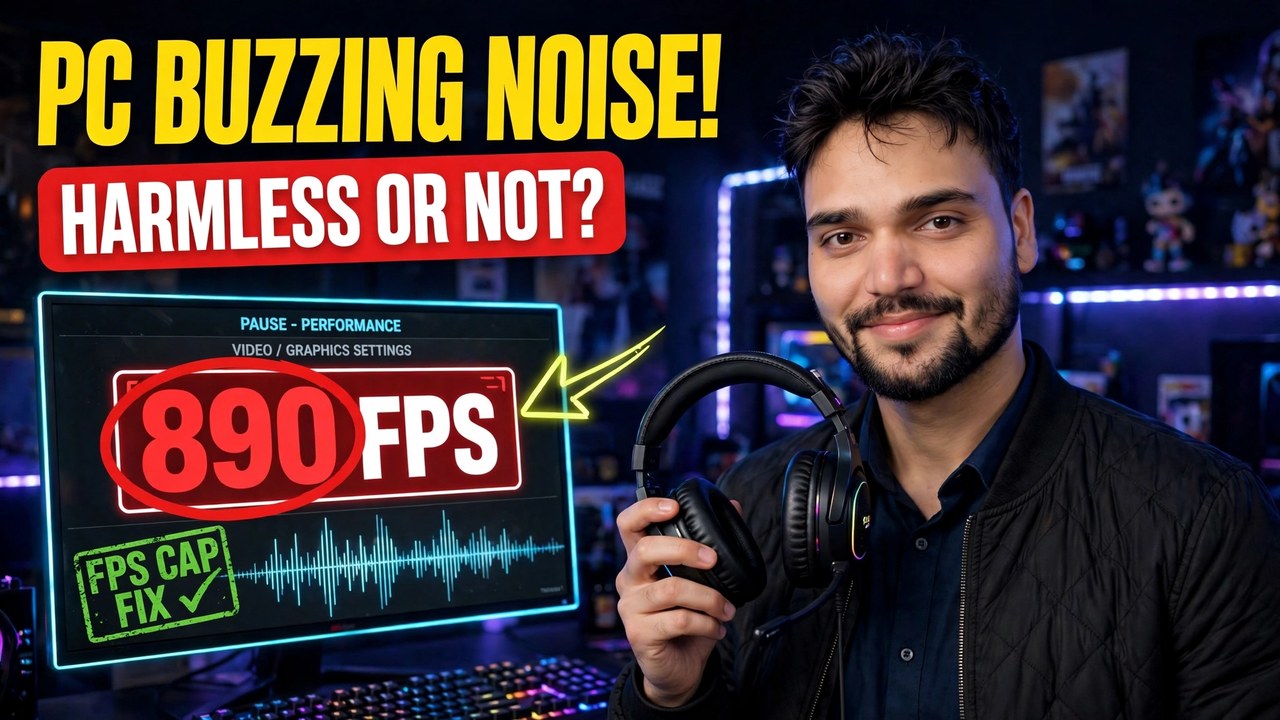
Coil whine is a high-pitched buzzing or whining sound made by electrical coils (inductors) on the graphics card or power supply vibrating as current changes - worst at very high frame rates and in game menus. It is an acoustic side effect, not damage, and not a sign the part is dying. But a PC can also buzz because of a failing fan bearing, a dying hard disk, or - rarely - an electrical fault in the power supply. Those need completely different action, so step one is always: identify which noise you actually have.
X Pitch changes with frame rate and gets worst in game menus at 500+ FPS - classic coil whine
X Noise follows the graphics card area or the power supply area
X Rhythmic clicking or grinding that repeats with disk activity - NOT coil whine, see the red box
X Buzzing with a smell, sparks or random shutdowns - NOT coil whine, switch off now
MOSTLY HARMLESS True coil whine does not damage the card or PSU. Clicking, grinding, sparking or burning smells are different faults and are covered in Fix 1.
The fingerprint of coil whine: the pitch tracks what is on screen, especially frame rate - hardware faults do not do that.
Identify the Noise - Harmless vs Stop Now
Spend two minutes locating the sound before changing any setting. Your ears and a game menu are enough.
- Run a game and stand at the open case side (do not touch anything inside while it runs). Move your ear along the PC: coil whine is loudest at the graphics card or the PSU rear, and its pitch changes instantly when you look at the sky vs the ground in-game, or open and close the menu.
- Stop-now noises: repeated clicking or clunking from a hard disk (back up immediately, the drive is failing), grinding or rattling that is constant with fan speed (a fan bearing or a cable in a blade), and any crackling / sparking / electrical sizzling from the PSU (power off at the wall, replace the PSU, never open it).
- If the pitch tracks frame rate and there is no smell, no shutdown and no clicking, you have coil whine - continue. It is safe to keep using the PC while you reduce it.
Cap the Frame Rate - The Single Biggest Reduction ⭐
Coil whine is worst when the GPU renders hundreds of throwaway frames, like uncapped menus. Limiting frame rate removes most of the noise for most people.
- Turn on V-Sync in the game, or set a frame rate limit 2-3 FPS below your monitor's refresh rate in the NVIDIA App / AMD Software / in-game limiter. A 144 Hz monitor limited to about 141 FPS is the common recipe.
- Test the same menu that whined loudest. If the buzz drops sharply, keep the cap - you lose nothing, because frames above the refresh rate were never displayed anyway.
- For a specific whiny program (a launcher or menu), cap only that program's frame rate in the driver control panel instead of globally.
Change the Electrical Load - Power Limit and Undervolt
Coil vibration depends on how much current pulses through the card. A small power reduction often quiets a loud card with almost no performance loss.
- In MSI Afterburner or your vendor utility, set the power limit to 85-90 percent and test. Many cards lose only 1-3 percent performance and whine noticeably less.
- Optionally, a mild undervolt (lowering GPU voltage slightly at the same clock, using the curve editor) reduces whine further. Change it in small steps and stability-test with a game for 20 minutes after each step - too low a voltage crashes the driver, which is your sign to raise it back one step.
- Restore defaults if anything becomes unstable. Undervolting and power limits are reversible software settings; they do not damage the card.
Rule Out Fans, Panels and the Hard Disk
Not every buzz is electrical. Mechanical buzzes imitate coil whine and have mechanical fixes.
- With the PC running, briefly press a fingertip on the centre hub of each case fan (never the blades) to slow it for one second. If the buzz changes, that fan's bearing is worn or it is vibrating against the case - reseat it with its rubber mounts, or replace it (case fans are cheap).
- Press lightly on the side panels and the drive cage while the noise is present. A buzz that stops under your hand is a vibrating panel or a hard disk resonating in its cage - tighten screws and use rubber drive mounts or washers.
- Check that no loose cable rests against a fan blade or the GPU fans - a cable ticking on a blade makes a buzz that tracks fan speed, not frame rate.
Test a Different Power Supply or Outlet If the PSU Whines
Sometimes the whine comes from the PSU, or a card and PSU combination excites each other. Testing separates them.
- If the whine is loudest at the PSU and changes when the GPU load changes, the pair interaction is likely. If you can borrow a known-good PSU of sufficient wattage, a short test tells you whether the whine follows the PSU or stays with the card.
- Plug the PC directly into a wall outlet (not a cheap power strip) for one test - a failing strip or UPS can add buzz. If the noise vanishes, replace the strip.
- If the PSU itself is the source and it is still in warranty, contact the maker: many PSU and GPU makers will exchange a unit for excessive coil whine even though it is not a functional fault - policies vary, so ask with a recording of the noise.
Live With It Better - Distance, Case and Headphones
If the whine is mild after the steps above, placement finishes the job. Coil whine is high-frequency, so it drops fast with distance and barriers.
- Move the case under the desk or further away instead of beside the monitor at ear height - high-pitched sound weakens quickly with distance.
- A case with solid, damped panels whines far less audibly than an open or mesh case at the same desk position. Keep the side panel on.
- Know the honest limit: coil whine can be reduced a lot, but on some card and PSU combinations it cannot be eliminated completely without changing hardware. It remains harmless - the decision to exchange hardware for it is about comfort, not safety.
More PC Fixes on Technical Anshu
Every week: Windows problems, hidden tools and full setup guides, explained step by step.
Subscribe on YouTubeFrequently Asked Questions
Is coil whine dangerous for my PC?
No. Coil whine is the sound of inductor coils vibrating under changing electrical load on the graphics card or power supply. It is an acoustic annoyance, not wear, damage or a warning of failure. Cards with loud coil whine run for years at full health. The noises that are dangerous are different: hard-disk clicking, fan grinding, and PSU crackling, sparking or burning smells - those need immediate action.
Why is coil whine worst in game menus?
Menus often render at hundreds or thousands of frames per second because nothing caps them, and the GPU's power draw pulses at that extreme rate, which excites the coils the most. That is why capping the frame rate or turning on V-Sync is the most effective reduction: the same card in the same game goes much quieter the moment the frame rate is limited to the monitor's refresh.
Can coil whine go away over time?
Sometimes it softens. Coil whine can change as components settle, after driver updates that change power behaviour, or when you change the PSU, the frame rate habits or the games you play. It can also appear on a previously quiet card after a PSU change, because the card-PSU combination matters. There is no guaranteed timeline - use the frame-rate cap and power-limit steps to control it now rather than waiting.
Should I return or RMA a GPU for coil whine?
That depends on the maker's policy and how loud your unit is. Coil whine is not classed as a functional defect by most makers, but many will exchange an excessively loud unit as a goodwill or warranty case, especially with a clear recording. Try the frame-rate cap and power-limit reductions first - if the card is still loud at capped frame rates in normal gameplay, an exchange request is reasonable.
Why did my PC start buzzing after I changed the power supply?
Because coil whine is a property of the combination, not one part alone. A new PSU delivers power with slightly different characteristics, which can make the graphics card's coils vibrate audibly (or the PSU's own coils whine) even though both parts are healthy. Testing with the old PSU or a borrowed unit confirms it. It is still harmless - but if the noise is unacceptable, the PSU is the part to exchange in that case.