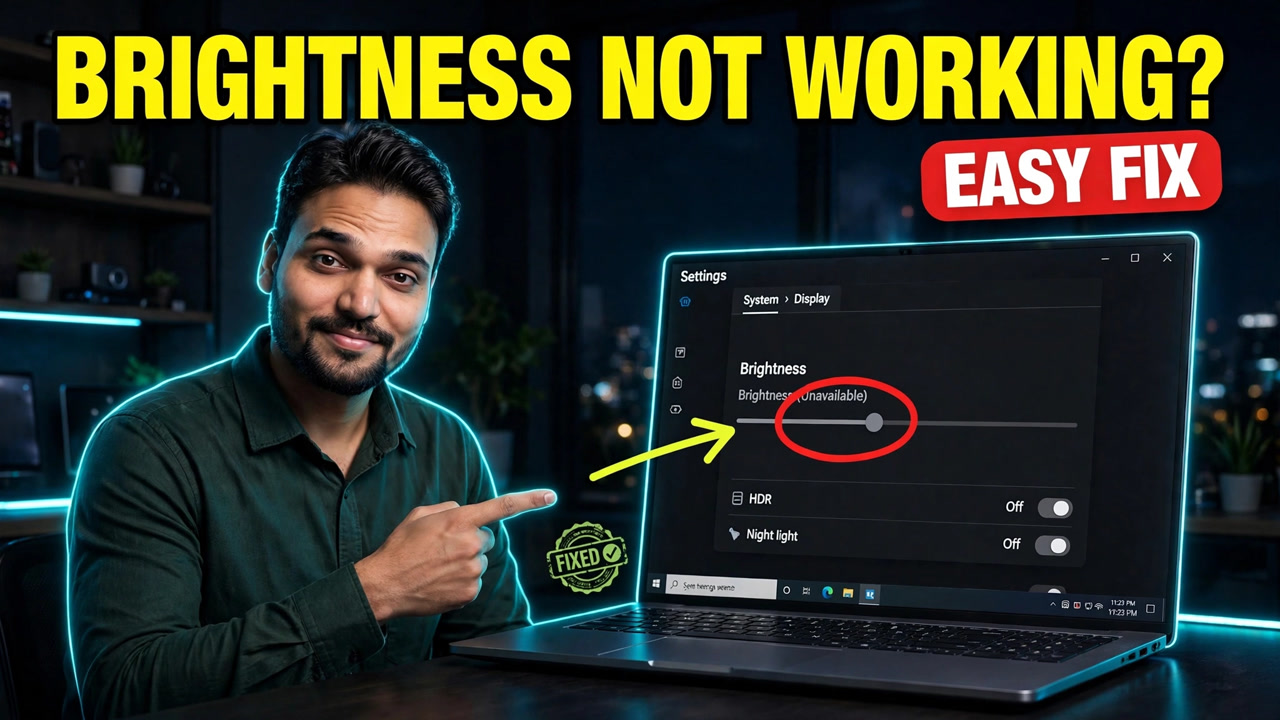
This is one of the most repeated laptop complaints after Windows updates, and the reports follow the same pattern every time: brightness worked before the update, then the slider vanished or stopped doing anything. There is no single Microsoft-acknowledged update or KB number behind it as of 7 November 2026 - it is not one bad patch. The real cause is the driver: the update replaces your laptop maker's display driver with a generic one, or silently disables the Generic PnP Monitor driver that Windows uses to talk to the screen. That is why the fix is the drivers, not waiting for another update.
X No brightness slider in Quick Settings (Win + A) or in Settings > System > Display
X Slider is there, but dragging it left or right changes nothing on screen
X Fn brightness keys (sun icons on the keyboard) do nothing
X Screen stuck too dim, or stuck at full brightness - and it started after a Windows update
GENERIC PnP MONITOR Windows sends brightness commands to the screen through the monitor driver - when that driver is disabled, the slider disappears completely, even if the GPU driver is fine.
The fingerprint of this problem: the screen itself is fine and shows a picture - only the brightness control is dead, and it usually starts right after an update.
Check the Slider, the Fn Keys and Adaptive Brightness
Rule out the ten-second causes first. The slider lives in two places, and adaptive brightness can fight you by dimming the screen on its own.
- Press Win + A to open Quick Settings and look for the brightness slider. Also check Settings > System > Display under Brightness and color. If it is missing in both places, skip to Fix 2 - that is the fix for a missing slider.
- Try the keyboard brightness keys - usually Fn + the key with a sun icon on it. If the on-screen brightness pop-up appears but the screen does not change, the control is reaching Windows but the driver is not passing it to the panel - go to Fix 3.
- In Settings > System > Display, turn off Change brightness automatically when lighting changes if it is on. This adaptive setting can dim the screen by itself and make it look like the slider is broken.
- Restart the laptop once. A pending update or a stuck display driver service is sometimes cleared by a plain restart - do this before touching any driver.
Enable the Generic PnP Monitor Driver ⭐
This is the fix that works most often for a missing slider, and the reason is simple: Windows routes laptop brightness through the monitor driver, not just the GPU. When this driver gets disabled - often silently during a Windows update, or after installing a remote-desktop tool - the slider vanishes completely.
- Press Win + X, then press M to open Device Manager.
- Expand Monitors. If you see Generic PnP Monitor with a small down arrow on its icon, it is disabled - right-click it and choose Enable device.
- If it is already enabled, right-click it, choose Disable device, wait 10 seconds, then right-click again and choose Enable device. This reset alone brings the slider back in many cases.
- Restart the laptop and check Settings > System > Display - the brightness slider should be back.
- If there is no Monitors section at all in Device Manager, or Generic PnP Monitor is missing, move to Fix 3 - the display driver underneath it needs reinstalling first.
Update or Reinstall the Display Driver from Your Laptop Maker
If the slider moves but the screen never changes, the driver is the problem. Open Device Manager and look under Display adapters: if it says Microsoft Basic Display Adapter instead of Intel, NVIDIA or AMD, Windows has replaced your real driver with a generic one that cannot control brightness at all.
- In Device Manager, expand Display adapters, right-click your graphics card and choose Update driver > Search automatically for drivers. If Windows finds nothing, do not stop here - Windows Update rarely finds the right manufacturer driver.
- Go to your laptop maker's support page (Dell, HP, Lenovo, ASUS, Acer and the rest) and download the display driver for your exact laptop model. Install it and restart.
- If the maker's page has no newer driver, get it from the GPU maker instead - Intel, AMD or NVIDIA - for your exact graphics chip.
- Still stuck? In Device Manager, right-click the display adapter, choose Uninstall device, tick Attempt to remove the driver for this device if it appears, then restart. Windows detects the screen again during startup and reinstalls a driver - then install the maker's driver over it as in step 2.
Update the Monitor Driver and Check Optional Updates
The monitor driver and the GPU driver are two separate things, and both need to be right. This step catches the cases Fix 2 and Fix 3 miss.
- In Device Manager, expand Monitors, right-click Generic PnP Monitor and choose Update driver > Search automatically for drivers.
- Open Settings > Windows Update > Advanced options > Optional updates and look under Driver updates. If a display or monitor driver is listed there, install it and restart.
- Also install any pending Windows updates from Settings > Windows Update - a later cumulative update sometimes restores the driver Windows broke.
Run the Power Troubleshooter and Reset the Power Plan
Brightness is a power setting, so a corrupted power plan can lock it. This step is quick and rules out the power side completely.
- Open Settings > System > Troubleshoot > Other troubleshooters and run the Power troubleshooter. Apply whatever it suggests and restart.
- Open Settings > System > Power & battery and check the Power mode. If it is set to Best power efficiency, switch it to Balanced and test the slider again - the efficiency mode can cap brightness on some laptops.
- If the screen still will not change, open Command Prompt as administrator and run
powercfg /restoredefaultschemes, then restart. This resets all power plans to Windows defaults.
Check for Corrupt System Files - Then Test the Hardware
If every driver is correct and the slider still does nothing, the last software check is system-file damage - and the last test tells you whether it was ever software at all.
- Open Command Prompt as administrator and run
sfc /scannow. Wait for it to finish, then restart and test brightness again. - If SFC reports corrupt files it could not fix, run
DISM /Online /Cleanup-Image /RestoreHealth, restart, then runsfc /scannowonce more. - Restart into the BIOS or UEFI setup screen (usually F2, F10 or Del at boot) and try the Fn brightness keys there. If brightness does not change even in BIOS, before Windows loads, the cause is hardware - a loose display cable or a failing backlight - and it needs a service visit, not another driver.
Frequently Asked Questions
Why is the brightness slider missing in Windows 11?
A missing slider means Windows cannot see any brightness control for the screen. On a laptop the most common cause is a disabled Generic PnP Monitor driver in Device Manager, or a display driver replaced by a generic one after a Windows update. Enable Generic PnP Monitor under Monitors in Device Manager and reinstall the display driver from your laptop maker. On a desktop PC with an external monitor there is no slider by design - use the monitor's own buttons.
Why does the brightness slider move but the screen stays the same?
The slider is only the control - the actual brightness change is done by the display driver talking to the panel. If the driver is generic (Microsoft Basic Display Adapter) or corrupted, the slider moves but nothing changes. Reinstall the proper GPU driver from your laptop maker's support page for your exact model, or from Intel, AMD or NVIDIA, then restart.
Can a Windows update break screen brightness?
Yes. Updates commonly replace the laptop maker's display driver with a generic one, or disable the Generic PnP Monitor driver. There is no single KB number behind it - the fix is the same either way: re-enable the monitor driver and install the maker's display driver. Adaptive brightness can also make the screen dim on its own after an update, so turn off "Change brightness automatically when lighting changes" in Settings > System > Display.
My brightness still does not work after reinstalling every driver. What then?
First check whether brightness changes in the BIOS or UEFI setup screen or with the keyboard Fn brightness keys before Windows loads. If it does not change there either, the cause is usually hardware - a loose display cable or a failing backlight - and it needs a service visit, not another driver. If it works in BIOS but not in Windows, try a clean install of the display driver from the laptop maker and check Windows Update > Advanced options > Optional updates for a pending display driver.