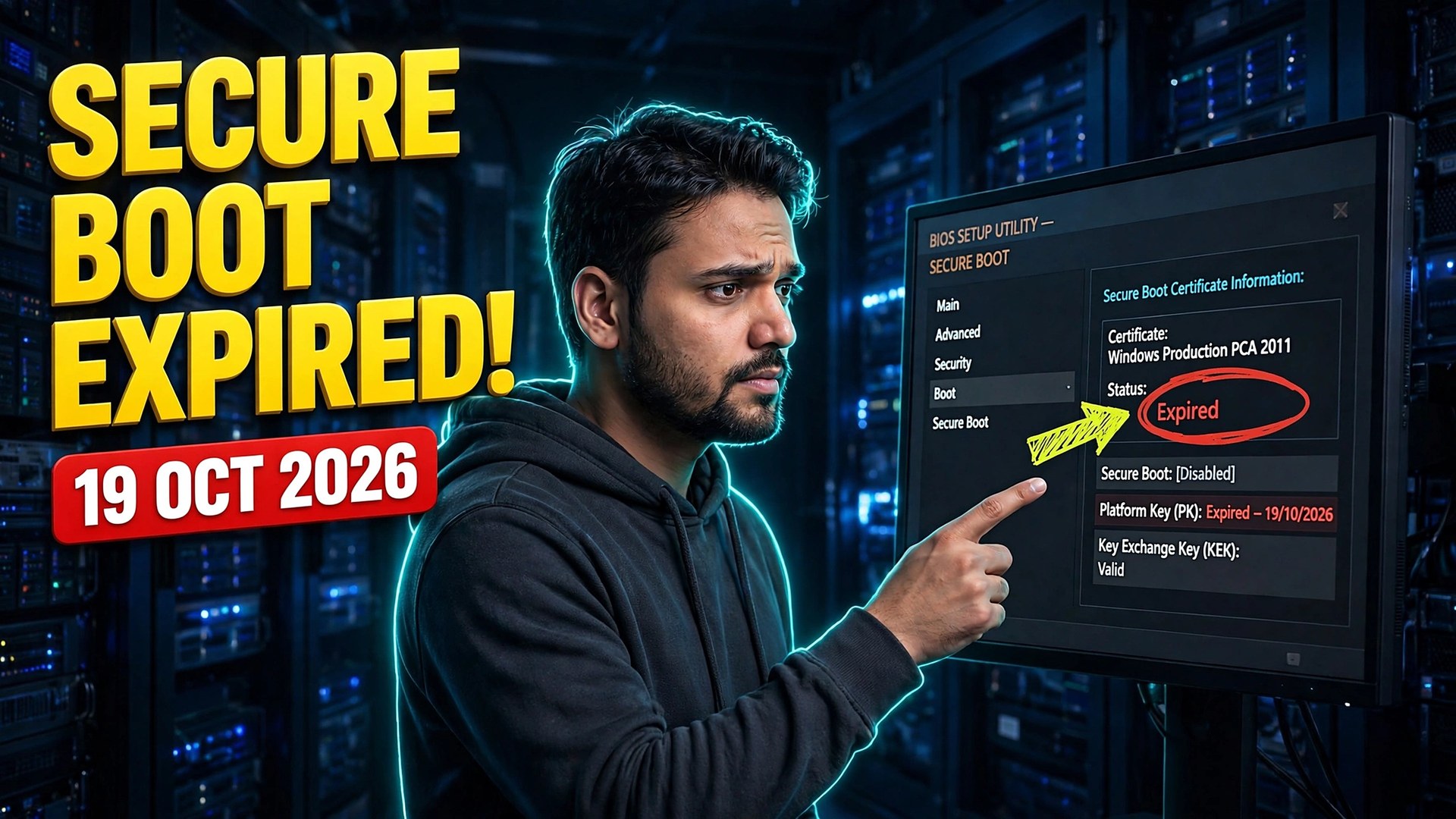
First, kill the panic headline: an expired Secure Boot certificate does not brick your PC. Windows starts, your apps run, normal updates install. The real problem is subtler and it is the one Microsoft's KB5062710 guidance is about: Secure Boot certificates are how your PC decides which bootloaders to trust before Windows even loads. New boot-manager updates and new revocations of boot-level malware are now signed under the Windows UEFI CA 2023 certificate. A PC still holding only the expired 2011 chain cannot accept any of them - its boot protection is frozen in time while new bootkits are not. Whether your PC got the 2023 certificate depends on its maker and its update history, so do not guess - check it, with the four checks below, in order.
PS C:\> Confirm-SecureBootUEFI True PS C:\> [System.Text.Encoding]::ASCII.GetString((Get-SecureBootUEFI db).bytes) -match 'Windows UEFI CA 2023' False
✔ PC boots and works completely normally - nothing looks broken
✔ Secure Boot is ON (first command says True)
✖ But the 2023 certificate is missing from the Secure Boot database (second command says False)
✖ Result: no new boot-manager updates, no new bootkit revocations can ever be accepted by this PC
The trap exactly as it looks: Secure Boot "On", PC healthy - and the replacement certificate simply never arrived.
Check 1: Is Secure Boot Even On?
The 2023 certificates only matter on machines running Secure Boot. Open PowerShell as Administrator (right-click Start → Terminal (Admin) or Windows PowerShell (Admin)) and run:
Confirm-SecureBootUEFI- True - Secure Boot is on; continue to Check 2.
- False - Secure Boot is off on this PC. The certificate expiry does not affect you today, but you are also running without boot protection at all. Consider enabling Secure Boot in BIOS/UEFI later; the remaining checks need it on.
- If the command errors with "not supported on this platform", the PC is booting in legacy/CSM mode - same conclusion as False.
Check 2: Is the Windows UEFI CA 2023 Certificate in the Database? ⭐
This is the decisive test from Microsoft's own guidance - it reads the firmware's Secure Boot signature database (db) and looks for the 2023 certificate by name. In the same admin PowerShell:
[System.Text.Encoding]::ASCII.GetString((Get-SecureBootUEFI db).bytes) -match 'Windows UEFI CA 2023'- True - your PC already holds the replacement certificate. You are done; the October 2026 expiry is a non-event for you.
- False - the certificate is not in the database yet. Your PC is one of the stuck ones. Go to Check 3 to see how far the update process got, then apply the fixes in Fix 5.
Copy the command exactly as written - the brackets and quotes are all part of it.
Check 3: Read the Servicing Status in the Registry
Windows keeps a report card of the certificate update under a servicing registry key. Read it with:
Get-ItemProperty HKLM:\SYSTEM\CurrentControlSet\Control\SecureBoot\Servicing | Select-Object UEFICA2023Status, UEFICA2023Error, WindowsUEFICA2023Capable- UEFICA2023Status = Updated (and UEFICA2023Error = 0) - the update finished; if Check 2 still said False, restart once and re-check.
- UEFICA2023Status = InProgress - certificates are staged but not yet applied to the firmware. A restart is usually what pushes it through - restart and check again.
- UEFICA2023Status = NotStarted - Windows has not even begun on this device. This is the "left behind" state - go straight to Fix 5.
- WindowsUEFICA2023Capable tells you the level reached: 0 = the 2023 certificate is not present, 1 = it is in the firmware database, 2 = it is present and the running boot manager is already signed by it.
Check 4: The Event Log's Verdict (1808 = Finished)
Windows also writes the result into the Event Log, which is the easiest proof to show an auditor - or yourself in six months:
- Open Event Viewer → Windows Logs → System.
- Filter by source TPM-WMI (right side: Filter Current Log → Event sources).
- Event 1808 - "This device has updated Secure Boot CA/keys." This is the all-clear: the 2023 certificates are applied to the firmware.
- Event 1801 - certificates updated in Windows but not yet applied to the firmware. Restart the PC; if 1801 keeps repeating without ever reaching 1808, the update is stuck - Fix 5 and the firmware step in Fix 6 are your path.
You can also glance at Windows Security → Device security → Secure Boot: on a fully updated PC it states that the required certificate updates have been applied. Read the sentence, not just the green tick - the tick only means Secure Boot is on.
Fix: Bring the Certificate In Through Normal Updates ⭐
Per Microsoft's KB5062710 guidance, the 2023 certificates are delivered by ordinary servicing - there is no separate "certificate download" for home users. The stuck state is almost always just a PC that is behind on updates or restarts:
- Open Settings → Windows Update and install everything offered - cumulative updates first. On Windows 11 that means being current on the latest cumulative update; on Windows 10, the ESU cumulative update KB5126657 also carries these certificates.
- Restart - possibly more than once. The flow is staged: one pass stages the certificates in Windows (Event 1801), a later restart applies them to the firmware (Event 1808). A PC that is never restarted can sit at "InProgress" forever.
- Make sure Secure Boot stays enabled in BIOS/UEFI during this period - Windows does not update the firmware variables on machines booting with Secure Boot off.
- Help the targeting along: the phased rollout uses device diagnostic data, so PCs set to send no diagnostic data can be reached late. Setting Settings → Privacy & security → Diagnostics & feedback to send required (or optional) diagnostic data is the Microsoft-documented way to stay in the rollout path.
- Re-run Check 2. True = finished. Still False after you are fully updated and restarted twice? Go to Fix 6.
Still False? Update the BIOS/UEFI Firmware
On some older machines the new certificates can only land as part of a firmware update from the maker, because the firmware itself must accept and store them:
- Go to your PC or motherboard manufacturer's support page for your exact model and look for a BIOS/UEFI update from 2025-2026 mentioning Secure Boot or "2023 certificates" / "CA 2023".
- Follow the maker's instructions exactly (their update utility, a charged laptop / stable power, no interruptions). A firmware flash is the one step in this guide not to improvise.
- After the firmware update, run Windows Update again and re-run Check 2 and Check 4 - you want the PowerShell True and Event 1808.
For IT admins managing fleets, Microsoft's guidance adds a deployment path instead of waiting on the phased rollout: set the AvailableUpdates registry value under HKEY_LOCAL_MACHINE\SYSTEM\CurrentControlSet\Control\SecureBoot as documented in KB5062710, run the Secure-Boot-Update scheduled task (Start-ScheduledTask -TaskName "\Microsoft\Windows\PI\Secure-Boot-Update"), and then audit UEFICA2023Status and Event 1808 across machines. One caution from the field: if a device's BitLocker configuration would be tripped by the boot change (Event 1032 warns about this), suspend BitLocker for the restarts and resume it after - do not let a certificate rollout turn into a recovery-key hunt.
📺 More PC Fixes on Technical Anshu
Every week: Windows problems, hidden tools and full setup guides, explained step by step.
▶ Subscribe on YouTubeFrequently Asked Questions
Will my PC stop booting because the Secure Boot certificate expired?
No. Microsoft is clear on this: a PC that has not received the Windows UEFI CA 2023 certificate keeps starting and working normally, and normal Windows updates keep installing. What stops is the future - that PC can no longer receive new boot-level protections: new Boot Manager updates, Secure Boot revocation (DBX) updates and fixes for newly discovered boot threats, all of which are signed under the 2023 chain.
Windows Security shows Secure Boot is On with a green tick. Am I safe?
Not necessarily. The green tick only says Secure Boot is enabled; it does not prove the 2023 certificates were applied. The reliable proofs are: the Windows Security Secure Boot page stating the required certificate updates have been applied, Event 1808 (TPM-WMI) in Event Viewer, the registry value UEFICA2023Status showing Updated, or the PowerShell db check for "Windows UEFI CA 2023" returning True.
The PowerShell check returned False. What should I do?
Install every pending cumulative update in Windows Update and restart - the 2023 certificates arrive through normal servicing, and the process is staged, so more than one restart may be needed before they apply to the firmware. If it still returns False when you are fully updated, install the latest BIOS/UEFI firmware from your PC or motherboard maker and check again. On Windows 10, the ESU update KB5126657 also carries these certificates.
What exactly do I lose if I never get the UEFI CA 2023 certificate?
You lose the ability to receive future early-boot security fixes: updated Windows Boot Manager builds, new entries in the Secure Boot forbidden-signatures database (DBX) that block newly found bootkits and vulnerable bootloaders, and protections signed under the 2023 chain. Day-to-day Windows use continues normally - but the deepest layer of the PC's defence stays frozen at its October 2026 state.
Can I install the 2023 certificate manually instead of waiting for updates?
For a single home PC, the supported route is Windows Update plus, if needed, an OEM firmware update - do not download "certificates" from random websites. IT administrators have one more documented path from Microsoft's KB5062710 guidance: set the AvailableUpdates registry value under the SecureBoot key, run the Microsoft Secure-Boot-Update scheduled task, and monitor UEFICA2023Status and Event 1808 across the fleet.