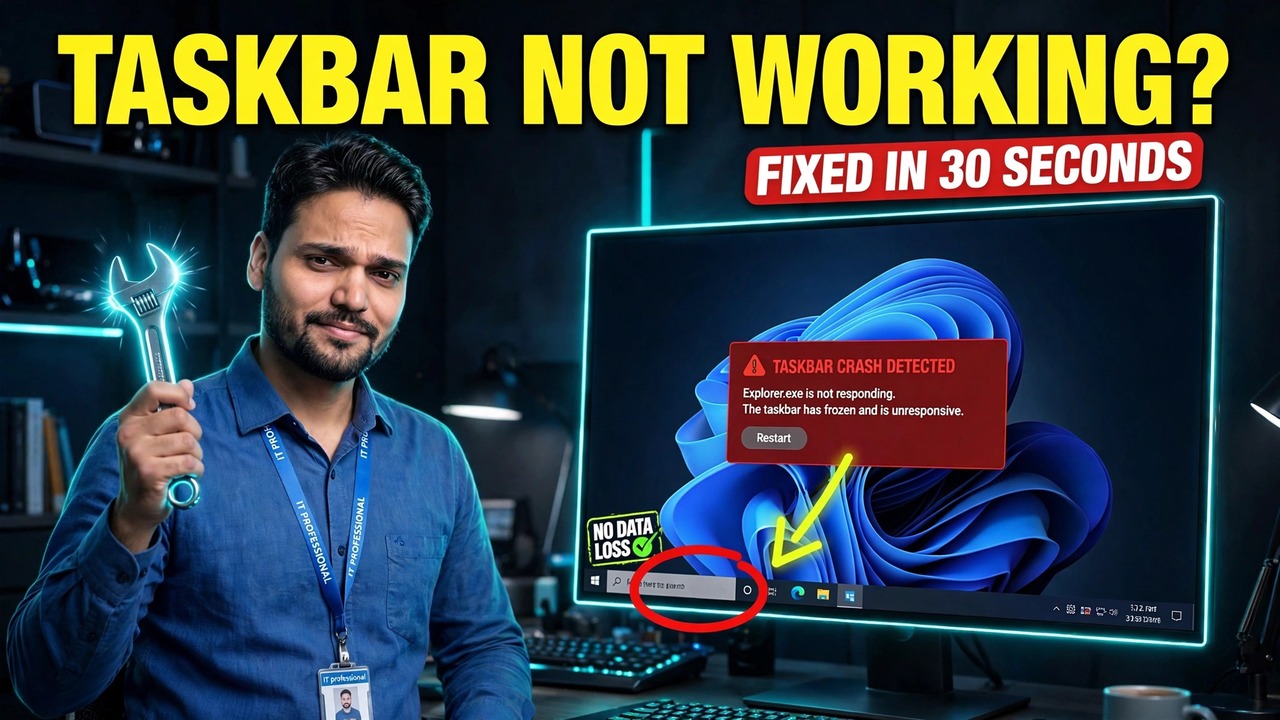
This is one of the most reported Windows 11 complaints, and the reports follow the same pattern every time: the apps themselves are still running, but the bar at the bottom is dead. The reason is simple - in Windows 11 the taskbar is part of Windows Explorer (explorer.exe), the same process that draws the desktop. When Explorer hangs, the Start button, icons, clock and system tray all freeze together. That is also why the fix is usually a restart of Explorer, not a reinstall of Windows. There is no single Microsoft-acknowledged update or KB number behind every taskbar freeze as of 8 November 2026 - updates have caused some of them, and later cumulative updates have fixed Explorer reliability, but the right fix still depends on your symptom, so match the symptom first and work in order.
X Clicking Start, Search or any taskbar icon does nothing at all
X The clock and system tray icons are stuck and do not update
X The taskbar has disappeared completely from the bottom of the screen
X It started after a Windows update, or after installing a taskbar customizer app
EXPLORER.EXE The taskbar, desktop and File Explorer windows all run inside Windows Explorer - when that one process hangs, the whole bar freezes, even though your open apps are fine.
The fingerprint of this problem: your apps keep running, but nothing on the bottom bar responds - that is a shell freeze, not a dead PC.
Restart the PC - or Sign Out and Back In
Start with the simplest test. A one-off Explorer hang is often cleared by a plain restart, and it tells you whether the problem is a temporary glitch or something that comes back every boot.
- If Start still opens, use Start > Power > Restart. If it does not, press Ctrl + Alt + Delete and use the power icon at the bottom-right to restart.
- If a full restart feels too slow, sign out instead: Ctrl + Alt + Delete > Sign out, then sign back in. This reloads the whole shell for your account.
- If the taskbar works after the restart but freezes again later the same day, do not keep restarting - go to Fix 2, then Fix 6. A freeze that repeats is a stuck component or a conflicting app, not a one-off glitch.
Restart Windows Explorer ⭐
This is the fix that works most often, and it takes about 30 seconds. Restarting Explorer reloads the taskbar, desktop and Start menu without closing your open apps.
- Press Ctrl + Shift + Esc to open Task Manager. If that shortcut does nothing, press Ctrl + Alt + Delete and choose Task Manager.
- On the Processes tab, find Windows Explorer (type its name in the search box if needed). Right-click it and choose Restart - or select it and click Restart task at the top.
- The taskbar and desktop will disappear for a moment and then come back. That flicker is normal. Check that Start opens and the icons respond.
- If Windows Explorer is not in the list at all, in Task Manager choose Run new task, type
explorer.exeand press Enter. - If the taskbar is so dead that Task Manager will not open either, press Ctrl + Alt + Delete > Task Manager > Run new task, type
cmd, tick Create this task with administrative privileges, then run these two commands one after the other:taskkill /f /im explorer.exeand thenstart explorer.exe
Check Auto-Hide, Taskbar Settings and the Other Monitor
A taskbar that is missing is often not broken at all - it is hidden, or it is showing on a different screen. Check this before running any repair command.
- Move the mouse slowly to the bottom edge of the screen. If the bar slides back up only while the mouse is there, auto-hide is on. Open Settings > Personalization > Taskbar > Taskbar behaviors and turn off Automatically hide the taskbar.
- On the same page, check Taskbar items and Other system tray icons - a missing clock or icon can simply be switched off here, not a freeze.
- If you use two monitors, check the second screen - the taskbar may be showing there instead. In Taskbar behaviors, look at Show my taskbar on all displays and set it the way you want it.
- Windows 11 only supports the taskbar at the bottom of the screen. If a third-party tool moved it to the side or top, that tool is the prime suspect - see Fix 6.
Install Windows Updates - or Remove the Update That Broke It
Taskbar bugs are often fixed in a later update, and Microsoft has shipped Explorer reliability fixes in cumulative updates during 2026. But if the bar broke the day an update installed, that update is also the first suspect.
- Press Win + I to open Settings, go to Windows Update and click Check for updates. Install everything offered, then restart and test the taskbar.
- If the taskbar broke right after an update, go to Settings > Windows Update > Update history > Uninstall updates, remove the most recent update, restart, and test again. Then check for updates later - a fixed version usually follows.
- Do not uninstall updates at random if the problem started long before the latest one. In that case the update is not the cause - continue to Fix 5.
Repair System Files with DISM and SFC
If Explorer keeps freezing across restarts, corrupted system files are the likely cause. Microsoft gives this order for a reason: DISM repairs the component store that SFC needs, so run DISM first.
- Open Terminal (Admin) - press Win + X and choose Terminal (Admin). If the taskbar will not respond at all, open Task Manager, choose Run new task, type
wtand tick Create this task with administrative privileges. - Run this command and wait for it to finish:
DISM.exe /Online /Cleanup-image /Restorehealth - Then run:
sfc /scannow - Restart the PC and test the taskbar. If SFC says it found corrupt files it could not fix, run the DISM command once more, restart, then run
sfc /scannowagain.
Re-register the Shell Apps - Then Test a New User Account
If the bar still fails after the file repair, the shell app package itself may be broken - or the damage may be limited to your user profile. This step separates the two.
- Open Windows PowerShell as administrator (search "PowerShell", right-click it, choose Run as administrator) and run this command for the shell host only - do not re-register every app on the PC:
Get-AppxPackage -AllUsers -Name Microsoft.Windows.ShellExperienceHost | Foreach {Add-AppxPackage -DisableDevelopmentMode -Register "$($_.InstallLocation)\AppXManifest.xml"} - Restart the PC and test the taskbar.
- Still frozen? Make a new local administrator account (Settings > Accounts > Other users > Add account) and sign into it. If the taskbar works fine there, your old profile is damaged - move your files to the new account instead of repairing the old one further.
- If the taskbar fails in the new account too, it is a system-wide problem, not your profile - go to Fix 7.
Remove Taskbar Customizers and Test in Safe Mode
A freeze that survives every repair above is usually caused by something loaded into Explorer - a taskbar customizer, a shell extension, or a startup program.
- Uninstall any third-party taskbar or Start menu customizer (Start11, TaskbarX, Taskbar11 and similar) from Settings > Apps > Installed apps, then restart. These tools hook directly into the shell, and an update can break that hook overnight.
- Also think about what changed just before the freeze started - a new right-click menu tool, a file-preview app, or a recently installed utility. Uninstall the most recent one and test.
- Boot into Safe Mode (Settings > System > Recovery > Advanced startup > Restart now > Troubleshoot > Startup Settings). If the taskbar works in Safe Mode, a driver or startup program is the cause - disable startup apps one by one in Task Manager > Startup apps until the culprit shows up.
- Last resort only: Settings > System > Recovery > Reset this PC with Keep my files. It reinstalls Windows but removes your apps, so use it only after Fixes 1-6 have all failed.
Frequently Asked Questions
Why is my Windows 11 taskbar frozen and not responding to clicks?
In Windows 11 the taskbar is part of Windows Explorer (explorer.exe), so when Explorer hangs, the Start button, taskbar icons, clock and system tray all stop responding at once - even though your apps are still running. Restart Windows Explorer from Task Manager (Ctrl + Shift + Esc, right-click Windows Explorer, Restart). That reloads the taskbar in seconds and fixes most frozen-taskbar cases.
Why has my taskbar disappeared in Windows 11?
First move the mouse to the bottom edge of the screen - if the bar slides back up, auto-hide is on. Turn it off in Settings > Personalization > Taskbar > Taskbar behaviors. If it never appears, restart Windows Explorer from Task Manager; if Windows Explorer is not listed there, use Run new task and type explorer.exe. On a multi-monitor setup also check whether the bar is showing on the other screen.
Can a Windows update break the taskbar?
Yes. Updates sometimes replace or disturb the shell components Explorer relies on, and Microsoft has shipped Explorer reliability fixes in later cumulative updates for the same reason. Install all pending updates first. If the taskbar broke right after one specific update, remove that update from Settings > Windows Update > Update history > Uninstall updates, then watch for a fixed version. There is no single KB number behind every taskbar freeze - the fix depends on your symptom, so work through the steps in order.
My taskbar works in another user account but not in mine. What does that mean?
That points to damage in your own user profile - usually the shell app registration or a third-party taskbar customizer / shell extension loaded in that profile. Re-register the ShellExperienceHost package from an administrator PowerShell window, uninstall any taskbar customizer such as Start11 or TaskbarX, and if the bar still fails only in that account, move your files to a new local administrator account instead of repairing the old profile further.