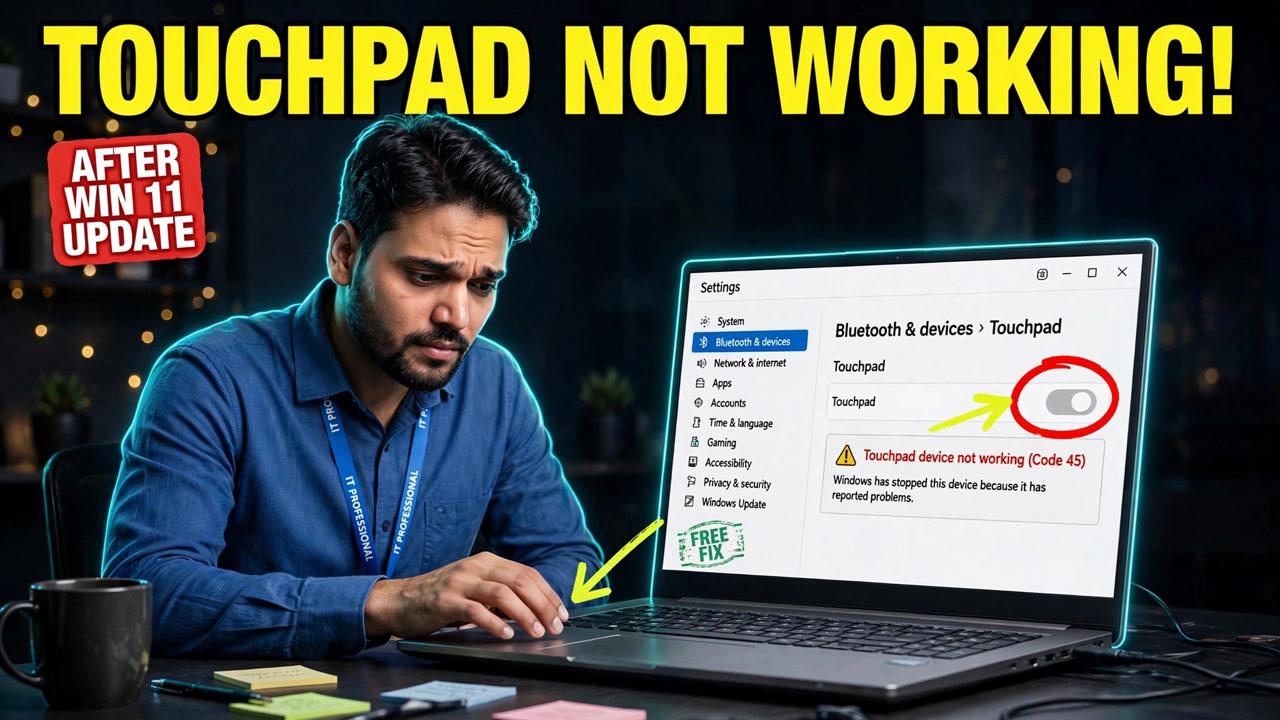
This is one of the most repeated complaints on Microsoft Q&A and Windows support forums after updates, and the reports follow the same pattern every time: the touchpad worked before the update, stopped right after it, and sometimes came back after a clean install only to break again with the next round of updates. There is no single Microsoft-acknowledged update or KB number behind it as of 5 November 2026 - it is not one bad patch. The real cause is the driver: the update replaces your laptop maker's touchpad driver with a generic Windows driver, or the I2C HID driver underneath it fails to start. That is why the fix is the maker's own driver, not waiting for another update.
X I2C HID Device shows a yellow warning triangle in Device Manager
X Double-click it: "This device cannot start. (Code 10)" and "A request for the HID descriptor failed."
X Settings > Bluetooth & devices has no Touchpad page at all, or the touchpad is ON but nothing moves
CODE 10 Windows cannot start the driver that talks to your touchpad - the touchpad hardware is usually fine, the driver talking to it is not.
The fingerprint of this problem: it starts right after a Windows update, and a USB mouse works while the built-in touchpad does not.
Check the Fn Key and the Touchpad Setting
Rule out the two ten-second causes first. Updates and accidental key presses both switch the touchpad off without any warning.
- Press Fn + the touchpad key on your keyboard - usually F6, F7, F8 or F9, the one with a small touchpad icon on it. Press it once, wait a second, and try the touchpad.
- Open Settings > Bluetooth & devices > Touchpad and check the Touchpad switch is On. If the whole Touchpad page is missing from Settings, skip straight to Fix 3 - Windows is not seeing the touchpad as a touchpad at all, which is a driver problem, not a setting.
- On the same Touchpad page, tick Leave touchpad on when a mouse is connected if it is off. Some laptops disable the touchpad the moment a mouse is plugged in, and an update can reset that choice.
- Plug in a USB mouse for the rest of these steps if you have not already - everything below is much easier with one.
Reinstall the I2C HID Driver in Device Manager
On most laptops the touchpad sits on a small internal bus called I2C, and Windows reads it through the "I2C HID Device" driver. When that driver gets stuck after an update, removing it and letting Windows set it up again clears the stuck state.
- Press Win + X, then press M to open Device Manager.
- Expand Human Interface Devices. Right-click I2C HID Device (your touchpad may also appear as "HID-compliant touch pad", or under "Mice and other pointing devices" with a Synaptics or ELAN name) and choose Uninstall device. If it asks, do not tick "Attempt to remove the driver for this device" - just uninstall.
- Restart the laptop. Windows detects the touchpad again during startup and reinstalls the driver automatically.
- If the yellow warning is still there after the restart, right-click the same device, choose Update driver > Search automatically for drivers, and let Windows try once. If it finds nothing, move to Fix 3 - that is the fix that actually works most often.
Install the Touchpad + Chipset Drivers from Your Laptop Maker ⭐
This is the fix that works most often, and the reason is simple: with only Windows' generic I2C controller driver, the touchpad behind it cannot be read at all. The drivers made for your exact laptop model put the right controller driver back.
- Find your exact laptop model: press Win + R, type
msinfo32, press Enter, and note the System Model line. On a Dell, the SupportAssist app finds it for you. - Open your laptop maker's official support site - HP, Dell, Lenovo, ASUS or Acer - and search for that exact model. Never download touchpad drivers from random driver-download sites.
- Download and install, in this order: the chipset driver first, then the Intel Serial IO (I2C) driver if your laptop has an Intel CPU (on AMD laptops it is the AMD I2C controller / chipset driver), then the touchpad driver itself (Synaptics, ELAN or Precision touchpad, whichever your model lists).
- Restart the laptop after the installs, even if it does not ask you to. The touchpad usually comes back on this restart.
- If your maker lists no touchpad driver for your model on your version of Windows, check whether that model is supported on this Windows version at all - and check the maker's page for a touchpad or touch firmware update, which is listed separately from the driver on some models.
Check Optional Driver Updates in Windows Update
Windows Update sometimes offers chipset, Serial IO or touchpad drivers from your laptop maker as optional updates - and unlike normal updates, these do not install by themselves.
- Open Settings > Windows Update > Advanced options > Optional updates.
- Expand Driver updates if it is listed. Tick any update for touchpad, Synaptics, ELAN, Precision touchpad, chipset or Serial IO / I2C, then click Download & install.
- Also turn on Receive updates for other Microsoft products on the same Advanced options page, so driver updates from your maker keep arriving with Windows Update.
- Restart and test the touchpad after the install finishes.
Roll Back the Driver if the Update Caused It
If the touchpad worked yesterday and stopped the moment the update finished, the update itself installed a driver that does not suit your laptop. Rolling back puts the previous working driver back.
- In Device Manager, right-click the touchpad or I2C HID Device, choose Properties, and open the Driver tab.
- Click Roll Back Driver and pick the reason (previous version performed better), then restart. The button is greyed out when Windows has no older driver saved - in that case this step does not apply, and Fix 3 is the way forward.
- If the roll back works, also pause Windows Update for a week from Settings > Windows Update, so the same driver is not pushed straight back before you have installed the maker's driver from Fix 3.
Stop Windows Turning the Touchpad Off + Full Power Reset
If the touchpad works for a while and then dies again, Windows may be turning the I2C controller off to save power and failing to wake it. And if nothing above has helped yet, a full power reset clears a stuck controller state that a normal restart does not.
- In Device Manager, expand System devices, right-click Intel(R) Serial IO I2C Host Controller (AMD laptops: the AMD I2C controller), choose Properties > Power Management, and untick Allow the computer to turn off this device to save power. Do the driver reinstall in Fix 3 first if you have not - this Power Management tab only appears when the device is working.
- For the power reset: shut the laptop down completely, unplug the charger, and if the battery is removable, take it out. Press and hold the power button for 30 seconds, put the battery back, plug the charger in, and start the laptop.
- Test the touchpad before opening any other program, so you know whether this step or the next one changed anything.
Software Needed
No extra software is required, and no third-party driver updater is needed. Everything above uses built-in Windows tools - Settings, Device Manager and Windows Update - plus the drivers from your own laptop maker's official support page. A USB mouse is the only thing worth having nearby while you work through the steps. Avoid "driver booster" and registry-cleaner programs: they cannot install the maker's controller driver any better than the maker's own page, and some of them install the wrong generic driver, which is the exact problem you are removing.
More PC Fixes on Technical Anshu
Every week: Windows problems, hidden tools and full setup guides, explained step by step.
Subscribe on YouTubeFrequently Asked Questions
Has Microsoft confirmed one Windows 11 update that breaks the touchpad?
As of 5 November 2026 there is no single Microsoft-acknowledged update or KB number that breaks touchpads on every laptop. The reports are individual cases that follow one pattern: after an update, Windows replaces the laptop maker's touchpad driver with a generic driver, or the I2C HID driver fails to start with Code 10. That is why the fix is the maker's own driver, not waiting for a patch.
Why does the touchpad disappear from Settings completely?
When the Touchpad page is missing from Settings, Windows is not recognising the touchpad as a touchpad at all. That points to a driver problem, not a setting: the I2C host controller driver (Intel Serial IO on Intel laptops) is missing or replaced, so Windows cannot see the touchpad behind it. Install the chipset and Serial IO drivers from your laptop maker's support page for your exact model.
What does I2C HID Device Code 10 mean?
Code 10 means the device cannot start. For the touchpad it usually means the I2C HID driver, or the I2C host controller driver underneath it, failed to load - most often because Windows installed a generic controller driver instead of the one from the laptop maker. Reinstalling the I2C HID device and then installing the maker's chipset and Serial IO drivers is the fix that works most often.
My touchpad still does not work after reinstalling every driver. What then?
First check the BIOS or UEFI setup: some laptops have a touchpad on-off option there, and an update can leave it disabled. Also try a full power reset - shut down completely, unplug the charger, hold the power button for 30 seconds, then start again. If the touchpad is still dead in the BIOS screen itself, or after a clean driver install, the cause is usually hardware - a loose touchpad cable inside the laptop - and it needs a service visit, not another driver.