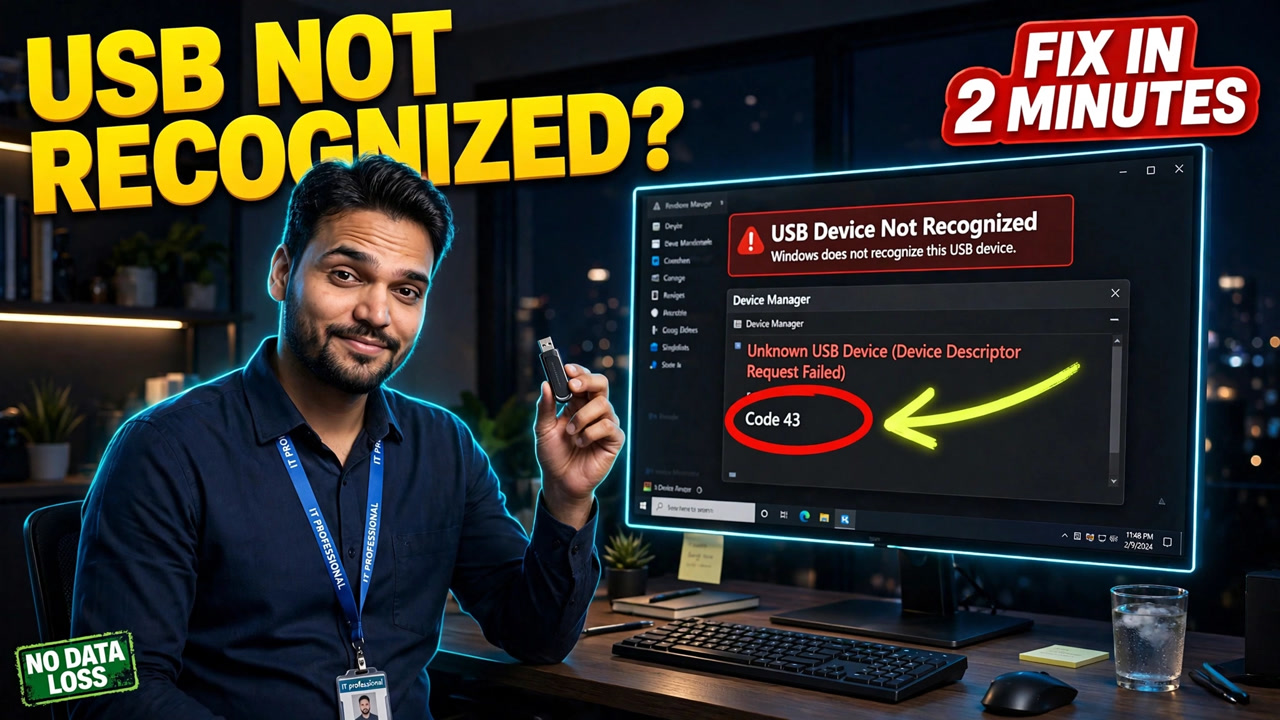
This is one of the most reported Windows 11 complaints, and the message is misleading: "USB device not recognized" is a symptom, not a diagnosis. Windows detected power on the port but could not identify the device or load its driver. The real cause is written in Device Manager as an error code - most often Code 43 (Windows stopped the device because it reported problems), Code 28 (no driver installed) or Code 10 (device cannot start). Each code has a different fix, so the order in this guide matters: check the physical connection first, read the code second, and only then touch drivers. There is no single update or KB number behind this problem as of 11 November 2026 - match the code first and work in order.
X The notification appears every time you plug the device in
X The device never shows in File Explorer, but a USB plug-in sound still plays
X Device Manager shows "Unknown USB Device" with a yellow warning mark
X The same device works fine on another PC, or with a different cable
CODE 43 In Device Manager, the device Properties show "Windows has stopped this device because it has reported problems. (Code 43)" - the most common code for this message. Code 28 means no driver is installed; Code 10 means the device cannot start.
The fingerprint of this problem: Windows sees something on the port but cannot identify it - the answer is in the error code, not in the pop-up.
Restart, Then Try Another Port and Cable - Directly, No Hub
Half of these cases are a loose connection, a tired cable, or a hub in between. Microsoft's own first checks are the port, the cable, and whether the device is connected directly to the PC.
- Unplug the device, restart the PC, then plug the device back in. A restart clears a stuck USB controller state.
- Plug it into a different USB port directly on the PC - on a desktop use a port on the back panel, not the front. Skip any hub, dock, monitor passthrough or keyboard USB port for this test.
- Try a different cable if you have one. Cheap or damaged cables are the single most common cause of Code 43.
- If the device works on the new port or cable, the old port or cable is the fault - the device itself is fine. If it still fails everywhere, go to Fix 2 and read the code.
Read the Error Code in Device Manager
Microsoft does not publish one fix for this message - it publishes a route: find the device, read its code, then apply the fix that matches the code. This step takes one minute and stops you fixing the wrong thing.
- Right-click Start and choose Device Manager.
- Look under Universal Serial Bus controllers and Other devices for an entry with a yellow exclamation mark - usually named "Unknown USB Device", sometimes "Unknown USB Device (Device Descriptor Request Failed)".
- Right-click it, choose Properties, and read the Device status box on the General tab. Note the exact code:
Code 43 - "Windows has stopped this device because it has reported problems." Driver or hardware fault; start with Fix 3.
Code 28 - "The drivers for this device are not installed." Missing driver; Fix 3 then Fix 4.
Code 10 - "This device cannot start." Update the driver; go to Fix 4. - If there is no yellow-marked entry at all, the port itself may be dead or disabled in BIOS - try Fix 1 on a different port, then check BIOS for disabled USB ports.
Uninstall the Device and Let Windows Reinstall It ⭐
This is the main fix for Code 28 and most Code 43 cases. It removes the broken driver setup and makes Windows build it again from scratch.
- In Device Manager, right-click the problem device (the "Unknown USB Device" from Fix 2) and choose Uninstall device.
- Confirm the uninstall. Do not tick "Delete the driver software" unless you already have the correct replacement driver downloaded from the maker's site.
- Unplug the device, then open the Action menu and choose Scan for hardware changes - or simply restart the PC with the device unplugged.
- Once Windows is back up, plug the device into a different port and wait for Windows to install it again. If it is recognized now, the old driver setup was the cause.
- If it still shows Code 43 after this, the fault is usually the cable, the port power, or the device itself - go to Fix 5, then Fix 6.
Update the Driver - From the Maker, Not a Random Driver Site
Code 10 means the driver cannot start the device, and Code 28 means there is no driver at all. Both need a driver, but the source matters - a wrong driver is a common cause of this exact error.
- In Device Manager, right-click the device, choose Update driver, then Search automatically for drivers.
- If Windows finds nothing, go to the device maker's own support page (or your laptop / motherboard maker's page for built-in USB controllers) and download the driver for your exact model. Install it, then restart.
- Also install any pending Windows updates from Settings > Windows Update - Microsoft ships USB controller and chipset driver fixes through Windows Update.
- If the problem started right after a driver update, roll it back instead: right-click the device > Properties > Driver > Roll Back Driver.
Turn Off USB Selective Suspend and USB Power Saving
Windows can put an idle USB port to sleep to save power - on laptops this is the classic reason a device works once and then stops being recognized. Turning it off is safe and reversible.
- Open Control Panel > Hardware and Sound > Power Options > Change plan settings > Change advanced power settings.
- Expand USB settings > USB selective suspend setting and set it to Disabled for both On battery and Plugged in. Click OK.
- In Device Manager, expand Universal Serial Bus controllers, right-click each USB Root Hub, choose Properties > Power Management, and uncheck "Allow the computer to turn off this device to save power".
- Restart the PC and plug the device in again. If it is recognized now, power saving was the cause - this step is the fix for devices that vanish after sleep or idle.
Test the Device on Another PC
This is the test that settles whether the device is dead. Do it before buying a replacement or reinstalling Windows.
- Plug the device into a different PC with the same cable. If it works there, your PC's port or driver is the problem - repeat Fix 3 and Fix 4, and try a USB port on a different controller (front vs back panel).
- If it fails on every PC with the same cable, try one more cable. If it still fails, the device itself has failed - for a pen drive or external disk, a data-recovery shop is the next step, not another driver.
- If the device needs more power than one port gives (some external hard disks), use its own power adapter or a powered USB hub - Microsoft notes that some devices need external power.
More PC Fixes on Technical Anshu
Every week: Windows problems, hidden tools and full setup guides, explained step by step.
Subscribe on YouTubeFrequently Asked Questions
What does USB device not recognized mean in Windows 11?
It means Windows detected something on the USB port but could not identify it or load its driver. Microsoft's own wording for the notification is: "The last USB device you connected to this computer malfunctioned, and Windows does not recognize it." The cause is usually a bad cable or port, a power problem, or a driver problem - and the exact reason is written in the error code shown in Device Manager under Device status.
What is Code 43 on a USB device?
Code 43 means Windows has stopped this device because it has reported problems - one of the drivers controlling the device told Windows the device failed in some way. It is often a bad cable, a weak port, or a driver fault, not proof that the device is dead. Uninstall the device in Device Manager, then use Action > Scan for hardware changes (or restart) and reconnect it to a different port.
Why does my USB device work on one PC but not another?
If the device works on another PC, the device itself is fine and the problem is on the first PC - usually its driver, its USB port, or USB selective suspend putting the port to sleep. Work through the driver reinstall in Fix 3 and Fix 4, turn off selective suspend in Fix 5, and try a back-panel port on a desktop. If it fails on every PC with the same cable, the device or the cable is the fault.
Should I format a USB drive that Windows does not recognize?
No. Formatting is the wrong first step and it erases the data on the drive. A drive that shows Unknown USB Device or Code 43 is a driver or connection problem, not a formatting problem. Only consider formatting after the device is recognized again in Device Manager and Disk Management, and only after you have recovered any files you need from it.