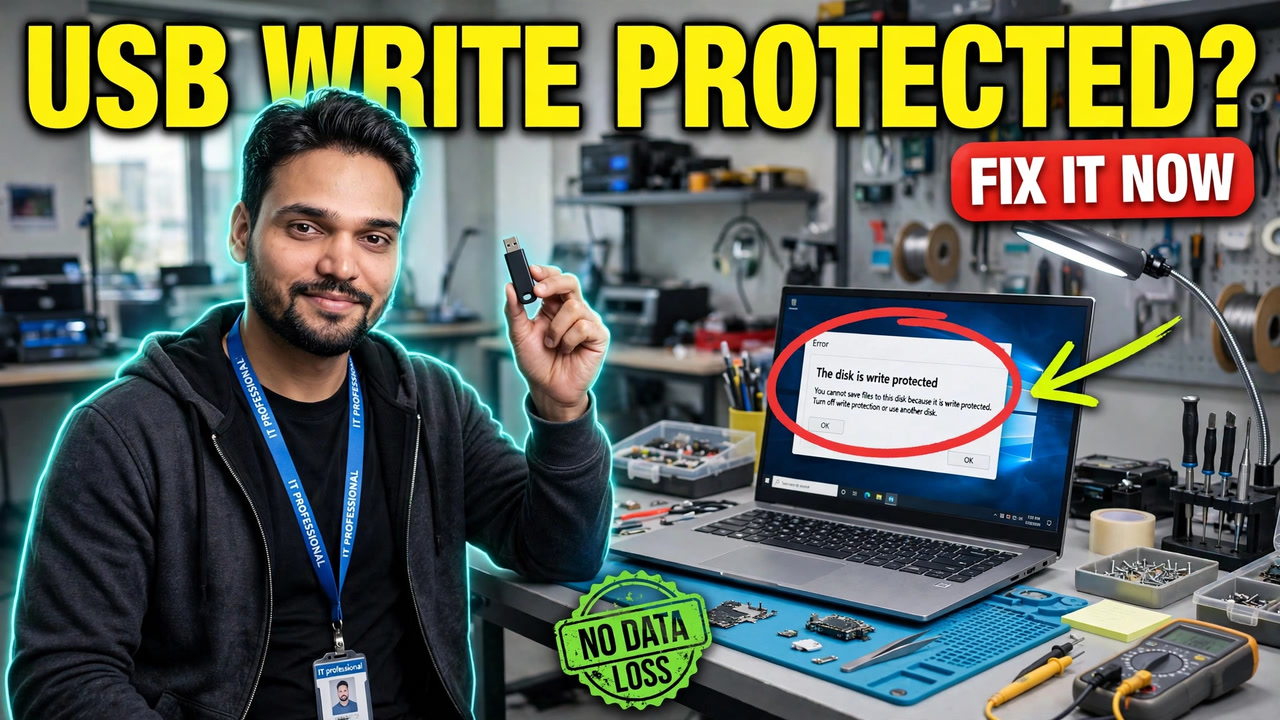
"The disk is write protected" means Windows can still read the USB drive but refuses to write to it - no copying, no deleting, no formatting. The cause is rarely one thing: a physical lock switch on the drive, a read-only attribute set on the disk, a registry or policy value blocking removable-media writes, BitLocker, or a flash controller that locked itself because the memory inside is worn out. The test that settles it takes two minutes - plug the drive into another PC. If it writes there, the lock is on your PC. If it stays locked everywhere, the lock is on the drive. Work in order and you will know exactly which one it is - and when no software fix can help.
X Copying a file onto the USB fails with "The disk is write protected" / "Remove the write protection or use another disk"
X Deleting a file from the USB fails with the same error
X Formatting the USB in File Explorer fails - a format needs write access, so it cannot bypass the lock
X The files already on the drive still open and copy off normally - reading works, writing does not
READ-ONLY DiskPart shows "Read-only: Yes" on the disk, or "Current Read-only State: Yes" even when "Read-only" says No - the two lines mean different things, and Fix 3 explains which one you are looking at.
The fingerprint of this problem: the drive is not dead - it reads fine and refuses to write. The answer is in a switch, an attribute, or a policy, not in the files themselves.
clean, do not format, and do not use any "write protection remover" tool until the files are safe on your PC. In DiskPart, never guess the disk number - check it by the drive's size in list disk, and use detail disk if you are not sure. Selecting the wrong disk can change your internal hard drive instead.Back Up the Files, Check the Lock Switch, Test on Another PC
Half the diagnosis is done in this one step. A lock that follows the drive to another PC lives on the drive; a lock that stays on one PC lives in Windows.
- Plug in the USB drive, open it in File Explorer, and copy every file you need to your PC. If a file will not copy, note its name and move on - do not force it.
- Look for a physical lock switch on the side of the pen drive or SD card adapter. Some drives and most full-size SD cards have one - slide it to the unlocked position and try copying a small test file again.
- Plug the same drive into a different PC and try to copy a small file onto it. If it writes there, the lock is on your first PC - go to Fix 4. If it stays locked on every PC, the lock is on the drive - go to Fix 3.
- If every USB drive is write protected on the same PC, the cause is a policy on that PC, not the drives - go straight to Fix 4.
Rule Out a Single Read-Only File and BitLocker
Sometimes only one file is locked, or the whole drive is encrypted - and neither of those is fixed by DiskPart.
- Try copying a brand-new small file (a new text file) onto the drive. If only one old file refuses to copy or delete, right-click that file > Properties and uncheck Read-only - that is a file attribute, not a drive lock.
- Check BitLocker: open Command Prompt as administrator and run
manage-bde -status E:(replaceE:with your USB drive letter). If the volume is locked, you need the BitLocker password or recovery key - clearing a DiskPart attribute will not decrypt or unlock it. - If the drive is full (0 bytes free), Windows can also refuse writes - free space by deleting files only after the backup in Fix 1, or move files off first.
Clear the Read-Only Attribute With DiskPart ⭐
This is the main fix. DiskPart is built into Windows, and its attributes disk clear readonly command removes the software read-only attribute on the selected disk - without touching your files.
- Press Win + S, type
cmd, right-click Command Prompt and choose Run as administrator. - Type
diskpartand press Enter. Then typelist diskand press Enter. Find your USB drive by its size - if your pen drive is 32 GB, it is the disk showing about 29–32 GB, not your 500 GB or 1 TB internal drive. - Type
select disk N(replaceNwith the USB drive's number) and press Enter. Then typedetail diskand check the name and size match your pen drive. If they do not, stop - you selected the wrong disk. - Type
attributes diskand read the two lines: "Read-only: Yes" means the clearable attribute is set; "Current Read-only State: Yes" is the state Windows is currently receiving. If Read-only says Yes, typeattributes disk clear readonlyand press Enter - you should see "Disk attributes cleared successfully." - Type
attributes diskagain to confirm both lines now say No, typeexit, safely remove the USB drive, plug it back in, and test by copying one small disposable file onto it. - If Read-only already said No but Current Read-only State still says Yes, the lock is not this attribute - do not repeat the command. Go to Fix 4, then Fix 6.
Check the StorageDevicePolicies Registry Value
This is the fix when the lock follows the PC, not the drive - when every USB drive is blocked on one computer, or DiskPart says the attribute is already clear but the drive still refuses writes.
- Press Win + R, type
regeditand press Enter. If Windows asks, allow it. - Go to
HKEY_LOCAL_MACHINE\SYSTEM\CurrentControlSet\Control\StorageDevicePolicies. If this key does not exist, the policy is not the cause - close Registry Editor and go to Fix 6; do not create the key. - If the key exists, look for a value named
WriteProtecton the right. If it is1, double-click it, set Value data to 0, click OK, and restart the PC. A value of 0 means write protection is off. - On an office PC, this value may be set by your company's policy (Group Policy). If it returns to 1 after a restart, your IT admin set it on purpose - do not fight it, ask them. The same applies if the PC is managed by school or office software.
Format the Drive - Only After the Files Are Safe
Formatting only works once the write protection is cleared, because a format needs write access. It fixes a corrupted file system - it cannot fix a locked flash controller.
- Confirm the files are already copied off (Fix 1). Formatting erases everything on the drive - there is no undo.
- Right-click the USB drive in File Explorer > Format. Choose exFAT if you use the drive on both Windows and other devices, or NTFS for Windows-only use with large files. Keep "Quick Format" ticked and click Start.
- If the format still fails with the write-protection error, the lock is still active - go back to Fix 3 and Fix 4. Do not try a "force format" tool; no format can bypass a hardware or policy lock.
- After a successful format, copy one test file on and off the drive. If it works, the drive is usable again.
When the Drive Stays Locked Everywhere - Replace It
This is the step most guides skip, and it is the honest one. A pen drive that stays read-only on every PC after Fix 3 and Fix 4 is not waiting for a better command - its controller has locked it.
- If DiskPart clears the attribute but the drive returns to read-only on its own, or "Current Read-only State" stays Yes while "Read-only" says No on two different PCs, the flash memory inside is worn out or corrupted. SanDisk documents this behaviour: the controller locks the drive to read-only so the data still on it is not lost.
- Copy off whatever files you still can, then replace the drive. A new pen drive costs far less than the time spent fighting a locked controller.
- Do not use controller-flashing or low-level format utilities from random sites to force it open - they can destroy the remaining data and the drive, and they are the usual way malware arrives with this problem.
clean or clean all before your files are backed up - it erases the partition and everything on it. Do not select a disk in DiskPart by guessing its number - verify it by size and with detail disk first. Do not download "write protection remover" tools or controller-flash utilities from random sites. And do not keep repeating attributes disk clear readonly when it does not stick - that is the drive telling you its flash memory is worn out (Fix 6), not a command you typed wrong.More PC Fixes on Technical Anshu
Every week: Windows problems, hidden tools and full setup guides, explained step by step.
Subscribe on YouTubeFrequently Asked Questions
Why does my USB drive say "The disk is write protected" when I try to copy or format it?
Windows is refusing writes, not reads. The usual causes are a physical lock switch on the drive, a read-only attribute set on the disk, a Windows registry or policy value (StorageDevicePolicies WriteProtect), BitLocker, or a flash controller that has locked a worn drive to protect the data still on it. Work in order: back up the readable files, check the switch, test the drive on another PC, then clear the DiskPart read-only attribute.
DiskPart said "Disk attributes cleared successfully" but the USB is still write protected - what now?
Run "attributes disk" again in DiskPart. If "Read-only" now says No but "Current Read-only State" still says Yes, the lock is not the DiskPart attribute - check the StorageDevicePolicies registry value and test the drive on another PC. If it stays read-only on every PC, the flash controller itself has locked the drive, usually because the NAND memory is worn out, and no software command will unlock it - copy the files off and replace the drive.
Can I format a write-protected USB drive to remove the protection?
Only after the write protection itself is cleared - a normal format needs write access, so it fails with the same error while the lock is active. First back up the files, then clear the read-only attribute with DiskPart. Format only after that, and only if the files are already safe somewhere else, because formatting erases everything on the drive.
Is my data lost if the USB drive is write protected?
Usually not - write protection blocks writing, not reading, so the files on the drive can normally still be copied off. Copy them to your PC before trying any fix, and do not run DiskPart "clean", format the drive, or use low-level controller tools until the files are safe. If the drive cannot be read at all, that is a different fault from write protection.