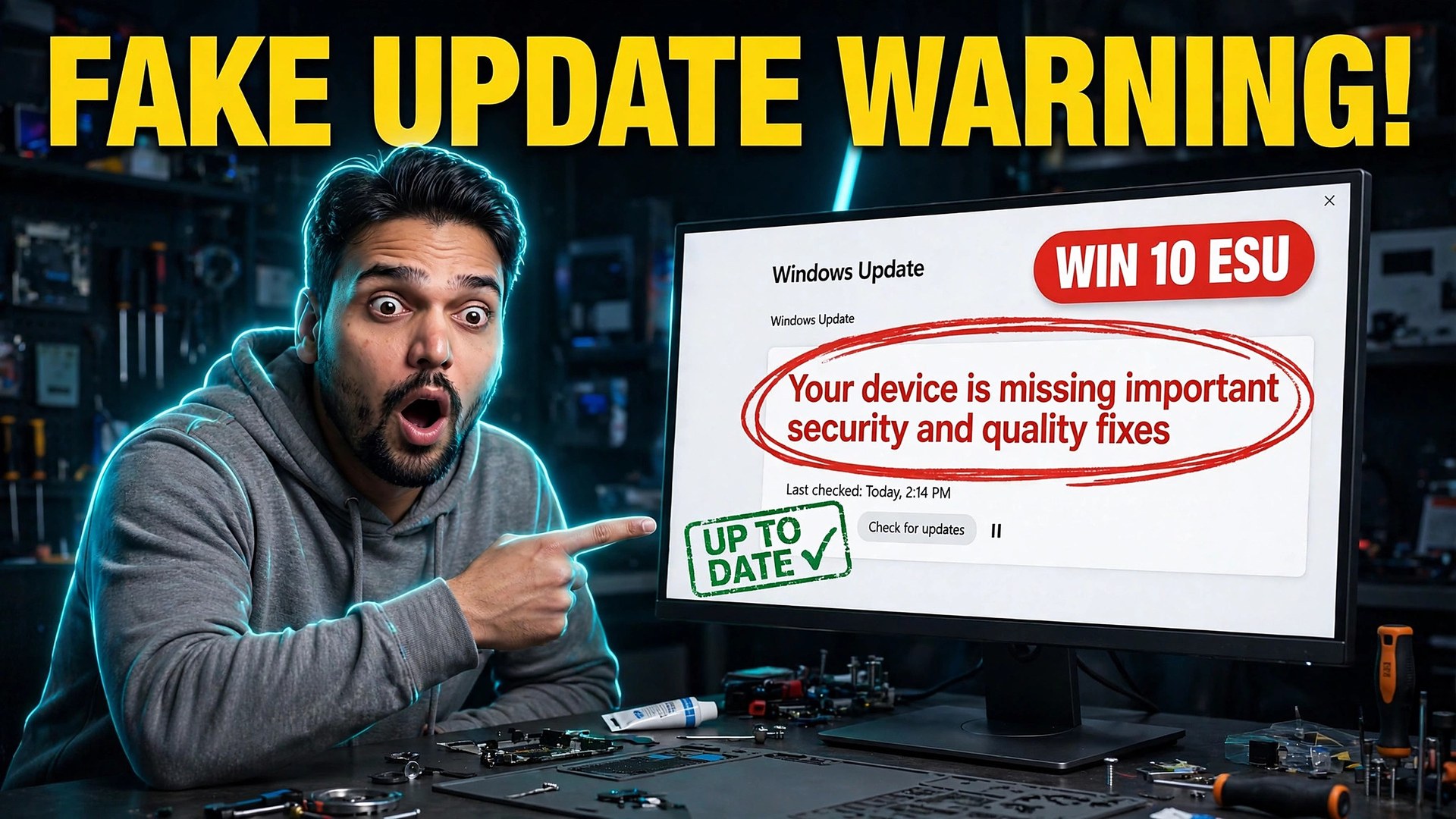
Here is the exact contradiction ESU users started reporting again after the October 2026 update: the Windows Update page shows the red line "Your device is missing important security and quality fixes" - the warning meant for PCs that get no updates at all - while the same page confirms the PC is enrolled, and Check for updates finds nothing. That warning is generated from a stored status record (the WaaSAssessment record in the registry), and on some PCs that record never refreshed after enrollment. The PC is protected; the record is stale. But "probably stale" is not good enough with a security warning - so first we prove it, then we clear it.
✖ Your device is missing important security and quality fixes
✔ Your PC is enrolled to get Extended Security Updates
✔ Check for updates: "You're up to date"
✔ Update history: KB5126657 - Successfully installed
The problem exactly as it appears: a red "missing fixes" warning on a PC that is enrolled and fully updated.
First Prove the Warning Is False (Do Not Skip This)
The warning is real for PCs that are not enrolled - so before clearing anything, confirm yours is genuinely covered:
- Open Settings → Update & Security → Windows Update and look at the right side of the page. An enrolled PC says "Your PC is enrolled to get Extended Security Updates". If you instead see an Enroll now link, the PC is not enrolled - the warning is telling the truth, so enrol first (sign in with a Microsoft account that is an administrator on the PC) and skip the rest of this guide.
- Click View update history and confirm KB5126657 (the ESU update released 13 October 2026) shows as Successfully installed - not failed.
- Press Win + R, type
winverand press Enter. With KB5126657 installed, the build reads 19045.7807 or higher. - Optional double-check in PowerShell:
Get-HotFix -Id KB5126657should list the update. (If it shows nothing there but update history lists it as installed, trust update history - Get-HotFix does not enumerate every package.)
Why the warning sticks: the red text is not re-computed when you open the page. It is read from a stored assessment - the WaaSAssessment record under HKEY_LOCAL_MACHINE\SOFTWARE\Microsoft\Windows\CurrentVersion\WaaSAssessment, whose cached values (UpToDateStatus, UpToDateImpact, UpToDateDays) record how out of date Windows last believed the PC to be. If that assessment ran before you enrolled or before the update landed, and never ran again, the old verdict stays on screen forever - even though the real update state is perfect. This is also why SFC, DISM and the troubleshooter do nothing here: none of them touch that stored record.
Give Windows a Few Days to Re-Evaluate (Microsoft's Own Advice)
In Microsoft Q&A threads about this exact warning on enrolled PCs, the recommended first move is patience: the assessment re-runs on its own schedule, and the banner typically clears itself within two or three days once it does.
- Keep the PC powered on and connected to the internet for a good stretch each day - a PC that is always off cannot re-assess.
- Leave normal Windows Update and diagnostic/telemetry scheduled tasks enabled; disabling them is a common reason the assessment never refreshes.
- After two or three days, open Windows Update again and look - for many users the red line is simply gone.
If you can live with the banner for a few days, stop here - this is the zero-risk path. If it has already been a week, or the warning genuinely bothers you, Fix 3 forces the refresh.
Reset the Stale WaaSAssessment Status (Community Workaround) ⭐
This resets the stored assessment values to zero so Windows has to judge the PC's update state afresh. Be clear about what it is: a workaround found by users - it has cleared this banner for many people on Microsoft's forums since the first ESU updates in late 2025, but Microsoft has not documented this key. It does not install, remove or block any update. Do the safety steps first:
- Create a System Restore point (search Start for "Create a restore point") and export the key as a backup: in Registry Editor, go to
HKEY_LOCAL_MACHINE\SOFTWARE\Microsoft\Windows\CurrentVersion\WaaSAssessment, then File → Export and save the file. Double-clicking it later restores the old values. - Open Command Prompt as Administrator and run these commands one by one. Each should answer "The operation completed successfully":
reg delete "HKLM\SOFTWARE\Microsoft\Windows\CurrentVersion\WaaSAssessment" /freg add "HKLM\SOFTWARE\Microsoft\Windows\CurrentVersion\WaaSAssessment" /v Endpoint /t REG_SZ /d settings-win.data.microsoft.com /freg add "HKLM\SOFTWARE\Microsoft\Windows\CurrentVersion\WaaSAssessment\Cache" /v UpToDateStatus /t REG_DWORD /d 0 /freg add "HKLM\SOFTWARE\Microsoft\Windows\CurrentVersion\WaaSAssessment\Cache" /v UpToDateImpact /t REG_DWORD /d 0 /freg add "HKLM\SOFTWARE\Microsoft\Windows\CurrentVersion\WaaSAssessment\Cache" /v UpToDateDays /t REG_DWORD /d 0 /f- Restart the PC.
- Open Settings → Update & Security → Windows Update and click Check for updates. The red warning should now be gone, leaving only "You're up to date".
Prefer a file? The same result comes from merging a .reg file: a first block with [-HKEY_LOCAL_MACHINE\SOFTWARE\Microsoft\Windows\CurrentVersion\WaaSAssessment] to delete the key, followed by the key recreated with Endpoint and the three Cache values set to dword:00000000. Save it with Save as type set to All Files and a name ending in .reg - if it opens in Notepad when double-clicked, it was saved as .reg.txt by mistake.
If an Update Really Is Failing, Fix That Instead
Sometimes the warning is a symptom of a genuine problem: update history shows the latest ESU update as Failed, or Check for updates finds an update that will not install. Then the answer is not the registry - it is clearing the update cache:
- Open Command Prompt as Administrator and run:
net stop bitsnet stop wuauservnet stop cryptsvcren %systemroot%\SoftwareDistribution SoftwareDistribution.oldren %systemroot%\System32\catroot2 catroot2.oldnet start bitsnet start wuauservnet start cryptsvc- Restart the PC and run Check for updates again. If the update now installs but the red line remains, you are back to the stale status - use Fix 3.
EEA Users: Keep Signing In, or ESU Pauses
If you are in the European Economic Area, there is one extra rule that catches people out: Microsoft requires you to keep signing in to the PC with the same Microsoft account you enrolled with. If roughly 60 days pass without that sign-in, ESU updates stop - and then this warning becomes true.
- Sign in to the PC with the enrollment Microsoft account.
- Open Settings → Update & Security → Windows Update. If an Enroll now link has appeared, use it to enrol again with that account.
- Click Check for updates and install what is offered; confirm with
winverthat the build is current afterwards.
📺 More PC Fixes on Technical Anshu
Every week: Windows problems, hidden tools and full setup guides, explained step by step.
▶ Subscribe on YouTubeFrequently Asked Questions
Is my PC unprotected while this warning is showing?
No - not if you are enrolled in ESU and the latest ESU update is actually installed. The warning is a status message; it does not switch anything off. If winver shows OS build 19045.7807 and update history lists KB5126657 as installed, your October 2026 security update is in place and the red text is simply a stale record that Windows has not refreshed.
Why does Check for updates say I am up to date while the red warning stays?
Because the two messages come from different places. Check for updates talks to the update service and reports the real state: nothing is waiting. The red warning is printed from a stored assessment record, the WaaSAssessment key in the registry, which records whether Windows believes the device is up to date. If that record was never refreshed after you enrolled and updated, the old out-of-date verdict keeps being displayed even though the real state is fine.
Is the WaaSAssessment registry reset an official Microsoft fix?
No, and you should know that before using it. Microsoft has not documented this key, and in Microsoft Q&A answers about this exact warning, the recommended action is to let Windows re-evaluate the device over a few days - the registry reset is described there as a workaround that cleared the banner in user reports, not an officially supported remediation. It does not install, remove or block any update, but if you use it, create a restore point and export the key first, exactly as shown in this guide.
How long does Windows 10 ESU last?
According to Microsoft, the consumer ESU programme runs until 12 October 2027. If your PC is already enrolled, it carries on automatically - there is nothing to renew each month. ESU delivers critical and important security updates only; it does not add features or fix non-security bugs.
I am in Europe and my ESU updates stopped. Why?
In the European Economic Area, Microsoft requires you to keep signing in to the PC with the same Microsoft account you enrolled with. If roughly 60 days pass without that sign-in, ESU updates pause. Sign in with the enrollment account, open Settings → Update & Security → Windows Update, use the Enroll now link if it appears, and then check for updates to resume them.