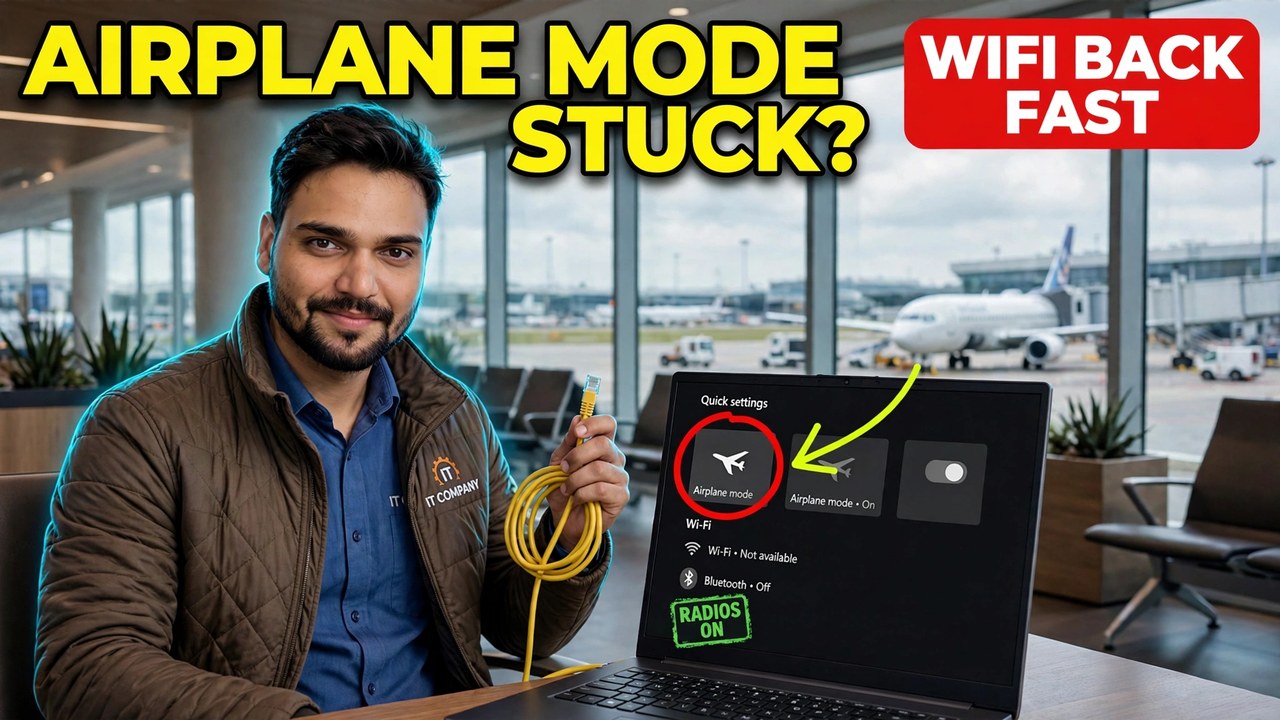
Airplane mode turns off every radio at once - WiFi, Bluetooth and mobile broadband. When it gets stuck on, the toggle in Quick Settings is often greyed out, which tells you the problem sits below the toggle: a physical wireless switch or Fn key holding the radios off, the Radio Management service stopped, or a wireless driver that failed after an update. Plugging in an Ethernet cable still works in most cases, which is a handy way to download drivers while the radios are down. Work in order - do not start with a network reset. There is no single KB number behind this problem as of 11 November 2026.
X WiFi and Bluetooth icons have disappeared completely, not just disconnected
X The Airplane mode toggle in Quick Settings (Win+A) cannot be moved
X Settings shows the WiFi page missing or stuck on airplane mode
X It started after a Windows update, or after travelling with the laptop
RADIOS OFF Airplane mode is not a WiFi setting - it powers down WiFi, Bluetooth and mobile radios together, which is why all of them vanish at the same time.
The fingerprint of this problem: WiFi and Bluetooth gone together, with a greyed-out toggle - the radios are held off below the settings layer.
Check the Physical Switch, Fn Key and BIOS
Hardware switches override every Windows setting. Rule them out first because no software fix can beat them.
- Look along the laptop's sides and front edge for a small wireless switch and slide it to on. Look for an Fn + key combination with an aeroplane or antenna symbol and press it once, then check the toggle.
- Restart and enter BIOS or UEFI setup (usually F2, Del or Esc at the maker's logo). Find any Wireless / WLAN / Bluetooth option and make sure it is Enabled, then save and exit.
- Try the Airplane mode toggle again in Win + A. If it moves now, the hardware switch was the whole problem.
Restart the Radio Management Service ⭐
Windows controls the radios through the Radio Management service. If it is stopped or stuck, the Airplane mode toggle greys out and stays on.
- Press Win + R, type
services.mscand press Enter. - Find Radio Management Service, double-click it, set Startup type to Automatic, and click Start (or Restart if it was already running).
- Also confirm WLAN AutoConfig is running and set to Automatic - WiFi cannot work without it.
- Close Services, restart the PC, and test the Airplane mode toggle. For most stuck cases, it works again here.
Reinstall the WiFi and Bluetooth Drivers
A driver that failed during an update can report the radio as off forever. Reinstalling gives Windows a clean driver to power the radio with.
- Connect by Ethernet if you can, so you can download drivers. Otherwise download them on another device and copy them by USB.
- Press Win + X, open Device Manager, expand Network adapters, right-click your wireless adapter and choose Uninstall device (tick the driver removal box if offered). Do the same for the Bluetooth adapter under Bluetooth.
- Restart the PC - Windows reinstalls fresh drivers automatically. If it does not, install the drivers you downloaded from your laptop maker's support page for your exact model.
- Test Airplane mode and WiFi. If the toggle works, the old driver was holding the radio off.
Turn Airplane Mode Off From Settings and Check Power Saving
With the radios responding again, make sure no setting or power option puts them straight back to sleep.
- Go to Settings > Network & internet and turn Airplane mode off there (this page sometimes responds when Quick Settings does not).
- In Device Manager, open your wireless adapter's Properties > Power Management and uncheck Allow the computer to turn off this device to save power.
- Restart once more and confirm WiFi networks appear and Bluetooth can be turned on.
Use Network Reset Only as the Last Resort
Network reset rebuilds every network adapter and setting. It can clear a deeply stuck radio state - at the cost of your saved networks.
- First make sure you know your WiFi passwords - reset deletes all saved WiFi networks and VPN connections.
- Go to Settings > Network & internet > Advanced network settings > Network reset > Reset now and restart when prompted.
- Reconnect to WiFi and re-pair Bluetooth devices. If airplane mode is still stuck after this plus Fixes 1-3, the wireless card itself may have failed - test with a USB WiFi adapter to confirm.
More PC Fixes on Technical Anshu
Every week: Windows problems, hidden tools and full setup guides, explained step by step.
Subscribe on YouTubeFrequently Asked Questions
Why is Airplane mode greyed out in Windows 11?
A greyed-out toggle means Windows cannot control the radios right now - usually because a physical wireless switch or Fn key is holding them off, the Radio Management service is stopped, or the wireless driver has failed. Check the switch first, then set Radio Management Service to Automatic and start it in services.msc.
Airplane mode is stuck on and WiFi has disappeared completely. Is my WiFi card dead?
Probably not. Airplane mode powers down WiFi and Bluetooth together, so both vanishing at once points at the radio control layer, not a dead card. Work through the physical switch, the Radio Management service and a driver reinstall first. Only suspect the card if a USB WiFi adapter works while the built-in radio never reappears after all fixes.
What is the Radio Management service and how do I restart it?
It is the Windows service that manages airplane mode and the PC's radios. Press Win+R, type services.msc, find Radio Management Service, set its Startup type to Automatic and click Start or Restart. Also make sure WLAN AutoConfig is running - without it, WiFi stays off even with airplane mode off.
Will Network reset fix a stuck airplane mode?
Only when the cause is a corrupted network configuration - it cannot fix a physical switch, a stopped service or a bad driver, and it deletes all saved WiFi networks and VPNs. That is why it is the last resort in this guide, after the switch, service and driver fixes.
Can I use the internet while airplane mode is stuck?
Yes, usually by Ethernet. Airplane mode controls the wireless radios - WiFi, Bluetooth and mobile broadband - not the wired Ethernet port. Plug in a cable to get online, which also makes it easy to download the correct wireless drivers from your laptop maker while you fix the radios.