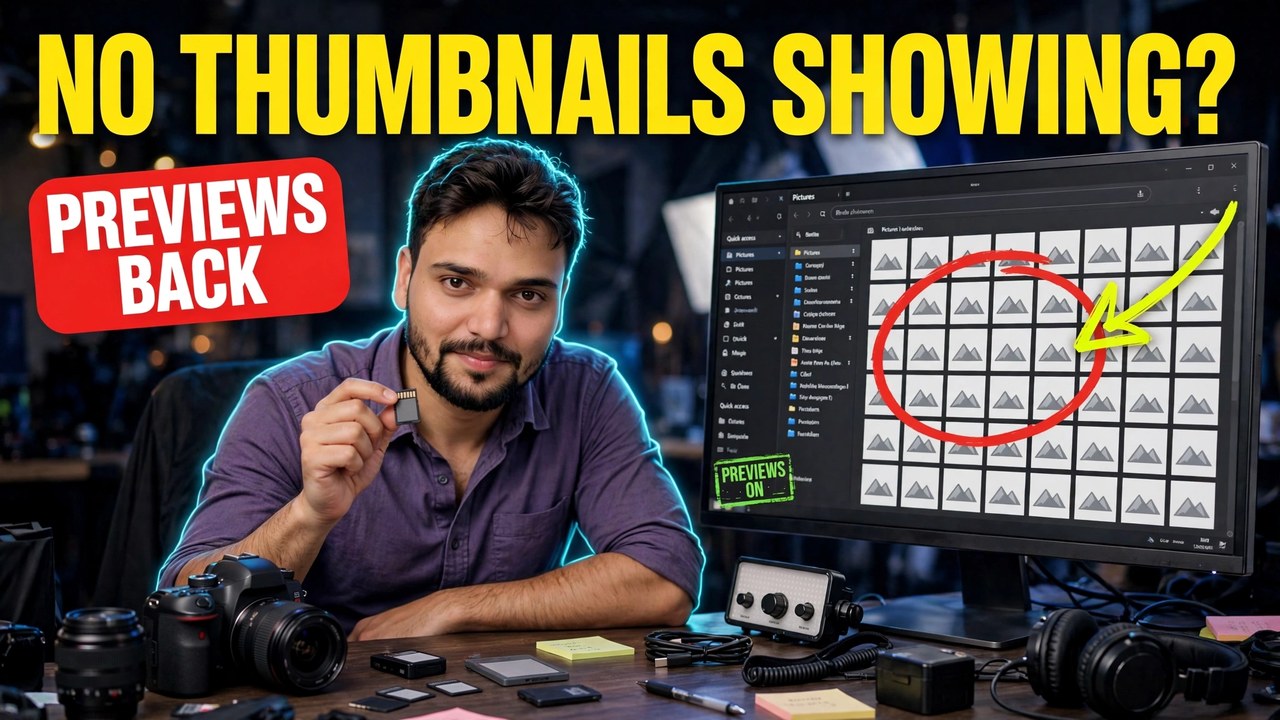
File Explorer does not draw a fresh preview every time - it reads small previews from a thumbnail cache and shows them when the view and settings allow it. Thumbnails vanish for three usual reasons: Explorer is set to always show icons, never thumbnails, Windows performance settings have turned previews off, or the thumbnail cache itself is corrupt and Explorer falls back to icons. All three are quick to check, and none of them touches your actual files. Work in order - the cache rebuild in Fix 3 is the star fix when the settings are already correct. There is no single KB number behind this problem as of 11 November 2026.
X Large icons and Extra large icons views still show plain icons, not previews
X It affects photos, videos and PDF files across all folders
X Your files themselves open fine - only the previews are missing
X Disk space was very low recently, or a cleanup tool ran
ICONS ONLY When previews are disabled or the thumbnail cache is corrupt, Explorer quietly falls back to generic icons for every file, in every folder.
The fingerprint of this problem: the files are healthy, only their previews are gone - a view setting or the cache, not the photos.
Turn Thumbnails Back On in Explorer Options
One checkbox disables previews everywhere. It gets ticked by cleanup tools, performance guides and sometimes by accident.
- Open any folder, click the ... menu (or View > Show on the ribbon in older layouts) and choose Options to open Folder Options.
- On the View tab, make sure Always show icons, never thumbnails is unticked. Click Apply to Folders, then OK.
- Set the folder view to Large icons and check whether previews return. If they do, stop here.
Check Windows Performance Settings
Windows can turn off thumbnails as a performance saving. On low-end PCs and after running performance tweaks, this setting is often the hidden cause.
- Press Win + R, type
sysdm.cpland press Enter. - On the Advanced tab, under Performance, click Settings. Select Adjust for best appearance - or under Custom, make sure Show thumbnails instead of icons is ticked. Click OK.
- Reopen the folder and check the previews. If they return, a performance setting was the cause.
Clear and Rebuild the Thumbnail Cache ⭐
If both settings are correct, the cache itself is corrupt. Deleting it is safe - Windows rebuilds it automatically as you browse folders, and your files are never touched.
- Open Settings > System > Storage > Temporary files, tick Thumbnails only, and click Remove files. (The same option exists in Disk Cleanup as Thumbnails.)
- Restart the PC, then open a pictures folder and set the view to Large icons. Wait a few seconds - previews rebuild folder by folder as Explorer visits them.
- For a deeper rebuild, open Terminal (Admin) and run:
taskkill /f /im explorer.exethendel /f /s /q /a %LocalAppData%\Microsoft\Windows\Explorer\thumbcache_*.dbthenstart explorer.exe- the taskbar disappears during this and comes back with the last command. - Browse a few folders and confirm thumbnails now generate and stay.
Restart Explorer and Check One Folder Type at a Time
Sometimes only one file type loses its preview - for example videos but not photos - which points at that type's thumbnail handler instead of the whole cache.
- Restart Windows Explorer from Task Manager and retest.
- Note which types are affected. If only videos fail, install or repair the media components: run
DISM /Online /Cleanup-Image /RestoreHealthandsfc /scannowfrom Terminal (Admin), then restart. - If only one folder is wrong, open its Properties > Customize tab and set Optimize this folder for to match its contents (Pictures, Videos, or General items), ticking Also apply this template to all subfolders if needed.
Check Disk Space and Group Policy on Work PCs
Explorer stops writing new thumbnails when the system drive is nearly full, and workplace policies can disable previews entirely.
- Check the C: drive in This PC. If it is nearly full, free space first - a full drive silently breaks the thumbnail cache again after every rebuild.
- On a work or college PC, previews may be disabled by policy. Ask the IT admin rather than fighting it - local changes will be overwritten.
- On a home PC with none of the above working, test a new user profile: if thumbnails work there, your main profile's Explorer settings are damaged.
More PC Fixes on Technical Anshu
Every week: Windows problems, hidden tools and full setup guides, explained step by step.
Subscribe on YouTubeFrequently Asked Questions
Why do my folders show icons instead of thumbnails in Windows 11?
Because previews are switched off or the thumbnail cache is corrupt. Check Folder Options > View and untick Always show icons, never thumbnails, confirm Show thumbnails instead of icons is ticked in Performance settings, then clear the Thumbnails temporary files to rebuild the cache. Remember previews only exist in Medium, Large and Extra large icons views.
Is it safe to delete the thumbnail cache?
Yes. The thumbnail cache (thumbcache_*.db) holds only small preview copies, never your real files. Deleting it through Settings > System > Storage > Temporary files > Thumbnails - or with the commands in this guide - simply makes Windows regenerate previews as you browse, which is exactly how a corrupt cache gets fixed.
Why do only my videos have no thumbnails but photos are fine?
That points at the video thumbnail handler or media components rather than the general cache. Restart Explorer, run DISM /Online /Cleanup-Image /RestoreHealth and sfc /scannow, and check the folder's Customize tab is optimized for Videos. Very old or unusual codecs may never produce previews in Explorer without their codec installed.
Thumbnails worked until I ran a cleanup or performance tool. Why?
Those tools commonly tick Always show icons, never thumbnails, switch performance to best performance (which disables Show thumbnails instead of icons), or wipe the thumbnail cache without letting it rebuild. Undo those three settings using Fixes 1 and 2 and the previews return.
Do thumbnails show in List or Details view?
No - and that is normal. List and Details views always show small generic icons by design. Thumbnails appear in Medium icons, Large icons, Extra large icons and Tiles views, and in the Preview pane. Switch the view before deciding thumbnails are broken.