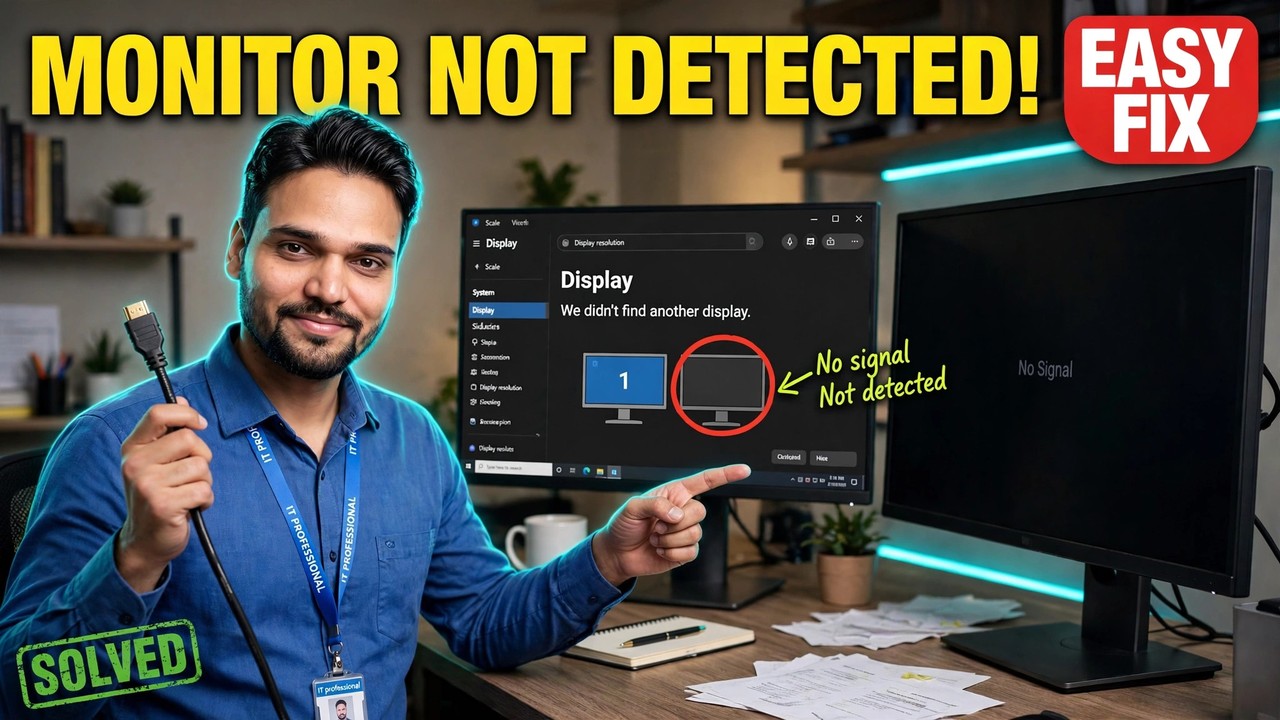
This is a real, recurring complaint on Microsoft Community and Microsoft Q&A: a second monitor that worked yesterday stops being detected after a Windows update, or a docking-station setup suddenly reports "We didn't find another display." In one reported case, an update had silently reset the display mode to "PC screen only", so Windows was ignoring a perfectly good second screen. In others, the monitor worked fine over a direct HDMI cable but not through the dock. The steps below separate those cases one by one, cheapest check first.
✖ Second monitor has power but shows "No signal" or stays black
✖ Display settings shows only one rectangle (Display 1)
✖ Clicking Detect does not add a second screen
✔ The same monitor and cable may work fine on another PC or a direct connection
Project mode check: Win + P If it says "PC screen only" - Windows is ignoring the second monitor on purpose.
The fingerprint of this problem: Windows does not list the second display at all, instead of showing it with a wrong resolution.
Set Extend Mode and Check Cable, Input and Power ⭐
Half of these cases end here. An update, or an accidental keypress, can switch Windows back to one screen.
- Press Win + P and choose Extend. Do not leave it on "PC screen only" or "Second screen only" while testing.
- Push both ends of the video cable fully in. HDMI, DisplayPort and USB-C connectors work loose easily, especially on a dock.
- On the monitor itself, open its input/source menu and pick the exact input you plugged in (HDMI 1, HDMI 2, DisplayPort, USB-C). A monitor on the wrong input reports "No signal" even when Windows is fine.
- Confirm the monitor power light is on and try its power button once. A monitor in deep sleep can look dead while Windows is actually waiting for it.
Force Detect in Display Settings
If Extend mode is correct but the screen is still missing, make Windows scan again.
- Right-click the desktop and open Display settings.
- Scroll to Multiple displays and click Detect. Wait a few seconds and watch for a second rectangle to appear.
- If a second rectangle appears but stays greyed out, click it, then open its dropdown and choose Extend desktop to this display.
- If Detect still says "We didn't find another display", move to Fix 3 - Windows is not seeing the hardware, not just hiding it.
Reset the Graphics Driver in Seconds
This restarts only the graphics driver. Your open apps stay open, and the screen blinks once.
- Press Win + Ctrl + Shift + B. The screen may go black for a second and you may hear a beep.
- Wait 10 seconds, then press Win + P and choose Extend again.
- Check Display settings again. If the second monitor appears, the driver had hung. If it still does not appear, the driver version itself may be the problem - see Fix 4.
Update or Roll Back the Graphics Driver
Use this step when the problem started right after a Windows update or a driver update.
- Press Win + X and open Device Manager, then expand Display adapters.
- Right-click your graphics card and choose Update driver, then Search automatically for drivers. Restart and test.
- If the problem started after a driver update, right-click the card again, open Properties → Driver and choose Roll Back Driver if it is available, then restart.
- For the most reliable result, download the driver from the GPU maker (NVIDIA, AMD or Intel) or your laptop maker's support page instead of relying only on Windows Update, then install it and restart.
- On a desktop, make sure both monitors are plugged into the graphics card, not one into the motherboard. A monitor on the motherboard port can vanish when the dedicated GPU takes over.
Isolate Cable, Port and Dock (Find the Faulty Link)
Do one change at a time. The first change that brings the monitor back names the faulty part.
- Swap the cable for a known-good one. Also try a different video port on the PC.
- If you use a docking station, hub or adapter, remove it: plug the monitor directly into the PC. If it works direct but not through the dock, the dock, its cable or its driver is at fault - update the dock firmware and driver from the dock maker's site.
- Test the monitor on another PC with the same cable. If it works there, your PC's port or driver is the fault, not the monitor.
- For USB-C monitors and docks, confirm that the PC's USB-C port actually supports video output. Not every USB-C port does - check the laptop manual for a DisplayPort symbol next to the port.
- Avoid VGA-to-HDMI and HDMI-to-VGA adapter chains while testing. Use one direct cable type (HDMI to HDMI, or DisplayPort to DisplayPort) to rule out adapter faults.
If an Update Caused It: Undo That One Change
Only use this step when the monitor worked before an update and stopped right after it.
- Open Settings → Windows Update → Update history → Uninstall updates.
- Uninstall the most recent update that matches the date the problem started, then restart and test the second monitor.
- Then go back to Settings → Windows Update, click Check for updates, and install the latest update. Do not leave updates paused forever - a later update often carries the display fix.
- If nothing above works and Device Manager does not list the graphics card correctly at all, try a clean driver reinstall: in Device Manager, uninstall the display adapter (tick "Attempt to remove the driver for this device" if shown), restart, and let Windows reinstall the driver, then install the maker's driver from Fix 4.
Software Needed
No extra software is required. Everything above uses built-in Windows tools: Display settings, Device Manager and Windows Update. The only download you may need is the graphics driver or dock firmware from the hardware maker's own support page.
📺 More PC Fixes on Technical Anshu
Every week: Windows problems, hidden tools and full setup guides, explained step by step.
▶ Subscribe on YouTubeFrequently Asked Questions
Why does Windows 11 say We did not find another display?
It means Windows cannot see the second monitor at all. The usual causes are a wrong projection mode (PC screen only), a loose cable or wrong monitor input, a graphics driver problem after an update, or a faulty port, cable, adapter or docking station.
What does Windows plus P do for a second monitor?
Windows plus P opens the Project panel. Choose Extend to use the second monitor as extra screen space. If PC screen only is selected, Windows deliberately ignores the second monitor, which is a common cause after a Windows update resets display settings.
Does Windows plus Ctrl plus Shift plus B fix a missing second monitor?
It restarts the graphics driver without restarting the PC. If the driver has hung or failed to enumerate the second display, this shortcut can bring the monitor back in seconds. If it does not help, the fault is more likely a cable, port, input or driver version problem.
What if the second monitor works on another PC but not on mine?
Then the monitor and cable are fine, and the fault is on your PC: its graphics driver, its display output port, a docking station driver, or a Windows setting. Update or roll back the graphics driver, try a different output port, and test without the dock in between.