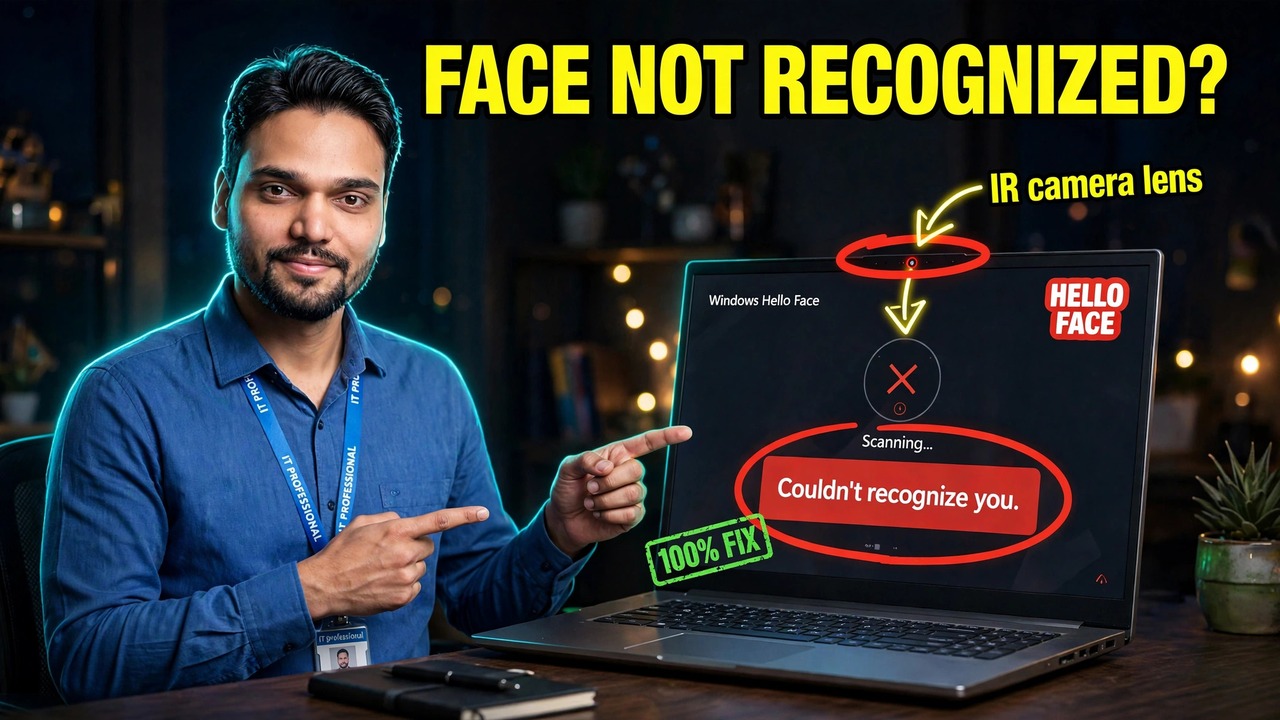
Face sign-in fails in the same way for thousands of users - on Reddit r/Windows11 and r/techsupport and in the Microsoft Community, the story repeats: it worked for months, then one morning the lock screen refuses the face, or it stops working right after a Windows update. The cause is almost always one of five things: the camera lens or IR sensor is dirty or covered, the lighting is wrong, your look changed (glasses, beard, haircut), the camera driver broke or is missing, or the April 2025 anti-spoofing change now needs the colour camera as well as the infrared one. This guide is different from the fingerprint guide: face recognition uses an infrared camera, not a fingerprint reader, so the fixes below are camera fixes. Work in order - sign in with your PIN first, then fix only the side that is actually broken.
X Face sign-in worked before, now it fails every time at the lock screen
X Setup says "We couldn't find a camera compatible with Windows Hello Face"
X It stopped working after a Windows update, or after you started wearing glasses
X The camera works in Teams or Zoom, but Windows Hello still refuses your face
NO DATA LOSS Face sign-in failing never deletes your files or your account. Your PIN or password always works as the fallback - sign in with that first, then fix recognition from inside Windows.
The fingerprint of this problem: the PIN works, the webcam works in apps, but Windows Hello will not accept your face - or the face option says no compatible camera was found. The fault is the IR camera, the light, your enrolled face data or the driver - not your account.
Clean the Camera and Fix the Light ⭐
This is the fix in most cases, and it is the first thing Microsoft's own troubleshooting lists. Windows Hello must be confident the face in front of it is a live person, not a photo - so it needs a clear, evenly lit view. Harsh light from one side, a dirty lens, a hat, or heavy make-up under infrared light all lower the match rate.
- Wipe the camera lens and the IR sensor window (the small dark window next to the lens) with a soft, dry cloth. Remove any dust, sticker or lanyard hanging in front of the camera bar.
- Open the privacy shutter fully - on many laptops the shutter slides over the lens, and a half-open shutter blocks the sensor.
- Face the camera straight on, about an arm's length away, with your whole face in frame. Do not tilt the screen away from you.
- Fix the light: sit facing a window or a lamp, not with a bright window behind you, and avoid strong light coming from one side only. In a dark room, turn a light on - Windows Hello struggles in the dark, and on work or school PCs the administrator may have turned on enhanced anti-spoofing, which is stricter in dark rooms.
- Remove a hat or cap that casts a shadow over your face, and if you wear glasses only sometimes, test with them on and off - then use Fix 2 to record both looks.
- Try signing in again. If the face is recognised now, you are done - nothing was broken, only the view was bad.
Use "Improve Recognition" (Do Not Delete Your Face Yet)
Use this step when recognition worked before but fails now - after you started wearing glasses, grew a beard, or changed your hairstyle. Improve Recognition adds a new face template alongside the old one, so Windows recognises both looks. Deleting your face and starting again throws the good template away - only do that in Fix 3, when your look has changed a lot.
- Sign in with your PIN, then open Settings > Accounts > Sign-in options.
- Under Facial recognition (Windows Hello), select Improve recognition.
- Follow the on-screen instructions and look at the camera while it scans - keep your head still and face the camera straight on.
- If you wear glasses only some of the time, run Improve recognition once with glasses and once without, so both versions are stored.
- Lock the PC (Win + L) and test face sign-in. If it works, stop here.
Remove Your Face and Set It Up Again
Use this step when your appearance has changed a lot, or Improve recognition did not help after two tries. Removing the face data deletes the old template from the PC, so the fresh scan starts clean - but you must set it up again immediately, or face sign-in stays off.
- Sign in with your PIN, then open Settings > Accounts > Sign-in options.
- Under Facial recognition (Windows Hello), select Remove and confirm.
- Select Set up and follow the on-screen instructions - look straight at the camera and turn your head slowly as directed until the scan completes.
- Make sure a PIN is set first - Windows Hello requires a PIN as the backup before face setup will complete. If PIN setup itself fails, fix the PIN first and come back to the face.
- Lock the PC (Win + L) and test. If the fresh scan also fails in good light with a clean lens, the fault is the camera or its driver - move to Fix 4.
Fix "No Compatible Camera" - the IR Camera and Its Driver
Use this step when setup says "We couldn't find a camera compatible with Windows Hello Face", the face option is missing, or the camera works in Teams but Hello refuses it. A normal webcam cannot do face sign-in: Windows Hello Face needs an infrared (IR) camera made for it. And since the April 2025 security update (KB5055523), it also needs the colour (RGB) camera working at the same time for anti-spoofing - covering the colour sensor with tape or a half-closed shutter breaks face sign-in even when the IR sensor is fine.
- Check the PC's specifications for an IR camera / Windows Hello camera. If the laptop never had one, face sign-in is not possible on that machine - use a PIN, fingerprint, or a Windows Hello compatible external USB camera instead.
- Uncover both sensors: open the privacy shutter fully and remove any tape or sticker from the camera bar - including tape that covers only the colour lens.
- Check camera access: open Settings > Privacy & security > Camera and make sure camera access is on. Then close any app using the camera (Teams, Zoom, browser) and try Hello again - another app can hold the camera.
- Install the driver: open Settings > Windows Update > Advanced options > Optional updates and install any camera driver listed there. Then install all pending Windows and firmware updates and restart.
- Check Device Manager: press Win + X, open Device Manager, expand Cameras and Biometric devices. If the IR camera shows a yellow warning, right-click it, choose Update driver, then Search automatically for drivers.
- If the problem started right after a driver update, right-click the camera in Device Manager, choose Properties > Driver > Roll Back Driver. If the camera is missing from Device Manager entirely, download the camera driver from the laptop maker's support site (Dell, HP, Lenovo and others list it as the IR / Windows Hello camera driver) and install it.
Restart the Windows Biometric Service and Run the Camera Troubleshooter
Use this step when the camera is present and the driver looks fine, but Hello still fails, or it fails for every user on the PC. The Windows Biometric Service is the background service that talks to the IR camera and the fingerprint reader - if it is stuck, no biometric sign-in works, even though the camera itself is healthy.
- Press Win + R, type
services.mscand press Enter. - Find Windows Biometric Service in the list, right-click it and choose Restart. If it is stopped, choose Start, and set its Startup type to Automatic so it stays running.
- Run the troubleshooter: open Settings > System > Troubleshoot > Other troubleshooters, find Camera and choose Run. Apply any fix it offers, then restart the PC.
- After the restart, test face sign-in at the lock screen. If it still fails, remove the face data and set it up again (Fix 3) - a stuck service can corrupt the stored template.
- On a work or school PC, check with the IT administrator: a policy can disable Windows Hello Face, or enhanced anti-spoofing can be forced on. No setting on your side overrides that policy.
Update Windows and Firmware, Check Enhanced Sign-in Security
Use this step as the last pass - especially when face sign-in broke after a Windows update, or when you use an external camera. Two settings catch people out: Enhanced sign-in security blocks external cameras entirely, and a missing firmware update leaves the IR camera on an old, incompatible driver.
- Install all pending updates: Settings > Windows Update > Check for updates, install everything offered, then restart. Check the laptop maker's support app or site for a BIOS/firmware update for the camera as well.
- External camera users: if you use a USB Windows Hello camera, open Settings > Accounts > Sign-in options and turn Enhanced sign-in security off - that mode does not support external cameras. Built-in camera users can leave it on.
- As a last resort, remove both the face data and the PIN, then set the PIN up again first and the face second. A damaged PIN key can block the whole Hello setup chain, and rebuilding both clears it.
- If the IR camera still does not appear in Device Manager after the maker's driver and a firmware update, the camera hardware itself may have failed - the laptop needs a repair, not a software fix.
More PC Fixes on Technical Anshu
Every week: Windows problems, hidden tools and full setup guides, explained step by step.
Subscribe on YouTubeFrequently Asked Questions
Is Windows Hello face recognition the same problem as fingerprint not working?
No. Face recognition uses an infrared (IR) camera above the screen, while fingerprint sign-in uses a fingerprint reader. They are different hardware with different drivers and different fixes - cleaning a fingerprint sensor does nothing for a face camera, and improving face recognition does nothing for a fingerprint. This guide covers face recognition only; a fingerprint that will not scan needs the fingerprint reader, its driver and the Windows Biometric Service checked instead.
What is the fastest fix when Windows Hello says "Couldn't recognize you"?
Sign in with your PIN or password first, then clean the camera lens and the IR sensor window with a soft dry cloth, face the camera straight on in even light with no bright light coming from one side, and use Settings, Accounts, Sign-in options, Facial recognition (Windows Hello), Improve recognition to add a fresh scan. Microsoft lists lighting, a dirty or blocked camera, glasses and facial-hair changes as the most common causes of that exact message, and Improve recognition adds a new face template instead of deleting the old one.
What does "We couldn't find a camera compatible with Windows Hello Face" mean?
It means Windows cannot see an infrared camera. A normal webcam cannot do Windows Hello face sign-in - the camera must be an IR camera made for Windows Hello. Check the PC specifications for an IR camera, open the privacy shutter, install any camera driver listed under Settings, Windows Update, Advanced options, Optional updates, and install pending Windows and firmware updates. If the PC has no IR camera, face sign-in is not possible on that machine and you use a PIN, fingerprint or a Windows Hello compatible external camera instead.
Face recognition stopped working after a Windows update. What changed?
The April 2025 Windows 11 security update (KB5055523) hardened facial recognition against spoofing: Windows Hello Face now needs both the colour (RGB) camera and the infrared camera working together, so if the colour sensor is covered - by a privacy shutter, tape or a sticker over only part of the camera bar - face sign-in fails even though the IR sensor works. Uncover both sensors, then check Optional updates for a camera driver and roll the camera driver back in Device Manager if the problem started right after a driver update.
Can I use an external camera for Windows Hello face sign-in, and what if I wear glasses?
Yes, a Windows Hello compatible external USB camera can do face sign-in, but not when Enhanced sign-in security is turned on - that mode does not support external cameras, so turn it off in Settings, Accounts, Sign-in options if you need the external camera. For glasses, use Improve recognition once while wearing them and once without them if you switch between the two; if you have changed your look a lot, remove the face data and set it up again from scratch.