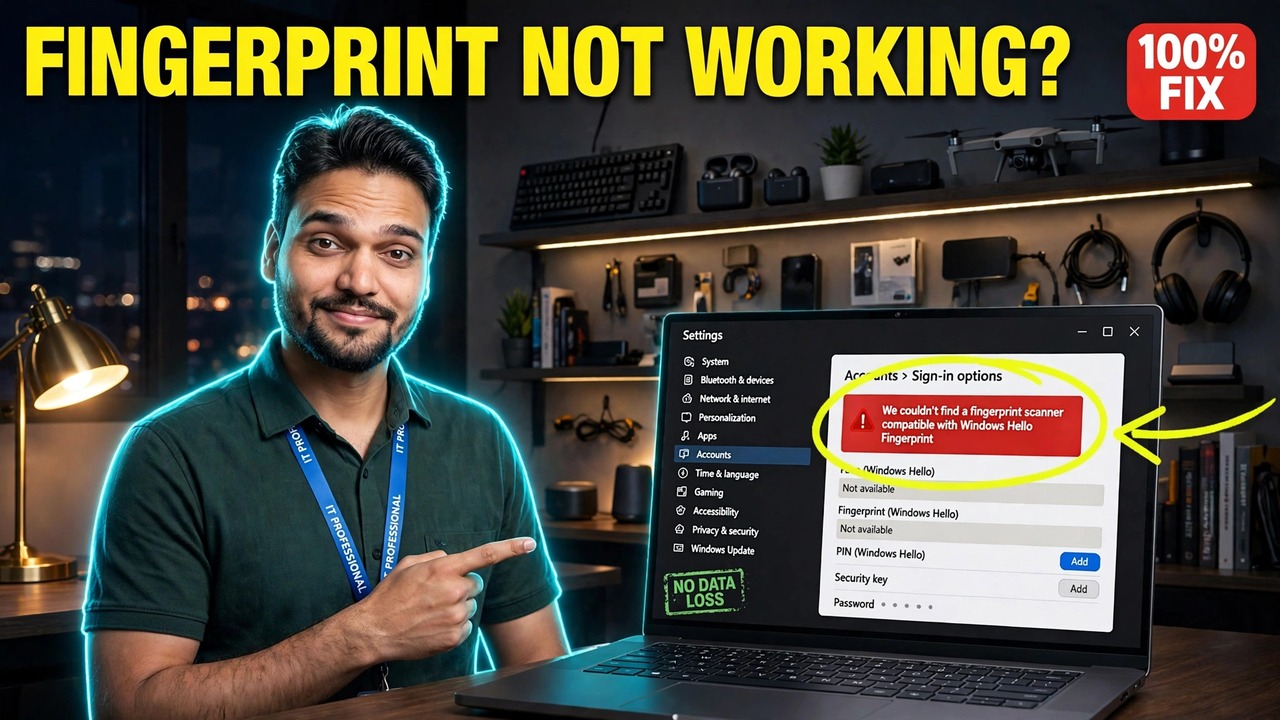
Fingerprint sign-in fails in two very different ways, and mixing them up is why most fixes fail. Either Windows cannot see the sensor at all - "We couldn't find a fingerprint scanner compatible with Windows Hello" - which is a driver or detection problem. Or Windows sees the sensor but will not accept your finger - "Your fingerprint couldn't be recognized. Try a different finger." - which is usually a dirty sensor or a bad enrolment. The steps below split on that difference: first find out which side you are on, then fix only that side. Sign in with your PIN for all of this - fingerprint sign-in needs a working PIN as its fallback, so do not remove the PIN while the fingerprint is broken.
X Sign-in screen says "Your fingerprint couldn't be recognized. Try a different finger."
X Fingerprint option is missing or greyed out under Sign-in options
X It worked before a Windows update, a driver update or a sleep cycle - then stopped
X Device Manager has no Biometric devices section, or the sensor shows a warning icon
0x80090010 If the sensor is there but enrolment fails, the error is usually about the enrolment or the PIN behind it - not the sensor hardware. Fix the enrolment first (Fix 1), not the driver.
The fingerprint of this problem: the sensor is ignored at sign-in, or Sign-in options says no compatible scanner exists. The fault is the sensor, its driver or the biometric service - not your Windows password.
Clean the Sensor and Remove + Re-enrol the Fingerprint ⭐
This is the main step when the sensor is detected but your finger is not recognised. A poor enrolment stops matching even when the hardware is fine, and sweat, oil or dirt on the sensor is the most common cause of a sudden failure.
- Wipe the sensor with a dry, lint-free cloth to remove dirt and oil. Do not use glass cleaner or other chemicals on it. Dry your finger too, then try signing in again.
- If it still fails, go to Settings > Accounts > Sign-in options, open Fingerprint recognition (Windows Hello) and choose Remove to delete the saved fingerprint.
- Choose Set up and follow the prompts, lifting your finger on and off the sensor as asked. Enrol the same finger again slowly - a rushed enrolment with only one angle is the usual reason a print stops matching later.
- Also choose Add a finger and enrol a second finger. If the first finger fails again later, the second one still signs you in.
- Restart the PC once and test at the sign-in screen. If the fingerprint works there, the enrolment was the problem and you are done - skip the driver steps.
Check Whether Windows Sees the Sensor and Fix Its Driver
Use this step when Sign-in options says no compatible scanner exists, or Device Manager has no Biometric devices section. Without a working driver Windows never lists the sensor, so no enrolment can ever succeed.
- Press Win + X, choose Device Manager and look for Biometric devices. If it is there, expand it - your fingerprint sensor should be listed. If the section is missing entirely, no biometric driver is loaded.
- If the sensor is listed with a yellow warning icon, right-click it, choose Update driver, then Search automatically for drivers. Then go to Settings > Windows Update > Advanced options > Optional updates and install any camera, biometric or chipset driver offered there. Restart afterwards.
- If the sensor is listed but still misbehaves, right-click it and choose Uninstall device, tick Delete the driver software only if it is offered, then restart. Windows tries to reinstall a suitable driver on boot.
- If the problem started right after a driver update, right-click the sensor, open Properties > Driver and choose Roll Back Driver to restore the version that worked.
- If the section is still missing, open Device Manager > Action > Scan for hardware changes, and also check Universal Serial Bus controllers for an Unknown Device - built-in sensors connect over an internal USB path. Then install the biometric and chipset drivers for your exact model from your laptop maker's official support page. Never take a biometric driver from a third-party driver site.
- If the sensor appears in the maker's own utility but not in Device Manager, the problem is a driver, firmware or detection issue - not a Windows Hello setting. Update the BIOS and chipset drivers from the maker as well.
Restart the Windows Biometric Service
The Windows Biometric Service (service name wbiosrvc) runs enrolment and matching for every app. When it gets stuck - often after an update or a sleep cycle - the sensor looks fine in Device Manager but nothing can use it.
- Press Win + X, choose Terminal (Admin) and run this command exactly as shown:
net stop wbiosrvc && net start wbiosrvc
- If the service refuses to stop, restart the PC once and run the command again right after sign-in.
- After the service restarts, remove the fingerprint under Settings > Accounts > Sign-in options and enrol it again (Fix 1) - a stuck service can leave a broken enrolment behind it.
- Also run the automated check: open the Get Help app, search for camera troubleshooter or describe the fingerprint error, and follow the guided diagnostics. Microsoft recommends Get Help for Windows 11 camera and biometric faults.
Check Enhanced Sign-in Security (24H2) and Work-PC Policy
Fingerprint readers very commonly break after the Windows 11 24H2 update, because that update tightened the requirements for Enhanced Sign-in Security (ESS). A sensor whose driver or firmware does not meet them stops working for Windows Hello even though the hardware is fine.
- First finish Fixes 2 and 3 - update the fingerprint and chipset drivers and restart the biometric service. On many 24H2 machines that alone restores the sensor.
- Then open Settings > Accounts > Sign-in options > Additional settings and look for the Enhanced Sign-in Security option. If your device does not meet the ESS requirements, turning it off there can restore the fingerprint.
- On a work or school PC, the fingerprint option can be greyed out by policy instead. If Camera access or the biometric option is unavailable, an administrator must enable it - a disabled "Use biometrics" policy blocks biometrics for every account on that PC, and no driver fixes that.
- If the sensor is still completely absent from Device Manager after the correct maker driver, check the BIOS/UEFI for a fingerprint or biometric enable option - some laptops ship with it off. Save, exit and check Device Manager again.
- Last hardware test: if the laptop was recently repaired or dropped, the sensor cable can be loose - the sensor sits in the palm rest or power button, and a disconnected sensor looks exactly like a missing driver. That is a service job, not a setting.
More PC Fixes on Technical Anshu
Every week: Windows problems, hidden tools and full setup guides, explained step by step.
Subscribe on YouTubeFrequently Asked Questions
Why does Windows 11 say "We couldn't find a fingerprint scanner compatible with Windows Hello"?
That message means Windows cannot see a working fingerprint sensor at all - either no biometric driver is loaded, so the sensor never appears under Biometric devices in Device Manager, or the sensor is disabled below Windows by a BIOS option or a hardware switch. It is a detection problem, not a bad fingerprint. Work on the driver and detection first: Windows Update optional updates, the maker's biometric driver for your exact model, Scan for hardware changes, and the BIOS fingerprint option.
My fingerprint worked yesterday and now it says "Your fingerprint couldn't be recognized". What should I do first?
Start with the sensor itself: wipe it with a dry lint-free cloth and dry your finger, then try again - sweat, oil and dirt are the most common cause of a sudden failure. If it still fails, remove the fingerprint under Settings, Accounts, Sign-in options and set it up again, because a poor or corrupted enrolment stops matching even when the hardware is fine. Sign in with your PIN meanwhile - fingerprint sign-in always needs a working PIN as its fallback.
Is this the same problem as the Windows Hello PIN not being available?
No. The PIN problem is about the Windows Hello PIN credential itself - the PIN option is missing or shows "something went wrong". Fingerprint is a separate sign-in method that sits on top of the PIN: the sensor, its biometric driver and the Windows Biometric Service must all work before a fingerprint can be enrolled or matched. A working PIN does not fix a broken fingerprint, but you do need a working PIN to enrol a fingerprint again.
Fingerprint stopped working after the Windows 11 24H2 update. Is Enhanced Sign-in Security the cause?
It can be. Version 24H2 tightened the requirements for Enhanced Sign-in Security (ESS), and a sensor whose driver or firmware does not meet them can stop working for Windows Hello even though the hardware is fine. First update the fingerprint and chipset drivers from Windows Update and from your PC maker's support page, and restart the Windows Biometric Service. If the sensor still does not work, check Settings, Accounts, Sign-in options, Additional settings for the Enhanced Sign-in Security option - on devices that do not meet the requirements it may need to be turned off.
Can I fix the fingerprint by deleting the Ngc folder or installing a driver from a random site?
No - do not do either. Deleting the Ngc folder or files under C:\Windows\System32\WinBioDatabase is not a Microsoft troubleshooting step and can break Windows Hello sign-in for every method, not just fingerprint. And never install a biometric driver from a third-party driver site - use Windows Update optional updates or your PC maker's official support page for your exact model. If the sensor is still missing from Device Manager after the correct driver, check the BIOS option and test the hardware - no download fixes a disconnected sensor.