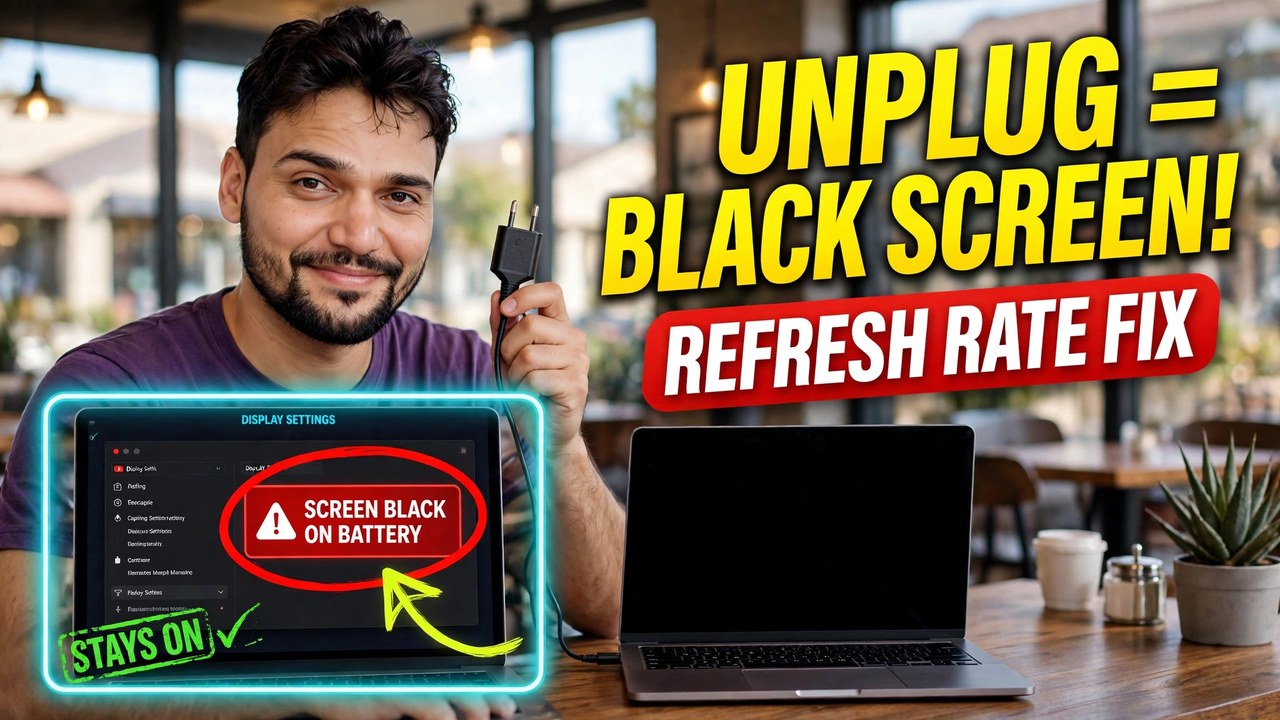
Unplugging the charger does not just change the power source - Windows and the graphics driver switch the display to its on-battery rules: a different refresh rate, panel self-refresh, brightness behaviour and GPU power state. If any of those battery-side settings is faulty, the panel goes black at the exact moment of the switch while the laptop itself keeps running (fans spin, sounds play, Caps Lock light responds). That pattern is the key: black only on battery equals a display power-setting fault in most cases - while black with the laptop fully dead points at the battery itself. The fixes go from the most common (refresh rate mismatch) down.
X Screen is perfect while plugged in, black within seconds of unplugging
X Laptop still runs: fan, sounds and keyboard lights stay alive on the black screen
X Plugging the charger back in brings the picture back instantly
X Screen brightness keys or Win+Ctrl+Shift+B sometimes revive it briefly
BATTERY PROFILE The display did not fail - its on-battery profile did. Refresh rate, panel self-refresh and display power saving all change at the moment you unplug.
The fingerprint: the fault is triggered by the power switch itself, not by time or heat - the battery-side display settings are the suspects.
Match the Refresh Rate on Battery
The number one cause: the panel runs at one refresh rate plugged in and the driver switches to another on battery, and that switch fails - the screen goes black instead of changing rate.
- Plug in, then go to Settings > System > Display > Advanced display and note the refresh rate in use (for example 144 Hz or 120 Hz).
- With the laptop still plugged in, look for your maker's or Intel / AMD graphics settings for an on-battery refresh-rate switch (often called dynamic refresh rate or 'lower refresh rate on battery') and turn that automatic switching off, so battery uses the same rate as plugged in.
- Unplug and test. If the screen now stays on, keep the setting off. If your panel supports it, choosing a standard rate like 60 Hz for both states is the most stable option of all - set it in Advanced display and test again on battery.
Turn Off Panel Self-Refresh and Display Power Saving
Intel Panel Self-Refresh (PSR) and similar AMD / vendor display power-saving features are famous for black screens exactly at the plug / unplug transition.
- Open the Intel Graphics Command Center (or Intel Graphics Settings), go to System / Power, and disable Panel Self-Refresh for the On Battery profile. On AMD laptops, open AMD Software, Display settings, and disable Vari-Bright for the same test.
- If your laptop maker ships a control app (Lenovo Vantage, Dell Power Manager, HP Command Center, Armoury Crate), check its display / battery section for a panel power-saving option and turn it off there too - maker apps can override the driver setting.
- Unplug and test for several minutes, including letting the screen sit idle. A panel that now behaves has told you the feature was the fault: leave it off - the battery cost is small.
Fix the On-Battery Brightness and Sleep Settings
A battery profile with brightness effectively at zero, or a display set to turn off almost immediately on battery, looks exactly like a dead screen.
- On battery power (screen restored by plugging in if needed), go to Settings > System > Power & battery and check Screen and sleep: set 'On battery power, turn off my screen after' to at least 5 minutes for this test - never 'Never' confusion aside, a 1-minute or corrupted value blacks the screen right after unplug.
- Also open your maker's app or the graphics panel and check the on-battery brightness: press the brightness-up key several times right after unplugging during your next test - some profiles drop brightness to zero on battery.
- In the same Power & battery page, turn Battery saver off for the test (or raise its threshold): Battery saver's 'lower screen brightness' option has caused black-looking screens on some models.
Reinstall the Graphics Driver From the Laptop Maker
The plug / unplug display switch is executed by the graphics driver, and a generic or half-updated driver is a recurring cause - especially after a big Windows update.
- Download the chipset driver and the graphics driver from your laptop maker's support page for your exact model, in that order. Laptop switchable graphics are tuned by the maker; this is one case where the maker's driver beats the newest generic one.
- Install chipset first, restart, install graphics, restart. Then repeat the unplug test, including the refresh-rate check in Fix 1 (a fresh driver resets those toggles).
- If the black screen began immediately after a driver update, use Device Manager > Display adapters > your GPU > Driver > Roll Back Driver instead, then test before updating again.
Check Battery Health and the Battery Connector ⭐ ⭐
A battery that reports charge but collapses under load can dip the voltage at unplug and take the panel down with it - this is the hardware end of the same symptom.
- Generate a battery report: open Terminal or Command Prompt and run
powercfg /batteryreport, then open the saved battery-report.html. Compare Design Capacity with Full Charge Capacity: a battery holding under about 60-70 percent of design, or with a cycle count in the high hundreds, is worn. - Watch the behaviour honestly: if the laptop also dies completely a few minutes after unplugging (not just the screen), the battery is failing as a power source, and no display setting will fix it - plan a battery replacement for your exact model.
- Only if you are comfortable and the laptop is out of warranty: with the laptop off and unplugged, a removable battery should be reseated; an internal battery's connector can be checked by a repair shop. Do not open a laptop with a swollen battery (bulging base or lifted touchpad) - that battery must be replaced by a professional, not reseated.
Test With the Lid, an External Monitor and a Second Profile
These three quick tests pin down whether the fault is the panel, the GPU output or your Windows profile - useful proof before any repair decision.
- When the built-in screen is black on battery, connect an external monitor or TV by HDMI. If the external display works, the GPU and Windows are healthy and the fault is the internal panel path (its power profile, cable or panel). If both are black, the GPU power state itself is failing - Fix 4 and Fix 5 are your route.
- Shine a torch at the black screen at an angle: a faint image means the panel works but its backlight is off on battery - a backlight / driver fault, and on some models a known maker-app setting; a truly empty screen means no signal at all.
- Create a temporary second Windows user account and test unplugging there. A screen that behaves in the new account means your main profile's power settings are corrupt - rebuild the power plan by running
powercfg /restoredefaultschemesin an admin terminal (this resets all power plans to defaults, so note any custom settings first).
More PC Fixes on Technical Anshu
Every week: Windows problems, hidden tools and full setup guides, explained step by step.
Subscribe on YouTubeRelated Video
Related video (NOT the fix for this exact problem): Windows Black Screen After Startup? Fix It Like a Pro - it covers a related topic and may help with background diagnosis, but follow the steps above for this exact problem.
Frequently Asked Questions
Why does my laptop screen go black only when I unplug the charger?
Because unplugging switches the display to its on-battery profile: refresh rate, panel self-refresh, brightness and GPU power state all change at that moment. If one of those battery-side settings is faulty - most often an automatic refresh-rate switch or Intel Panel Self-Refresh - the panel goes black at the switch while the laptop keeps running underneath. Plugging back in restores the plugged-in profile, which is why the picture returns instantly.
How do I know the battery itself is not dead?
A dead battery takes the whole laptop down: lights off, fan stops, nothing responds. In this problem the laptop stays alive on the black screen - sounds play, the Caps Lock light toggles, and plugging the charger in brings the picture straight back. That is a display-profile fault. Still, run powercfg /batteryreport (Fix 5): a battery worn below about 60-70 percent of its design capacity can contribute and should be planned for replacement.
What is Panel Self-Refresh and why does it black the screen?
Panel Self-Refresh (PSR) lets the display panel hold a static image from its own memory while the graphics chip sleeps, saving battery. On some panel and driver combinations the handover between the GPU and the panel fails exactly when power states change - at unplug - leaving a black screen. Disabling PSR in the Intel Graphics Command Center (and Vari-Bright on AMD) removes the handover; the battery cost is small compared with a usable screen.
The external monitor works on battery but the laptop screen is black. What then?
Windows and the GPU are proven healthy, so the fault is in the internal panel path: its on-battery profile (do Fixes 1-3), the backlight (check for a faint image with a torch), or the panel's ribbon cable - which on some models shifts with hinge movement. If the torch shows a faint image, it is a backlight problem and a repair-shop job; if settings fixes all fail and the cable is ruled out, the panel itself needs replacement.
Will resetting the power plan delete my files?
No. powercfg /restoredefaultschemes only resets Windows power plans (sleep timers, brightness behaviour, power profiles) to their defaults - your files, programs and accounts are untouched. Do it only after noting any custom power settings you care about, because those custom values are what gets reset. It is a settings cleanup for a corrupt profile, not a system reset.