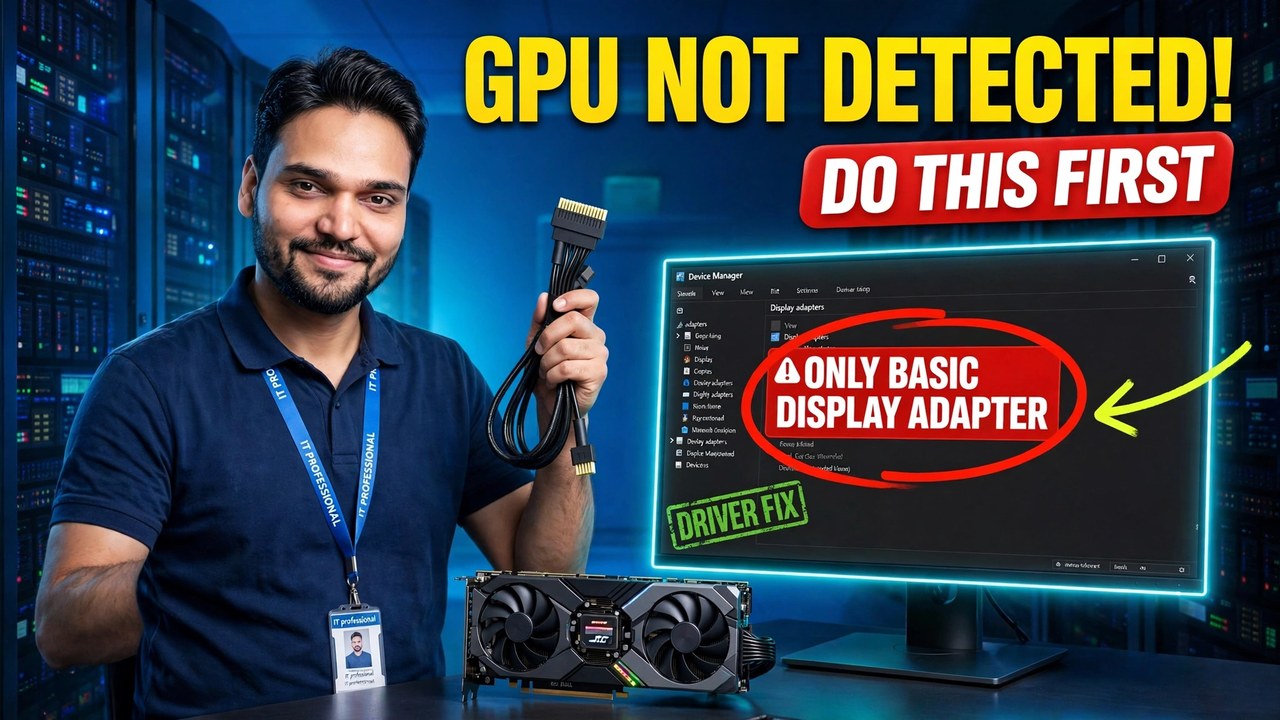
When Windows cannot identify a graphics card it falls back to Microsoft Basic Display Adapter - low resolution, no acceleration, no card name anywhere. That fallback tells you the fault is at one of three levels: the card is not electrically present (seating, power cable, slot or a dead card), it is present but disabled or hidden (BIOS set to integrated graphics, hidden device, Code 45), or it is present but has no valid driver (failed or wrong driver install). Each level has a different fix, so the order below goes power and seating first, BIOS second, driver third - installing drivers for a card the PC cannot see wastes everyone's time.
X Resolution is stuck low and games / video stutter on the Basic adapter
X The card's name never appears under Display adapters
X It started after fitting the card, moving the PC, or a driver update
X The monitor may be plugged into the motherboard instead of the card
BASIC ADAPTER Microsoft Basic Display Adapter is Windows' fallback when no identified GPU with a working driver is available. It proves the display path works - and that the real card was not handed over.
The fingerprint: a working picture through a fallback driver - the PC can display, it just cannot see its own graphics card.
Check the Monitor Cable, Power Cable and Seating
More 'undetected card' cases end here than anywhere else. Do not skip it because it sounds basic.
- Confirm the display cable is in the graphics card (the horizontal card low in the case), not the vertical motherboard sockets near the USB ports. If it was on the motherboard, move it to the card and restart before doing anything else.
- Power off, unplug, open the case. Press the card firmly into its PCIe x16 slot until the slot latch clicks, and confirm the rear bracket screw is fitted - a card tilted even slightly loses contact.
- Connect the card's 6-pin / 8-pin (or 12VHPWR) power connectors from the PSU until each latch clicks. Many cards show nothing at all - or are not detected - with their power cable missing or half-seated. A card with a debug LED lit is telling you power is missing; check the card maker's meaning for that LED.
Show Hidden Devices and Look for the Card Under Other Names
Windows may know the card perfectly well but be hiding it as disconnected, or listing it as an unknown device.
- Open Device Manager, click View > Show hidden devices. A greyed-out entry for your card under Display adapters means Windows saw it before but now considers it disconnected (this is Code 45 - hardware not connected) - that points back at seating, slot or power in Fix 1 and Fix 5.
- Also look under Other devices for 'Unknown device' or 'PCI Device' with a yellow mark, and under Display adapters for a second entry. If the card is there under any name, right-click it, open Properties and note the status code - then go to Fix 3 for the driver.
- Use Action > Scan for hardware changes. If the card appears now, a loose connection was re-made by the reseat in Fix 1.
Install the Correct Driver - Cleanly, From the Maker
A card that is present but driverless sits exactly here: visible as Basic Adapter or unknown, waiting for its real driver.
- Download the driver for your exact card model and Windows version from NVIDIA, AMD or Intel directly. Laptop users: prefer the laptop maker's driver for your exact model first if the card is a mobile GPU.
- Install it and restart. If a previous driver install failed or was interrupted, first uninstall every graphics driver entry (Device Manager, the card, ticking 'Attempt to remove the driver' if offered), restart, then install fresh.
- After a successful install the card appears by name under Display adapters and full resolution unlocks. If the installer itself says it cannot find compatible hardware, the card is not electrically present - return to Fix 1 and Fix 5; no driver can install for hardware the PC cannot see.
Set the BIOS to Use the PCIe Card
A BIOS set to force integrated graphics can hide a dedicated card from Windows entirely, typically after a CMOS reset or on a PC that previously ran without a card.
- Enter BIOS setup (usually Del or F2) and find the primary display / graphics setting (commonly under Advanced, Chipset or Peripherals: options like Primary Display, Initial Display Output or iGPU Multi-Monitor).
- Set the primary display to PCIe / PEG / Auto (not iGPU / Integrated only), save and exit, with the monitor cable on the card.
- If there is a Secure Boot / CSM setting history on this PC: a very old card without UEFI support may need CSM enabled to be detected on a modern board. Change only that one setting, and note the original value so you can restore it.
Test the Slot and the Card - Cross-Testing ⭐ ⭐
When software is exhausted, two swaps settle whether it is the card, the slot or the power supply. This is the proof step before any purchase.
- Fit the suspect card into a second PCIe x16 slot if the board has one (even at reduced speed, detection is what matters), or test it in another PC. Detected there = your slot or board is at fault. Detected nowhere = the card has failed.
- Conversely, fit a known-good card into your PC's main slot. If it is also undetected, the board slot, BIOS state or PSU is at fault - clear CMOS per your manual and retest before condemning the board.
- Check the PSU honestly: a card that needs more power than the supply can give may vanish under detection or load. Compare the card maker's recommended PSU wattage with your unit's rating, and try a known-good supply if the numbers are close.
If It Is a Laptop GPU That Vanished
Laptop dedicated GPUs disappear for two extra reasons that desktops do not have.
- Open the laptop maker's own utility and BIOS: some models have a MUX / hybrid graphics switch - in iGPU-only or eco mode the dedicated card is intentionally powered off and hidden. Set hybrid / MSHybrid mode and restart.
- Install the chipset driver and the GPU driver both from the laptop maker's page for your exact model, chipset first. Generic drivers on switchable-graphics laptops are a common cause of a missing dedicated GPU.
- If the card is still absent everywhere after that, a soldered mobile GPU failure is a board-level repair - back up your data and use the warranty or a repair shop; there is no software fix for a dead soldered chip.
More PC Fixes on Technical Anshu
Every week: Windows problems, hidden tools and full setup guides, explained step by step.
Subscribe on YouTubeRelated Video
Related video (NOT the fix for this exact problem): GPU Installed? No Display from Motherboard Solution - it covers a related topic and may help with background diagnosis, but follow the steps above for this exact problem.
Frequently Asked Questions
Why does Device Manager show only Microsoft Basic Display Adapter?
That is Windows' fallback display driver, loaded when no graphics card with a working driver is available. It means the real card is either not electrically present (seating, PCIe power or slot), disabled by a BIOS setting forcing integrated graphics, hidden as a disconnected device (Code 45), or present without a valid driver. The picture you see proves the monitor path works; the fallback name tells you the handover to the real card failed.
My GPU installer says no compatible hardware found. What does that mean?
The installer looked for the card at the hardware level and did not find it - so this is not a driver problem yet. Check the monitor cable is on the card, the card is fully seated with its PCIe power connectors latched, and the BIOS primary display is set to PCIe / Auto. Then cross-test the card in another slot or PC (Fix 5). Only once the card is visible in Device Manager can any driver install succeed.
What is Code 45 on a graphics card?
Code 45 means 'Currently, this hardware device is not connected to the computer' - Windows remembers the card but cannot see it now. On a desktop card that almost always means a physical break in the chain: the card has worked loose in its slot, its power connector is unseated, or the slot itself is faulty. Reseat the card and power (Fix 1), try the second slot, and only suspect the card itself after it fails in another PC too.
Can a weak power supply make a graphics card undetected?
Yes. A card whose PCIe power is missing, half-seated or beyond what the PSU can supply may not initialise at all, so Windows never sees it. Check every power connector is latched, use separate PSU cable runs for multi-connector cards where the maker recommends it, and compare your PSU's wattage with the card maker's recommendation. A known-good PSU test (Fix 5) proves or clears this cause.
The card worked yesterday and vanished today. Where do I start?
Start with what can change overnight by itself: a driver or Windows update (roll back or clean-install the GPU driver, Fix 3), and a card that shifted during a desk move or cleaning (reseat card and power, Fix 1). Then show hidden devices to look for a Code 45 ghost entry. A card that vanished with no update and no movement, and fails in another PC as well, has most likely failed electrically.