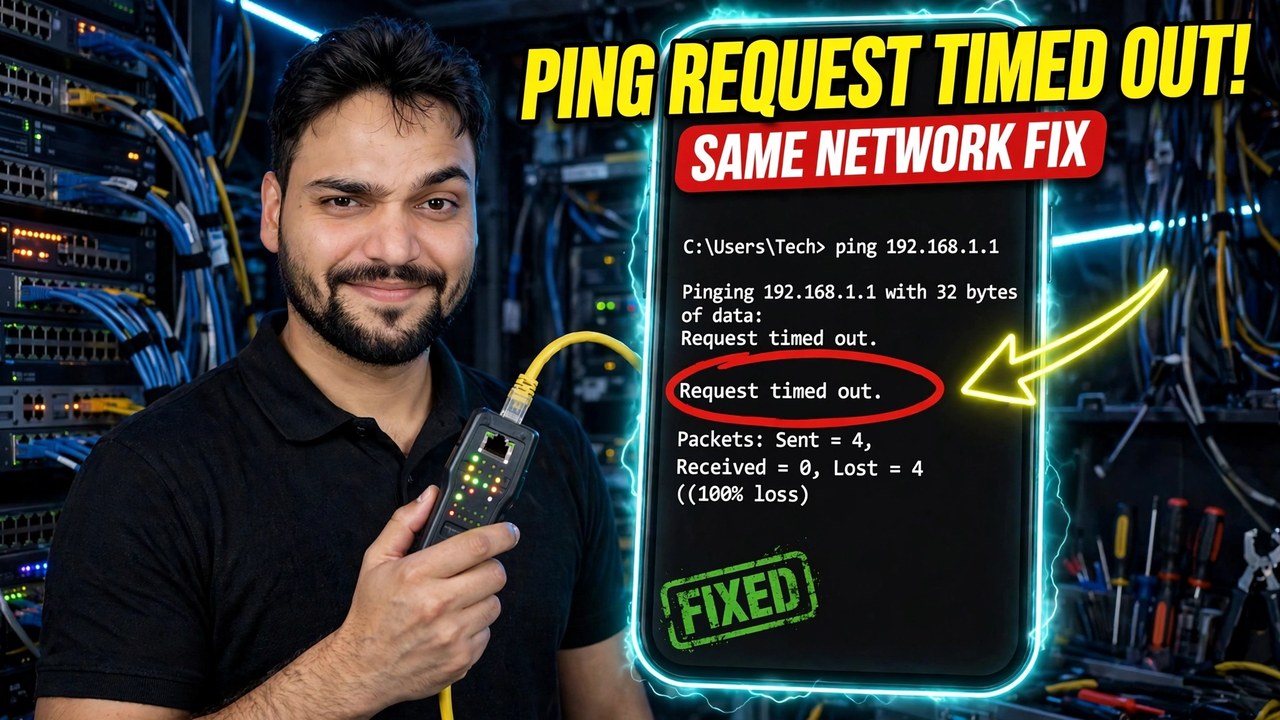
Request timed out means your ping left and no reply came back in time. On the same network that has only a few real causes: you pinged the wrong or changed IP, the two devices are on different subnets, the target's firewall blocks ping (ICMP), or the router's AP isolation stops devices from talking to each other. Note what timed out does not prove: many healthy devices ignore ping by default, so a working printer or PC can time out and still be fully reachable. Test, do not assume.
X ping to a PC, printer, camera or NAS on the same network times out on all 4 packets
X The target device appears powered on and connected
X Pinging the router (gateway) itself works fine
X Or the device answers sometimes and times out other times
100% LOSS No replies at all usually means a wrong address, a firewall that drops ICMP, or WiFi isolation - not a slow device. A slow device replies late; a blocked one never replies.
The fingerprint of this problem: the gateway answers, but one local device stays silent.
Confirm Both Addresses Are on the Same Network
Ping only works directly when both devices sit on the same subnet. A guest WiFi or a second router can silently put them on different networks.
- On your PC, open Command Prompt and run
ipconfig. Note your IPv4 Address and Subnet Mask - for example 192.168.1.15 with mask 255.255.255.0. - Compare with the target's current IP. With that common mask, the first three numbers must match: 192.168.1.x can ping 192.168.1.y directly, but not 192.168.0.y or 10.0.0.y - those are different networks that need routing.
- Make sure your PC is not on the router's Guest WiFi while the target is on the main WiFi - guest networks are deliberately separated. Put both on the main network for the test.
- Ping your Default Gateway (for example
ping 192.168.1.1with your gateway) - if even the gateway times out, your own connection is the problem, not the target.
Allow Ping in the Target PC's Firewall
Windows Firewall blocks incoming ping by default on many setups. The target can be perfectly healthy and still never answer.
- On the target Windows PC (not yours), open Windows Defender Firewall > Advanced settings > Inbound Rules.
- Find File and Printer Sharing (Echo Request - ICMPv4-In) for the Private profile and Enable it.
- Only enable it for the Private profile, on a trusted network. Do not disable the whole firewall to make ping work.
- Ping again from your PC. If replies arrive now, the firewall rule was the whole problem - the device was never faulty.
Check Router AP Isolation and Test by Cable ⭐
If both devices are on WiFi and neither firewall explains it, the router itself may be keeping them apart. This wired test settles WiFi versus device in one step.
- In the router settings, look for AP isolation, client isolation, or wireless isolation and make sure it is off for your main home or office network. It is meant for guest networks.
- Connect the target - or your PC - by Ethernet cable to the router and ping again. If cable works and WiFi does not, isolation or a WiFi setting is the cause.
- If it still times out by cable with the firewall rule enabled, restart both devices and the router once, then re-check the target's current IP - it may have changed on restart.
Decide Whether Ping Even Matters for This Device
Many printers, cameras, and NAS boxes answer ping poorly or not at all while their real service works fine. Do not repair a healthy device.
- Test the device's actual job: print a page, open the NAS share, or load the camera app. If the job works, the device is fine - its ping behaviour is a setting, not a fault.
- For a shared PC, test the share directly by typing its path, for example
\\192.168.1.20with the target's IP, in the Run box. - Use ping as one signal among several - especially in offices, where administrators disable ICMP on purpose.
Fix Intermittent Timeouts - Some Replies, Some Lost
A mix of replies and timeouts is a different fault from total loss: think weak WiFi, a failing cable, or a duplicate IP.
- Move the device closer to the router or test by cable. Loss that vanishes on cable is a WiFi signal or interference problem.
- Swap the Ethernet cable and the switch or router port if a wired device drops packets - a damaged cable is a classic cause.
- Check for a duplicate IP: if two devices were manually given the same address, replies alternate and vanish. Set devices to automatic (DHCP) addressing, or reserve addresses in the router, so each device keeps a unique IP.
More PC Fixes on Technical Anshu
Every week: Windows problems, hidden tools and full setup guides, explained step by step.
Subscribe on YouTubeRelated Video
Related video (NOT the fix for this exact problem): Ping Dropping Every Few Seconds? Mbps vs Gigabit Network Issue - IT Support Fix - it covers a related networking topic and may help with background, but the steps for this exact problem are the written fixes above.
Frequently Asked Questions
What does Request timed out mean when I ping a device on my own network?
Your PC sent the ping but no reply arrived in time. On a local network the causes are a wrong or changed IP address, the devices being on different subnets or guest WiFi, the target firewall blocking ICMP echo, or router AP isolation separating the devices. It does not by itself prove the device is broken.
Why does my PC not reply to ping even though it works fine?
Windows Firewall commonly blocks incoming echo requests, especially on a Public profile. On that PC, enable File and Printer Sharing (Echo Request - ICMPv4-In) for the Private profile in Windows Defender Firewall advanced settings. The PC was reachable for its real services the whole time.
Can two devices on the same WiFi still be on different networks?
Yes. A guest WiFi network, a mesh node in router mode, or a second router plugged in wrongly can create a separate subnet or isolate clients. Compare both IPs with ipconfig - with a 255.255.255.0 mask the first three groups must match - and check that AP isolation is off on the main network.
Pinging the router works but pinging one device times out. What should I check?
Your own connection and the router are fine, so focus on that device: confirm its current IP, enable its ping firewall rule if it is a Windows PC, test it by cable, and test its real service (print, share, app). If the real service works, the device is healthy and ping is simply blocked.
Why do I get some ping replies and some timeouts?
Partial loss means the path works but is unreliable - weak WiFi, interference, a damaged cable, a bad switch port, or two devices sharing one IP address. Test by cable to separate WiFi from wiring faults, replace a suspect cable, and make sure no two devices hold the same manual IP.