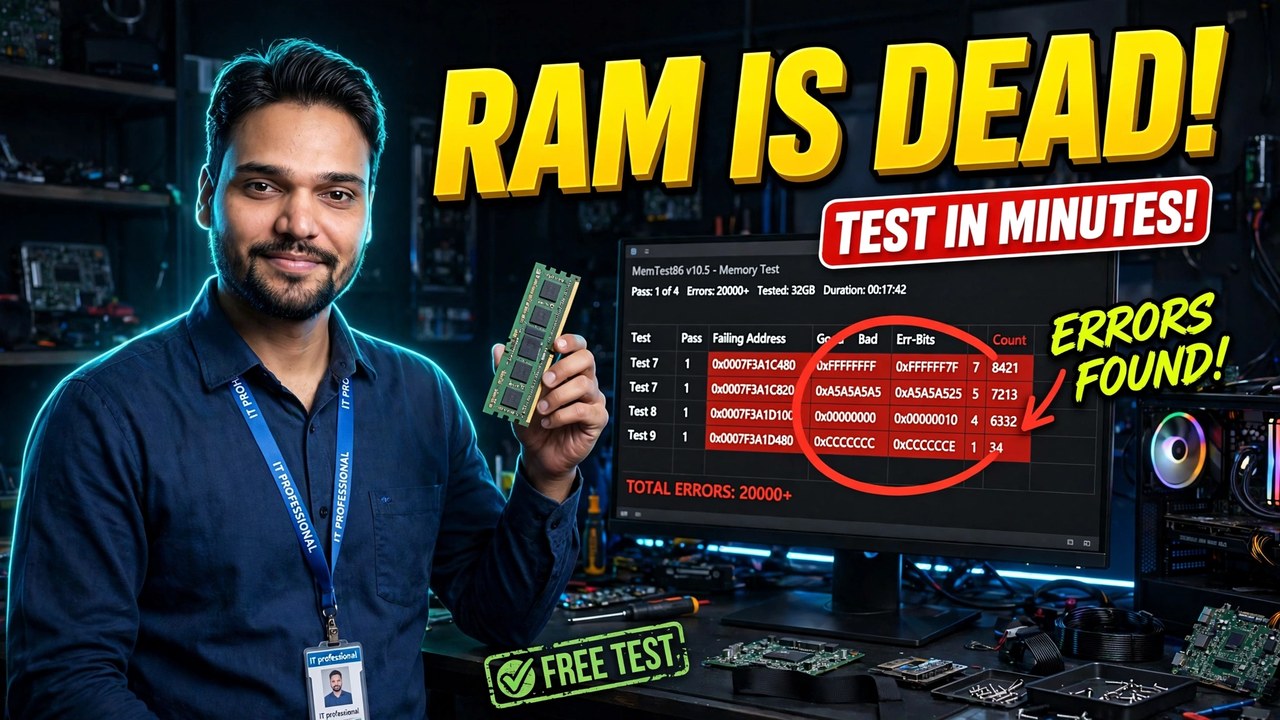
Bad RAM is confusing because it imitates every other fault. The same PC can pass a short Windows memory check, work fine for web browsing, and then crash the moment a game uses more memory. The principle behind every step below is simple: healthy RAM finishes MemTest86 with exactly 0 errors. There is no acceptable error count, no "only a few errors is fine". If errors appear, your job is not to argue with the number - it is to isolate where they come from, one variable at a time: profile off, one stick at a time, then stick versus slot. Work through the fixes in order and do not skip the stock-speed retest, because a large share of "bad RAM" reports are actually an unstable XMP or EXPO profile on perfectly good sticks.
Watch the complete fix in the video: RAM Kharab Hai Ya Nahi? MemTest86 and Windows Memory Test Full Guide - every step below is shown on screen, in the same order.
Pass 3/4 Tests completed with errors Lowest Error Address: 0x... Highest Error Address: 0x... Bits in Error Mask: ...
X Windows blue screen stop code: MEMORY_MANAGEMENT
X Games crash to desktop with no error message
X Windows Memory Diagnostic earlier reported: no problems detected
FAIL - ANY ERROR ABOVE 0 RAM must show 0 errors. 27 errors and 20,000 errors are both a fail.
The fingerprint of this problem: random crashes in Windows, then a MemTest86 run that reports errors even though the quick Windows test found nothing.
Read the Result Correctly: Any Error Above 0 Is a Fail
Before touching any hardware, be sure you are reading MemTest86 the way its own documentation intends.
- Note the total error count, the pass number when errors started, and whether errors appear early or only after hours. Screenshot or photograph the summary screen - you will compare it against every retest below.
- Understand the rule: MemTest86 writes known patterns to every memory address and reads them back. A single mismatch means data was stored or returned wrongly. Healthy memory does this perfectly for days, so 0 is the only passing score.
- Do not dismiss a small count. A stick with 27 errors corrupts data more slowly than one with 20,000 errors, but both are faulty in normal use - one bad bit in the wrong place is a blue screen or a silently corrupted download.
- If your run so far was only 1 pass, plan a longer run for the final verdict: at least 4 passes, overnight if the crashes are rare.
Disable XMP or EXPO and Retest at Stock Speed
XMP (Intel) and EXPO (AMD) raise RAM speed and voltage beyond the base JEDEC specification. That overclock can be unstable even when the sticks themselves are healthy, and it must be ruled out before any stick is blamed.
- Restart and enter BIOS or UEFI setup, usually with Del or F2 during startup.
- Find the memory profile setting - labelled XMP, EXPO, DOCP or Memory Profile depending on the board - and set it to Disabled or Auto. Save and exit.
- Confirm in Windows (Task Manager, Performance, Memory) that the speed has dropped to the base speed for your kit, for example 2133, 2400, 4800 or 5200 MT/s depending on generation.
- Run MemTest86 again for at least 4 passes at this stock speed. If errors disappear completely and stay away, the sticks are fine and the profile was unstable - use the PC at stock, try a lower profile, or update the BIOS and retry the profile later.
- If errors continue at stock speed, continue to Fix 3. Errors at JEDEC speed point at hardware: a stick, a slot, or dirty contacts.
Test One Stick at a Time in the Primary Slot ⭐
This is the most reliable step in the guide. Testing sticks together can only tell you "something in this set fails". Testing each stick alone tells you exactly which one.
- Shut the PC down, switch the power supply off and unplug it. Press the power button once to drain remaining charge, and touch a metal part of the case to discharge static before handling RAM.
- Remove all sticks except one. Put that single stick in the primary slot from your motherboard manual - usually the second slot from the CPU, labelled DIMM_A2, but check the manual because it varies by board.
- Boot from the MemTest86 USB drive and run at least 4 passes on this stick alone, at stock speed. Write the result on a note stuck to the stick itself: stick number, slot, error count.
- Repeat for every stick, always in the same primary slot. The stick that errors alone is the bad stick - that verdict is now proven, not guessed.
- If every stick passes alone but the full set errors together, the problem is the combination: an unstable profile at full load on the memory controller, a weak slot used only in the full set, or mixed sticks. Retest the full set at stock speed and check Fix 4 for the remaining slot.
Stick or Slot? Move the Failing Stick and Retest
A stick that errors in one slot is not yet proven bad - the slot itself, or the board trace or CPU pin behind it, could be at fault. One move separates the two.
- Take the stick that failed in Fix 3 and install it, alone, in a different slot. Run MemTest86 again.
- If errors follow the stick to the new slot, the stick is faulty. That is your answer.
- If errors stay with the original slot - the same stick now passes, and ideally a known-good stick errors when placed in the suspect slot - the slot or motherboard is faulty. Use the working slots, check the board manual for which pairs still give dual-channel mode, and treat a board repair or replacement as the long-term fix.
- While the stick is out, inspect the slot for dust or a bent contact and the stick edge connector for dirt. A blast of compressed air in the slot is safe; never poke anything metal inside it.
Clean the Contacts, Reseat Firmly, Then Replace or RMA
Poor contact imitates a dead stick. One careful reseat is worth doing before money changes hands, and after that the faulty part should be replaced, not lived with.
- With power off and unplugged, remove the stick. Wipe the gold contacts gently with a dry, lint-free cloth or a soft eraser, then blow away any debris. Do not use water or household cleaners.
- Reinstall the stick: align the notch, press both ends down evenly until both side clips snap into place on their own. A half-seated stick is a classic cause of errors and no-boot reports.
- Retest that stick alone once more. If it still errors at stock speed in two different slots, the verdict is final: the stick is bad.
- Replace it or claim warranty. Most desktop RAM carries a lifetime or long-term warranty, and makers normally RMA a matched kit as a kit - keep the MemTest86 summary photo and your Fix 3 and Fix 4 notes, because that isolation evidence is exactly what support will ask for.
- Run the PC on the remaining good sticks while you wait, and run a final overnight MemTest86 on the replacement set when it arrives.
Software Needed
You need MemTest86 (the free edition is enough for this guide) written to a USB drive, which you boot from instead of Windows - follow the image tool included in the MemTest86 download from the official PassMark site only. Windows Memory Diagnostic is already built into Windows (search for it from the Start menu) and is useful as a quick first check, but as this problem shows, a clean result from it does not clear the RAM. No Windows "RAM cleaner", booster or registry tool can test or repair physical memory, and none should be installed for this problem.
More PC Fixes on Technical Anshu
Every week: Windows problems, hidden tools and full setup guides, explained step by step.
Subscribe on YouTubeFrequently Asked Questions
Is one MemTest86 error enough to fail the RAM?
Yes. Healthy RAM completes every pass with 0 errors. Even 1 error means the memory returned wrong data at least once, and that is enough to cause blue screens and corrupt files. Whether the cause is the stick itself, an unstable XMP profile or a slot is what the one-stick-at-a-time tests in this guide separate.
Windows Memory Diagnostic said no problems. Can the RAM still be bad?
Yes. The built-in Windows test is a short, basic check and it misses faults that only appear after hours of testing or at certain addresses. MemTest86 running 4 or more passes, ideally overnight, is the stronger test. Reports on Tom's Hardware describe exactly this pattern: Windows shows nothing, MemTest86 shows thousands of errors.
How many MemTest86 passes should I run?
Run at least 4 full passes for a verdict, and an overnight run when the crashes are rare. Intermittent faults may not appear in the first pass. For a quick isolation test, one stick that errors within the first pass or two is already identified, but a stick that passes needs the longer run before you call it healthy.
Can an XMP or EXPO profile cause MemTest86 errors on good RAM?
Yes. XMP and EXPO are overclock profiles. If the CPU memory controller or board cannot hold that speed, good sticks will error with the profile on and pass cleanly at stock JEDEC speed. That is why you disable the profile and retest at stock before you blame or replace a stick.
Should I replace one bad stick or the whole kit?
For warranty, most makers RMA matched kits as a kit, so check the kit warranty terms first. Technically the PC will run on the good sticks alone while you wait. If you buy a replacement yourself, match the original kit speed, timings, voltage and capacity, and retest the full set with MemTest86 afterwards.