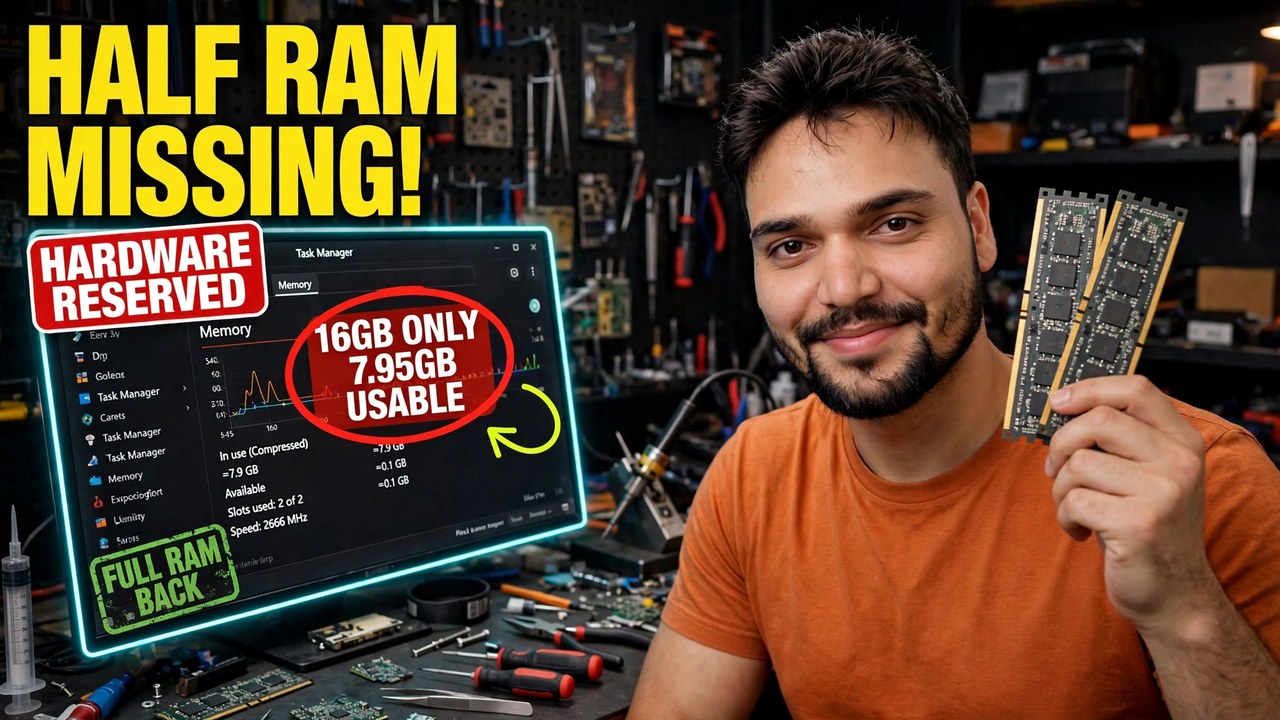
Open Task Manager, Performance, Memory: if it reads "16.0 GB (7.95 GB usable)" with Hardware Reserved holding several gigabytes, Windows can see the RAM physically but is not allowed to use it. A normal hardware reservation is a few hundred megabytes (for integrated graphics and devices). Several gigabytes reserved means one of a known set: the Maximum memory boot option is set, the sticks are in the wrong slots or mismatched, one stick is only partly seen, integrated graphics is holding a fixed large share, or the BIOS / Windows edition is capping memory. Work in order - Fix 1 takes one minute and is the single most common cause.
X System shows the full installed size but only about half usable
X Hardware Reserved in Task Manager is several GB, not a few hundred MB
X It started after adding a second stick, moving sticks, or changing a setting
X BIOS may show less RAM than is physically installed
HARDWARE RESERVED Reserved memory is set aside before Windows loads. A few hundred MB is normal. Half your RAM reserved is a configuration or seating fault, not Windows 'using' it.
The fingerprint: installed and usable disagree by gigabytes - Windows found the RAM but something fenced it off before Windows started.
Uncheck Maximum Memory in MSConfig
Someone (or a 'tweaking' guide) has set a boot memory cap, and Windows obeys it exactly. This is the fastest fix in the guide and the most common cause.
- Press Win + R, type
msconfigand press Enter. Open the Boot tab and click Advanced options. - If Maximum memory is ticked, untick it completely (do not just raise the number - a typed value can still sit below your installed RAM). Also untick Number of processors if it is set to anything but the maximum. Click OK, then Apply.
- Restart the PC and re-check Task Manager. If usable now equals installed minus a small reservation, the cap was the whole problem - stop here.
Check What BIOS Sees - The Deciding Test
BIOS tells you whether Windows or the hardware owns the fault. Compare three numbers: physically installed, BIOS total, and Windows usable.
- Enter BIOS setup (usually Del or F2) and read the total memory shown on the main page and, if offered, the per-slot list.
- If BIOS also shows only half, Windows is innocent - the board is not fully seeing one stick. Go straight to Fix 3 (slots and seating).
- If BIOS shows the full amount but Windows reserves half, the cause is configuration: Fix 1's cap, the integrated graphics share in Fix 4, or the BIOS update in Fix 5.
Reseat the Sticks and Use the Correct Slots
A stick that is 95 percent seated, or a pair fitted in the wrong slots, is routinely reported by the board as partly unusable - and it is the top hardware cause of a large Hardware Reserved figure.
- Power off, unplug, open the case. Remove both sticks and reseat them firmly until both end clips click. Blow dust out of the empty slots first.
- For two sticks on a four-slot board, use the slots the manual specifies for a pair - almost always the second and fourth slots from the CPU (A2 and B2), not the two nearest slots. Wrong-slot pairs are a classic half-RAM cause.
- Boot and test. Then, if it is still wrong, test one stick at a time in the primary slot: if one stick alone shows half its size or fails, that stick is faulty; if both sticks work alone but not together, suspect a mismatched pair (different speed / timings / density) - fit a matched kit.
Reduce the Integrated Graphics Memory Share
On systems with integrated graphics (most Ryzen G-series and Intel non-F CPUs), the BIOS can reserve a fixed block of RAM as video memory. Set to a large manual value, it hides inside Hardware Reserved.
- In BIOS, find the integrated graphics / iGPU memory setting (often under Advanced, Chipset or UMA Frame Buffer Size). If it is set to a fixed large value like 4 GB or 8 GB, set it to Auto.
- Auto lets the graphics borrow memory when needed and return it when not, instead of permanently fencing off the fixed block.
- Save, exit and re-check Task Manager. Note the honest trade: this fix applies to integrated graphics only - a system with a separate graphics card normally reserves very little for this, so if you have a discrete GPU, Fix 3 and Fix 5 matter more.
Update the BIOS and Load Defaults ⭐ ⭐
Boards that misreport or mis-map newer RAM are corrected by BIOS updates surprisingly often, and a corrupted settings state is cleared by loading defaults. Do defaults first, update second.
- Enter BIOS and Load Optimized Defaults, then set your boot drive first again, save and reboot. Test before updating anything - defaults alone fix a share of these cases after earlier overclocking or XMP experiments.
- If it persists, download the BIOS for your exact board model and revision from the maker's support page and update from inside BIOS setup with its built-in flash tool, on stable mains power. Read the version notes: memory compatibility fixes are listed explicitly when they exist.
- Never interrupt a BIOS update and never use a BIOS file for a similar-sounding model. If your board is a laptop, use only the laptop maker's BIOS for your exact model.
Confirm in Windows - And the 32-Bit Trap
Finish by verifying the result in two places, and ruling out the one Windows limit no setting can lift.
- In Task Manager, Hardware Reserved should now be a few hundred MB (up to about 1 GB with integrated graphics is still normal). Also run
msinfo32and compare Installed Physical Memory with Total Physical Memory - they should nearly match. - If Total Physical Memory is stuck near 4 GB despite 8 or 16 GB installed and BIOS sees it all, check the Windows type in
msinfo32: a 32-bit (x86) Windows can address only about 4 GB. The only fix is a clean install of 64-bit Windows - back up your files first, because that install replaces the system. - If BIOS, sticks, slots, caps and edition are all proven good and half is still reserved, the remaining suspects are a damaged memory slot or the CPU's memory controller (including a badly seated CPU or bent socket pin on a recent build) - that level is a repair-shop diagnosis, not a settings problem.
More PC Fixes on Technical Anshu
Every week: Windows problems, hidden tools and full setup guides, explained step by step.
Subscribe on YouTubeRelated Video
Related video (NOT the fix for this exact problem): RAM Kharab Hai Ya Nahi? MemTest86 & Windows Memory Test Full Guide - it covers a related topic and may help with background diagnosis, but follow the steps above for this exact problem.
Frequently Asked Questions
Why does Windows show only half my RAM as usable?
Because the rest is held as Hardware Reserved before Windows loads. The proven causes, in order of frequency, are: the Maximum memory cap ticked in MSConfig, RAM sticks in the wrong slots or not fully seated, a mismatched or partly faulty stick, integrated graphics set to a large fixed memory share in BIOS, or an old BIOS mis-mapping the memory. A reservation of a few hundred megabytes is normal; half your RAM never is.
How much Hardware Reserved memory is normal?
Typically 100-500 MB on a system with a separate graphics card, and up to about 1 GB on integrated graphics set to Auto. That small amount covers device memory mapping and firmware needs. When Hardware Reserved is several gigabytes - especially exactly half the installed RAM - something is misconfigured or mis-seated, and the fixes in this guide apply.
Does Hardware Reserved mean my RAM is faulty?
Not necessarily. If BIOS shows the full installed amount, the RAM itself is usually healthy and the reservation is a setting (MSConfig cap, iGPU share or BIOS mapping). If BIOS also shows only half, then seating, slots or one stick are at fault. The one-stick-at-a-time test in Fix 3 is what actually proves a stick faulty - do not buy replacement RAM before running it.
Will unchecking Maximum memory in MSConfig harm anything?
No. Unchecked is the normal, default state - it tells Windows to use all the memory it finds. The ticked state exists for developers testing low-memory conditions, and it is frequently set by old tweaking guides and then forgotten. Unticking it and restarting simply removes an artificial cap; it changes nothing else about your system.
I have 16 GB but Windows says 3.95 GB usable. Is that different?
Yes - that specific figure is the signature of 32-bit Windows, which can address only about 4 GB in total no matter how much RAM is installed. Check the System Type in msinfo32: if it says x86-based PC, no BIOS or MSConfig fix can help. The only solution is a clean installation of 64-bit Windows, after backing up your files.