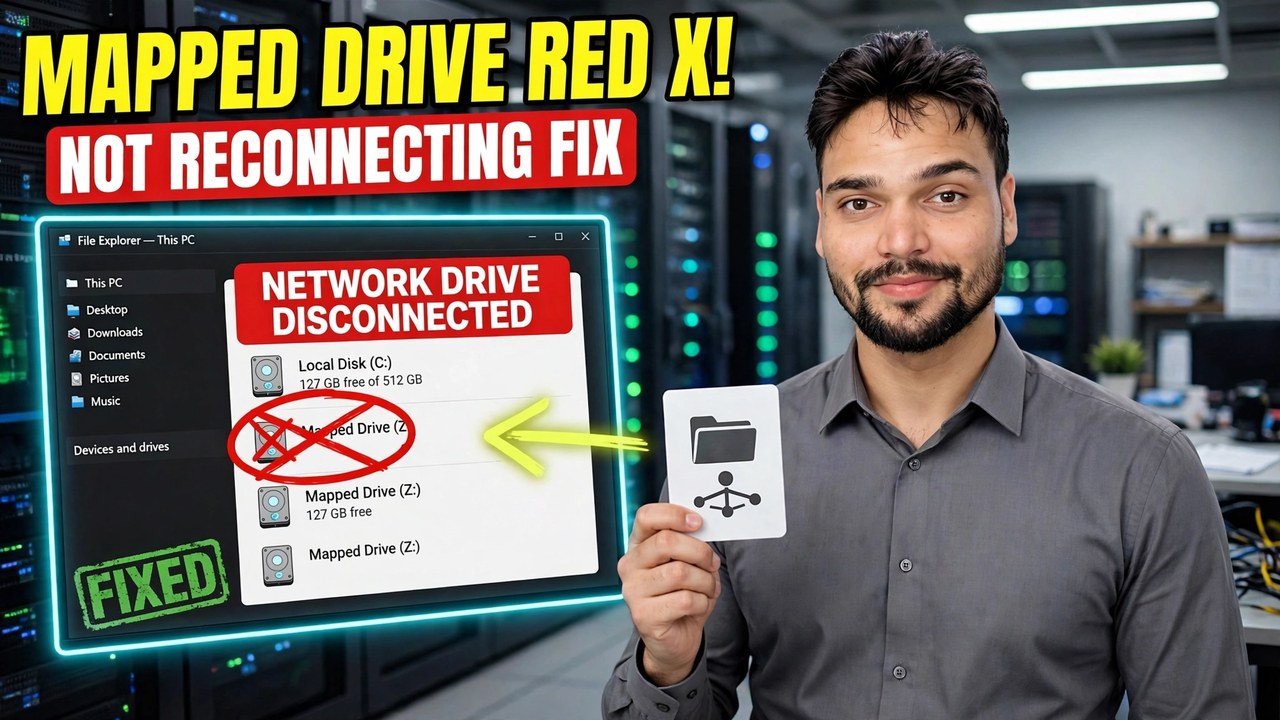
A red X on a mapped drive that opens when clicked means the share itself is usually healthy - Windows simply tried to reconnect before the network was ready, or the saved credentials failed silently at logon. Windows marks the drive disconnected and does not always retry. That is why the drive works on click but breaks backups, accounting software, and any app that reads the drive at startup. Fix the timing and the mapping first, not the server.
X Drive letter shows a red X after every restart or sign-in
X Double-clicking the drive opens it and the red X disappears
X An app or backup that uses the drive at startup reports the path is unavailable
X The same share opens fine by its network path in the address bar
RED X AT LOGON The share answers when clicked, so the server is alive. The failure happened earlier - at sign-in, before WiFi or Ethernet finished connecting.
The fingerprint of this problem: the drive fails at logon and works on click - a timing or credential problem, not a dead server.
Test the Share Path Directly First
Rule out a server problem in 30 seconds, so you do not fix the PC for a server fault.
- Press Win + R, type the share path exactly - for example
\\SERVER\Shareusing your server name or its IP address - and press Enter. - If the share opens, the server and your permission are fine - the fault is the mapping or logon timing. Continue with Fix 2.
- If it does not open, try the server's IP address instead of its name. If the IP works but the name fails, it is a name-resolution problem on the network - tell the network admin. If neither works, the server, share, or your permission needs attention first.
Remove and Remap the Drive with Reconnect Turned On
A stale mapping with wrong saved credentials will fail at every logon. Rebuilding it cleanly is the core fix.
- In File Explorer, right-click the problem drive and choose Disconnect.
- Open Credential Manager > Windows Credentials and remove any saved entry for that server, so an old password cannot be reused silently.
- Right-click This PC > Map network drive. Pick the same drive letter, enter the share path, tick Reconnect at sign-in and, if you sign in with a different account on the server, tick Connect using different credentials and enter the correct server username and password.
- Finish, then restart the PC and check whether the drive reconnects without a red X.
Make Windows Wait for the Network at Logon ⭐
On fast PCs, Windows signs you in before WiFi or Ethernet is fully up, and the one reconnection attempt fails. Delaying logon processing until the network is ready fixes the classic red-X-at-startup pattern.
- On Windows 11 Pro or above, press Win + R, type
gpedit.mscand press Enter. - Go to Computer Configuration > Administrative Templates > System > Logon and enable Always wait for the network at computer startup and logon.
- Restart twice and test. Logon may take a few seconds longer - that is the policy working.
- On Windows 11 Home there is no Group Policy Editor. The practical equivalents are: use a wired Ethernet connection if possible (it is ready sooner than WiFi), and remap the drive as in Fix 2. Do not install random policy-editor tools from the internet.
Check the Server Side - Share, Permission, and Sleep
If the red X affects several PCs at the same first hour of the day, look at the server or NAS, not each PC.
- Confirm the server or NAS is on and awake before users sign in. A server that sleeps or boots slowly will miss every early logon reconnect.
- On the server, confirm the folder is still shared and the user's account still has permission to it. A removed share or changed password produces exactly this symptom.
- If the server was renamed or its IP changed, remap every PC to the current path - old mappings point at a name that no longer answers.
Use a Delayed Startup Shortcut Only If Apps Still Miss the Drive
If the drive reconnects but one app starts even earlier and still fails, give that app a head start delay instead of more network changes.
- First confirm Fixes 2 and 3 are done - this step is a workaround for one early app, not a replacement for a correct mapping.
- Create a shortcut to the app in the Startup folder (press Win + R and run
shell:startup) only if the app itself supports a delayed start or a retry on missing drives - check the app maker's own help. - If the app has no such option, the reliable fix stays Fix 3: wait for the network at logon, preferably wired.
More PC Fixes on Technical Anshu
Every week: Windows problems, hidden tools and full setup guides, explained step by step.
Subscribe on YouTubeRelated Video
Related video (NOT the fix for this exact problem): Fix Can't Access Network Folders in Windows 11 - it covers a related networking topic and may help with background, but the steps for this exact problem are the written fixes above.
Frequently Asked Questions
Why does my mapped drive show a red X but open when I click it?
Windows attempted the reconnect at sign-in, before the network was ready or before credentials were validated, and marked the drive disconnected. Clicking it retries the connection, which now succeeds because the network is up. Remapping with Reconnect at sign-in, fixing saved credentials, and making Windows wait for the network at logon are the fixes.
How do I make a mapped drive reconnect automatically at sign-in?
Disconnect the old mapping, remove the server's saved entry in Credential Manager, then map the drive again with Reconnect at sign-in ticked and the correct credentials. On Windows Pro, also enable Always wait for the network at computer startup and logon in Group Policy so the attempt happens after the network is ready.
The red X only appears on WiFi, not on cable. Why?
WiFi usually finishes connecting after sign-in, while Ethernet is ready earlier. The logon reconnect attempt therefore misses on WiFi and succeeds on cable. Waiting for the network at logon fixes it; where that is not available, a wired connection for the first sign-in is the reliable workaround.
Should I map a drive by server name or IP address?
Prefer the server name - it survives IP changes. Use the IP address as a test: if the IP opens the share but the name does not, name resolution on the network is broken and the admin should fix it, rather than every PC being permanently remapped to an IP that may change.
Does a red X mean the server is down?
No - not when the drive opens on click. A down server, a removed share, or lost permission fails on click as well and fails when you type the share path directly. A red X that clears on click is a logon reconnect failure on the PC side.