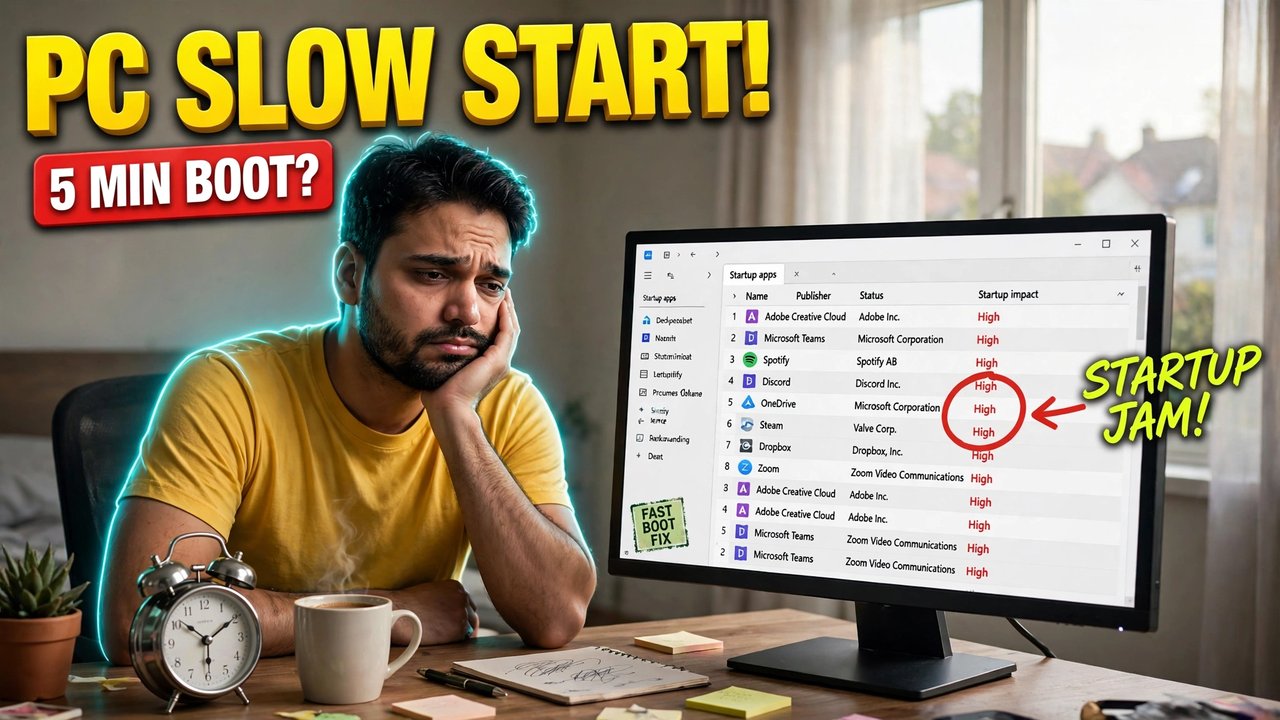
A slow startup is one of the most repeated complaints on Microsoft Q&A and PC support forums, and the reports follow a pattern: the PC was fine when it was new, then month by month the wait after switching on grew longer, until opening the first program takes minutes. In almost every such thread the cause turns out to be one of a handful of things - too many programs launching at sign-in, Fast Startup switched off, a system drive that is nearly full or starting to fail, something unwanted running at boot, or one bad background service. The steps below check them in that order, cheapest first, and end with the clean boot test that separates a software culprit from a hardware limit.
X Sign-in finishes, but the desktop stays busy and programs will not open for minutes
X Task Manager > Startup apps shows a long list, several marked High under Startup impact
X Disk activity sits at 100% long after the desktop appears
SLOW BOOT A healthy Windows 11 PC on an SSD reaches a usable desktop in well under a minute. Several minutes means something is queueing up at startup.
The fingerprint of this problem: the wait happens between switching on and the desktop becoming usable, not while you work.
Disable High-Impact Startup Apps ⭐
This is the number one cause. Every program that launches itself at sign-in adds its own loading time on top of Windows, and most of them do not need to run from the first second.
- Press Ctrl + Shift + Esc to open Task Manager.
- Click Startup apps in the left sidebar (the speedometer icon).
- Look at the Startup impact column. For each app marked High or Medium that you do not need the moment you sign in - chat apps, game launchers, updaters, media helpers - right-click it and choose Disable.
- Leave your antivirus and your graphics, audio and touchpad drivers enabled. Disabling a program here does not uninstall it; it only stops it from auto-starting, and you can open it manually any time.
- Restart the PC and time the boot. For most PCs this single step removes the biggest part of the wait.
Turn Fast Startup ON
Fast Startup saves part of the system state when you shut down, so the next power-on skips a chunk of the boot work. On many PCs it is off after an upgrade or a settings reset.
- Open Control Panel > Hardware and Sound > Power Options.
- Click Choose what the power buttons do on the left.
- Click Change settings that are currently unavailable at the top.
- Tick Turn on fast startup (recommended), click Save changes, then shut the PC down fully and power it on to test.
- Remember: Restart does not use Fast Startup at all. That is normal - Restart is the true fresh boot you use after driver installs and troubleshooting.
Check Disk Health and Free Space on C:
Windows boots from the C: drive, and it also writes to it constantly while booting. A drive that is nearly full, or one that is starting to fail, stretches every one of those operations.
- Open File Explorer > This PC and look at the C: drive bar. Keep at least 15 to 20 percent free. If the bar is red or nearly full, free space first: empty the Recycle Bin, open Settings > System > Storage and clear temporary files, and move large personal files to another drive.
- Check the drive's own health report: open Settings > System > Storage > Advanced storage settings > Disks & volumes, select the drive, open Properties and read the Drive health estimate. Windows shows a warning there when a drive's estimated remaining life is low.
- For a quick error check, right-click the C: drive in File Explorer, open Properties > Tools > Error checking and click Check. Let Windows scan and repair if it offers to.
- If the scan keeps finding errors, or the health estimate is low, back up your important files before anything else - a failing drive gets worse, not better, and the slow boot may be its first warning.
Run a Full Windows Security Scan
Unwanted software loves starting with Windows, because boot is when it can load before your security tools. A quick scan is not enough for this - run the full one.
- Open Windows Security > Virus & threat protection.
- Click Scan options, choose Full scan, and click Scan now. It can take a while on a large drive; let it finish.
- If anything is found and removed, restart and time the boot again.
- If the full scan comes back clean but the PC still behaves strangely, run the Microsoft Defender Antivirus (offline scan) from the same Scan options list. The PC restarts into a protected mode where stubborn boot-time items cannot hide, then boots back into Windows with the result.
Clean Boot Test: Find the Culprit Service
Still slow after the steps above? One background service is likely dragging the boot. A clean boot starts Windows with only Microsoft services, so you can prove it and then isolate which service it is.
- Press Win + R, type
msconfigand press Enter. - On the Services tab, tick Hide all Microsoft services first - this step protects the services Windows itself needs - then click Disable all.
- Click OK and restart. Time this boot.
- If the PC now starts fast, the culprit is one of the disabled services. Reopen
msconfig, enable half of the non-Microsoft services, restart, and repeat the half-split until the slow boot returns - the last group you enabled contains the service at fault. Leave that one disabled or update or uninstall its program. - When you finish testing, reopen
msconfig, choose Normal startup on the General tab and restart once, so the PC is not left in a test configuration.
Still on a Hard Disk? The SSD Is the Real Fix
Be honest with the hardware: if Windows is installed on a mechanical hard disk drive (HDD), the drive itself is the ceiling. Startup apps and services make it worse, but even a perfectly clean HDD boot is slow, because the disk has to physically spin and seek for every file.
- Confirm what you have: open Task Manager, click Performance, and select the disk. It is labelled HDD or SSD next to the drive name.
- If it says HDD, moving Windows to an SSD is the one upgrade that changes startup from minutes to seconds, and it also makes every program open faster all day.
- The general slow-PC video linked at the end of this page covers how an older PC behaves before and after this kind of upgrade and what else to check - it is a general guide, not this startup fix, but it is the right next watch if your PC is slow everywhere, not just at boot.
Software Needed
No extra software is required. Everything above uses built-in Windows tools: Task Manager, Power Options, Storage settings, Windows Security and System Configuration (msconfig). Avoid third-party "boot optimizer" and registry-cleaner programs - they cannot do anything the steps above do not, and some add their own startup entries, which is the exact problem you are removing.
More PC Fixes on Technical Anshu
Every week: Windows problems, hidden tools and full setup guides, explained step by step.
Subscribe on YouTubeRelated Video
Related video (not this startup fix): if your PC feels slow in general use too, not just at boot, watch: Is Your PC Slow
Frequently Asked Questions
Why did my Windows 11 PC suddenly become slow to start?
The most common causes are programs that registered themselves to launch at sign-in, a Windows update or driver that added a slow background service, a nearly full or failing system drive, and malware running at boot. Work through startup apps first, then disk space and health, then a clean boot test to find the exact cause instead of guessing.
Does turning on Fast Startup damage the PC or cause problems?
Fast Startup is a normal Windows feature that saves part of the system state to disk at shutdown so the next boot is quicker. It is safe for everyday use. The one thing to remember is that Restart ignores Fast Startup completely, so when you are troubleshooting or after installing drivers, use Restart to get a truly fresh boot.
How much free space does the C drive need for a fast boot?
Keep at least 15 to 20 percent of the C drive free. Windows uses the system drive during boot for the page file, update staging and temporary files, and when the drive is nearly full every one of those reads and writes slows down, which shows up directly as a longer startup.
My PC is still slow to start after all the software fixes. What then?
If the PC still boots from a mechanical hard disk drive, that drive is the bottleneck and no setting will change it. Moving Windows to an SSD is the single biggest startup improvement for an older PC, often cutting minutes of waiting down to seconds.