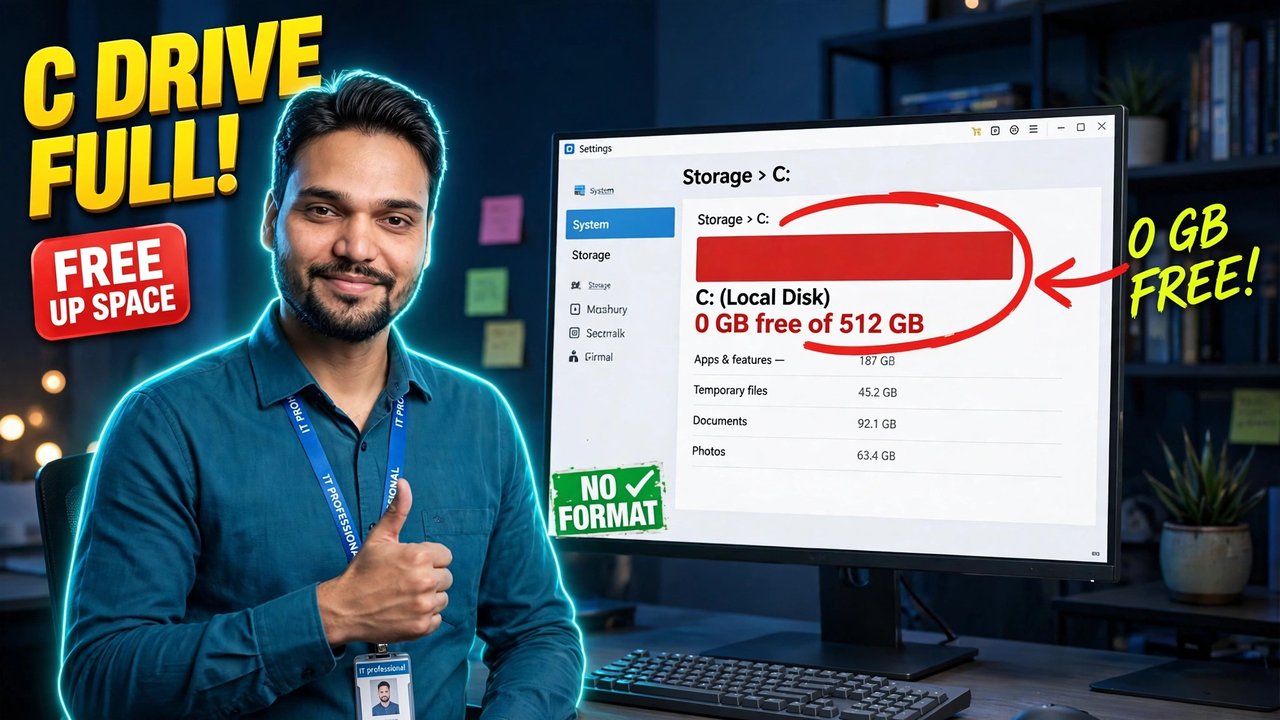
A full C drive is rarely the user's fault. Windows fills it quietly: every monthly update leaves gigabytes of old files behind, the WinSxS component store keeps superseded versions of system files, the hibernate file reserves about 40 percent of your RAM size on disk, and the Downloads folder grows without anyone noticing. The wrong response is deleting folders at random inside C: - that is how Windows gets broken. The right response is to let Windows show you the breakup first, then use Windows' own cleanup tools in the order below. Most PCs recover 15 to 40 GB this way without touching a single personal file.
Watch the Complete Fix
Watch the complete fix in the video: C Drive Full in Windows 11 - Free Up Space - every step below is shown on screen, in the same order.
X The drive bar in This PC is red
X Windows Update fails with "not enough space"
X Apps refuse to save, browser downloads fail
Check: Settings > System > Storage shows the breakup - Installed apps, Temporary files, System & reserved, Other
ALMOST FULL Below about 10 GB free, Windows itself starts failing - updates, printing and even login can break.
The fingerprint of this problem: C: is full while your other drives still have plenty of space.
See the Breakup Before Deleting Anything
Windows already knows where the space went. Read the map first so you clean the right thing.
- Open Settings > System > Storage and wait for the breakup of the C drive to load.
- Note the big categories: Installed apps, Temporary files, System & reserved, and Other (usually big personal folders).
- Click each large category to see what is inside. If "Other" is huge, it is almost always Downloads, Desktop or a game folder - Fix 8 handles those.
- Write down the free space now. You will compare it after each fix.
Turn On Storage Sense So It Stays Clean
One setting stops the drive from refilling itself after you clean it.
- On the same Storage page, turn on Storage Sense.
- Click into it and set it to run Every week.
- Turn on Delete temporary files that apps aren't using, and set Downloads cleanup to delete files older than 30 or 60 days only if you are sure you do not keep installers there.
- Leave Recycle Bin cleanup at 30 days - shorter periods delete files you may still want back.
Disk Cleanup With System Files: the Big Safe Win
This is where the old Windows Update files live - often 5 to 20 GB after a feature update.
- Press Win + R, type
cleanmgrand press Enter. Choose drive C:. - Click Clean up system files and choose C: again. This second pass is the important one - it adds the Windows Update leftovers.
- Tick: Windows Update Cleanup, Temporary Windows installation files, Delivery Optimization Files, Temporary files, Thumbnails and Recycle Bin (check the bin contents first if you deleted something recently).
- Click OK and let it finish. On a drive that has never been cleaned this can take 10 to 20 minutes.
- Note: after Windows Update Cleanup, you cannot uninstall the latest feature update and roll back - only clean this way when Windows is running fine.
Clear the Temp Folders by Hand
Apps leave thousands of small working files in Temp. They are safe to empty - anything still in use simply refuses to delete.
- Press Win + R, type
%temp%and press Enter. Select all (Ctrl + A) and delete. When Windows says a file is in use, click Skip - never force those. - Repeat with
C:\Windows\Temp(approve the admin prompt). - Restart the PC once afterwards - some temp files only release after a reboot.
Turn Off Hibernate If You Never Use It ⭐
The hibernate file, hiberfil.sys, is about 40 percent of your RAM - roughly 6 GB on a 16 GB PC - reserved all the time. If you only ever use Sleep and Shut down, that space is pure waste.
- Press Win + X and choose Terminal (Admin) or Command Prompt (Admin).
- Run:
powercfg /h off - The hiberfil.sys file is deleted immediately and the space is back. Check the free space in This PC.
- Know the trade-off: the Hibernate option disappears from the power menu, and Fast Startup also turns off because it uses the same file - boot may take a few seconds longer. Sleep is not affected.
- Changed your mind later? Run
powercfg /h onand hibernate comes back.
Shrink the Component Store With DISM
WinSxS keeps old versions of every updated system component. You must never delete it by hand - this Microsoft command removes the superseded parts the supported way.
- In the same admin Command Prompt, run:
DISM /Online /Cleanup-Image /StartComponentCleanup - Wait for "The operation completed successfully." It can take 10 to 30 minutes and look stuck around the middle - let it finish.
- This typically frees 2 to 8 GB on a PC that has been updated for a year or more.
- After this cleanup, the updates it removed components for cannot be uninstalled - again, only run it when Windows is healthy.
Uninstall the Big Apps and Games You No Longer Use
One forgotten game can be 80 GB. The Storage breakup already told you the names.
- Open Settings > Apps > Installed apps and sort by Size.
- Uninstall games and heavy programs you have not opened in months. If you might return to a game, note that launchers like Steam can move a game library to another drive instead of uninstalling - check the launcher's storage settings.
- Remove duplicate office suites, old trial antivirus programs and bundled maker software you never use.
- Restart and check the free space again.
Move Downloads, Desktop and Big Folders Off C:
Personal files do not need Windows' drive. Moving them is the permanent fix, not a one-time cleanup.
- Open This PC, right-click Downloads, choose Properties > Location, click Move, and select a folder on your bigger drive (for example D:\Downloads). Click Apply and let Windows move the files.
- Repeat for Desktop and Documents if they are large.
- Move loose big files - recorded videos, ISO images, old phone backups - to the other drive directly.
- From now on, save new big downloads to the new location; the folder shortcut in Explorer follows automatically because you used the Location tab.
Software Needed
No extra software is required. Everything above is built into Windows: Storage settings and Storage Sense, Disk Cleanup, Command Prompt (powercfg and DISM) and the folder Location tab. Do not install a third-party "PC cleaner" or registry cleaner for a full drive - they free little, sometimes delete the wrong things, and none of them can clean the component store or update leftovers the supported way.
More PC Fixes on Technical Anshu
Every week: Windows problems, hidden tools and full setup guides, explained step by step.
Subscribe on YouTubeFrequently Asked Questions
Why does the C drive keep filling up again after I clean it?
Windows keeps writing to C: every day - update leftovers, temp files, app caches, restore points and the hibernate and page files all grow back. Cleaning once is not enough; turn on Storage Sense so Windows removes temp files and old downloads automatically, and move big personal folders like Downloads and Desktop to another drive so they stop growing on C:.
Is it safe to turn off Hibernate with powercfg /h off?
Yes, if you never use the Hibernate option. The command deletes the hiberfil.sys file, which is usually 40 percent of your RAM size - about 6 GB on a 16 GB machine. You lose the Hibernate menu option, and Fast Startup also turns off because it uses the same file. Sleep and normal shutdown keep working, and you can bring hibernate back any time with powercfg /h on.
Can I delete the WinSxS folder to free space?
Never delete WinSxS or any Windows folder by hand. WinSxS holds the component store that Windows Update and system repair depend on, and deleting its files breaks updates and can stop Windows from booting. The only safe way to shrink it is the DISM command DISM /Online /Cleanup-Image /StartComponentCleanup, which removes superseded components the supported way.
How much free space should the C drive always keep?
Keep at least 10 to 15 percent of the C drive free, and never let it fall below about 10 GB. Windows needs that room for updates, temp files and the page file; below it, updates fail, apps crash while saving, and the PC slows down noticeably.