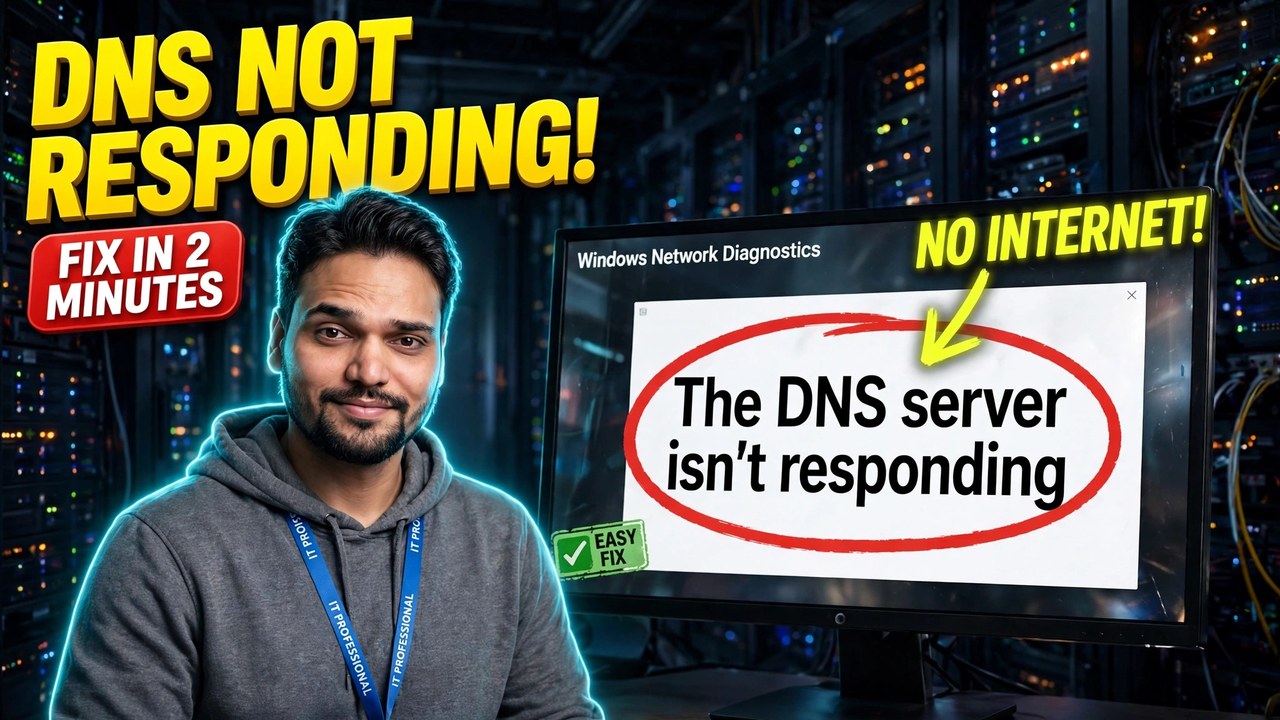
This is a real, recurring complaint on Microsoft Q&A and Microsoft Community: the PC is connected, the troubleshooter runs, and it reports that the DNS server is not responding. DNS is the phone book of the internet - it turns a name like google.com into the IP address your browser actually visits. When that lookup gets no answer, every site fails at once, even though your connection itself may be fine. Microsoft Support's own network guide follows the same order used below: run the troubleshooter, restart the network hardware, run the network commands to reset TCP/IP and flush DNS, check the driver, and use Network Reset only as the last step. Work through the fixes in order and test after each one.
Troubleshooter result: The DNS server isn't responding
Your computer appears to be correctly configured, but the device or resource (DNS server) is not responding
Chrome error: DNS_PROBE_FINISHED_NO_INTERNET
Or Chrome error: DNS_PROBE_FINISHED_NXDOMAIN / This site can't be reached
X WiFi or Ethernet shows connected, but no website opens in any browser
The fingerprint of this problem: the connection looks alive, but name lookup is dead, so every website fails together.
First, Confirm It Is Really a DNS Problem
One minute of checking stops you chasing the wrong fix.
- Try two different browsers and two different websites. If all fail, it is a system or network problem, not one website.
- Try the same website on your phone on the same WiFi. If the phone also fails, the fault is the router or the ISP side - start with Fix 2. If the phone works, the fault is inside this PC - go to Fix 3 onwards.
- Run the troubleshooter once to confirm the wording: open the Get Help app and run the Network and Internet troubleshooter. Microsoft recommends this as the first step on Windows 11; it runs diagnostics and tries automatic fixes.
- If only one website fails and everything else opens, skip to the last FAQ - that is usually the site itself, not your DNS server.
Restart the Modem, Router and PC - Properly ⭐
Your router usually works as the DNS forwarder for your whole home or office. When it gets stuck, every PC behind it gets this same error. A proper power cycle clears it.
- Shut down the PC.
- Unplug the modem and the router from power. If it is one combined box, unplug that.
- Wait a full 60 seconds. A quick 5-second plug-in does not clear the router's memory or its DNS cache.
- Plug the modem in first and wait until its internet light is stable, then plug the router in and wait 2 to 3 minutes.
- Start the PC, connect, and test two websites. If sites open now, the router was stuck - you are done.
Restart the DNS Client Service
Windows resolves website names through the DNS Client service. If that service is stopped or stuck, no lookup works. Microsoft Q&A answers for this exact error ask you to check the DNS Client and DHCP Client services first.
- Press Win + R, type
services.mscand press Enter. - Find DNS Client in the list. Check its status says Running.
- Right-click DNS Client and choose Restart. If Restart is greyed out, open Properties and confirm Startup type is set to Automatic, then click OK.
- Do the same check for the DHCP Client service - it should also be Running and Automatic.
- Close Services, restart the browser, and test again.
Flush DNS and Renew the IP Address
Windows saves old lookups in a cache. One corrupted entry can break name resolution even when the server is fine. These are the network commands Microsoft Support lists for this class of problem - run them exactly as written, in order.
- Click Search, type
cmd, right-click Command Prompt and choose Run as administrator. Click Yes if asked. - Type each command below and press Enter after each one:
ipconfig /flushdns
ipconfig /registerdns
ipconfig /release
ipconfig /renew
What you should see: Successfully flushed the DNS Resolver Cache after the first command. The release and renew commands drop your connection for a few seconds - that is normal. When the prompt returns after ipconfig /renew, close Command Prompt, restart your browser, and test.
Set DNS Manually to 8.8.8.8 and 1.1.1.1 ⭐
If the steps above did not help, your ISP's DNS server itself is likely down or slow. Bypassing it with a public DNS server is the most reliable fix for this error - 8.8.8.8 is Google Public DNS and 1.1.1.1 is Cloudflare DNS.
- Open Settings > Network & internet.
- Click Wi-Fi (or Ethernet if you use a cable), then open Hardware properties.
- Next to DNS server assignment, click Edit.
- Change the dropdown from Automatic (DHCP) to Manual, turn IPv4 on, and enter:
Preferred DNS: 8.8.8.8
Alternate DNS: 1.1.1.1- Click Save.
- Run
ipconfig /flushdnsonce more in Command Prompt (admin), then test your websites.
Classic path, same result: press Win + R, type ncpa.cpl, right-click your active adapter > Properties > Internet Protocol Version 4 (TCP/IPv4) > Properties > select "Use the following DNS server addresses" and enter the same two addresses. To undo this later, set DNS server assignment back to Automatic (DHCP).
Office PC warning: on a domain-joined office PC, do not change DNS manually without your IT admin - internal office servers are found through the company's own DNS, and public DNS will break them.
Reset Winsock and the TCP/IP Stack
If the DNS settings are now correct but lookups still fail, the network stack itself may be corrupted. Microsoft Support lists these two resets together with the ipconfig commands in Fix 4.
- Open Command Prompt as administrator again.
- Run these commands, one by one:
netsh winsock reset
netsh int ip reset- Restart the PC - these resets do not finish until you reboot.
- After the restart, test your websites again.
Update the Network Driver - and Network Reset, Last Only
A broken or outdated network adapter driver can produce this same error, which is why Microsoft Q&A answers for it include a driver update.
- Press Win + X and open Device Manager. Expand Network adapters.
- Right-click your Wi-Fi or Ethernet adapter and choose Update driver > Search automatically for drivers. Restart and test.
- If it still fails, check Settings > Windows Update > Advanced options > Optional updates for a network driver, or download the driver for your exact model from your PC maker's support page.
- Last resort only - Network Reset: open Settings > Network & internet > Advanced network settings > Network reset > Reset now. Microsoft lists this as the last step because it removes all network adapters and their settings; after the restart you will need to reconnect to WiFi and set up any VPN again.
- If the error survives even a Network Reset and every device on the network has it, the fault is the ISP or the router hardware - test with a mobile hotspot to confirm, then contact your ISP.
Software Needed
No extra software is required. Everything above uses built-in Windows tools: the Get Help troubleshooter, Services, Command Prompt, Settings and Device Manager. The only download you may need is the network driver from your PC or motherboard maker's own support page, for your exact model.
More PC Fixes on Technical Anshu
Every week: Windows problems, hidden tools and full setup guides, explained step by step.
Subscribe on YouTubeRelated Video
Related video (not this exact DNS Server Not Responding fix): it covers DNS issues when WiFi is connected but there is no internet, so the DNS steps overlap - watch: WiFi Connected But No Internet? How to Fix DNS Issues in Windows
Frequently Asked Questions
What does DNS server not responding mean in Windows 11?
DNS turns a website name like google.com into an IP address. When the DNS server does not respond, Windows is connected to the network but cannot look up any website name, so no site opens. The fault is in name lookup, not always in the whole internet connection.
Why is WiFi connected but no website opens?
WiFi connected only means the PC can talk to the router. If the router, the ISP DNS server or the DNS settings on the PC fail, website names cannot be resolved and browsers show errors such as DNS_PROBE_FINISHED_NO_INTERNET or DNS_PROBE_FINISHED_NXDOMAIN, even though the WiFi icon looks normal.
Is it safe to use 8.8.8.8 and 1.1.1.1 as DNS servers?
Yes. 8.8.8.8 is Google Public DNS and 1.1.1.1 is Cloudflare DNS. Both are widely used public DNS services. Setting them manually only changes which server answers your website lookups; it does not change your IP address or your internet plan. On an office or domain-joined PC, ask your IT admin first, because a work network may need its own internal DNS server.
What does ipconfig /flushdns do? Will it harm my PC?
It clears the local DNS Resolver Cache - the list of website lookups Windows saved earlier. A stale or corrupted entry in that cache can send you to the wrong place or block a site. Flushing it is safe: Windows simply looks up fresh records the next time you open a site. No files, settings or saved WiFi passwords are deleted.
What if only one website does not open and the rest work?
Then the problem is probably not your DNS server. A single failing site can be down itself, blocked by the network, or stuck in your browser cache. Test the same site on your phone on mobile data. If it fails there too, the site itself is down. If it works there, flush your DNS cache, try a different browser, and check the date and time on your PC.