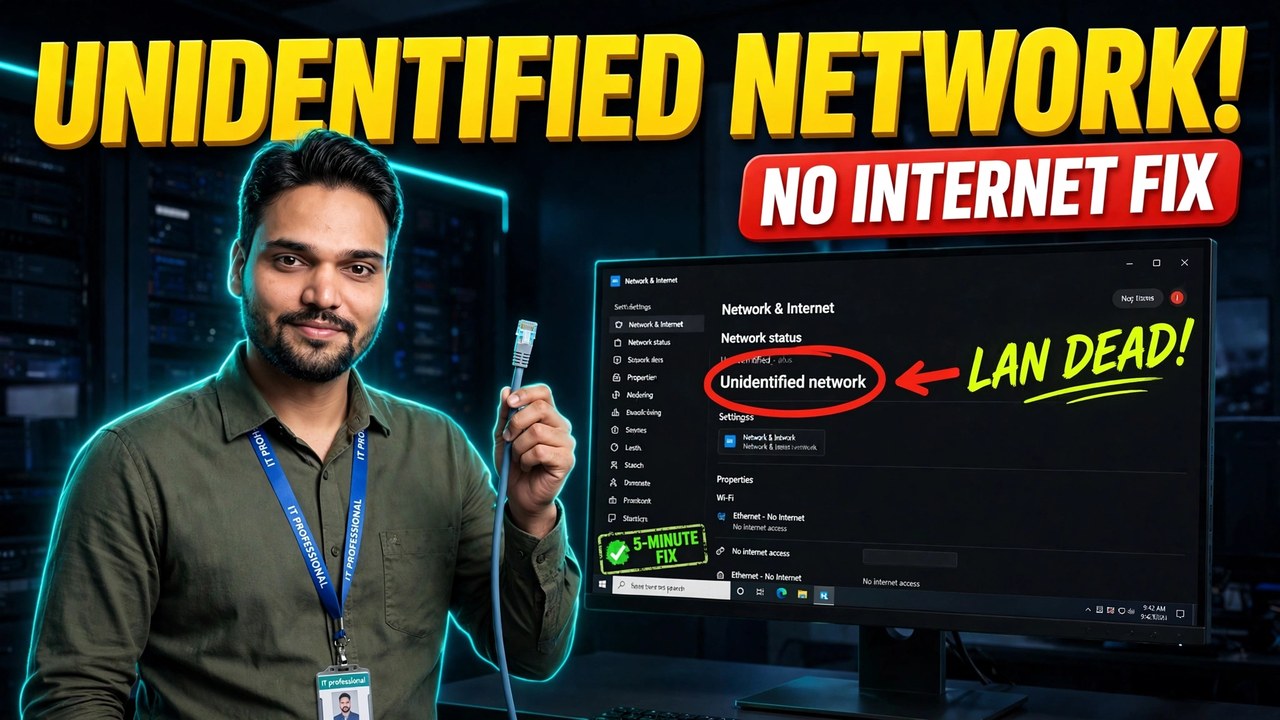
This is a genuine, recurring complaint on Microsoft Q&A: Windows 11 (and Windows 10 before it) shows "Unidentified Network, No Internet" the moment an Ethernet cable is used, even though the same internet works on Wi-Fi or on other devices. Microsoft Support's own network fix order is the backbone of this guide: run the troubleshooter, run the network commands to reset the TCP/IP stack and release and renew the IP address, and use Network Reset only as the last step. One extra check makes this problem easy to read: if ipconfig shows an address starting with 169.254, your PC asked the router for an address, got no answer, and gave itself a fallback address that can never reach the internet.
Network icon in the taskbar shows a yellow warning sign
Ethernet status: Connected, but "No Internet"
Check: a 169.254 address with a blank gateway means DHCP did not answer - see Fix 1 and Fix 4
The fingerprint of this problem: the cable link is up, but Windows cannot identify the network or reach the internet through it.
Confirm the Problem and Read Your IP Address
One command tells you which kind of failure you have, so you do not guess.
- Open Settings > Network & internet > Ethernet and confirm it says Unidentified network / No Internet.
- Search for cmd, open Command Prompt, and run:
ipconfig
- Look at the Ethernet adapter. A normal address on a home network usually starts with
192.168.and has a Default Gateway. An address starting with169.254.is an APIPA address: Windows assigns it to itself when the router's DHCP server does not answer. It has no gateway and no DNS, so the internet cannot work on it - the fault is the failed DHCP request, the cable path, or the router, not the websites. - Check whether other devices on the same router have internet. If every device is down, restart the router first (Fix 2) and check with your provider. If only this PC fails, continue with this guide.
Test the Cable and Router Port, Then Restart the Router ⭐
A link light only proves electricity is flowing - it does not prove data is passing cleanly. Rule out the physical path before touching Windows settings.
- Unplug the Ethernet cable from both ends and plug it back in firmly until it clicks, at the PC and at the router or switch.
- Move the cable to a different LAN port on the router or switch. One dead port is a common, invisible cause.
- If you can, test with a different Ethernet cable, and test this cable on another PC or laptop. A cable that works on the other PC clears the cable; a PC that fails on every cable points back to the PC.
- Restart the router: turn its power off (or unplug it), wait 30 seconds, turn it back on, and wait 2 to 3 minutes until its lights settle. Then restart the PC and check the Ethernet status again. A stalled router DHCP service is cleared by this alone in many cases.
Run the Windows Network Troubleshooter
Microsoft's first recommended step on Windows 11 is the automated troubleshooter in the Get Help app.
- Right-click the network icon in the taskbar and choose Diagnose network problems, or open Settings > System > Troubleshoot > Other troubleshooters and run Network and Internet.
- Choose the Ethernet adapter when asked, and apply any fix it offers.
- Restart the PC if the troubleshooter asks, then check the status. If it reports "Ethernet doesn't have a valid IP configuration" or finds nothing, continue - that report still confirms the DHCP direction in Fix 4.
Release and Renew the IP Address (DHCP)
This asks the router for a fresh address instead of keeping the failed or 169.254 one.
- Search for cmd, right-click Command Prompt and choose Run as administrator.
- Run these commands one by one, pressing Enter after each:
ipconfig /release
ipconfig /renew
ipconfig /flushdns
- Run
ipconfigagain. If the Ethernet address is now a normal address (for example 192.168.x.x) with a Default Gateway filled in, open a website and test. - If
ipconfig /renewtimes out or the address is still 169.254, DHCP is still not answering - recheck the cable and router port in Fix 2, then continue to Fix 5.
Reset the Network Stack with netsh
If the address renews but the network is still "Unidentified", the Windows network stack itself may be corrupt. Microsoft lists these reset commands for exactly this class of problem.
- Open Command Prompt as administrator again.
- Run these commands one by one, pressing Enter after each:
netsh winsock reset
netsh int ip reset
- Restart the PC. The reset does not take effect until you restart - do not skip this.
- After the restart, check Ethernet status and run
ipconfigonce more to confirm a normal address and gateway.
Disable and Re-enable the Ethernet Adapter, Then Update Its Driver
A stuck adapter or an old driver can hold a bad configuration even after the stack is reset.
- Press Win + X and open Device Manager. Expand Network adapters.
- Right-click your Ethernet adapter and choose Disable device. Wait 10 seconds, right-click it again and choose Enable device. Check the network status.
- If it is still Unidentified, right-click the adapter and choose Update driver > Search automatically for drivers. Also check Settings > Windows Update > Advanced options > Optional updates for a network driver offered there.
- If it still fails, download the Ethernet (LAN) driver for your exact PC or motherboard model from the maker's own support page, then in Device Manager right-click the adapter, choose Uninstall device, restart the PC, and install the downloaded driver. Do not use random driver-download sites.
Check for a Wrong Static IP Address
A manual address left over from another office, hostel or test setup is a silent cause: the PC insists on an address that does not belong to this network, so the router ignores it.
- Press Win + R, type
ncpa.cpland press Enter. - Right-click Ethernet and choose Properties. Select Internet Protocol Version 4 (TCP/IPv4) and click Properties.
- For a normal home or office connection, both options must be automatic: Obtain an IP address automatically and Obtain DNS server address automatically. If fixed numbers are filled in and you did not set them deliberately for this network, switch both to automatic, click OK, and disable and re-enable the adapter (or run Fix 4 again).
- Do not type a guessed static IP, gateway or DNS as a "fix" - a wrong gateway guarantees No Internet even with a perfect cable.
Last Step: Use Windows Network Reset
Microsoft says to use network reset only if the steps above do not help. It removes and reinstalls all network adapters and returns their settings to defaults, so saved Wi-Fi networks and VPN settings may need to be set up again.
- Open Settings > Network & internet > Advanced network settings > Network reset.
- Click Reset now and confirm with Yes. The PC will restart.
- After the restart, wait for the Ethernet adapter to be reinstalled, then check the status and run
ipconfigto confirm a normal address. - If a fresh install of the adapter on a tested cable and a tested router port still shows Unidentified Network with a 169.254 address, the fault is outside Windows settings: the router's DHCP, the cable run in the wall, or the PC's Ethernet hardware needs checking.
Software Needed
No extra software is required. Everything above uses built-in Windows tools: Settings, Command Prompt, Device Manager and Windows Update. The only download you may need is the Ethernet (LAN) driver from your PC or motherboard maker's own support page, for your exact model.
More PC Fixes on Technical Anshu
Every week: Windows problems, hidden tools and full setup guides, explained step by step.
Subscribe on YouTubeRelated Video
Related video (not this Ethernet Unidentified Network fix): it covers the Wi-Fi and DNS side of a "connected but no internet" problem, so if your wired connection works but websites do not open, watch: WiFi Connected But No Internet? How to Fix DNS Issues in Windows
Frequently Asked Questions
Why does Ethernet show Unidentified Network in Windows 11?
Windows shows Unidentified Network when the Ethernet adapter is physically connected but the PC cannot identify the network or get a usable connection through it. The most common causes are a failed DHCP request to the router, a damaged cable or bad router port, a corrupt network stack, a driver problem, or a wrong manual (static) IP address left on the adapter.
What does a 169.254 IP address mean in ipconfig?
An address starting with 169.254 is an APIPA (Automatic Private IP Addressing) address that Windows assigns to itself when it asks the router's DHCP server for an address and gets no answer. It has no default gateway and no DNS, so it cannot reach the router or the internet. It is a sign that DHCP failed, not a normal address.
Will netsh winsock reset and netsh int ip reset delete my files or Wi-Fi passwords?
No. Those two commands reset the Winsock catalog and the TCP/IP stack to defaults and do not delete personal files. You must restart the PC afterwards for the reset to take effect. The stronger Network Reset option is different: it reinstalls network adapters and returns network settings to defaults, so saved Wi-Fi networks may need to be joined again.
Should I set a static IP address to fix Unidentified Network?
Not as a first fix. On a home or office network the adapter should normally be set to Obtain an IP address automatically. A wrong static IP, gateway or DNS left from another network is itself a common cause of this error. Only use a static address as a short test if you know the router's exact address range and gateway, and switch back to automatic afterwards.
What if only this PC shows Unidentified Network and other devices work on the same router?
Then the router and internet line are probably fine and the fault is in this PC or its cable run: test this PC with a different cable and a different router LAN port, then work through the DHCP renew, netsh reset and Ethernet driver steps in this guide. If every wired device fails the same way, restart the router and contact the internet provider or check the router itself.