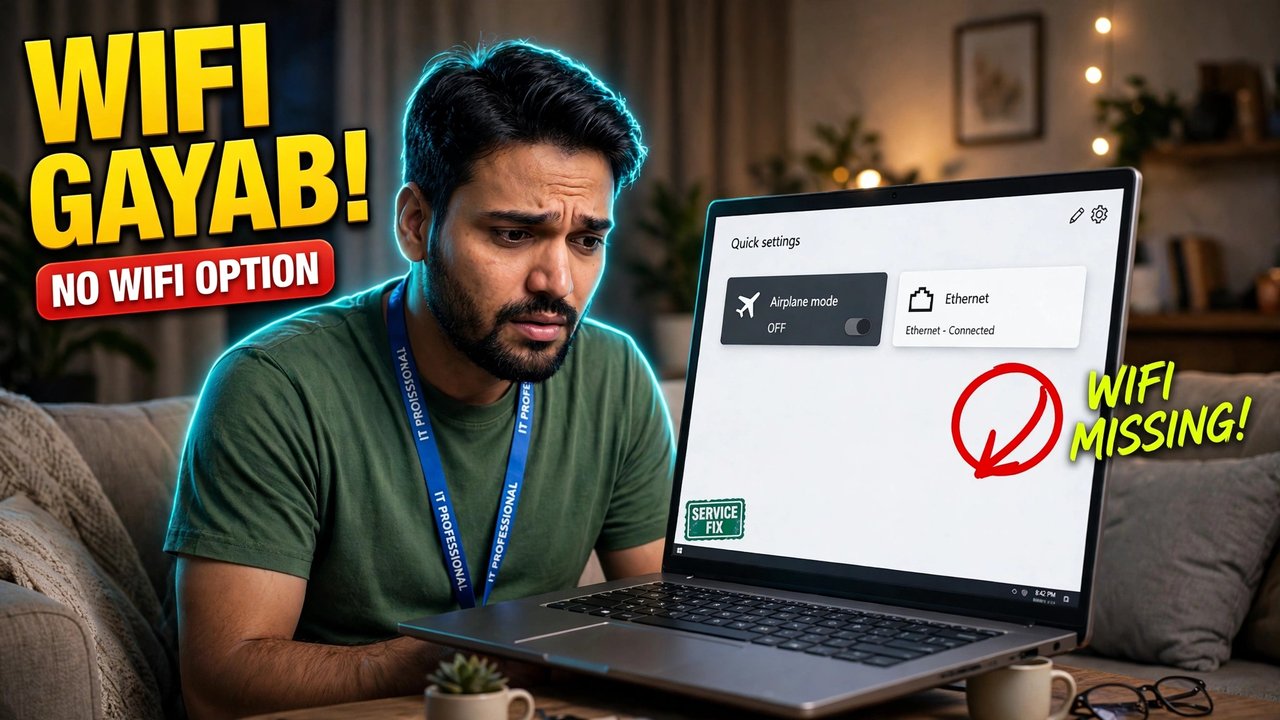
Keep this problem separate from "WiFi connected but no internet" - that is a different fault with different fixes. Here, the WiFi option has vanished completely: Settings shows no Wi-Fi menu, the taskbar shows no WiFi button, and often the wireless adapter is missing or disabled in Device Manager too. Windows only draws the WiFi controls when a working adapter exists, so every step below targets the adapter itself - a physical switch or Fn key, the WLAN AutoConfig service that powers the WiFi interface, the adapter driver, and one BIOS setting. Work through them in order; most cases end at Fix 2 or Fix 3.
X Settings > Network & internet lists only Ethernet and Airplane mode - there is no Wi-Fi page at all
X The taskbar quick settings panel has no Wi-Fi button, only Airplane mode, Bluetooth and other tiles
X Device Manager > Network adapters: the wireless adapter is missing, hidden, or shown as disabled
Check: when the whole WiFi option vanishes, Windows cannot see the adapter. This is a switch, service, driver or BIOS problem - not a wrong password and not a router problem.
DIFFERENT PROBLEM This is not "connected but no internet". Here the adapter itself is invisible to Windows.
The fingerprint of this problem: the WiFi controls are missing entirely, not merely disconnected.
Check the WiFi Switch, the Fn Key and Airplane Mode
The embarrassing fix first, because it is also a common one: many laptops can switch the wireless radio off at the hardware level, and Windows then hides WiFi completely.
- Look for a physical wireless switch on the side or front edge of the laptop and slide it on. Older laptops have one; newer ones usually do not.
- Press the Fn key combination for wireless - it is the function key with an antenna or aeroplane symbol, commonly Fn + F2, F3, F5 or F12, depending on the brand. Press it once and wait a few seconds.
- Press Win + A to open quick settings and make sure Airplane mode is off. Airplane mode hides and disables WiFi by design.
- Restart the laptop once after these checks - a radio switched back on sometimes registers only after a clean boot.
Start the WLAN AutoConfig Service ⭐
WLAN AutoConfig is the Windows service that builds the WiFi interface and network list. If it is stopped or disabled, the WiFi option disappears even with a perfect adapter and driver.
- Press Win + R, type
services.mscand press Enter. - Find WLAN AutoConfig in the list and double-click it.
- Set Startup type to Automatic. If the service is stopped, click Start. Click OK.
- Or run the same thing from an admin Command Prompt:
net start WlanSvc- Open Settings > Network & internet again. For many users the Wi-Fi page and taskbar button return immediately once this service runs.
Device Manager: Enable the Adapter, Then Reinstall It
Now check how Windows sees the adapter itself.
- Press Win + X and choose Device Manager. Expand Network adapters.
- If the adapter is not visible, click View > Show hidden devices and look again, including under Other devices.
- If the wireless adapter (Intel, Realtek, MediaTek, Qualcomm or similar) is shown with a down-arrow, it is disabled: right-click it and choose Enable device.
- If the adapter is present but WiFi is still missing, right-click it and choose Uninstall device, then restart the PC. Windows reinstalls the adapter with a fresh driver state on boot.
- If the adapter is not listed anywhere, even hidden, note that fact - Fix 4 and Fix 5 are your next steps.
Install the Latest WiFi Driver from the Laptop Maker
A corrupted or missing driver is the top cause when the adapter vanishes after a Windows update. The clean driver comes from the laptop maker, not from a driver-pack website.
- On another PC, or on this laptop through an Ethernet cable, open the support page of your laptop maker (Dell, HP, Lenovo, ASUS, Acer and so on).
- Enter your exact laptop model, choose Windows 11, and download the latest WiFi / WLAN driver.
- If the download was done on another PC, copy the installer to this laptop with a pendrive, run it, and restart.
- Check Settings again - with the correct driver installed, the Wi-Fi page, taskbar button and network list come back together.
Check That WiFi Is Enabled in the BIOS
If wireless is disabled in the BIOS or UEFI setup, Windows can never see the card, no matter what driver you install.
- Restart the laptop and enter setup with the key shown at the first screen - commonly F2, Del, F10 or Esc, depending on the brand.
- Look under Advanced, Devices or Configuration for a setting named Wireless LAN, WLAN or WiFi, and make sure it is Enabled. Exact menus differ by maker.
- Save and exit (usually F10), boot into Windows, and check whether the adapter now appears in Device Manager.
- Change nothing else in the BIOS while you are there - this visit has exactly one job.
Last Resort: Network Reset
If the adapter shows in Device Manager and the service runs but WiFi controls still do not return, reset the whole network stack. Keep this for last - it is thorough, but it makes you reconnect to everything.
- Open Settings > Network & internet > Advanced network settings.
- Click Network reset, then Reset now, and confirm. The PC restarts.
- Windows reinstalls all network adapters and returns network settings to defaults.
- Reconnect to your WiFi network and type its password again - saved networks were removed, as the amber note below explains.
Software Needed
Only one download at most: the WiFi driver for your exact laptop model from the laptop maker's official support page. Everything else - Services, Device Manager, BIOS setup and Network reset - is already built into the laptop.
More PC Fixes on Technical Anshu
Every week: Windows problems, hidden tools and full setup guides, explained step by step.
Subscribe on YouTubeRelated Video
Related video (not the fix for this exact problem): that video covers a different problem - WiFi is showing and connected there, but the internet does not work. If WiFi is present on your PC and only the internet is failing, that is your video: WiFi Connected But No Internet? How to Fix DNS Issues in Windows. If your WiFi option is missing entirely, stay on this page.
Frequently Asked Questions
Why did the WiFi option completely disappear from Windows 11?
The WiFi page and button only exist while Windows can see a working wireless adapter. The option vanishes when the adapter is switched off by a physical switch or Fn key, when the WLAN AutoConfig service is stopped, when the WiFi driver is corrupted or missing, or when wireless is disabled in the BIOS. It is an adapter visibility problem, not a router or password problem.
WiFi is gone but Ethernet works fine. Is my WiFi card dead?
Not necessarily. A dead card is only one possibility and should be the last conclusion. Work through the switch and airplane mode check, the WLAN AutoConfig service, and a clean driver install from the laptop maker first. If the adapter is enabled in BIOS and still never appears in Device Manager after a correct driver install, then a hardware fault becomes likely.
What exactly does Network reset delete?
Network reset removes and reinstalls all network adapters and returns network settings to their defaults. Saved WiFi networks and their passwords are removed, so you must reconnect and type passwords again. It does not delete your personal files, documents or apps.
The WiFi adapter is missing in Device Manager even with hidden devices shown. What next?
Restart into the BIOS or UEFI setup and confirm the wireless or WLAN device is enabled. If it is enabled there and a correct driver from the laptop maker still does not bring it back, the card or its antenna connection may have failed. A service centre can reseat or replace the card; a USB WiFi adapter is a quick working alternative in the meantime.