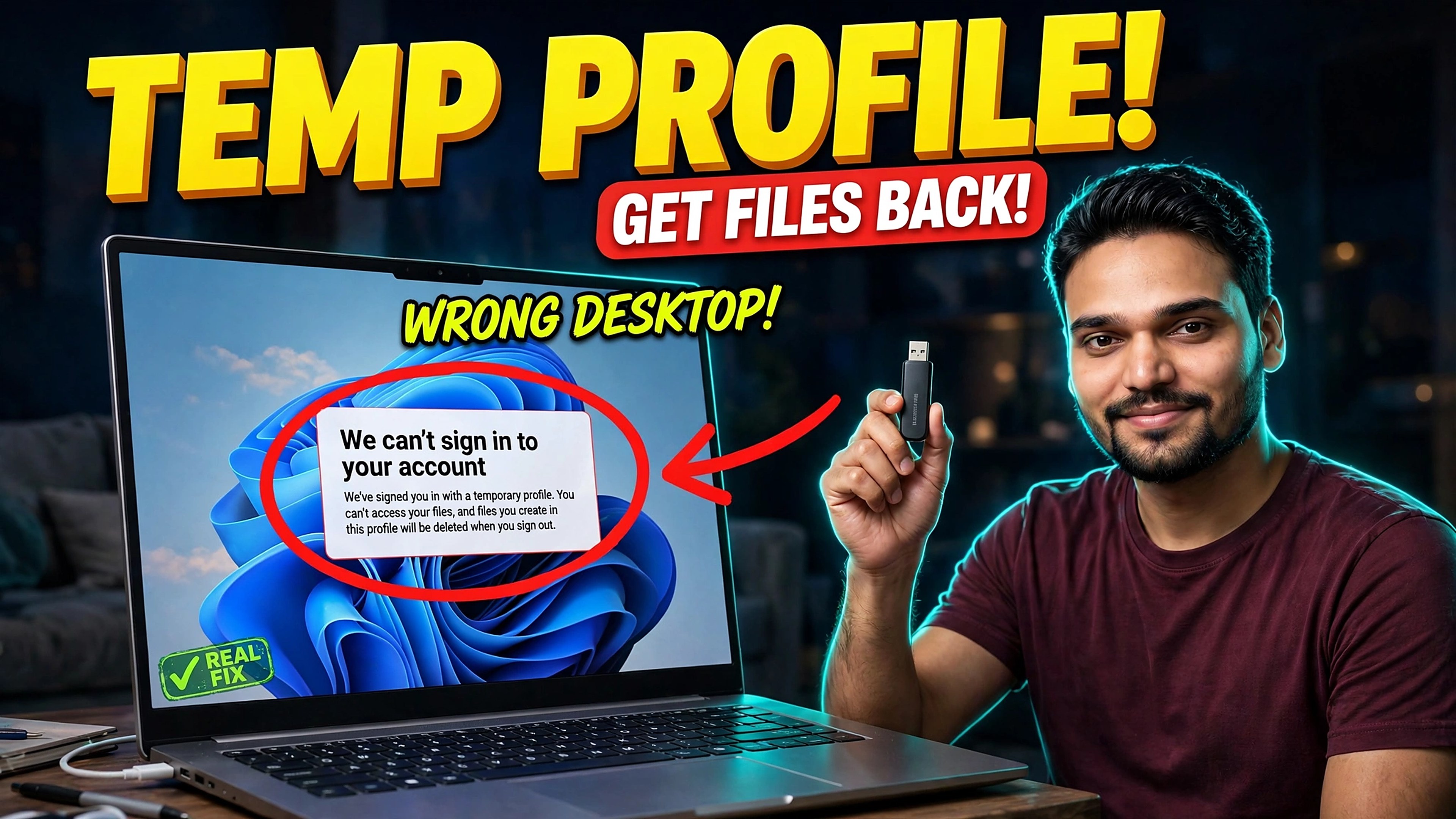
A temporary profile is Windows' fallback when your real profile fails to load: it opens a clean, empty session so you are not locked out completely, and it deletes that session at sign-out. Two facts keep this from becoming a disaster. First, your real files have not been deleted - they are still in your real folder under C:\Users, and they will reappear the moment your real profile loads. Second, Microsoft's documented fix for this exact message is unglamorous but effective: restart into Safe Mode, sign in, restart normally, sign in again - sometimes more than once. Only when the same account lands in the temporary profile every time do you need the deeper checks in Fixes 3 to 5: antivirus interference, a full C drive, or a stuck ProfileList registry entry.
Watch the Complete Fix
Watch the complete fix in the video: We Can't Sign In to Your Account Fix Temporary Profile Error Solution - every step below is shown on screen, in the same order.
This problem can often be fixed by signing out of your account and then signing back in. If you don't sign out now, any files you created or changes you make will be lost.
X The desktop shows default wallpaper, default icons and none of your files
X Settings and app sign-ins look reset, as if this were a brand-new account
X A TEMP folder appears under C:\Users while you are signed in
TEMPORARY PROFILE This session is deleted at sign-out. Save new work outside it before you restart - see Fix 1.
The fingerprint of this problem: you can sign in, but everything is empty and Windows warns that session changes will be lost.
First Save Anything You Created in This Session ⭐
Do this before every restart in this guide. The temporary profile - including its Desktop and Documents - is deleted the moment you sign out, restart or shut down.
- Plug in a USB drive, or open a folder that belongs to your real storage, such as another drive (D:) or a network folder. Do not save rescue copies onto this session's Desktop - that is inside the temporary profile.
- Copy every file you created or edited since this session started: documents, downloads, screenshots, exported files. Check this session's Desktop, Documents and Downloads folders one by one.
- If you have not created anything in this session, you can skip straight to Fix 2 - your older files are safe in your real profile folder and do not need rescuing.
- Do not try to "fix" the empty desktop by copying your old files into the temporary profile. Everything placed there is deleted at sign-out anyway; the goal is to load your real profile, not to furnish the temporary one.
The Microsoft Restart Cycle: Safe Mode, Then Normal Sign-in
This is Microsoft's documented fix for this exact message, and it resolves most one-off cases. Follow the order exactly - signing out and back in on a normal desktop is not the same thing.
- Restart the device into Safe Mode: hold Shift and click Power > Restart, then choose Troubleshoot > Advanced options > Startup Settings > Restart and press 4 or F4 for Safe Mode.
- Sign in with your original profile - your normal account and password - in Safe Mode. The desktop may still look plain in Safe Mode; what matters is completing the sign-in with your own account.
- Restart the device normally (do not choose Safe Mode again) and sign in with your account once more.
- If your real desktop, files and settings are back, you are done. Restart once more in normal mode to confirm it holds.
- If you land in the temporary profile again, repeat this whole cycle once more before moving on - Microsoft notes that more than one restart may be needed for the profile to load correctly.
- If two full cycles change nothing, the cause is persistent - continue to Fixes 3 and 4.
Temporarily Disable Third-Party Antivirus and Retry
Some third-party antivirus products scan and lock profile files during sign-in, and that lock is enough to make the profile load fail and drop you into the temporary one.
- If you use a third-party antivirus (not just the built-in Microsoft Defender), open it and temporarily disable its real-time protection. Use its own pause or disable option - 15 to 30 minutes is enough for this test, and most products turn themselves back on automatically.
- Restart the PC and sign in with your account.
- If your real profile loads this time, the antivirus is interfering at sign-in: update it to its latest version, check its settings for profile or user-folder scanning at logon, or replace it - Microsoft Defender alone is a valid option on Windows 11. Do not leave real-time protection off permanently.
- If nothing changes, turn the antivirus back on right away and continue to Fix 4. There is no benefit to leaving protection disabled while you test unrelated steps.
Check Free Space on C, Then the ProfileList .bak Entry
When the same account keeps landing in TEMP, work through these two persistent causes in order: a full system drive first (no registry risk), then the registry entry.
- Open This PC and check free space on drive C:. Windows needs room to load the profile; a completely full C drive makes the load fail. If C is nearly full, free space first - delete or move large files from another account or from Safe Mode - then restart and test your account before touching the registry.
- If space is fine and TEMP keeps returning, check the registry entry. Back up the registry first - do not skip this warning. Sign in with another administrator account (or Safe Mode), press Win + R, type
regeditand press Enter. Click File > Export, choose All under Export range, save the backup somewhere safe, and only then continue. Double-clicking that file undoes your edits. - Navigate to
HKEY_LOCAL_MACHINE\SOFTWARE\Microsoft\Windows NT\CurrentVersion\ProfileListand click the longS-1-5-21keys, checking ProfileImagePath to find your account. The stuck pattern is two keys with the same SID: one plain key pointing at a TEMP path, and the same key ending in .bak pointing at your real folder,C:\Users\YourName. - Fix the names: rename the plain key by adding
.oldto its end, then rename the .bak key by removing.bak. In the renamed good key, set RefCount and State to0, and confirm ProfileImagePath points to your real folder. - Close Registry Editor, restart normally, and sign in. If your real profile loads, repeat Fix 1 awareness in reverse: check that nothing you saved to USB in Fix 1 is now duplicated or missing, and copy back anything you still need.
- If there is no .bak duplicate, or the repair does not hold after a restart, do not keep editing keys at random - go to Fix 5.
Permanent Fallback: New Local Administrator Account + Copy Your Data
If the profile itself is corrupted, Microsoft's documented route in its "Fix a corrupted user profile" steps is a new profile with your data copied across. Your files survive; only settings and app sign-ins start fresh.
- Signed in as an administrator, open Settings > Accounts > Other users > Add account. Choose "I don't have this person's sign-in information", then "Add a user without a Microsoft account", to create a new local account, and set its account type to Administrator.
- Sign in once with the new account so Windows builds its profile folder, then sign back into the administrator account.
- From
C:\Users\YourOldName, copy the contents of Desktop, Documents, Downloads, Pictures, Music and Videos into the matching folders underC:\Users\YourNewName. Copy - do not move - so the originals remain as a backup. - Do not copy the hidden profile files at the top of the old folder -
NTUSER.DAT, its LOG files and the NTUSER.DAT.GUID file carry the corruption into the new profile. - Use the new account for a few days and confirm every important file opens. Keep the old folder untouched during that time; delete the old account only when you are certain nothing is missing.
Software Needed
No extra software is required. The fixes use Safe Mode and advanced startup, This PC for the free-space check, Registry Editor (regedit) with its own Export backup for the ProfileList step, and Settings and File Explorer for the new-account route. A USB drive is worth having for Fix 1 if you created files inside the temporary session. Do not install a "profile repair" tool or registry cleaner for this problem - neither can judge which ProfileList entry points at your real folder, and that judgement is the whole fix.
More PC Fixes on Technical Anshu
Every week: Windows problems, hidden tools and full setup guides, explained step by step.
Subscribe on YouTubeFrequently Asked Questions
What is a temporary profile in Windows?
A temporary profile is an empty, throwaway desktop Windows gives you when your real profile fails to load. It has default wallpaper and settings, none of your files on the desktop, and Windows deletes it when you sign out - which is why the warning says anything you create in this session will be lost. Your real files are not deleted; they stay in your real folder under C:\Users, waiting for the real profile to load again.
Why does Microsoft say I may need to restart more than once?
Microsoft's own guidance for this message is to restart in Safe Mode, sign in, then restart normally and sign in again - and it notes more than one restart may be needed. The first Safe Mode sign-in lets Windows finish repairing or releasing the profile files that were locked, and the normal sign-in after it often succeeds. Treat the restart cycle as the fix itself, not as a delay before the fix.
How do I know I am in a temporary profile and not my real one?
Windows shows the We can't sign in to your account notification, the desktop has default wallpaper and icons, your Desktop and Documents look empty, and a folder named TEMP appears under C:\Users while you are signed in. You can also press Windows + R, type %USERPROFILE% and check: in a temporary profile it points to a TEMP folder instead of C:\Users\your name.
Can low disk space really cause a temporary profile?
Yes. Windows needs free space on drive C to load and update your profile at sign-in. If C is completely full, the profile load fails and Windows falls back to a temporary profile. Check This PC: if C shows almost no free space, free up space from another account or Safe Mode first, then restart and sign in again before trying registry steps.
My account lands in a temporary profile every single time. What fixes it permanently?
A one-off temporary profile is fixed by the Safe Mode restart cycle. If the same account lands in TEMP on every sign-in, the ProfileList registry entry is usually stuck with a .bak duplicate, or the profile itself is corrupted. Fix the ProfileList entry with a registry backup first (Fix 4); if that does not hold, create a new local administrator account and copy your personal data across, which is Microsoft's documented fix for a corrupted profile.