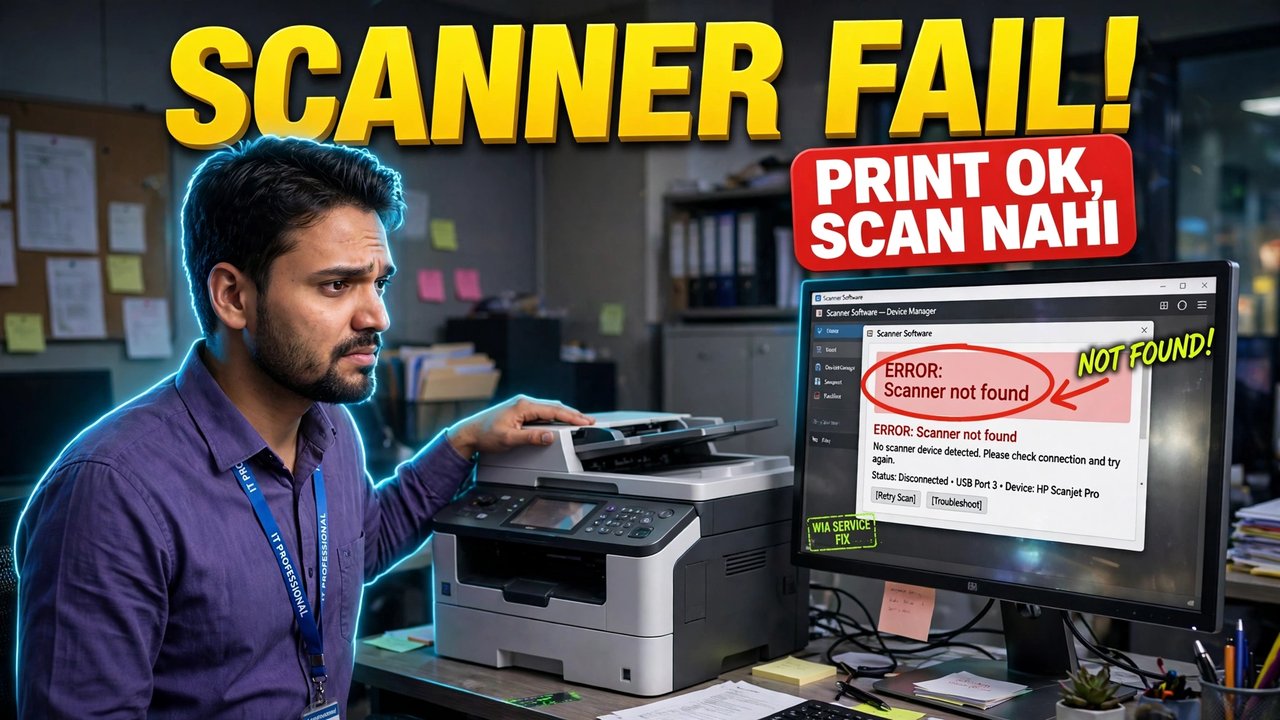
This is a classic office complaint on Microsoft Q&A and printer support forums: the all-in-one printer prints from the same PC without a single error, yet scanning to that computer fails, or every scan program insists there is no scanner. The reason it confuses people is that printing succeeding proves the cable or network is fine - so they blame the scanner hardware. In practice the scan side depends on two things printing never touches: the Windows Image Acquisition (WIA) service, and the scan driver that only comes with the maker's full software package. The steps below check the service first, then the driver, then give you two independent test apps so you can prove whether the fault is the app, the driver or the device itself.
OK Printing a page from the same PC works normally
X Scan program shows "No scanners were detected" or the scan simply never starts
X Pressing Scan to Computer on the printer panel ends with a connection error
SCAN SIDE ONLY The print path is proven working - the fault is in the service, the scan driver or the scan app, not the printer as a whole.
The fingerprint of this problem: one half of the all-in-one works, the scan half does not.
Restart the Windows Image Acquisition (WIA) Service ⭐
Every scan program on Windows talks to the scanner through this one service. If it has stopped, no program will find the scanner, however good the driver is.
- Press Win + R, type
services.mscand press Enter. - Find Windows Image Acquisition (WIA) in the list.
- Right-click it, choose Properties, set Startup type to Automatic, click Apply.
- Click Start (or Restart if it already shows Running), then OK.
- Try a scan again before changing anything else - a stopped WIA service is the single most common cause of this exact problem.
Install the Maker's FULL Software Package, Not Just the Print Driver
When Windows adds a printer by itself, it usually installs only a basic print driver. That driver contains nothing for scanning. The scan driver and the scan-to-computer components live in the maker's full package.
- Go to your printer maker's official support site and search your exact model number.
- Download the full feature software or full driver package for your Windows version - not the basic or universal print driver.
- Run the installer and let it set up both printing and scanning. Restart the PC when it finishes, even if it does not ask.
- Test scan to computer again, first from the maker's own scan tool that the package installed.
- If you had an older half-installed package, uninstall the printer software from Settings > Apps first, restart, and then install the fresh full package, so old and new scan components do not fight each other.
Try the Official Windows Scan App
Microsoft's own free scan app removes the maker's app from the equation. If this app scans, your hardware and driver are fine and only the maker's software was broken.
- Open the Microsoft Store, search Windows Scan, and install the free app published by Microsoft.
- Open it, select your scanner in the Scanner dropdown, choose a file type, and click Scan.
- If the scanner does not appear in the dropdown at all, Windows itself cannot see it - go back to Fix 1 and Fix 2, because no app will find it until the service and driver are right.
Network Scanner: Same Network and Firewall
Skip this fix if your printer is connected by USB. For a Wi-Fi or LAN printer, scan to computer needs the PC to be reachable by the printer, which is a different direction from printing.
- Confirm the PC and the printer are on the same network - the same Wi-Fi name, not a guest network, and not the PC on 5 GHz while the printer sits on a separate 2.4 GHz network with isolation switched on.
- When the maker's scan software was installed, if Windows asked about firewall access, it must have been allowed. Check it: open Windows Security > Firewall & network protection > Allow an app through firewall and make sure the maker's scan/printer app is ticked for your network type (Private).
- Set your Wi-Fi network profile to Private in Settings > Network & internet > Wi-Fi > your network. On a Public profile, Windows blocks the incoming connection that scan to computer depends on.
- Restart both the printer and the PC once after these changes, then test again.
If WIA Keeps Failing, Repair Windows Files With SFC
If the WIA service will not start, or starts and stops again with an error, a damaged Windows system file may be underneath it. The built-in System File Checker can repair that.
- Press Win + X and choose Terminal (Admin) or Command Prompt (Admin).
- Run:
sfc /scannow - Wait for the scan to reach 100 percent. If it reports that it found and repaired corrupt files, restart the PC.
- Go back to Fix 1, confirm WIA is Automatic and running, and test a scan.
Isolate the Fault With Windows Fax and Scan
This last test tells you exactly where the problem sits, so you stop guessing: app, driver or device.
- Press Win + R, type
wfsand press Enter to open Windows Fax and Scan. - Click New Scan. If your scanner is listed and the scan completes, the device and driver are healthy - the fault is only in the maker's app, so reinstall just that app from the full package in Fix 2.
- If Windows Fax and Scan also cannot find the scanner, and the Windows Scan app from Fix 3 could not either, the fault is below the apps: the scan driver or the connection. Reinstall the full package once more, and for USB, try a different cable and a different USB port.
- If the scanner fails on a second PC as well with its full package installed, the scanner unit itself is faulty and needs the maker's service centre - no setting on the PC will fix dead scan hardware.
Software Needed
Only two downloads, both official: the full software/driver package from your printer maker's support site for your exact model, and the free Windows Scan app from the Microsoft Store for testing. Everything else - services.msc, Windows Fax and Scan, SFC - is already built into Windows. Do not download a "scanner driver pack" from a third-party driver site.
More PC Fixes on Technical Anshu
Every week: Windows problems, hidden tools and full setup guides, explained step by step.
Subscribe on YouTubeRelated Video
Related video (not this scan-to-computer fix): for printer problems handled the engineer way - drivers, ports and services - watch: Fix Any Printer Problem Like an Engineer
Frequently Asked Questions
Why does my printer print but not scan?
Printing and scanning use different drivers and different Windows services. A basic print driver is enough for printing, but scanning needs the scan driver from the maker's full software package plus the Windows Image Acquisition (WIA) service running. When printing works and scanning fails, one of those two scan-side pieces is missing or stopped.
What is the Windows Image Acquisition WIA service?
Windows Image Acquisition, listed as WIA in services.msc, is the Windows service that lets programs talk to scanners and cameras. If it is stopped or set to manual and never started, scan programs report that no scanner is found even though the device is connected. Setting it to Automatic and starting it is the first check for any scan-to-computer failure.
Can I scan without the printer maker's software?
Often yes. Microsoft's free Windows Scan app from the Microsoft Store and the built-in Windows Fax and Scan both work with any scanner Windows can see through WIA. If both of those also fail to find the scanner, the problem is the driver or connection, not the maker's app.
Why does scan to computer fail only on my network printer?
On a network printer, scanning needs the PC and printer to reach each other in both directions. If the PC is on a different Wi-Fi band or network, or the firewall blocks the scanner software, printing may still work while scan to computer silently fails. Confirm both devices are on the same network and allow the scanner app through the firewall.