Recover Saved Browser Passwords - No Windows Password
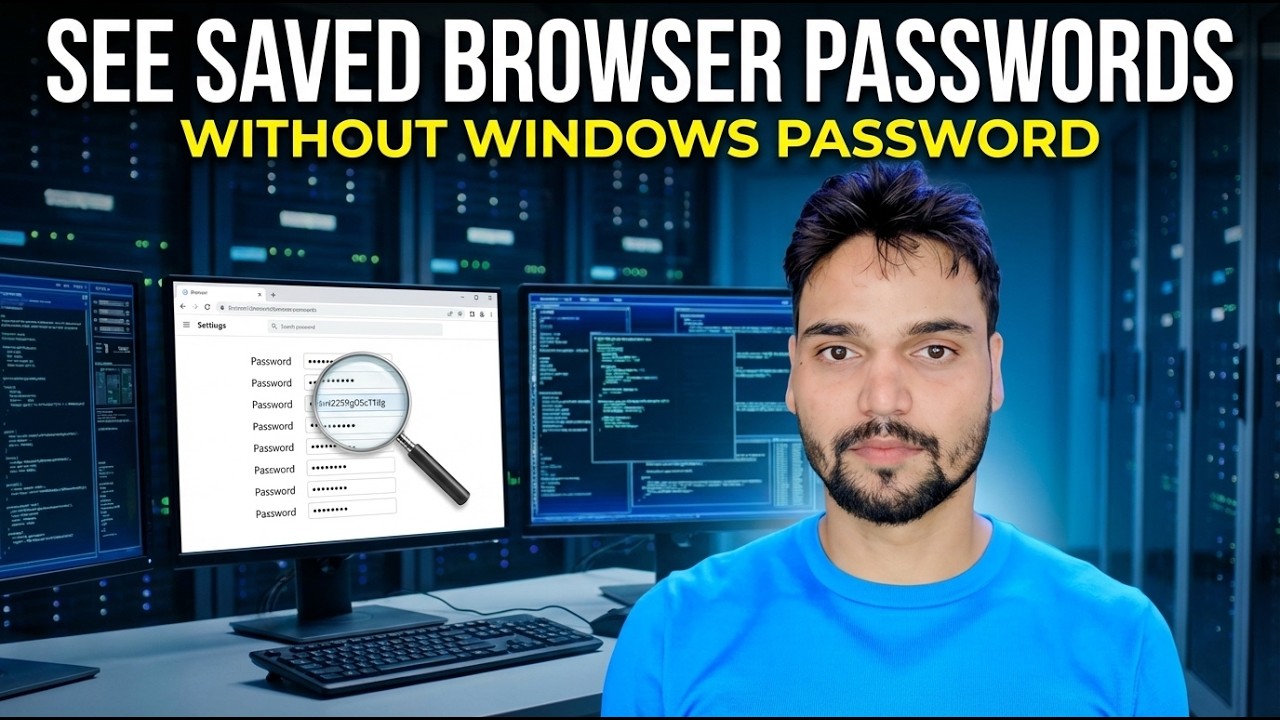
Forgot your Windows password and your Chrome or Edge passwords are locked inside? Here are the honest recovery routes — a still-logged-in session, your synced Google or Microsoft account, a careful reset — and the DPAPI limit no tool can honestly beat. This is for recovering your own passwords on your own computer.
📑Chapters
- The honest picture first — your saved passwords are locked to your Windows account by DPAPI
- Work out which of the four situations you are actually in
- Route 1 — the PC or browser is still logged in: export everything right now
- Route 2 — your passwords were synced to your Google or Microsoft account
- Route 3 — recover the Windows account itself, the careful way
- Route 4 — the old hard drive plugged into a new PC
- The hard limit — what no honest tool can do
- If every door is closed — rebuild your password list site by site
📋 Overview & Step-by-Step Guide
First, Work Out Which Situation You Are Actually In
Here is the truth first, because everything else hangs on it. The passwords saved in Chrome or Edge are not stored as plain text. They sit encrypted in a file called Login Data, and the key that unlocks them is itself locked by your Windows user account — a Windows protection system called DPAPI. So "I forgot my Windows password" covers four very different situations, and each one has a different honest answer:
1. The PC still logs you in — with a PIN, fingerprint, face, or because it signs in automatically. You are not locked out at all — go to Route 1 and export everything today. 2. Your browser was synced — Chrome sync or Edge sync was on, so your passwords also live in your Google or Microsoft account — go to Route 2. 3. It is a Microsoft account sign-in and you can reset that password online — that reset is the DPAPI-safe kind — go to Route 3. 4. It is a local account, the password is forgotten, and nothing is logged in or synced — this is the hard case, and Route 3 grades what a reset will cost you.
Route 1 — Still Logged In? Export Your Passwords Right Now
If any session is still alive — the PC still signs you in, or Chrome on this PC or another device still opens — export now, before a restart or a cleanup closes the door. A living session has already passed the Windows gate, so the browser can read its own passwords. Open Chrome and go to its password manager:
chrome://settings/passwordsFor Microsoft Edge, the matching page is:
edge://settings/passwordsOpen the menu on that page and choose Export passwords. The browser will ask for your Windows credential — a PIN or fingerprint counts if that is how you sign in. Also check your phone: if Chrome or Edge on the phone is signed into the same account, its Password Manager is another living copy.
Route 2 — Recover From Your Synced Google or Microsoft Account
If Chrome Sync was on, your passwords are in your Google account, not only on this PC. Open this address on any device and sign in:
passwords.google.comYour saved passwords are listed there, and the lock you now need to open is your Google account, which has its own recovery — recovery email, phone number, backup codes. Edge works the same way through your Microsoft account: the passwords Edge synced are held with the account, so recovering the account recovers them.
Route 3 — Recover the Windows Account Itself, the Careful Way
Sometimes the right target is not the browser at all — it is the Windows sign-in. But how you reset matters enormously. Microsoft account: reset the password through Microsoft's official online flow, then sign in on the PC with the new password — in the normal case your saved passwords keep working, because the supported flow re-wraps the protection instead of smashing it. Local account, you remember the old password: change it from inside Windows — a change that knows the old password is safe for DPAPI.
Route 4 — The Old Drive in a New PC (Short, Honest Version)
Many people pull the old hard drive, plug it into a new PC, copy the Chrome folder across — and find the passwords will not open. That is expected, not a mistake: the DPAPI keys do not travel with the folder. If you still know the old Windows password, expert-level offline recovery using that password exists as a documented technique and is genuinely technical. If the old PC can boot at all, even slowly, booting it and using Route 1 is simpler and safer.
The Hard Limit — What No Honest Tool Can Do
Stated without decoration: nobody can decrypt your Login Data file without one of the honest doors — a live logged-in session, the profile's Windows credential, or the synced cloud account. Tools that view saved passwords work inside your own logged-in session — they ask Windows to decrypt, and Windows agrees because you are signed in. Run the same tool on a locked profile from outside and it shows nothing useful.
Login Data file and promises to "crack" it is either misinformed, lying, or collecting password files — handing that file to strangers is a security disaster by itself. Never upload it.If every door is closed, the practical recovery is unglamorous but real: the Login Data file still lists which sites you had accounts on, and your email inbox holds the rest — reset the password at each important site, one by one, and land them in a password manager as you go. That is how most of these stories actually end, and it does end.
🏷️Topic Search Variables & Keywords
🎙️ Full Transcript — tap to expand
Step-by-Step Troubleshooting Guide & Solutions - SEE SAVED BROWSER PASSWORDS WITHOUT WINDOWS PASSWORD. On-screen demonstration by Technical Anshu....
Forgot your Windows password and your Chrome or Edge passwords are locked inside. The honest recovery routes — a still-logged-in session, your synced Google or Microsoft account, a careful reset — and the DPAPI limit no tool can honestly beat.
(transcript ends here on the source page)
❓ Frequently Asked Questions
Is this tutorial 100% free to follow?
Yes! All guides and methods demonstrated by Technical Anshu use free, legal, and educational resources.
Can beginners follow this guide?
Absolutely! Every step is demonstrated on-screen with detailed instructions so anyone can follow along easily.
Where can I ask questions if I get stuck?
Leave a comment directly on the YouTube video, and our community and Technical Anshu will help you out.
🚀 Watch the Full Tutorial on YouTube
🚀 Watch the full step-by-step video tutorial on YouTube: https://www.youtube.com/watch?v=525kLm48Bs0
Subscribe to Technical Anshu for IT support, Windows troubleshooting, and server management.
▶️ Watch Full Video