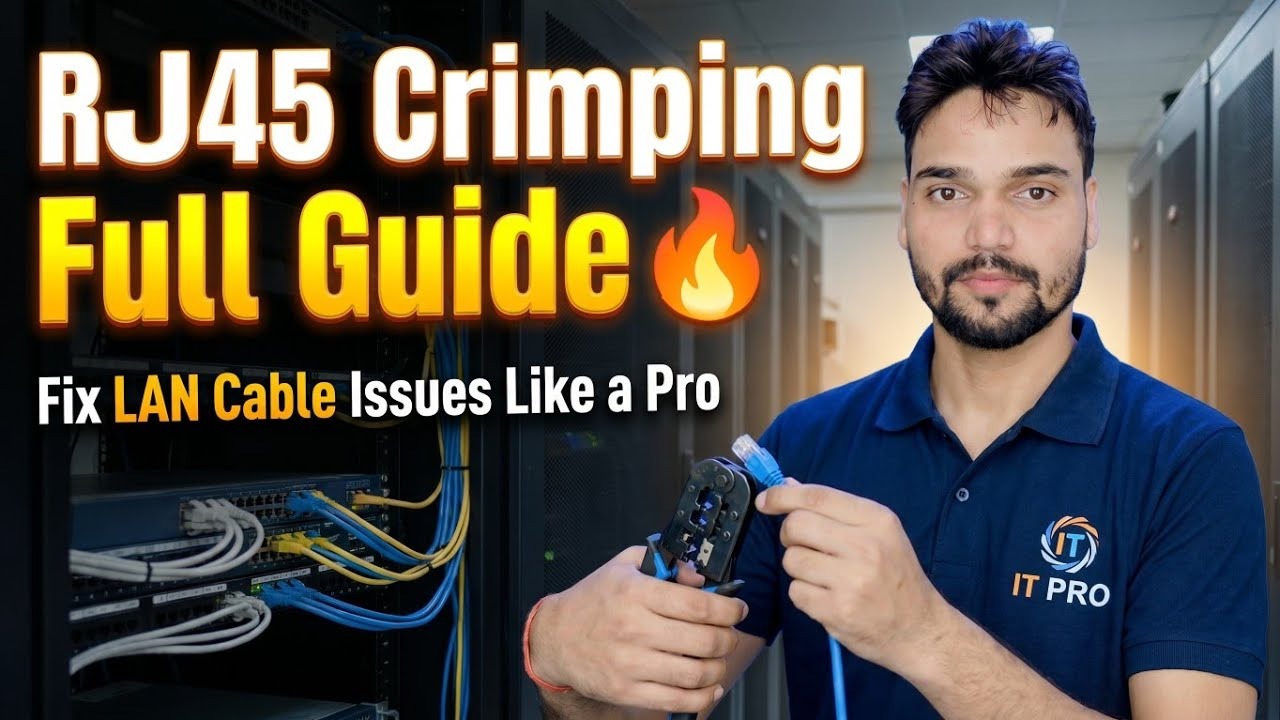
RJ45 Crimping Full Guide 🔥 Fix LAN Cable Issues Like a Pro
Most "LAN cable problems" are really just one bad crimp. Learn RJ45 crimping the correct way — the tools, the T568B pinout, the step-by-step technique, the common mistakes, and how to test every LAN cable you make.
📑Chapters
- Why most LAN cable issues are just a bad crimp
- The tools you need before you start
- T568A vs T568B — pick one colour standard and stick to it
- Strip the cable and line the wires up in T568B order
- Trim, insert and crimp the RJ45 connector
- Repeat the same standard on the other end
- Test the finished cable pin by pin
- Common mistakes — and how a bad cable gets fixed
📋 Overview & Step-by-Step Guide
Start with the Right Tools
You need only a few things: the LAN cable itself (Cat5e or Cat6), RJ45 connectors that match the cable type, a crimping tool, a cable stripper (most crimpers have one built in), a cutter, and a LAN cable tester. Match the connector to the cable — Cat6 cable with Cat5e plugs, or stranded-cable plugs on solid-core cable, gives a weak crimp that fails later. In the video, Anshu works with this basic kit and shows that clean results come from technique, not expensive tools.
Know the T568B Colour Order
Every RJ45 plug has 8 pins, and the wires must sit in one fixed order. The standard used in this guide is T568B. Hold the plug with the pins facing up and the clip facing away from you — pin 1 is on the left. The T568B order from pin 1 to pin 8 is: 1 — White/Orange, 2 — Orange, 3 — White/Green, 4 — Blue, 5 — White/Blue, 6 — Green, 7 — White/Brown, 8 — Brown.
The other standard, T568A, is identical except the orange and green pairs swap places (White/Green first, then Green, then White/Orange and Orange). Both standards work equally well — what matters is using one of them correctly. T568B is the more common choice, and it is the one this video follows.
Strip the Outer Jacket
Slide the stripper over the end of the cable, squeeze gently and rotate once or twice to score the outer jacket, then pull the jacket off — roughly 2.5 to 3 cm (about an inch) is enough to work with. If your cable has a pull string or a plastic cross separator (common in Cat6), trim those back to the jacket edge.
Untwist and Line Up the Wires
Separate the four pairs and untwist each one. Then arrange all eight wires flat, side by side, in the T568B order from Step 2: White/Orange, Orange, White/Green, Blue, White/Blue, Green, White/Brown, Brown. Run your fingers along them a few times to straighten them and press them flat so they stay in order and move as one ribbon.
Trim Even and Insert into the Plug
Hold the eight wires flat in order and cut them straight across in one clean cut, leaving about 12 mm (half an inch) of exposed wire. All eight ends must be exactly level — even one short wire will not reach its contact inside the plug. Now slide the wires into the RJ45 plug, pins up and clip away from you, keeping the order as they go in. Push firmly until every wire end touches the front wall of the plug and the cable jacket itself enters the plug far enough to sit under the crimping bar at the back.
Crimp the Connector Firmly
Place the loaded plug into the 8P slot of the crimping tool and squeeze the handle fully — on a ratchet crimper, squeeze until the ratchet releases. This one action does two things: the gold contacts are pressed down so their teeth bite into each wire, and the plastic bar at the back clamps onto the cable jacket as strain relief. Remove the plug and give the cable a firm tug — it should not move at all. A crimp that slips was not squeezed fully, and that end must be cut off and redone.
Do the Other End the Same Way
Repeat Steps 3 to 6 on the other end of the cable, using the same T568B standard. Same standard on both ends gives a straight-through cable — the normal patch cable used between a PC and a switch, router or wall socket, and the type you will make almost every time.
Test Every Cable You Make
Never trust an untested cable. Plug both ends into a LAN cable tester and switch it on: the lights for pins 1 to 8 should light up in the same sequence on both the main and remote units. A pin that does not light is an open connection, two pins lighting together means a short, and lights in the wrong order mean the wires were arranged incorrectly at one end. The tester tells you exactly which end and which pin is wrong.
And the fix for any failed end is always the same: cut the connector off and crimp a fresh one, following the steps above. A crimped plug is never repaired or reused — this single habit is what separates a reliable homemade cable from the kind that causes the LAN issues this video is about fixing.
🏷️Topic Search Variables & Keywords
🎙️ Full Transcript — tap to expand
Step-by-Step Troubleshooting Guide & Solutions - RJ45 Crimping Full Guide Fix LAN Cable Issues Like a Pro. On-screen demonstration by Technical Anshu.
Learn RJ45 crimping the correct way - tools, the T568B pinout, step by step technique, common mistakes and how to test every LAN cable you make.
(transcript ends here on the source page)
❓ Frequently Asked Questions
Is this tutorial 100% free to follow?
Yes! All guides and methods demonstrated by Technical Anshu use free, legal, and educational resources.
Can beginners follow this guide?
Absolutely! Every step is demonstrated on-screen with detailed instructions so anyone can follow along easily.
Where can I ask questions if I get stuck?
Leave a comment directly on the YouTube video, and our community and Technical Anshu will help you out.
🚀 Watch the Full Tutorial on YouTube
🚀 Watch the full step-by-step video tutorial on YouTube: https://www.youtube.com/watch?v=Gn47cCeMXtA
Subscribe to Technical Anshu for IT support, Windows troubleshooting, and server management.
▶️ Watch Full Video