Setup Synology NAS VPN
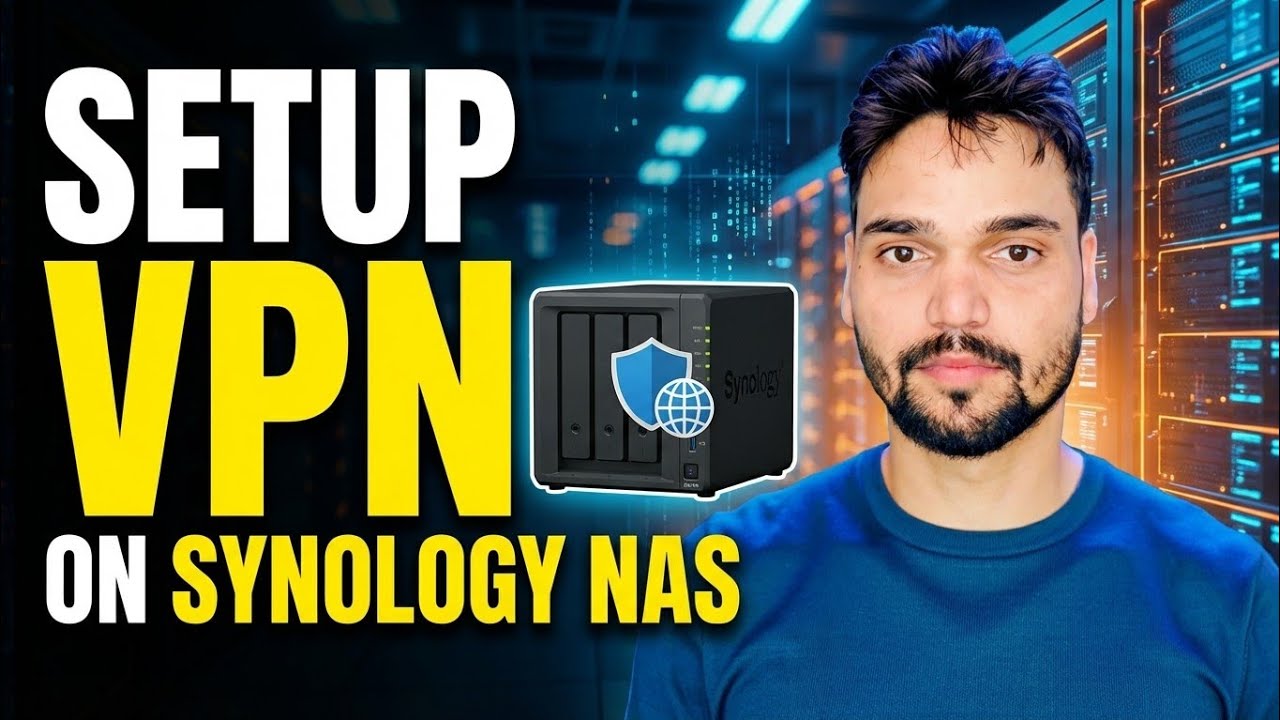
Set up VPN Server on a Synology NAS step by step: OpenVPN, DDNS, one router port forward, and a safe test from your phone — so you can reach your files securely from anywhere.
📑Chapters
- Why a VPN — reach your files from anywhere without exposing the NAS
- Give the NAS a fixed address on your network
- Install the free VPN Server package from Package Center
- Turn on OpenVPN — port 1194, UDP, and LAN access for clients
- Allow only the right user — VPN privilege with a dedicated account
- Set up Synology DDNS so one name always points home
- Forward exactly one port on the router and export the .ovpn configuration
- Edit the remote line to your DDNS name
- Connect from your phone with OpenVPN Connect
- The safe test — files open on mobile data, away from home
📋 Overview & Step-by-Step Guide
Give the NAS a Fixed Address on Your Network
Every later step points at one fixed address. If your NAS takes its address automatically from the router, that address can change after a restart — and then the port forward and the VPN silently stop working. So fix the address first.
Open Control Panel → Network → Network Interface, select your LAN connection, click Edit and choose Use manual configuration. Give the NAS a fixed address inside your own network — in this video the NAS sits at 192.168.1.10. Write the address down; Steps 6 and 7 use exactly this address.
Install the VPN Server Package
Synology gives you the VPN server for free as its own official package — nothing to download from any third-party site.
Open Package Center, search for VPN Server and click Install. When it finishes, open VPN Server from the main menu. You will see three protocols listed: OpenVPN, L2TP/IPSec and PPTP. This guide builds on OpenVPN only.
Turn On OpenVPN and Allow LAN Access
In VPN Server, open the OpenVPN page and tick Enable OpenVPN server. Keep the default port 1194 and protocol UDP for your first setup — the router rule in Step 6 and the exported file in Step 7 both depend on these two values.
Also tick Allow clients to access the server's LAN. Without it, your phone connects to the VPN but reaches nothing behind it — no NAS, no shared folders. Click Apply.
Allow Only the Right User to Connect
A VPN login is a key to your whole home network, so never hand it to your main DSM admin account. Create one normal DSM user only for VPN, with a long, unique password that is not used anywhere else.
Then open VPN Server → Privilege and allow that user for OpenVPN only — nobody else gets VPN access. Keep DSM's Auto Block on as well (Control Panel → Security → Account), so repeated wrong passwords from the internet lock the attacker out automatically.
Set Up Synology DDNS — One Name That Always Points Home
Your home internet connection's public address changes from time to time. If your VPN file points at today's address, it breaks the next time the address changes. DDNS solves this: one permanent name that always follows your home.
Open Control Panel → External Access → DDNS, click Add, choose the service provider Synology and sign in with your Synology Account. Pick a hostname such as yourname.synology.me and confirm the status shows Normal. This name — not a number — is what your phone will use in Step 7.
Forward Exactly One Port on the Router and Export the .ovpn File
Your router must pass VPN traffic through to the NAS. That is one rule, for one port, to one address — nothing more.
Log in to your router, find Port Forwarding, and forward external UDP port 1194 to the NAS fixed address from Step 1, port 1194:
UDP 1194 -> 192.168.1.10 : 1194Also allow VPN Server in the DSM firewall if it is switched on (Control Panel → Security → Firewall). Then go back to the OpenVPN page in VPN Server and click Export configuration to save the .ovpn file. Open that file in a text editor and check the remote line — it must carry your DDNS name and the OpenVPN port:
remote yourname.synology.me 1194Connect From Your Phone and Test on Mobile Data
Install the free OpenVPN Connect app on your phone and import the .ovpn file you exported in Step 6. Enter the VPN user's name and password from Step 4 and connect.
Now the honest test: turn Wi-Fi off and stay on mobile data. A test on your own Wi-Fi proves nothing, because you are already inside the network. On mobile data, open your NAS address 192.168.1.10 or one of its shared folders. If your files open from outside your home, the setup is genuinely finished — this is the safe test the video ends with.
remote line in the .ovpn file carries your DDNS name, not an old IP address.Keep the VPN Safe Afterwards
A VPN is the safe way to reach your NAS from outside — but only while it is looked after. Three habits keep it that way:
• Update: keep DSM and the VPN Server package updated; VPN fixes are security fixes.
• Passwords: every VPN user keeps their own strong password — no shared accounts, and remove the privilege in VPN Server the moment someone no longer needs access.
• Doors: the UDP 1194 forward from Step 6 stays the only new opening on your router.
🏷️Topic Search Variables & Keywords
🎙️ Full Transcript — tap to expand
Step-by-Step Troubleshooting Guide & Solutions - SETUP | VPN | ON SYNOLOGY NAS. On-screen demonstration by Technical Anshu.
Set up VPN Server on a Synology NAS step by step. OpenVPN, DDNS, one router port forward, and a safe test from your phone so you can reach your files securely from anywhere.
(transcript ends here on the source page — watch the video above for the full walkthrough.)
❓ Frequently Asked Questions
Is this tutorial 100% free to follow?
Yes! All guides and methods demonstrated by Technical Anshu use free, legal, and educational resources.
Can beginners follow this guide?
Absolutely! Every step is demonstrated on-screen with detailed instructions so anyone can follow along easily.
Where can I ask questions if I get stuck?
Leave a comment directly on the YouTube video, and our community and Technical Anshu will help you out.
🚀 Watch the Full Tutorial on YouTube
🚀 Watch the full step-by-step video tutorial on YouTube: https://www.youtube.com/watch?v=PNwaSAGIZfk
Subscribe to Technical Anshu for IT support, Windows troubleshooting, and server management.
▶️ Watch Full Video