Computer Scam Alert ❌ Fake HDD & Fake CPU Ka Sach
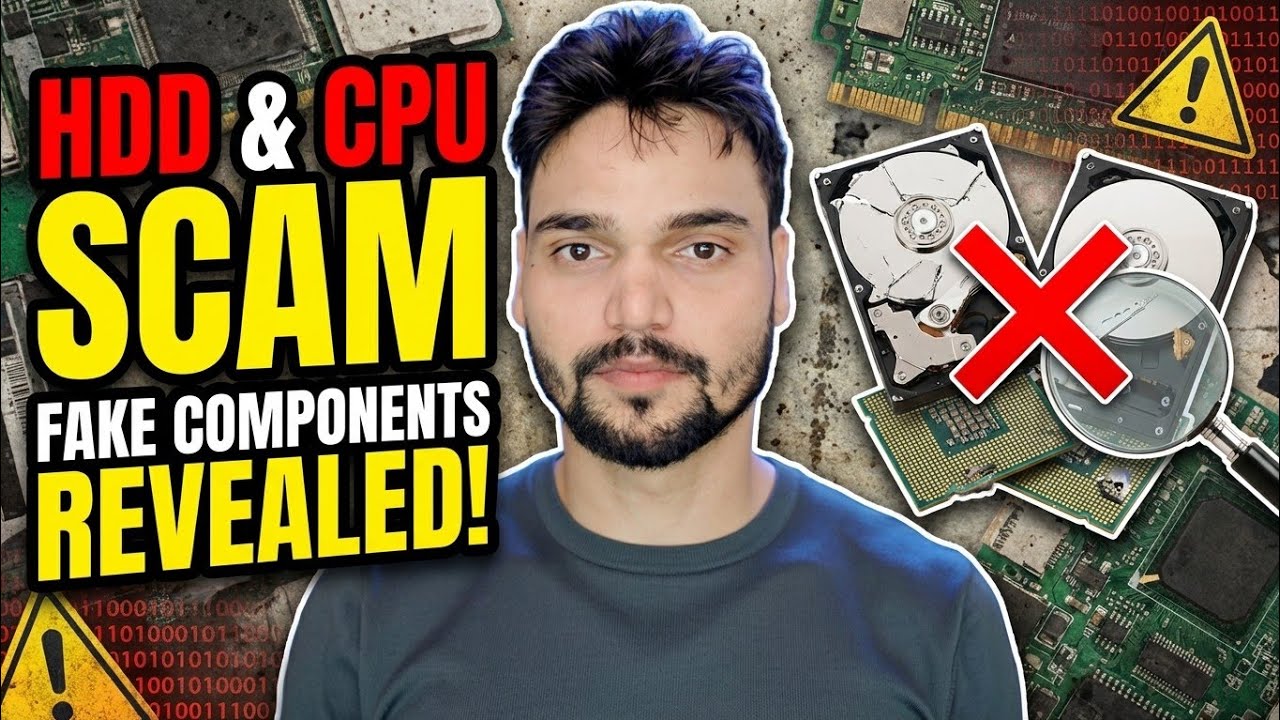
Fake 2 TB pen drives with only 32 GB inside, and remarked CPUs sold as new — how both scams work, the loop-write lie behind fake storage, and the H2testw, f3 and CPU-Z checks that expose a fake before your money and data are gone.
📑Chapters
- The two scams in this video — fake-capacity drives and remarked CPUs
- How a fake drive lies — the firmware reports a size the flash inside does not have
- The loop-write lie — why copies look successful and files later vanish
- Check any suspicious drive with H2testw — the full write-and-verify test
- On Linux and macOS — the same check with f3write and f3read
- How a remarked CPU passes as new — fresh printing on an old chip
- The CPU-Z truth test — the fields that cannot be reprinted
- Test on day one — while the drive or CPU can still go back
📋 Overview & Step-by-Step Guide
Know the Two Tricks Before You Pay
This video exposes the two oldest hardware scams in the market. The first is the fake-capacity drive: a pen drive, memory card or external drive printed as 1 TB or 2 TB, while the real memory inside may be only 16 GB, 32 GB or 64 GB — sometimes a rejected chip that failed quality checks at the factory. The second is the remarked CPU: a real but old or low-end processor whose top surface has been polished and re-printed with the name of a newer, faster, more expensive model.
Both scams open with the same bait — a price that makes no sense. A "2 TB" drive selling at the price of a 128 GB one, or a latest-generation CPU at half the market rate, is not a discount. Treat an impossible price as your first test result, and run the checks below before the part is trusted with money or data.
Why the Size Shown in Windows Proves Nothing
A drive has two different capacities: the real flash inside, and the number its controller reports to your computer. On a genuine drive both numbers match. On a fake, the controller is programmed to report the big printed size — and Windows, your phone and your camera all believe it, because the operating system has no way to measure the physical flash directly. Checking the capacity in Explorer therefore proves nothing at all.
Worse is what happens when you start using it — the loop-write lie. The drive accepts your files happily until the real space fills up. After that, the controller quietly wraps around and starts overwriting your oldest data with the new files. Nothing warns you, and the copy dialog still says success. The loss is usually discovered days or months later, when older files open corrupted — or do not open at all. This is why a fake drive must be caught by testing, never by trusting.
Check the Drive with H2testw — Fill It, Then Verify
There is one test a fake drive cannot pass: actually filling it. H2testw is a small free Windows utility (no installation needed) that writes test data across the drive and then reads every byte back to verify it. Plug the drive in and note its drive letter. Open H2testw and select that letter — check it twice, because the test writes across the target you choose. Select the option to test all available space and start: the write phase runs first, then the verify phase follows automatically.
Read the verdict plainly. If the full claimed capacity verifies with no errors, the drive is the size it claims. If the report says data was lost beyond a smaller size, the drive is fake — and that smaller verified number is its real capacity, and your hard evidence for a refund.
On Linux or macOS — the Same Check with f3
The open-source tool f3 does the same job in two commands. Mount the drive, open a terminal inside the mounted drive's folder, and fill it with numbered test files:
f3write .Then read everything back and verify it:
f3read .f3read reports corrupted or missing data file by file, which maps directly to where the real memory ends — the same verdict as H2testw. The dot simply means "this folder", so the commands must run from a terminal opened on the mounted drive itself. Delete the test files afterwards; they are named clearly and hold nothing of yours. On macOS, f3 is available through Homebrew with brew install f3.
The Remarked CPU — Old Silicon, New Printing
The processor scam fakes identity, not silicon. The original laser etching on the chip's metal heat spreader is polished away, and a new model name, batch code and branding are printed or etched on. Done well, it survives any visual inspection — the font, the logo, even the QR-style codes can be copied, so your eyes cannot settle this one.
Two variants are common in local markets: an old server or workstation chip — plentiful and cheap — sold under a modern desktop model's name, and the downgrade swap, a genuinely current chip but a much lower model in the range, reprinted as its expensive sibling. Installed in a PC, the chip works, because it is a real processor — it is just slower than what you paid for, with fewer cores, an older architecture and no warranty. Many buyers never notice. The check that catches it comes next.
Run the CPU-Z Truth Test
Software does not read the printing — it asks the chip who it really is. CPU-Z (free, from the official cpuid.com site only) reads the processor's own internal identity, which was fused in at the factory and cannot be polished or reprinted. Install the CPU, open CPU-Z's CPU tab, and compare these fields against the official specification of the model you paid for:
Code Name — the architecture family; a chip sold as a current model but reporting a code name from generations ago is caught instantly. Cores and Threads — count them against the spec sheet. Cache sizes — L2 and L3 amounts are fixed per model, and a smaller L3 than the spec is a classic tell. Clocks — watch the core speed under load; remarked chips often boost far below the claimed model's speeds. Specification string and Stepping — a string that names a different variant, such as a mobile or server part, gives the game away.
Test on Day One — and Keep Your Proof
Every check on this page works best while the return window is still open, so make it a habit: the day any drive or processor arrives, run the test before it holds real data or settles into a build. Keep the bill, the sealed packing and your test screenshots until the part has proven itself. If a drive fails the write test or a CPU fails the CPU-Z comparison, you are not arguing an opinion — you have a measurement, and that is what gets money back.
And if you have already trusted a suspicious drive with files, treat anything stored past its real capacity as at risk: copy what still opens to a known-good drive first, and only then deal with the seller. Test first, trust later — that one order is the whole defence against both scams in this video.
🏷️Topic Search Variables & Keywords
🎙️ Full Transcript — tap to expand
Step-by-Step Troubleshooting Guide & Solutions - HDD & CPU SCAM FAKE COMPONENTS REVEALED!. On-screen demonstration by Technical Anshu....
Fake 2 TB pen drives with 32 GB inside, remarked CPUs sold as new — how the fake HDD and fake CPU scam works, the loop-write lie, and the H2testw and CPU-Z tests that expose it before your money and data are gone.
(transcript ends here on the source page)
❓ Frequently Asked Questions
Is this tutorial 100% free to follow?
Yes! All guides and methods demonstrated by Technical Anshu use free, legal, and educational resources.
Can beginners follow this guide?
Absolutely! Every step is demonstrated on-screen with detailed instructions so anyone can follow along easily.
Where can I ask questions if I get stuck?
Leave a comment directly on the YouTube video, and our community and Technical Anshu will help you out.
🚀 Watch the Full Tutorial on YouTube
🚀 Watch the full step-by-step video tutorial on YouTube: https://www.youtube.com/watch?v=_QsXa_sq_KE
Subscribe to Technical Anshu for IT support, Windows troubleshooting, and server management.
▶️ Watch Full Video