Relying Only on Microsoft Defender? ⚠️ Big Security Risk
Is the free antivirus built into Windows really enough on its own? The honest answer has two halves: Defender's engine scores with the best in independent lab tests — and one engine, however strong, was never a complete security strategy. This guide lays out the layers to add around it.
📑Chapters
- The question — is the free built-in antivirus enough on its own?
- What Defender genuinely does well — the independent lab picture
- How PCs actually get compromised — phishing, missing updates, no backup, admin rights
- The office problem — many PCs, each with its own unmanaged Defender
- What central management adds — one console, one policy, alerts that reach a human
- EDR — the detection and response capability a standalone antivirus lacks
- The honest options — free layers first, paid management when it genuinely fits
- The verdict — the risk is the one-layer plan, not the brand
📋 Overview & Step-by-Step Guide
Check Defender Is On and Tamper Protection Is Locked
Start by giving Defender its fair credit: it is built into Windows 10 and 11, updates itself through Windows Update, and in recent independent testing by AV-TEST it has earned the maximum protection score and Top Product status, while AV-Comparatives real-world tests place it in the same top protection group as the leading paid products. As an engine, it is a first-class product that costs nothing. Open Windows Security and confirm real-time protection is on, definitions are current, and Tamper Protection is enabled — Tamper Protection exists because malware aims at Defender first, trying to switch protection off or add exclusions before it does anything else.
Keep Windows and Apps Updated Automatically
The second layer closes the holes attackers actually walk through. A large share of real-world compromises exploit software vulnerabilities that were patched months earlier — the fix existed, it was simply never installed. Turn on automatic Windows updates and let them install, and keep the everyday apps updated too: browsers, PDF readers, office suites, and archive tools are the programs malicious files target most. No antivirus engine, free or paid, compensates for a system that refuses patches.
Do Daily Work in a Standard Account
Whatever runs in your session inherits your rights. If you browse, open mail and run downloads as an administrator all day, any bad program that slips through also gets administrator rights. Keep one admin account for installs and system changes, and do daily work in a standard account. When something genuinely needs elevation, Windows asks for the admin password — that pause is a security feature, not an inconvenience, and it limits the damage any single mistake can do.
Guard the Password Door — MFA and Phishing Caution
The most common door has no file for an engine to scan at all: a fake bank, courier or login page that simply asks the user to type a password, and the user does. Antivirus does not stand in that doorway — habits and account settings do. Turn on multi-factor authentication for email, banking and other important accounts, so a stolen password alone is not enough. Treat unexpected links and attachments as untrusted, and reach important sites through your own bookmark or by typing the address, not through a message that arrived five minutes ago.
Turn On Controlled Folder Access for Important Folders
Defender has a built-in layer many people never switch on. Controlled Folder Access, inside Windows Security under Ransomware protection, blocks untrusted programs from changing files in your protected folders — Documents, Pictures and any folders you add. It is off by default because it can occasionally block a legitimate program, which you can then allow explicitly. For your important folders it adds a genuine barrier between a ransomware-style program and the files you cannot replace.
Keep One Tested Backup, With a Copy Offline
The final layer decides whether a bad day becomes a disaster. Ransomware wins when the family photos or office files exist in exactly one copy, on the one drive the attack can also encrypt. Keep a regular backup of what matters, keep one copy offline or off-site where an attack on the PC cannot reach it, and actually test restoring a file from it — an untested backup is a hope, not a layer. With a working backup, even a successful attack is an unpleasant afternoon of reinstalling and restoring, not a total loss.
Add a Second-Opinion Scan — Never a Second Real-Time Engine
If you want an extra check, the correct shape is a second-opinion scanner: an on-demand tool you run occasionally to scan what the resident protection may have missed. Microsoft's own Safety Scanner is one such free tool, and other vendors offer equivalent manual scanners. What you should not do is install a second full antivirus alongside Defender for real-time protection — two resident engines watch the same files, can conflict, slow the system and even interfere with each other's detections. One resident engine, one occasional second opinion: that is the sane combination.
For Offices: Manage Defender Centrally and Add EDR Visibility
On one home PC, Defender manages itself. Across an office it becomes many separate installations, each with its own settings, exclusions and update state — and nobody knows which ones have quietly gone wrong. Defender on fifty office PCs is fifty separate opinions unless it is managed. Central management adds what a fleet needs: one policy defined once and enforced everywhere, one console where every machine's health is visible, alerts that reach a named person the same day, and reports for auditors and clients. Microsoft sells this layer as Microsoft Defender for Business for smaller organisations and Microsoft Defender for Endpoint for larger ones — the same engine family, plus the console and enforcement around it; plain Defender settings can also be pushed by Group Policy or Intune in a domain. Defender for Endpoint adds EDR — endpoint detection and response — which records behaviour across machines, helps hunt attack patterns, and can isolate a compromised PC from the network. Established third-party business suites offer the same core idea in their own packaging, often with a support desk, which can be the deciding factor for an office without IT staff.
🏷️Topic Search Variables & Keywords
🎙️ Full Transcript — tap to expand
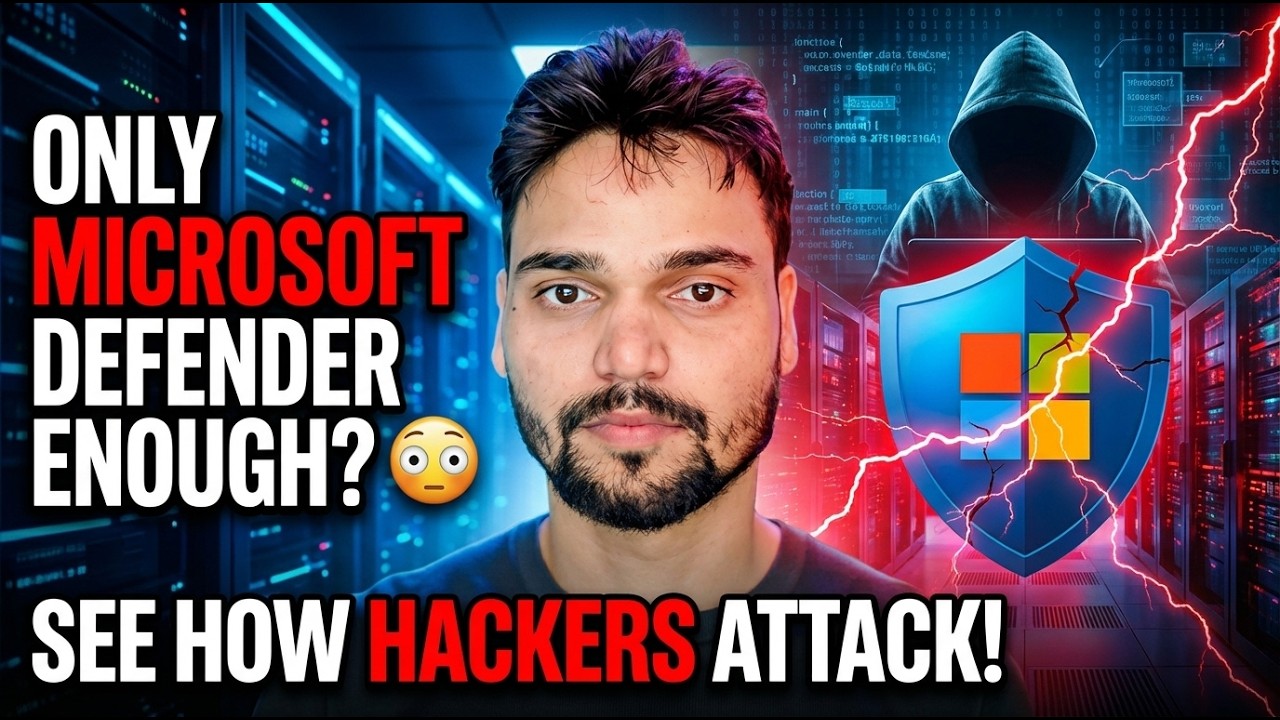
Step-by-Step Troubleshooting Guide & Solutions - ONLY MICROSOFT DEFENDER ENOUGH? SEE HOW HACKERS ATTACK! On-screen demonstration by Technical Anshu.
Defender on fifty office PCs is fifty separate opinions unless it is managed. What central management adds - one console, one policy, EDR visibility - and the honest options for offices.
(transcript ends here on the source page)
❓ Frequently Asked Questions
Is this tutorial 100% free to follow?
Yes! All guides and methods demonstrated by Technical Anshu use free, legal, and educational resources.
Can beginners follow this guide?
Absolutely! Every step is demonstrated on-screen with detailed instructions so anyone can follow along easily.
Where can I ask questions if I get stuck?
Leave a comment directly on the YouTube video, and our community and Technical Anshu will help you out.
🚀 Watch the Full Tutorial on YouTube
🚀 Watch the full step-by-step video tutorial on YouTube: https://www.youtube.com/watch?v=izQetN5dXto
Subscribe to Technical Anshu for IT support, Windows troubleshooting, and server management.
▶️ Watch Full Video