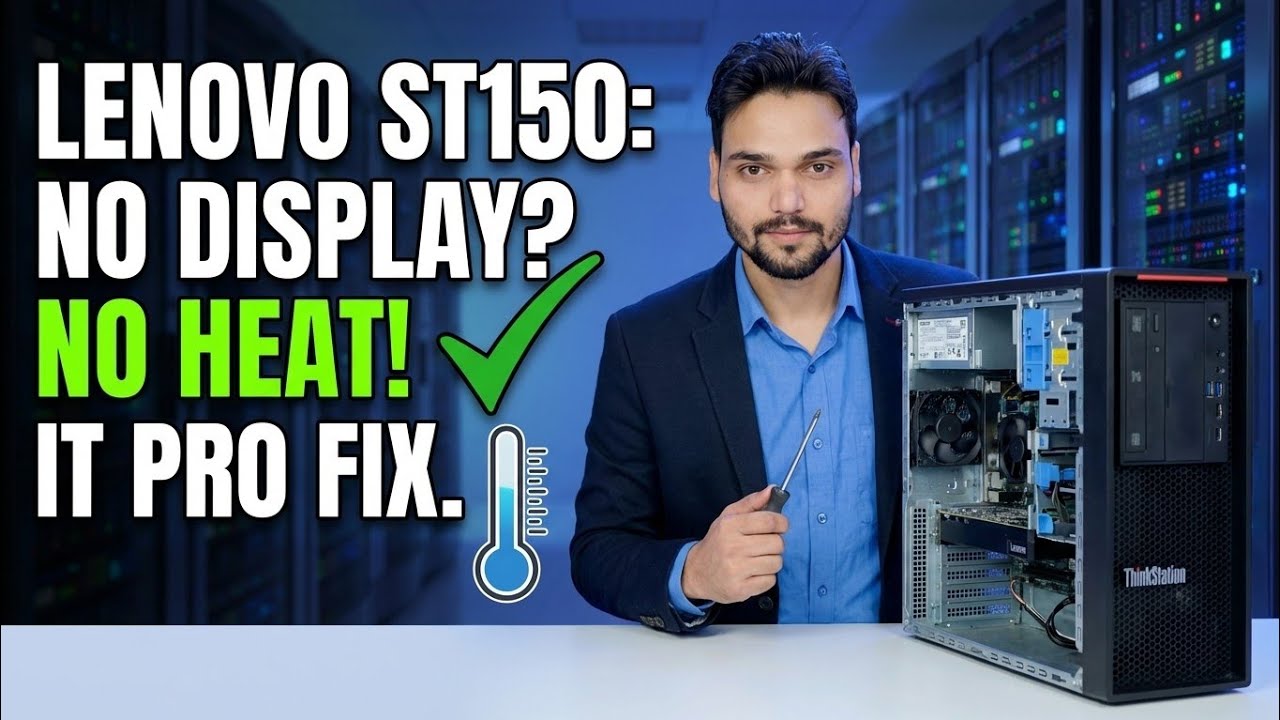
No Display + No CPU Heat 😳 Server Motherboard Dead?
The server powers on — fans spin, lights glow — but the screen stays black and the CPU heatsink stays stone cold. In this video Technical Anshu works through a Lenovo ST150 server in the honest elimination order — standby power, PSU rails, strip test, POST codes, VRM inspection — before anyone is allowed to declare the motherboard dead. Use this page as the checklist.
📑Chapters
- The two symptoms together — what a stone-cold CPU actually proves
- Safety first — server power is not desktop power
- Standby power and the BMC — the server's built-in witness
- Prove the power supply before anything else
- The minimum-boot strip test — one RAM stick, no cards, no drives
- Let the board speak — POST codes, LEDs and the event log
- Inspect the VRM zone with eyes and nose
- The verdict — when you may honestly declare the motherboard dead
📋 Overview & Step-by-Step Guide
Read the Symptom Correctly — Cold Means No Current
Power the server on and give it a fair 3 to 5 minutes before judging. A working CPU turns almost every watt it consumes into heat — warmth is the receipt proving power arrived and work happened. A stone-cold heatsink after five minutes is the opposite receipt: essentially no current is reaching the processor.
Touch the heatsink briefly and carefully, or use an inexpensive infrared thermometer. Also notice the split: the chipset and other standby-fed areas may feel slightly warm while the CPU zone stays cold — that contrast points at the CPU power path specifically, not at the wall supply.
Safety First — Drain the Server Before You Touch It
Server PSUs hold more energy than desktop units, and their capacitors can keep a dangerous charge after unplugging. Pull both power cords on redundant-PSU machines and wait a full minute. Then press and hold the power button for 10 seconds to drain the board before any cover comes off.
Use an anti-static strap or keep a hand on the chassis — a static zap gives no warning and can quietly finish off a weak board. Around any live measurement, work with one hand where practical, and treat heatsinks near the VRM area as potentially live until the cords are out.
Check Standby Power and Ask the BMC
A server has a witness a desktop lacks: the baseboard management controller (iDRAC, iLO, IPMI). It runs on standby power the moment the cords are plugged in, completely independent of whether the server itself boots.
With the cords in and the server off, look for the BMC heartbeat LED on the board — a small blinking light means standby power is alive and the BMC is running. Then browse to the management IP from another machine. If the BMC answers, standby power and part of the board are proven alive, and suspicion moves to the main power rails and the CPU feed. From the BMC you can often power the server on remotely, read voltage and presence sensors, and open the system event log — all before touching a screwdriver.
If the BMC is also dead and there is no heartbeat LED, the fault sits earlier: the cords, the PDU or UPS outlet, the PSU modules, or the board's standby section itself.
Prove the Power Supply Before Anything Else
Elimination order matters, and the PSU is both the cheapest test and a very common culprit. Server PSUs add one gift: on redundant systems there are two modules to cross-check, so this test costs nothing.
Check each PSU module's own status LED against the vendor's table in the manual — a solid amber or a dark LED on a plugged-in module is the module confessing. Then run the server on one module at a time: a module that lights up yet collapses under load is a classic fake-healthy failure, and the single-module test exposes it.
Confirm the basics honestly: the PDU or UPS outlet is live, both cords are fully seated at both ends, and the modules are pushed home until their latches click. Where the platform exposes test points or a backplane connector, a multimeter should show the main +12V feed and the CPU's EPS 12V input within about ±5 percent of nominal; a rail that sags or never appears is a PSU or short-circuit story.
Strip to Minimum Boot — One Stick, No Cards
Now reduce the machine to the smallest set of parts that can possibly POST. Every extra card and stick is a suspect you are choosing to keep — remove that choice. Power down, drain, and remove all PCIe cards, all drives, and every RAM stick but one. On a dual-socket board, the first CPU socket is the boot processor — the manual names it (usually CPU1).
Fit the single RAM stick in the exact slot the manual specifies for a one-stick configuration. The slot matters; the wrong slot imitates a memory fault.
Reseat the main power connector and the CPU EPS power connector — push until the latch clicks, then inspect the pins for heat discolouration. A loose or burnt EPS connector is a classic cause of a CPU that never warms up. Clear CMOS exactly as the manual describes, then power on and watch: any change — heat, codes, beeps, a BMC log entry — is new information the strip test bought you.
Let the Board Speak — Codes, LEDs and the Event Log
Server boards report POST progress far better than desktops: two-digit code displays, status LEDs, and a BMC event log that records the boot attempt even with no screen at all.
Read the POST code display or status LED pattern at the moment it freezes. The code names the stage where progress stopped — the vendor manual's table is the dictionary, not a generic internet list. Then open the system event log in the BMC: entries like power faults, voltage sensor warnings or a CPU presence error timestamp the failure and often name the rail involved.
Run the decisive test: remove all RAM and power on. A living board must complain about the missing memory — a code, beeps or a log entry — and that complaint proves the CPU executed instructions.
Inspect the VRM Zone With Eyes and Nose
The voltage regulator modules around the CPU socket step 12V down to the CPU's working voltage. When they fail, the CPU starves — and stays cold — while the failed parts themselves may cook.
Look for bulged or leaking capacitors near the socket, darkened or shiny-discoloured PCB patches, and cracked or blistered MOSFET packages. Smell the board zone with the power off: a sharp burnt-electronics smell localised near the VRM is evidence, not imagination.
Grade the repair honestly: swapping a PSU, RAM or CPU is technician work. Replacing MOSFETs and capacitors is chip-level rework with a hot-air station and donor parts — a specialist's job, worth it only when the board's value justifies it.
The Verdict — Dead Only After Elimination
A motherboard earns a death certificate only after elimination, never after a hunch. You may honestly call the board dead only when every one of these is true:
✔ The standby power state is known (BMC alive, or proven dead at the PSU), and a known-good PSU or module did not change anything.
✔ The strip test — one CPU, one RAM stick in the specified slot, no cards, no drives, reseated power connectors, cleared CMOS — produced no POST, no CPU warmth and no reaction.
✔ The board's own reports (codes, LEDs, event log) either froze at the earliest stage or never moved regardless of configuration changes.
✔ The VRM inspection removed the last alternative suspect.
🏷️Topic Search Variables & Keywords
🎙️ Full Transcript — tap to expand
Step-by-Step Troubleshooting Guide & Solutions — LENOVO ST150: NO DISPLAY? NO HEAT! IT PRO FIX. On-screen demonstration by Technical Anshu.
Server powers on but shows no display and the CPU heatsink stays stone cold? That combination has a precise meaning. Follow the honest elimination order — standby power, PSU rails, strip test, POST codes, VRM inspection — before you declare the motherboard dead.
(transcript ends here on the source page)
❓ Frequently Asked Questions
Is this tutorial 100% free to follow?
Yes! All guides and methods demonstrated by Technical Anshu use free, legal, and educational resources.
Can beginners follow this guide?
Absolutely! Every step is demonstrated on-screen with detailed instructions so anyone can follow along easily.
Where can I ask questions if I get stuck?
Leave a comment directly on the YouTube video, and our community and Technical Anshu will help you out.
🚀 Watch the Full Tutorial on YouTube
🚀 Watch the full step-by-step video tutorial on YouTube: https://www.youtube.com/watch?v=B_f6EFk2ta4
Subscribe to Technical Anshu for IT support, Windows troubleshooting, and server management.
▶️ Watch Full Video