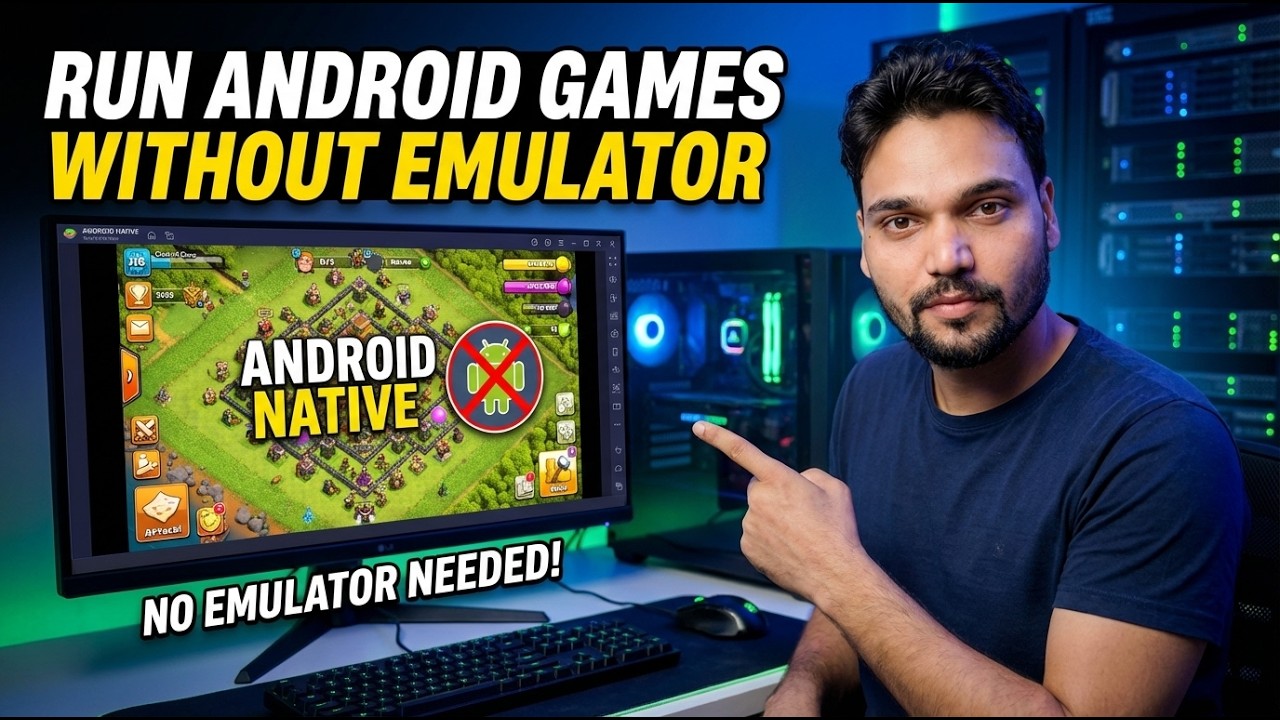
Run Android Games without Emulator - Windows
Play Android games on Windows without a heavy emulator. The honest guide to Google Play Games on PC, the discontinued WSA route, phone mirroring and dual boot — requirements, limits and the right route for your PC.
📑Chapters
- What "without emulator" really means — every route still uses a bridge between Android and Windows
- The four routes compared honestly: Google Play Games on PC, WSA, phone mirroring and dual boot
- Route 1 — Google Play Games on PC, Google's official light player
- The minimum PC requirements — and the virtualisation setting that blocks most people
- Route 2 — WSA (Windows Subsystem for Android) is discontinued, do not build on it
- Route 3 — Mirror your phone to the PC with scrcpy and play on the big screen
- Route 4 — Dual boot Bliss OS, for tinkerers only
- Which route should you pick for your game and your PC
📋 Overview & Step-by-Step Guide
First Understand What "Without Emulator" Really Means
No method makes an Android game run natively on Windows the way a Windows game does. Android games are built for a different processor family and a different system, so every route bridges that gap somehow — the only question is which bridge, and how much of your PC it uses.
Google Play Games on PC uses light virtualisation — a small, controlled Android environment that runs only games. Phone mirroring runs the game on your phone itself and only sends the picture to your monitor. Dual boot installs a PC version of Android (Bliss OS / Android-x86) next to Windows. Anyone promising a route with no bridge at all is selling something — pick the bridge that fits your game.
Route 1 — Google Play Games on PC, the Official Way
This is Google's own Windows app and today it is the first route to try. It left beta and reached general availability in September 2025. You sign in with your Google account, browse the PC catalogue, install a game and play — progress syncs with your phone for supported games.
Download Google Play Games from Google's official site only, check your PC meets the minimum in the next step (especially virtualisation switched ON), then sign in, find your game in the catalogue, install and play.
Check the Minimum PC Google Asks For
Google publishes these minimum requirements, and the installer enforces them: Windows 10 (version 2004) or Windows 11; an SSD with 10 GB free space — a hard disk is not accepted; 8 GB RAM; a CPU with 4 physical cores; an Intel UHD Graphics 630 class GPU or better; hardware virtualisation enabled; and a Windows administrator account.
The number one reason setup fails is hardware virtualisation switched off in the BIOS/UEFI. Open Task Manager, go to Performance, then CPU, and look for "Virtualization: Enabled". If it says Disabled, restart into BIOS/UEFI and turn on Intel VT-x or AMD-V / SVM Mode. A dedicated graphics card helps heavier 3D games, but the floor above is what decides whether the app runs at all — if your PC is below it, skip to the mirroring route, which asks almost nothing from the PC.
Route 2 — WSA Is Discontinued, Do Not Build on It
Many older videos and articles show Windows Subsystem for Android (WSA) — Microsoft's built-in Android for Windows 11. Be clear about its current status before following any of them.
Route 3 — Mirror Your Phone with scrcpy
If your game is not in Google's PC catalogue, the zero-install answer is mirroring: the game keeps running on your phone, and your monitor, keyboard and mouse just display and control it. scrcpy (screen copy) is a free, open-source tool by Genymobile that does this over a USB cable with very low delay. No root, and nothing is installed on the phone.
On the phone, open Settings, then About phone, and tap Build number 7 times to unlock Developer options. Then open Settings, then Developer options, and turn on USB debugging. Connect the phone with a good data cable (some cables only charge) and tap Allow on the "Allow USB debugging" prompt. On the PC, install scrcpy from its official source only — with winget, or as the Windows zip from the official scrcpy GitHub releases — then connect and play:
winget install --exact Genymobile.scrcpy
adb devices
scrcpy
After adb devices, your phone should show as "device" (not "unauthorized"). Running scrcpy opens the phone screen in a window — use the mouse as a finger and the keyboard for typing. Useful extras: scrcpy --max-size 1280 lightens the load on weak PCs, and audio forwarding works on Android 11 and newer. scrcpy can also connect over Wi-Fi after a one-time USB setup, but for action games stay on the cable — USB gives the lowest delay.
Route 4 — Dual Boot Android, and Picking Your Route
Bliss OS and the older Android-x86 project install a PC build of Android beside Windows, so nothing is emulated. Be honest about the state of these projects, though: the newest widely available Bliss OS build is based on Android 13, public releases are currently paused, and the base Android-x86 project is dormant. There are no Google security patches and no Play certification, so some games refuse to run — treat dual boot as a hobby project on a spare partition, not as the main way to play, and never as the place for accounts that matter.
Which route should you pick? Your game is listed in Google Play Games on PC — use it: official, synced, free. Your game is not listed — mirroring gives you the game today, unchanged. Your PC is old or weak — mirroring again, because the phone does the work. Dual boot only if you enjoy tinkering. The word "emulator" in a title tells you almost nothing; the bridge underneath tells you everything.
🏷️Topic Search Variables & Keywords
🎙️ Full Transcript — tap to expand
Step-by-Step Troubleshooting Guide & Solutions - RUN ANDROID GAMES WITHOUT EMULATOR NO EMULATOR NEEDED!. On-screen demonstration by Technical Anshu....
Play Android games on Windows without a heavy emulator. The honest guide to Google Play Games on PC, the discontinued WSA route, phone mirroring and dual boot — requirements, limits and the right route for your PC.
(transcript ends here on the source page)
❓ Frequently Asked Questions
Is this tutorial 100% free to follow?
Yes! All guides and methods demonstrated by Technical Anshu use free, legal, and educational resources.
Can beginners follow this guide?
Absolutely! Every step is demonstrated on-screen with detailed instructions so anyone can follow along easily.
Where can I ask questions if I get stuck?
Leave a comment directly on the YouTube video, and our community and Technical Anshu will help you out.
🚀 Watch the Full Tutorial on YouTube
🚀 Watch the full step-by-step video tutorial on YouTube: https://www.youtube.com/watch?v=LdlOV-7PNwg
Subscribe to Technical Anshu for IT support, Windows troubleshooting, and server management.
▶️ Watch Full Video