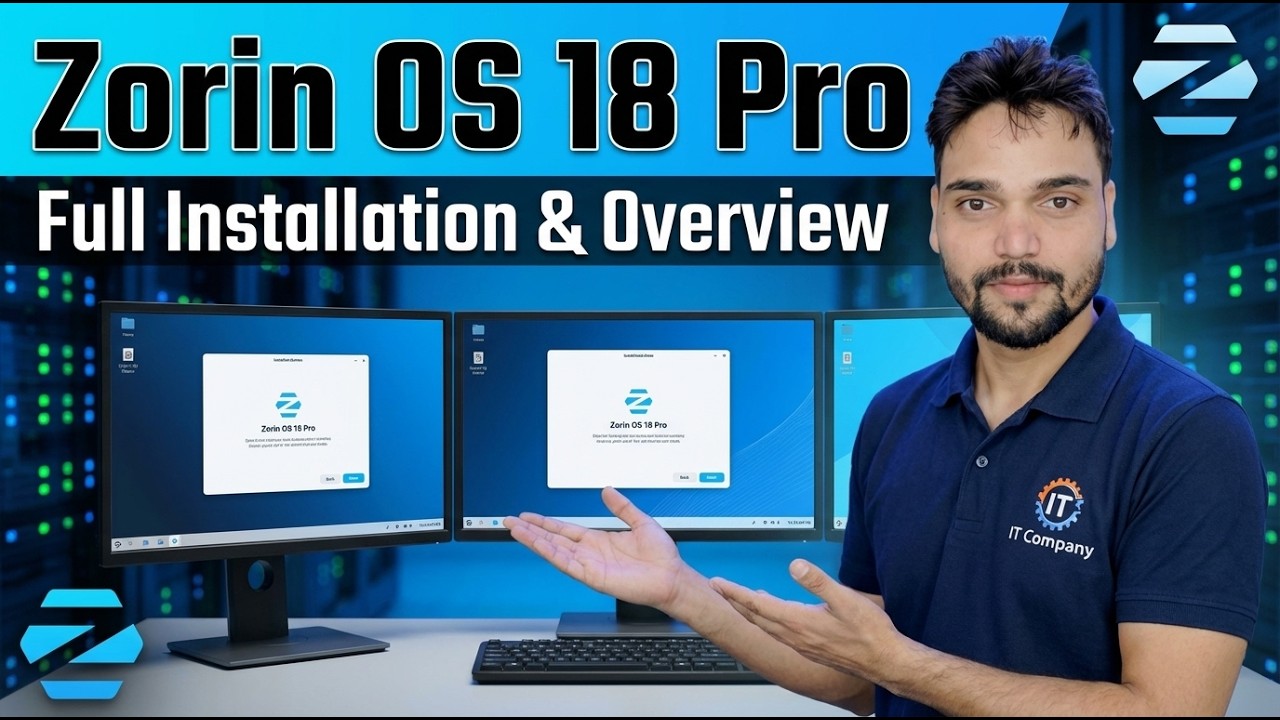
Zorin OS 18 PRO
Zorin OS 18 is the Ubuntu-based Linux designed to look and feel familiar to Windows users — and Pro is its paid edition. In this video Technical Anshu installs it end to end and explains, in plain words, what the free Core edition already gives you, what Pro adds on top, and who should actually pay for it.
📑Chapters
- What Zorin OS 18 is — Ubuntu 24.04 LTS base, released as Windows 10 support ended, updates until June 2029
- The editions at a glance — free Core and Education, Lite for very old PCs, and the paid Pro
- What the free Core edition already gives you
- What Pro adds — 8 extra premium layouts, the creative app suite and installation support
- Downloading the right ISO — Core free, Pro after the one-time payment
- Making the bootable USB and trying the live session before installing
- Installing Zorin OS step by step
- First setup — updates, choosing a layout, and Zorin Connect
- The honest verdict — who should pay for Pro and who should not
📋 Overview & Step-by-Step Guide
Know What Zorin OS 18 Is
Zorin OS is a Linux system made by the Zorin Group in Ireland, built specifically so that people coming from Windows or macOS feel at home — a familiar start-menu style desktop, no learning curve for daily work. Version 18 is based on Ubuntu 24.04 LTS with Linux kernel 6.14, and it was released on 14 October 2025 — the very day Microsoft ended Windows 10 support — aimed squarely at PCs that cannot move to Windows 11. It receives software updates and security patches until June 2029, and it runs on modest hardware: a 64-bit dual-core processor, 2 GB of RAM and around 15 GB of storage are the official minimums.
The Editions — Core Is Free, Pro Is Paid
Zorin OS 18 comes in several editions, and this is the part to get exactly right. Core is the standard edition and it is completely free. Education is also free and adds learning software for schools. Lite is the free lightweight edition for very old computers. Pro is the PAID edition: a one-time payment of $47.99 (about €47.99) per major version — not a monthly subscription. Underneath, every edition is the same operating system with the same speed and security; Pro simply adds extras and support, which the next steps break down.
What the Free Core Edition Already Gives You
Core is not a cut-down trial — it is the full Zorin OS experience most people will ever need. You get the polished GNOME-based desktop with 4 built-in desktop layouts in the Zorin Appearance app (Windows-style and GNOME-style arrangements), the Software store with APT, Flatpak and Snap apps in one place, the LibreOffice office suite, and Zorin Connect for pairing your Android phone (notifications, file sharing, remote control). Zorin also helps with Windows habits: if you open a Windows program installer, it suggests a native Linux alternative for the same job, and optional Windows App Support can run many Windows apps. For everyday browsing, office work, media and even older hardware, Core already covers it — free.
What Pro Adds on Top
Pro adds three things. First, 8 additional premium desktop layouts — 12 in total instead of Core's 4 — including layouts that mimic macOS, Windows 11, Ubuntu and a touch-friendly style, switchable in Zorin Appearance. Second, a preinstalled suite of professional creative and productivity software (audio, video, photo and design tools) so a fresh install is work-ready without hunting for apps. Third, technical installation support from the Zorin team if your install gets stuck. What Pro does NOT do: it does not make the same PC faster or more secure than Core — the base system is identical. You are paying for polish, convenience, bundled apps and support, and for funding the project.
Download the ISO the Legal Way
Download Zorin OS only from the official website, zorin.com. The Core ISO is a free download. For Pro, you complete the one-time payment on the official site and your Pro download link is delivered to you by email — keep that email and your receipt safe, because that link is your licensed copy. Before writing the ISO anywhere, it is good practice to compare its checksum with the one published on the official download page, so you know the file is genuine and untampered.
Make the Bootable USB and Try the Live Session First
Write the downloaded ISO to a USB drive of 8 GB or more using a tool like Balena Etcher or Rufus — note that writing the image erases everything on that USB drive. Boot the PC from the USB (boot menu key at startup) and choose "Try or Install Zorin OS". The live session runs the full desktop straight from the USB without changing anything on your hard disk. Use it to check that your Wi-Fi, sound, display and touchpad all work before you commit to installing.
Install Zorin OS Step by Step
From the live desktop, start the installer. Pick your language and keyboard layout, connect to Wi-Fi or a cable so updates and drivers can download during setup, and tick the options to install updates and third-party software for graphics and Wi-Fi hardware. The one decision that matters is the installation type: Install Zorin OS alongside Windows keeps Windows and gives you a dual-boot menu at startup, while Erase disk and install Zorin OS wipes the whole disk and installs Zorin alone. After that, set your time zone, create your user account (name, username and a password you will remember), let the installer copy files, and restart — removing the USB drive when the installer asks.
Finish the First Setup
On the first boot, run the Software Updater until it reports the system is up to date. Then open Zorin Appearance and pick the desktop layout that feels natural — this is where Pro owners will find the 8 extra premium layouts alongside Core's 4. Pair your phone with Zorin Connect if you use Android, and install your everyday apps from the Software store. If a device misbehaves — some Wi-Fi cards are the usual suspect — open Software & Updates and check the Additional Drivers tab for a proprietary driver.
The Honest Verdict — Who Should Pay for Pro
Pay for Pro if you genuinely want the extra desktop layouts and the ready-made creative app suite, if you value having official installation support, or if you simply want to support the developers who build the system. Stay on the free Core if your goal is a fast, familiar, secure computer for daily work — you lose nothing essential, because the system underneath is the same Zorin OS 18 with the same updates until June 2029.
🏷️Topic Search Variables & Keywords
🎙️ Full Transcript — tap to expand
Step-by-Step Troubleshooting Guide & Solutions - Zorin OS 18 Pro Full Installation & Overview. On-screen demonstration by Technical Anshu.
Zorin OS 18 Pro explained in plain words — what the free Core edition already gives you, the 8 premium layouts, creative suite and support that Pro adds, and an honest verdict on who should pay.
(transcript ends here on the source page)
❓ Frequently Asked Questions
Is this tutorial 100% free to follow?
Yes! All guides and methods demonstrated by Technical Anshu use free, legal, and educational resources.
Can beginners follow this guide?
Absolutely! Every step is demonstrated on-screen with detailed instructions so anyone can follow along easily.
Where can I ask questions if I get stuck?
Leave a comment directly on the YouTube video, and our community and Technical Anshu will help you out.
🚀 Watch the Full Tutorial on YouTube
🚀 Watch the full step-by-step video tutorial on YouTube: https://www.youtube.com/watch?v=Wj4mIVi5i_U
Subscribe to Technical Anshu for IT support, Windows troubleshooting, and server management.
▶️ Watch Full Video