Your Data is Being Stolen 😳 Track Every File Upload (Hidden Method)
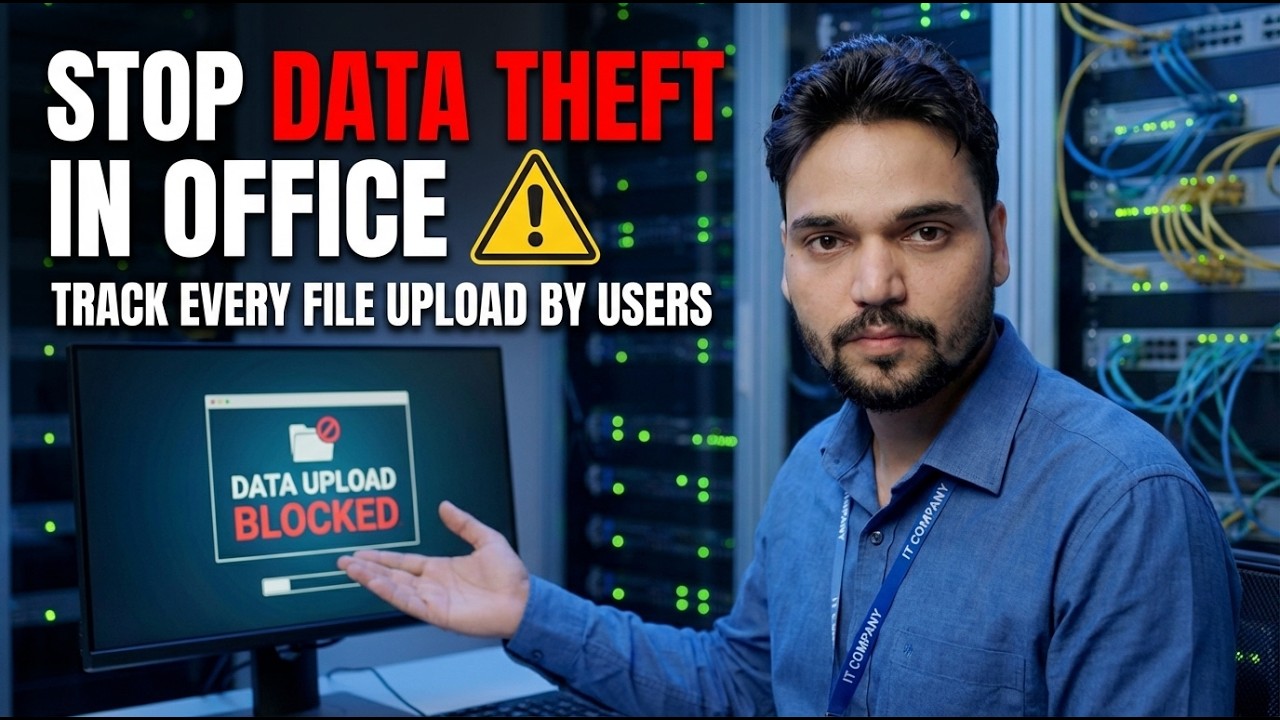
Files leave office PCs quietly — cloud uploads, webmail attachments, sync folders. This guide sets up honest upload tracking on the machines you administer: a written policy first, then endpoint file tracing, firewall logs, DNS logs and proxy records, so every upload leaves a record you can check.
📑Chapters
- How files leave office PCs — cloud uploads, webmail attachments and sync folders
- Written policy first — what is logged, who can read the logs, staff informed before logging starts
- Endpoint file tracing — the only layer that sees the file itself
- Windows Firewall connection logging — destinations, ports and times for every PC
- DNS logs and proxy records at the gateway — upload volume by destination
- One alert that matters — and reviewing the logs like an auditor
📋 Overview & Step-by-Step Guide
Write the Policy Before You Watch Anything
Monitoring without a written policy is how an admin ends up in a dispute instead of solving one. Keep the policy to one page: company machines, company data, what is logged, who can read the logs, and how long they are kept.
Tell the staff — in a meeting and in writing — before logging starts, not after the first incident, and keep the signed policy with the log files. If a log is ever questioned, the policy is your answer.
Turn On Endpoint File Tracing
The endpoint is the only layer that sees the file itself. Endpoint management platforms in the DLP class can record file operations: which file, uploaded by which user, at what time, to which destination. That record is the difference between "2 GB left this PC" and "the price list left this PC".
Confirm an agent is installed and reporting on every PC you intend to cover — a PC without an agent is invisible to this whole layer. Enable file tracing or file activity auditing for uploads, cloud sync folders and removable media.
Send the records to the central console or a protected log folder, not only to the PC itself — logs that live on the machine under review can be deleted from that machine.
Switch On the Windows Firewall Log
Every Windows PC already has a connection log waiting to be enabled. The firewall log will not name files, but it proves which outside addresses a PC talked to, on which ports, and when — the corroborating evidence for everything else.
In Windows Defender Firewall with Advanced Security, open the profile Properties and set Logging to record successful connections. Or set it from an elevated Command Prompt:
netsh advfirewall set allprofiles logging logallowedconnections enableThe log lands here — raise its size limit so a busy week does not overwrite the evidence:
%systemroot%\system32\LogFiles\Firewall\pfirewall.logCollect DNS and Proxy Records at the Gateway
Before a PC uploads anywhere, it asks DNS for the address — and that question is logged. If your web traffic passes through a proxy or logging router, you also get the host name and byte count of every upload session.
Enable query logging on your DNS server, or use a router or firewall that records DNS requests per device. If you run a web proxy, confirm it logs bytes sent per host — upload volume by destination is the most useful alert number you own.
Review upload destinations weekly at first: cloud storage, file-sharing sites and webmail should be a short, explainable list.
Set One Alert That Actually Matters
Logging everything and alerting on nothing is a filing cabinet, not a watch system. One good alert beats fifty ignored ones.
Alert on large uploads to destinations outside your approved list — start generous and tune down as you learn your office's normal. Expect false alarms: cloud backups, CCTV uploads and video calls all push real data out, so learn the normal signatures before treating any alert as a case.
Close every alert with a one-line written reason. An alert with no recorded outcome teaches nobody anything.
Review Like an Auditor, Not a Spy
The goal of this system is that data stops drifting — not that you build a dossier on your colleagues. Keep the routine boring, regular and documented.
Compare layers before concluding anything: the endpoint file record, the firewall destination and the DNS name should all tell the same story. One log line is a question, never a verdict — talk to the user, check for a work reason, and write down what you found.
Re-check the policy every few months: new tools, new cloud services, new staff — the watch list must match the office you actually have.
🏷️Topic Search Variables & Keywords
🎙️ Full Transcript — tap to expand
Step-by-Step Troubleshooting Guide & Solutions - STOP DATA THEFT IN OFFICE TRACK EVERY FILE UPLOAD BY USERS. On-screen demonstration by Technical Anshu.
Files leave office PCs quietly — cloud uploads, webmail attachments, sync folders. Set up honest upload tracking on machines you administer: firewall logs, DNS logs, proxy records and endpoint file tracing, with written policy first.
(transcript ends here on the source page)
❓ Frequently Asked Questions
Is this tutorial 100% free to follow?
Yes! All guides and methods demonstrated by Technical Anshu use free, legal, and educational resources.
Can beginners follow this guide?
Absolutely! Every step is demonstrated on-screen with detailed instructions so anyone can follow along easily.
Where can I ask questions if I get stuck?
Leave a comment directly on the YouTube video, and our community and Technical Anshu will help you out.
🚀 Watch the Full Tutorial on YouTube
🚀 Watch the full step-by-step video tutorial on YouTube: https://www.youtube.com/watch?v=fDypNIqh1PU
Subscribe to Technical Anshu for IT support, Windows troubleshooting, and server management.
▶️ Watch Full Video