Flex OS 2025 Download & Install
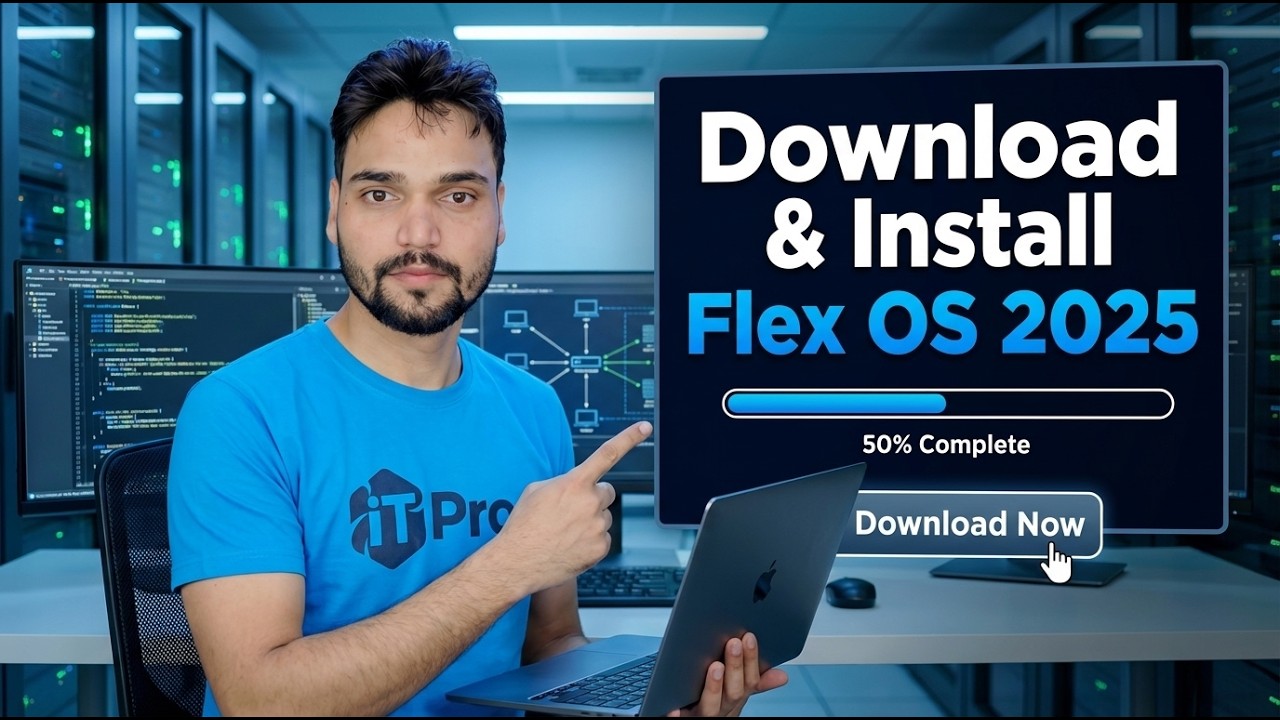
The "Flex OS 2025" in this video is Google ChromeOS Flex — Google's official free operating system for old and new PCs and Macs. Download it the official way, create the bootable USB with the Chromebook Recovery Utility, and install it — with the honest limits explained before you start.
📑Chapters
- What "Flex OS 2025" actually is — Google ChromeOS Flex, Google's free OS for PCs and Macs
- The honest limits to know before you start
- What you need: a working PC with the Chrome browser and a USB drive of 8 GB or more
- Creating the bootable installer USB with the Chromebook Recovery Utility
- Booting the target PC from the USB drive
- Try it first from the USB, or install it permanently — the install erases the hard drive
- Finishing setup and signing in with a Google account
📋 Overview & Step-by-Step Guide
Know What You Are Installing
First, the name. The video calls it "Flex OS 2025", but the operating system being downloaded and installed is ChromeOS Flex — Google's official, completely free version of ChromeOS made for ordinary Windows PCs and Macs, especially older machines that have become slow on Windows. There is no separate product called "Flex OS" to download: you always get ChromeOS Flex from Google itself, never from a third-party download site.
Read the Honest Limits First
ChromeOS Flex is excellent for web browsing, Google Docs, YouTube, online classes and office work on the web — and it makes a genuinely old PC feel fast again. But it is not a Windows replacement for everything. Unlike proper Chromebooks, ChromeOS Flex does not support Android apps or the Google Play Store. Windows software (.exe programs) does not run on it at all. Google maintains a certified models list: on listed models everything is tested, while on other PCs most things work but some hardware — certain Wi-Fi cards, webcams, fingerprint readers, CD/DVD drives or function keys — may not work fully. Check your model against Google's certified list before committing an important machine.
Back Up Everything First
Before you touch anything, copy every file you care about from the target PC to an external drive or cloud storage — documents, photos, everything. This is not optional caution; read the warning below carefully.
Create the Installer USB with the Chromebook Recovery Utility
On any working computer (Windows, Mac or Chromebook) with the Google Chrome browser installed, open the Chrome Web Store and install Google's free extension called Chromebook Recovery Utility. Open the utility and click Get started. When it asks you to identify your Chromebook, choose Select a model from a list, then pick Google ChromeOS Flex as the manufacturer and ChromeOS Flex as the product. Now insert a USB drive of 8 GB or more, select it in the utility, and let it create the installer. The utility downloads ChromeOS Flex from Google and writes it to the USB — wait until it confirms the media is ready, then remove the USB safely.
Boot the Target PC from the USB
Insert the installer USB into the PC you want to convert, switch it on, and open the one-time boot menu — the key is usually F12, F8, Esc or F9 depending on the brand (on a Mac, hold the Option key while starting up). Select the USB drive from the boot list. The PC starts into the ChromeOS Flex installer welcome screen, where you pick your language and keyboard and click Get started.
Try It First, or Install It
The installer gives you two choices. Try ChromeOS Flex runs the system directly from the USB without changing the PC at all — use this first to check that your Wi-Fi, sound, keyboard and touchpad work properly on your hardware. When you are satisfied, restart from the USB again and choose Install ChromeOS Flex for the permanent install. The installer warns you once more that the hard drive will be erased; confirm only if your backup from Step 3 is done. The installation itself takes a short while, and the PC then restarts into ChromeOS Flex from its own hard drive — you can now remove the USB.
Finish Setup and Sign In
On the first boot, connect to your Wi-Fi network and sign in with your Google account — that account becomes your login, and your files live in Google Drive, which is how ChromeOS Flex is designed to work. Updates are handled by Google automatically in the background, exactly like on a Chromebook. From here, everything happens in the Chrome browser and web apps: Google Docs for documents, Gmail for mail, and web versions of the tools you already use. Watch the full video above to see the complete download, USB creation and installation demonstrated on screen.
🏷️Topic Search Variables & Keywords
🎙️ Full Transcript — tap to expand
Step-by-Step Troubleshooting Guide & Solutions - Download & Install Flex OS 2025. On-screen demonstration by Technical Anshu....
Flex OS 2025 is Google ChromeOS Flex. Download it the official way, create the bootable USB with the Chromebook Recovery Utility and install it on an old or new PC - with the honest limits explained before you start.
(transcript ends here on the source page)
❓ Frequently Asked Questions
Is this tutorial 100% free to follow?
Yes! All guides and methods demonstrated by Technical Anshu use free, legal, and educational resources.
Can beginners follow this guide?
Absolutely! Every step is demonstrated on-screen with detailed instructions so anyone can follow along easily.
Where can I ask questions if I get stuck?
Leave a comment directly on the YouTube video, and our community and Technical Anshu will help you out.
🚀 Watch the Full Tutorial on YouTube
🚀 Watch the full step-by-step video tutorial on YouTube: https://www.youtube.com/watch?v=y4a74WQKXqQ
Subscribe to Technical Anshu for IT support, Windows troubleshooting, and server management.
▶️ Watch Full Video