Essential PC Tools - 5 Must-Haves
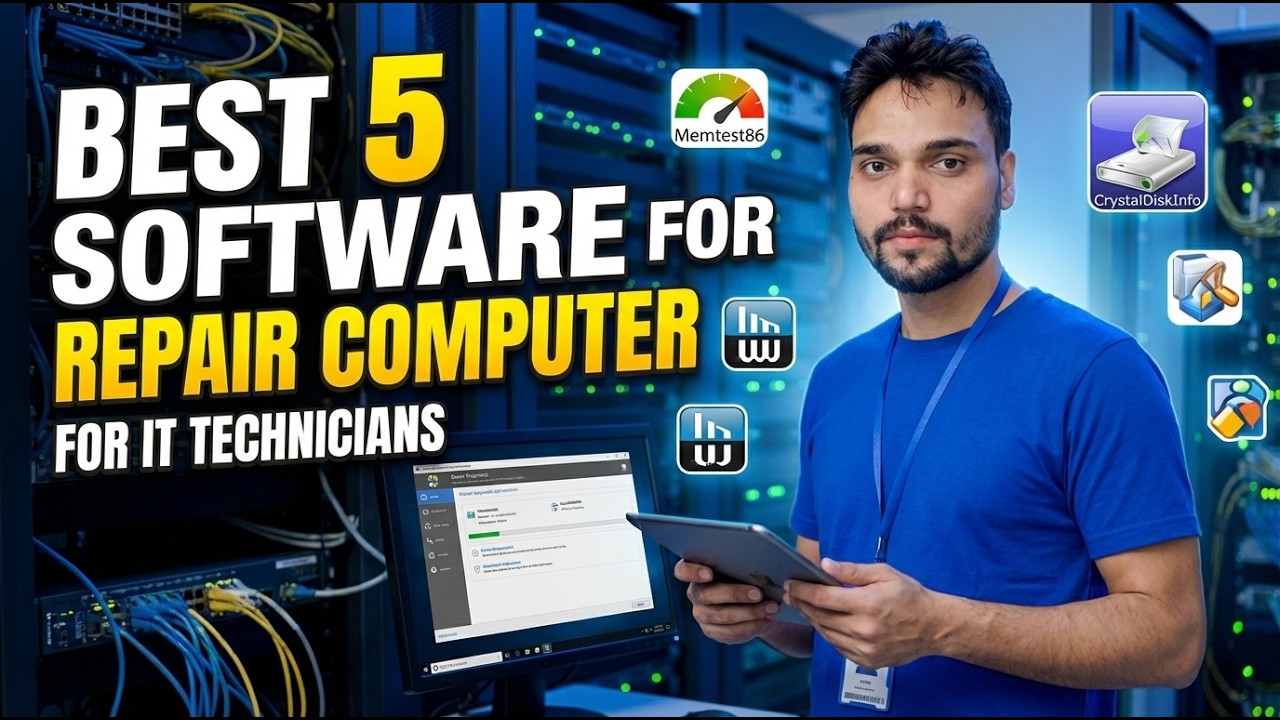
Five essential PC tools explained by the job each one does - a diagnostics tool, a backup tool, a remote help tool, a real uninstaller and a system information tool - plus the honest free vs paid truth and the order to install them in.
📑Chapters
- The five jobs every PC toolkit is built from
- Tool one - a diagnostics tool that reads hardware health
- Tool two - a backup tool that copies files on a schedule
- Tool three - a remote help tool for PCs you cannot touch
- Tool four - a real uninstaller that removes the leftovers
- Tool five - a system information tool that ends the guessing
- The honest free vs paid truth
- The order to install them in on a fresh PC
📋 Overview & Step-by-Step Guide
Tool One - A Diagnostics Tool That Watches Hardware Health
A dying hard drive or SSD almost always complains before it dies. It records rising error counts, reallocated sectors and heat warnings in its own health log - a log Windows never shows you. A diagnostics tool reads it for you: drive health status, temperature, and the sector counts that tell you a drive is on its way out.
Run it about once a month. When the health of a drive drops below good, copy your data off first and ask questions later - a failing drive becomes a planned replacement instead of lost photos.
Tool Two - A Backup Tool That Copies Files on a Schedule
A backup you must remember to run is not a backup. A proper backup tool copies your important folders - Documents, Desktop, your work folders - to an external drive or a second location automatically, daily or weekly, and keeps older versions, so a file you deleted or overwrote last week still exists somewhere.
The free tier of this category usually covers one PC and simple schedules well. Paid tiers mainly add system-image backup and cloud space - worth it when the PC holds office or client data.
Tool Three - A Remote Help Tool for PCs You Cannot Touch
When family, your shop or an office branch calls with a broken PC, a remote help tool lets you see their screen and fix it from your own chair. It turns a one-hour trip into a ten-minute call. Install it on family and office PCs before the emergency, not during it.
Tool Four - A Real Uninstaller That Removes the Leftovers
The built-in Windows uninstaller runs the program's own removal routine and stops there. Registry entries, empty folders and leftover files stay behind - and trial software is famous for leaving pieces that block a clean reinstall. A real uninstaller removes the program, then scans and clears what was left, and can remove several programs one after another. It earns its place on day one of a new laptop, clearing the preinstalled bloatware.
Tool Five - A System Information Tool That Ends Guessing
Which RAM does your board take? How many slots are free? What is the exact model of your graphics card or SSD? A system information tool answers all of it on one screen - CPU, motherboard, memory type and slots, storage models, temperatures - without opening the cabinet. It is the tool you open before buying any upgrade and before answering any support call.
Windows has rough built-ins you can open from the Run box (Win + R) - System Information and the DirectX Diagnostic Tool:
msinfo32dxdiagA dedicated tool presents everything in one readable place. This category is almost always completely free, and the free version is the full version. Save or screenshot the report before a repair or a resale, and buy the exact RAM or SSD type it names.
The Honest Free vs Paid Truth
None of the five jobs needs money spent blindly. Diagnostics: the free version is normally enough, because the health reading is the valuable part. Backup: the free tier usually covers one PC and simple schedules; paying mainly adds system-image backup and cloud space. System information: almost always completely free, with the free version being the full version. What you are really choosing in every category is the same thing - pay only when the paid feature is a job you genuinely have.
The Order to Install Them In
Setting up a fresh PC? Install in this order. Information first - know your machine. Backup second - protect your files before you start experimenting. Diagnostics third - confirm the hardware is healthy. Uninstaller fourth - clear the bloatware the laptop came with. Remote help fifth - set it up while everything works, not during the emergency.
At home, one PC usually needs all five. In an office, a technician carries the same five jobs pointed at many machines - and adds one rule: the backup tool is not optional, and the remote tool is installed by policy, not on request.
🏷️Topic Search Variables & Keywords
🎙️ Full Transcript — tap to expand
Step-by-Step Troubleshooting Guide & Solutions - BEST 5 SOFTWARE FOR REPAIR COMPUTER FOR IT TECHNICIANS. On-screen demonstration by Technical Anshu.
Five essential PC tools explained by job - a diagnostics tool, a backup tool, a remote help tool, a real uninstaller and a system information tool - plus the honest free vs paid truth and the order to install them in.
(transcript ends here on the source page)
❓ Frequently Asked Questions
Is this tutorial 100% free to follow?
Yes! All guides and methods demonstrated by Technical Anshu use free, legal, and educational resources.
Can beginners follow this guide?
Absolutely! Every step is demonstrated on-screen with detailed instructions so anyone can follow along easily.
Where can I ask questions if I get stuck?
Leave a comment directly on the YouTube video, and our community and Technical Anshu will help you out.
🚀 Watch the Full Tutorial on YouTube
🚀 Watch the full step-by-step video tutorial on YouTube: https://www.youtube.com/watch?v=JbwjPhupqnc
Subscribe to Technical Anshu for IT support, Windows troubleshooting, and server management.
▶️ Watch Full Video