Best Network Monitor Tool for Your PC 🔥 Monitor Internet Like a Pro
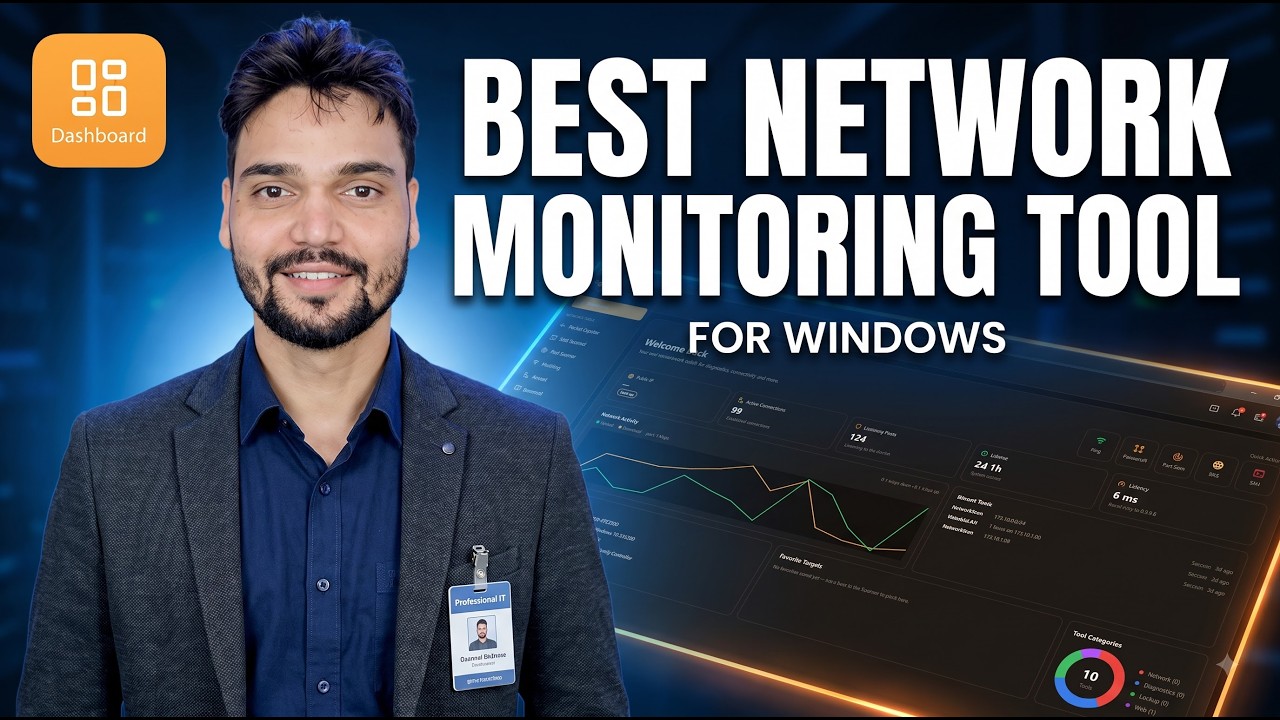
Your internet feels slow and your data finishes early, but Windows only shrugs. The network monitor tool demonstrated in this video shows the truth live — every app, every connection and every data hog on your PC — and this guide teaches you to read it like a pro.
📑Chapters
- Why Task Manager is not enough — who is busy, where the data is going, and how much each app quietly used
- Start with the live graph — is the pipe actually busy?
- Read the per-app ranking — find the real data hog by name, not by guess
- The connection record — the diary of every connection your PC makes
- Set the two alerts that actually matter — a new app connecting, and a data limit crossed
- Cross-check with Windows built-in tools — Resource Monitor and netstat
- Know the limits — one PC only, watching is not blocking, and download the tool safely
📋 Overview & Step-by-Step Guide
Start with the Live Graph — Is the Pipe Actually Busy?
Every network monitor opens on a live graph of download and upload speed. Before blaming any app, spend sixty seconds here. If the graph sits near zero while a web page loads slowly, your network is not the bottleneck — the website, the Wi-Fi signal, or the PC itself is. If the graph is pinned at your plan speed while you are doing nothing, something on this PC is genuinely moving data, and the next step finds it.
Watch the upload line separately. Home connections have far less upload than download, and a single app saturating the upload — a cloud backup, a torrent client, a stuck sync — makes everything else feel broken even though download looks free.
Read the Per-App Ranking — Names, Not Guesses
The usage view lists every application with its download and upload totals for the hour, the day, or the month. Sort it by total traffic and the story usually tells itself: the browser and video apps at the top are expected, but the surprises — an updater that pulled gigabytes, a game launcher downloading in the background, an app you opened once still holding a connection — are where your missing data went.
Two habits make this view powerful. First, check it at a moment you know is wrong: data moving while the PC should be idle is the most honest evidence there is. Second, open the details of one app to see the hosts it talks to — the actual servers — because the host list is what separates a normal update server from something you should investigate.
Learn the Connection Record — Your PC Keeps a Diary
Beyond live traffic, the monitor keeps history: when each app first connected, which hosts it reached, and how the totals grew day by day. This diary is the difference between a feeling and a fact. It lets you answer questions like — did this app start using data before or after I installed it, and was the PC active at 3 AM last Tuesday?
You do not need to read the diary daily. You need it to exist, so that the day something looks wrong, the evidence is already recorded instead of lost.
Set the Two Alerts That Actually Matter
Alert fatigue kills monitoring — turn everything on and you will ignore everything within a week. Keep two alerts. The first: a new application connects to the network for the first time. New software phoning out is the single event most worth a human glance. The second: an app you have never seen in the list crosses a data limit you choose.
Everything else — speed tests, daily totals — is information you can pull when you need it, not noise that interrupts you.
Cross-Check with Windows Built-In Tools
The monitor is your everyday screen, but Windows has two honest witnesses worth knowing. Open Resource Monitor from the Run box:
resmonIts Network tab shows live per-process network activity right now. Next, open Command Prompt as administrator and list every connection together with the program that owns it:
netstat -bRun this instead when you want the process IDs (PIDs), which you can then match in Task Manager:
netstat -anoWhen the monitor and Windows agree, you can trust the picture completely.
Know Exactly What This Tool Cannot Do
Honesty matters here. A monitor on your PC sees your PC — every app and connection on this one machine. It cannot see your phone, your TV, or anyone else on the Wi-Fi; the whole-house picture lives in your router. It also watches rather than protects: spotting a bad connection and blocking it are two different jobs. Used inside those limits, this is one of the most useful network tools a home user can run.
🏷️Topic Search Variables & Keywords
🎙️ Full Transcript — tap to expand
Step-by-Step Troubleshooting Guide & Solutions — BEST NETWORK MONITORING TOOL FOR WINDOWS. On-screen demonstration by Technical Anshu.
Monitor your PC network like a pro with a network monitor tool — see every app, every connection and every data hog on Windows, read the live graph, and find what is really using your internet.
(transcript ends here on the source page)
❓ Frequently Asked Questions
Is this tutorial 100% free to follow?
Yes! All guides and methods demonstrated by Technical Anshu use free, legal, and educational resources.
Can beginners follow this guide?
Absolutely! Every step is demonstrated on-screen with detailed instructions so anyone can follow along easily.
Where can I ask questions if I get stuck?
Leave a comment directly on the YouTube video, and our community and Technical Anshu will help you out.
🚀 Watch the Full Tutorial on YouTube
🚀 Watch the full step-by-step video tutorial on YouTube: https://www.youtube.com/watch?v=NDF20Vvsers
Subscribe to Technical Anshu for IT support, Windows troubleshooting, and server management.
▶️ Watch Full Video