External HDD Buying Mistake ❌ Original HDD Kyun Better Hai
Buying a ready external hard drive looks easy, but the box hides the real drive inside. This guide shows why an original internal hard drive in a USB enclosure gives you a known model, better warranty and recoverable data — and how to check that the drive you buy is genuinely original, before and after you pay.
📑Chapters
- The buying mistake — the box never tells you which drive is inside
- What actually hides inside a ready external hard drive
- Problem one — the hidden drive can be a slow SMR drive
- Problem two — the soldered USB board trap when something fails
- Problem three — warranty that protects the box, not the drive
- The smarter buy — an original internal HDD plus a good enclosure
- How to check a drive is genuine and original, before and after buying
- When a ready external drive is actually fine
📋 Overview & Step-by-Step Guide
Know the Mistake — the Box Hides the Real Drive
A ready external hard drive is an enclosure product. The maker guarantees that the box works as a unit; the actual hard drive inside is their choice, and it can change between production batches without any change on the label. The box shows a brand and a capacity — no drive model, no recording technology. Drives found inside externals range from perfectly good retail models to white-label and external-only units with custom firmware that are never sold separately. You cannot check before buying, and most people never check after. With an original internal drive, the model number on the box is the product itself — reviews, spec sheets and failure discussions for that exact model exist because thousands of people own the identical drive.
Check What Hides Inside — the Hidden Drive Can Be Slow SMR
Most slim portable external drives use SMR (shingled magnetic recording) to reach high capacities cheaply. SMR is a legitimate technology with one well-known behaviour: short writes are fast, but a long, large copy slows down sharply once the drive's fast cache area fills and it must rewrite overlapping tracks. Copying a few photos feels normal; copying a 200 GB video folder can crawl. The honest problem is not SMR itself — it is that the external box never tells you. Retail internal drives in the better lines state CMR or SMR clearly on the spec sheet, so the choice becomes yours instead of a surprise. Rule of this guide: if a product will not tell you the recording technology, give it a job that tolerates SMR — copies and archives, not heavy daily writing.
Understand the Soldered USB Board Trap
Many 2.5 inch portable externals do not contain a normal SATA drive with a small adapter. The USB connector and its controller are built directly into the drive's own circuit board — there are no SATA pins to fall back on. While it works, you notice nothing. When the board or the USB port fails, a normal technician cannot simply connect the drive another way; a recovery lab must repair that specific board or transplant its firmware chip, which is specialist work. An ordinary internal drive has standard SATA connectors, so if your enclosure dies, the drive goes straight into any desktop PC or a spare enclosure and your data is readable again in minutes.
Compare the Warranty — the Drive Itself vs the Sealed Box
Retail internal drives commonly carry warranties in the range of two to five years depending on the model line, and the warranty belongs to the drive itself — put it in any enclosure or PC and it stays covered. Ready externals commonly sit at the shorter end, roughly one to three years, and the warranty belongs to the sealed unit. Treat the warranty years printed on a model's own page as the maker's confidence signal for that exact model. And remember: no consumer warranty from any brand covers your data — a replacement unit arrives empty either way.
Buy the Smarter Way — Original Internal Drive Plus a Good Enclosure
The alternative takes five minutes: decide the job first, then buy the retail internal drive whose spec sheet you have read — known model, CMR for a working or heavy-write drive, full drive warranty — and fit it into a decent USB enclosure (a "hard disk case") with a modern bridge chip and UASP support. Assembly is a few screws. You also keep flexibility: the same drive can later move into a PC, a NAS or a new enclosure when USB standards move on.
Check the Drive Is Genuine Before You Buy
Whether you buy the internal drive or a ready external, run these checks before paying. Buy only a factory-sealed pack — a broken or re-taped seal is the first sign of a repacked or returned unit. Read the exact model number on the box and open that model's own page on the manufacturer's website: the capacity, recording technology and warranty years there must match what the seller claims. Prefer sellers who give a proper bill with the drive's serial number on it, because the serial is what your warranty runs on. If a deal looks far cheaper than everywhere else for the same model, treat that as a warning sign, not a bargain — the market for refurbished drives sold as new exists precisely because buyers skip these checks.
Verify It on Day One — the Health Check Never Lies
The day the drive arrives, do three things before trusting it with real data. First, photograph the serial number label and keep the bill — this is your warranty proof. Second, connect the drive and run a SMART health check with a free tool such as CrystalDiskInfo. It shows the drive's real model number, its health status, the power-on count and the power-on hours. On a genuinely new drive the power-on hours are near zero (a few hours of factory testing at most); a drive showing hundreds or thousands of hours is a used or refurbished unit, whatever the box said — return it while you still can. The model number shown by the tool must also match the model you paid for. Third, do one full test copy of a large folder and watch that it completes at a steady speed before the drive becomes the home of anything important.
Know When a Ready External Is Actually Fine
This is not a rule that ready externals are always wrong. If the drive will hold a second or third copy of data that also lives somewhere else, if it is for a family member who needs plug-and-play simplicity, or if a sealed unit is on a genuine sale, a ready external is a reasonable purchase. The mistake is buying one blindly as the only home for important data.
🏷️Topic Search Variables & Keywords
🎙️ Full Transcript — tap to expand
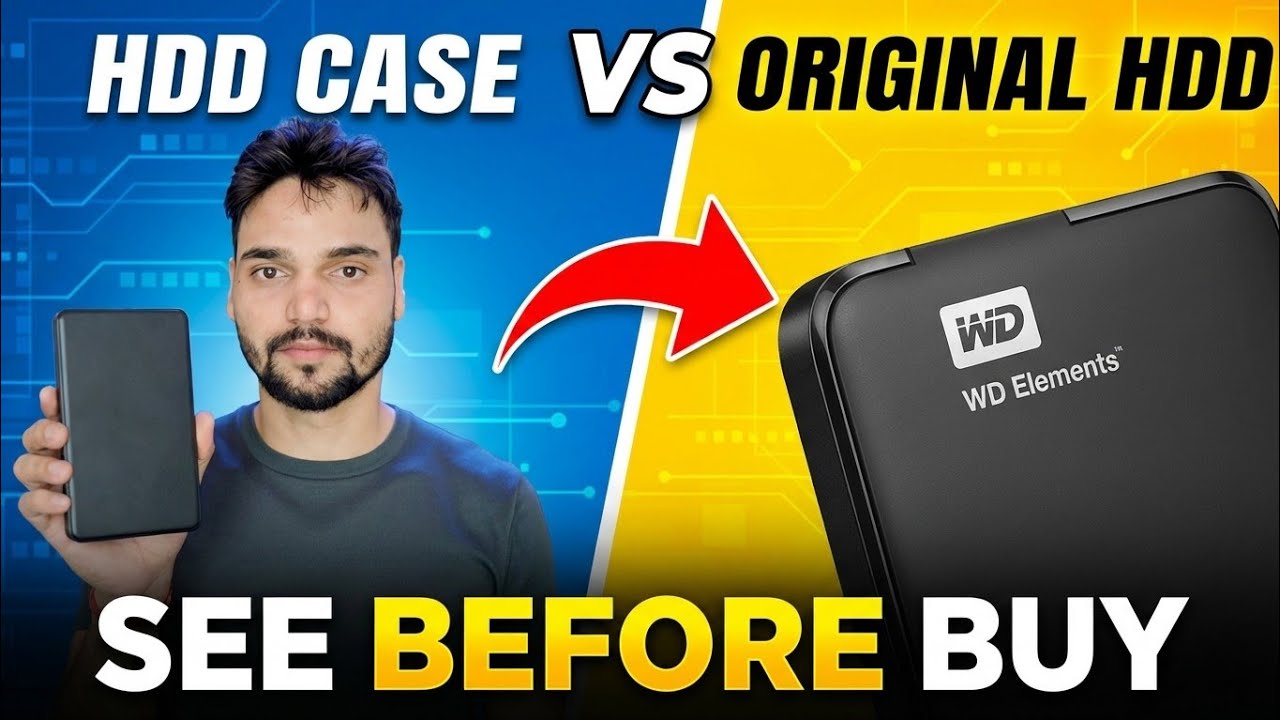
Step-by-Step Troubleshooting Guide & Solutions - HDD CASE VS ORIGINAL HDD SEE BEFORE BUY. On-screen demonstration by Technical Anshu.
Buying a ready external hard drive looks easy, but the box hides the real drive inside. Learn why an original internal hard drive in an enclosure gives you a known model, better warranty and recoverable data.
(transcript ends here on the source page)
❓ Frequently Asked Questions
Is this tutorial 100% free to follow?
Yes! All guides and methods demonstrated by Technical Anshu use free, legal, and educational resources.
Can beginners follow this guide?
Absolutely! Every step is demonstrated on-screen with detailed instructions so anyone can follow along easily.
Where can I ask questions if I get stuck?
Leave a comment directly on the YouTube video, and our community and Technical Anshu will help you out.
🚀 Watch the Full Tutorial on YouTube
🚀 Watch the full step-by-step video tutorial on YouTube: https://www.youtube.com/watch?v=hNF8cMBK5I8
Subscribe to Technical Anshu for IT support, Windows troubleshooting, and server management.
▶️ Watch Full Video