Bypass Windows 11 Requirements
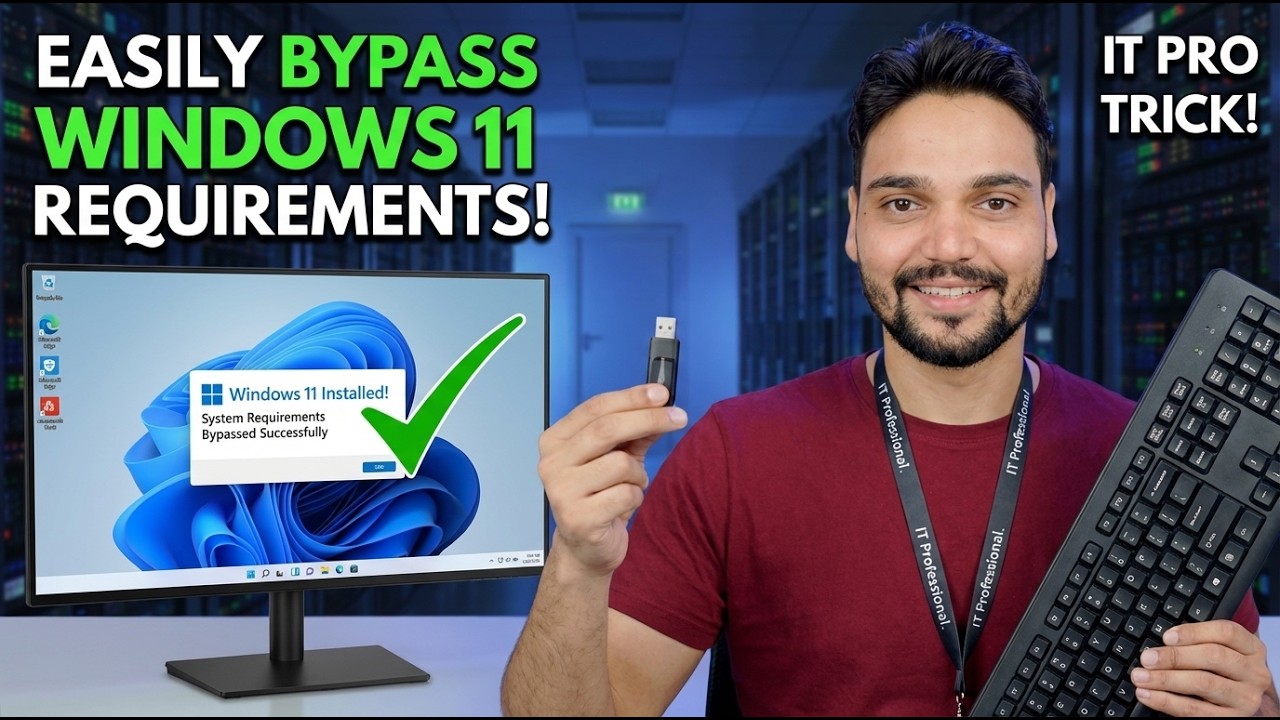
Windows 11 setup refuses your PC over TPM, CPU or Secure Boot - but read the failure properly before bypassing anything. Two of the three failures are often just BIOS settings, and a PC that passes after a settings change needs no bypass at all. This guide ranks the supported options first, then shows the video's two bypass routes and exactly what each one gives up.
📑Chapters
- Why the check fails - one verdict, four separate checks
- TPM not detected - often only switched off in the BIOS
- Secure Boot not enabled - the boot mode decides
- CPU not supported - the failure that is usually real
- Back up the PC before any route
- Everything passes - take the official upgrade, no bypass needed
- Bypass route one - clean install from prepared USB media
- Bypass route two - in-place upgrade with the registry value
- The disclaimer screen - and what stays unsupported afterwards
📋 Overview & Step-by-Step Guide
Run the Honest Check First
Before bypassing anything, find out exactly which check your PC failed. Microsoft's free PC Health Check app reduces the whole machine to one line - "This PC can't run Windows 11" - but that line hides four separate checks: TPM 2.0, Secure Boot, the processor, and the small ones (4 GB RAM, 64 GB storage, DirectX 12 graphics). Open the app, click Check now, then open the full results list and note which items are ticked and which are crossed. Also confirm the Windows version you are starting from:
winverEverything after this step is organised by one answer: which specific item failed? A missing TPM tick and an unsupported CPU sound identical in the summary and mean completely different things.
TPM Not Detected - Often Just Switched Off
Most CPUs from the last several years carry a firmware TPM built in - fTPM on AMD boards, PTT (Platform Trust Technology) on Intel boards. On machines assembled or imaged a while ago that feature is frequently disabled in the BIOS, so Windows reports no TPM at all. Restart into the BIOS/UEFI setup, look under Security, Advanced or Trusted Computing, and set fTPM or PTT to Enabled. Save, boot fully into Windows, then verify:
tpm.mscIf it now reports a TPM ready for use with specification version 2.0, this check was never a hardware problem - and switching it on is fully supported, not a bypass. The genuinely final version of this failure is a machine with only TPM 1.2 or no TPM at all, common on much older boards. That one is real.
Secure Boot Not Enabled - Check the Boot Mode First
Press Windows + R, run msinfo32, and read two lines: BIOS Mode and Secure Boot State. Secure Boot exists only when the PC boots in UEFI mode. If BIOS Mode says UEFI, Secure Boot is normally one switch in the BIOS setup - turning it on is a supported setting, not a bypass. If BIOS Mode says Legacy, the board is running a compatibility mode (CSM) and Secure Boot cannot be switched on until that mode is off.
CPU Not Supported - the Failure That Is Usually Real
The processor check is a list, not a measurement. Microsoft publishes supported CPU lists, and in broad terms the line falls around Intel 8th generation and newer and AMD Ryzen 2000 series and newer, with exceptions in both directions - so confirm your exact chip against the list rather than trusting the generation rule. If your CPU is off the list, no BIOS setting, driver or registry value puts it on the list; a checker tool can tell you exactly which gate you failed, but it cannot open the gate that is a published list.
So if only the CPU (or a true TPM absence) still fails after Steps 2-3, the decision is real, and there are three honest options: stay on Windows 10 with Microsoft's paid ESU security-update programme while you decide, replace the hardware, or install Windows 11 through a bypass with its support terms accepted knowingly - the routes in Steps 7-8.
Back Up the PC Before Any Route
Whichever route follows - BIOS changes, the official upgrade, or a bypass - back up first. Copy irreplaceable files to a drive or location outside this PC and verify the copy opens; a full system image is better still, because it is the only way back to exactly today. An in-place upgrade is designed to keep your files, apps and settings, and Windows keeps a rollback copy for a short window afterwards - neither is a substitute for your own backup, and a clean install erases the drive by design. Do not start Step 7 or Step 8 without this done.
Everything Passes? Take the Official Upgrade
After any BIOS change, boot into Windows fully and run PC Health Check once more. If everything now passes, congratulations - your PC was never unsupported. Take the normal route: the upgrade offered in Windows Update, or Microsoft's Windows 11 Installation Assistant from Microsoft's own download page. The install is supported, updates arrive normally, and no bypass is involved.
Bypass Route One - Clean Install From Prepared USB Media
For a clean install on a wiped or new drive, the video's route family is prepared install media. Rufus - the free, open-source USB-writing tool - offers, at the moment you write a Windows 11 ISO to a USB stick, setup customisations that include removing the requirements for TPM 2.0, Secure Boot and 4 GB of RAM from the installer itself. Boot from that stick and Setup simply never raises the requirements screen; the install then runs normally, apart from the disclaimer in the warning above.
Source discipline is the whole safety story on this route: download Rufus only from its official site, rufus.ie, and start from a genuine Windows 11 ISO downloaded from Microsoft. Never install a "pre-bypassed" Windows ISO from a file-sharing site - a modified operating system assembled by a stranger is one of the oldest malware delivery tricks there is.
Bypass Route Two - In-Place Upgrade With the Registry Value
For an in-place upgrade - Windows 11 installed over your running Windows 10, keeping files, apps and settings - Microsoft itself documented a support valve: a registry value named AllowUpgradesWithUnsupportedTPMOrCPU. Set it in an administrator Command Prompt or PowerShell, exactly as printed:
reg add "HKLM\SYSTEM\Setup\MoSetup" /v AllowUpgradesWithUnsupportedTPMOrCPU /t REG_DWORD /d 1 /fThen mount the official Windows 11 ISO downloaded from Microsoft and run Setup from inside Windows. Know this value's limits precisely: it relaxes the TPM and CPU checks for an upgrade started from inside Windows only. It is not a master switch for every check, and it does nothing for a clean install booted from media - that is Route One's job. The disclaimer in the warning above still appears, and the upgrade carries your existing Windows 10 licence forward in the normal way.
After the Install - What Stays Unsupported
Whichever route you used, the resulting install is identical in one respect: the hardware is still unsupported the morning after. Nothing was repaired - a check was skipped. That means: activation still needs a genuine licence (the bypass skips hardware gates, not licensing); the watermark and Settings notices may appear and are simply the system being honest about its status; and a later feature update runs its own checks of its own - having bypassed once is not a lifetime pass, and updates on an unsupported install can stop arriving the way the disclaimer said.
Keep your backups current, and if an in-place upgrade goes wrong, act fast: the rollback to Windows 10 exists only for a short window after the upgrade, after which the clean way back is a fresh install from your backup. If the machine matters more than the experiment, the ESU option from Step 4 remains the supported road.
🏷️Topic Search Variables & Keywords
🎙️ Full Transcript — tap to expand
Step-by-Step Troubleshooting Guide & Solutions - EASILY BYPASS REQUIREMENTS! TRICK! On-screen demonstration by Technical Anshu.
Windows 11 setup refuses your PC over TPM, CPU or Secure Boot. Read the honest state of the bypass in 2026 before you use it - the supported options ranked first, what the bypass routes actually change, and the support and updates you give up in Microsoft
(transcript ends here on the source page)
❓ Frequently Asked Questions
Is this tutorial 100% free to follow?
Yes! All guides and methods demonstrated by Technical Anshu use free, legal, and educational resources.
Can beginners follow this guide?
Absolutely! Every step is demonstrated on-screen with detailed instructions so anyone can follow along easily.
Where can I ask questions if I get stuck?
Leave a comment directly on the YouTube video, and our community and Technical Anshu will help you out.
🚀 Watch the Full Tutorial on YouTube
🚀 Watch the full step-by-step video tutorial on YouTube: https://www.youtube.com/watch?v=iI5EYXnXw9M
Subscribe to Technical Anshu for IT support, Windows troubleshooting, and server management.
▶️ Watch Full Video