Disable Reserved Storage in Windows 11 😳 Free Up Space NOW!
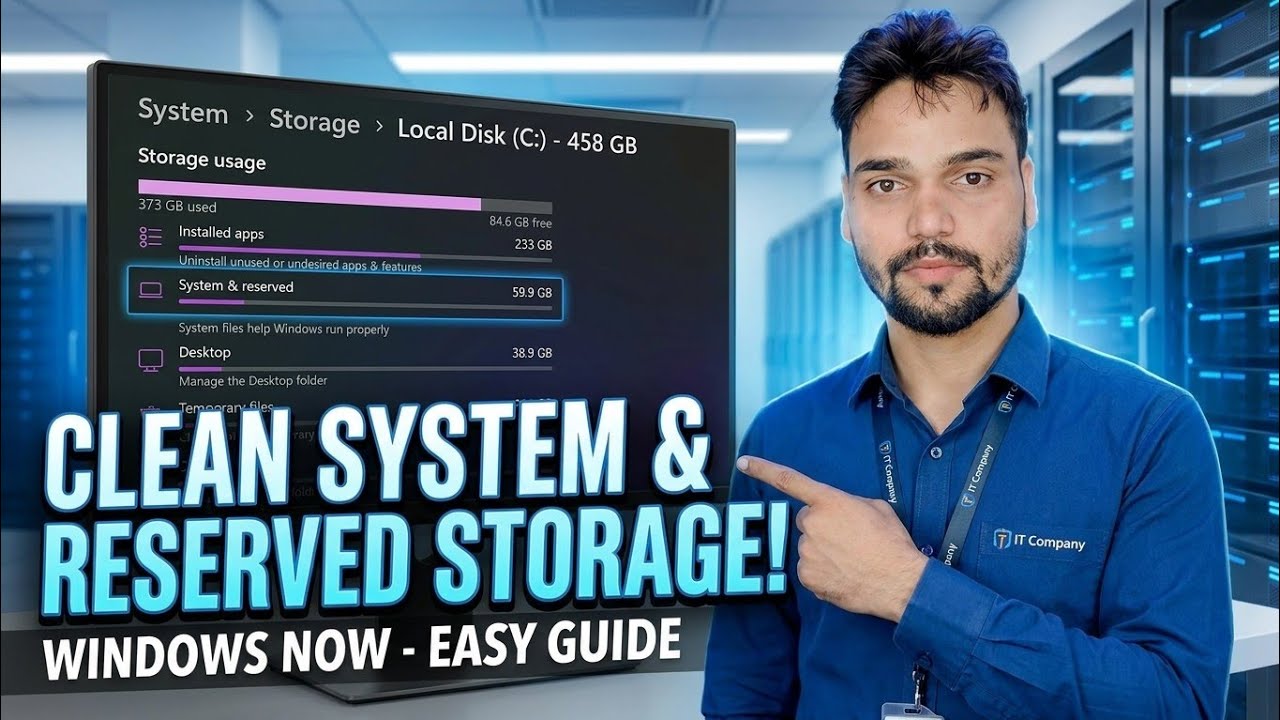
Windows 11 quietly holds about 7 GB of your drive as reserved storage. In this video Technical Anshu shows what it is, how to check its state with one DISM command, and how to disable it safely to free up space — without breaking updates.
📑Chapters
- What Reserved Storage is — the ~7 GB Windows 11 quietly holds back on your drive
- See it yourself in Settings, under System & reserved
- Open Command Prompt as administrator
- Check the current state with one DISM command
- Disable Reserved Storage with the second DISM command
- Restart and confirm the space is back
- Turn it back on anytime — and when you should
📋 Overview & Step-by-Step Guide
What Reserved Storage Is and Why Windows Keeps It
Reserved Storage is disk space Windows sets aside for itself — it starts at about 7 GB and is used by updates, apps, temporary files and system caches, so a Windows update never fails just because the drive ran out of room. The feature arrived with Windows 10 version 1903 and is on by default in Windows 11. The exact size varies from PC to PC: it grows when you install optional features or extra languages, because Windows reserves room to keep them working through updates.
On a large drive, 7 GB hardly matters. On a small SSD — 128 GB or 256 GB — it is real space you could be using, which is exactly why this video shows how to switch it off safely.
See How Much Space It Holds on Your PC
Before changing anything, look at your own number. Open Settings ➔ System ➔ Storage, click Show more categories, then open System & reserved. The Reserved storage line shows exactly how much space Windows is holding on this PC. If there is no reserved storage line at all, the feature is not active on your machine and there is nothing to disable.
Open Command Prompt as Administrator
The DISM commands in this guide only work in an elevated window. Click Start, type cmd, right-click Command Prompt and choose Run as administrator, then confirm the UAC prompt. Windows Terminal (Admin) works too — the commands are exactly the same.
Check the Current State First
Run this command to ask Windows whether reserved storage is currently enabled or disabled:
DISM /Online /Get-ReservedStorageStateThe output clearly states "Reserved storage is enabled" or "Reserved storage is disabled". Checking first matters: if it is already disabled, you are done — no change is needed.
Disable Reserved Storage
Now run the second command, exactly as shown in the video:
DISM /Online /Set-ReservedStorageState /State:DisabledWait until DISM finishes with "The operation completed successfully." That is the whole change — no registry edits, no third-party tools, just Windows' own servicing command.
Restart and Verify the Space Is Back
Restart the PC so Windows releases the reserved space back to your usable pool. Then go back to Settings ➔ System ➔ Storage ➔ Show more categories ➔ System & reserved — the Reserved storage line should now be gone or empty, and your free space should be up by roughly the amount you saw in Step 2 (often around 7 GB, sometimes less depending on the PC). You can also re-run the Step 4 command to confirm the state now reads disabled.
Turn It Back On Anytime
Nothing here is permanent. To restore Microsoft's default behaviour, open the admin Command Prompt again and run the same command with the state flipped to Enabled:
DISM /Online /Set-ReservedStorageState /State:EnabledRestart once more and Windows will start reserving space again. Re-enabling it before a major Windows feature update is the safest habit if your drive tends to run nearly full.
🏷️Topic Search Variables & Keywords
🎙️ Full Transcript — tap to expand
Step-by-Step Troubleshooting Guide & Solutions - CLEAN SYSTEM & RESERVED STORAGE! WINDOWS NOW - EASY GUIDE. On-screen demonstration by Technical Anshu.
Windows 11 quietly holds about 7 GB of your drive as reserved storage. What it is, how to check its state with one DISM command, and how to disable it safely without breaking updates.
(transcript ends here on the source page)
❓ Frequently Asked Questions
Is this tutorial 100% free to follow?
Yes! All guides and methods demonstrated by Technical Anshu use free, legal, and educational resources.
Can beginners follow this guide?
Absolutely! Every step is demonstrated on-screen with detailed instructions so anyone can follow along easily.
Where can I ask questions if I get stuck?
Leave a comment directly on the YouTube video, and our community and Technical Anshu will help you out.
🚀 Watch the Full Tutorial on YouTube
🚀 Watch the full step-by-step video tutorial on YouTube: https://www.youtube.com/watch?v=w1gi-06gmYY
Subscribe to Technical Anshu for IT support, Windows troubleshooting, and server management.
▶️ Watch Full Video