Complete IT Security Setup 🔥 Firewall, Endpoint, Antivirus & Backup Explained
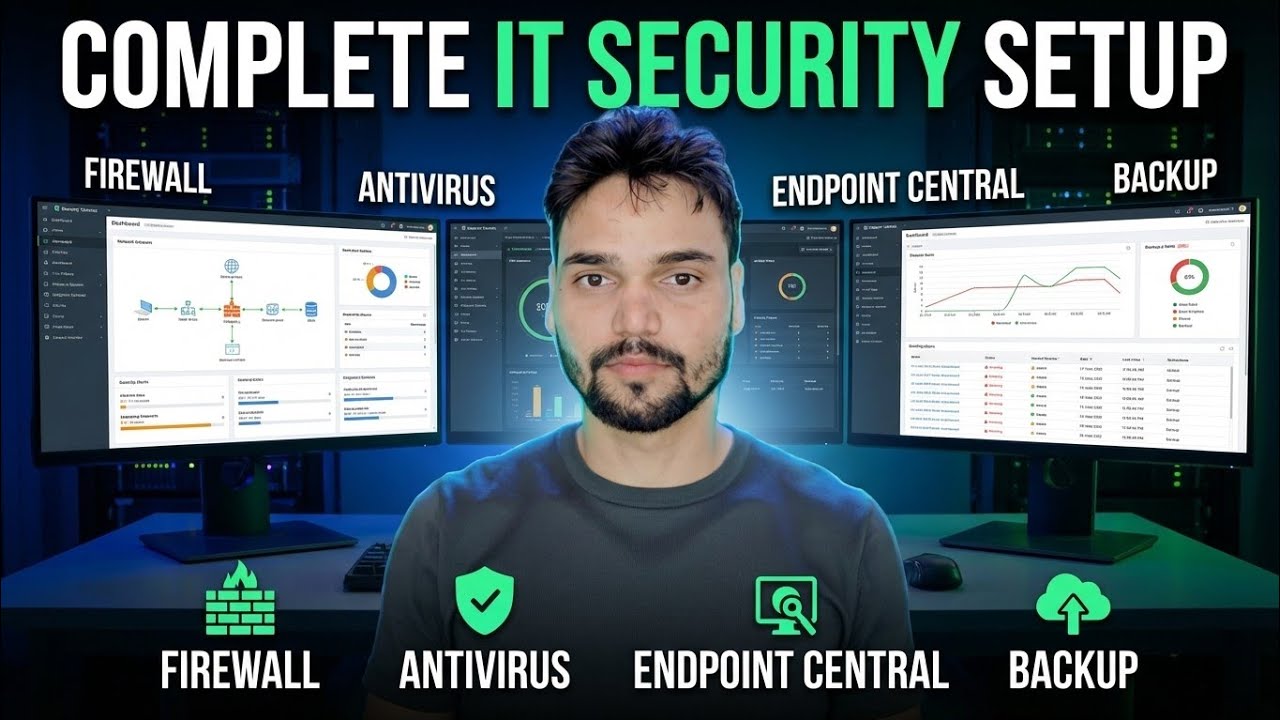
Set up complete IT security for a small office in four layers — firewall, endpoint patching, antivirus and backup — working together as one system, with an honest setup order: what to fix first, and what each layer can and cannot stop.
📑Chapters
- Why one tool never protects an office — the four layers working as one system
- Layer 1: Firewall — default-deny inbound, and VPN instead of open ports
- Layer 2: Endpoint patching — why unpatched PCs get hacked, and the routine that fixes it
- Layer 3: Antivirus — Microsoft Defender vs third-party antivirus and EDR
- Layer 4: Backup — the 3-2-1 rule with an offline copy and restore tests
- Passwords and MFA for office admin accounts and shared logins
- The honest setup order — what to fix first on a small budget, and the monthly routine
📋 Overview & Step-by-Step Guide
Start With the Whole Picture, Not One Product
Most small offices buy a single antivirus and believe the job is done. It is not. Real protection is four layers working together: a firewall at the edge of the network, patched endpoints, antivirus on every PC, and backups that survive an attack. Each layer covers the failures of the others — if ransomware gets past the antivirus, the firewall limits how it spreads and the backup brings the office back. Build the setup in that order, one layer at a time.
Layer 1 — Set Up the Firewall: Default-Deny Inbound, VPN Only
The firewall is the office gate. Set inbound traffic to default-deny: nothing from the internet reaches your PCs unless a rule you wrote allows it. Change the router/firewall admin password, turn off remote administration from the WAN side, and keep the firmware updated. If staff need to reach office systems from outside, give them a VPN account — never open a service port directly to the internet.
Layer 2 — Patch Every Endpoint on a Routine
Most real-world attacks do not use secret new tricks — they use known holes in Windows, browsers, Office and common apps that were fixed months earlier. So patching is a security layer by itself. Turn on automatic Windows updates on every PC, keep browsers and everyday software updated too, and check once a week that no machine is stuck on a failed update. In an office with many PCs, push and track patches centrally (for example with an endpoint management console) instead of trusting every user to click "update".
Layer 3 — Antivirus Done Right: Defender vs Third-Party and EDR
Every PC needs a working, updating antivirus — an expired or disabled one is the same as none. Microsoft Defender, built into Windows, is genuinely capable for a small office when it is fully on: real-time protection enabled, cloud-delivered protection on, tamper protection on, and no exclusions added casually. A paid third-party antivirus or EDR (endpoint detection and response) earns its money when you need central management across many PCs, behaviour-based detection and rollback of ransomware activity, and one console that shows which machine is infected. Choose based on how many PCs you manage and whether anyone is watching alerts — not on brand names.
Layer 4 — Backup on the 3-2-1 Rule, With Restore Tests
Backup is the layer that decides whether an attack is a bad day or the end of the business. Follow the 3-2-1 rule: keep 3 copies of important data, on 2 different types of storage, with 1 copy offline or off-site. The offline copy matters most: ransomware encrypts every drive it can reach, including a permanently attached backup disk, so one copy must be disconnected or in the cloud with version history. Schedule backups automatically — a backup that depends on someone remembering does not exist.
Lock Down Passwords and Turn On MFA
Weak and shared passwords quietly undo all four layers. Give every person their own login — shared accounts make it impossible to know who did what, and one leaked password opens every PC. Admin accounts get long, unique passwords used nowhere else, and daily work is done from standard accounts, not admin ones. Turn on multi-factor authentication (MFA) everywhere it exists: email, cloud storage, VPN and remote access first. A stolen password alone should never be enough to get in.
The Honest Setup Order — and the Monthly Routine
On a small budget, order matters more than spending. Fix things in this order: (1) firewall defaults and no open ports, (2) patching routine, (3) antivirus confirmed on and updating on every PC, (4) 3-2-1 backup with one offline copy, (5) passwords and MFA. Most of that list costs nothing but time. Afterwards, keep a one-hour monthly routine: check update status, confirm backups ran and test one restore, review who has admin and VPN access, and remove accounts of people who left. Security is not a one-time setup — it is this small routine, repeated.
🏷️Topic Search Variables & Keywords
🎙️ Full Transcript — tap to expand
Step-by-Step Troubleshooting Guide & Solutions — COMPLETE IT SECURITY SETUP | FIREWALL ANTIVIRUS BACKUP. On-screen demonstration by Technical Anshu.
Set up complete IT security for a small office in four layers — firewall, endpoint patching, antivirus and backup — working together as one system, with an honest setup order.
(transcript ends here on the source page)
❓ Frequently Asked Questions
Is this tutorial 100% free to follow?
Yes! All guides and methods demonstrated by Technical Anshu use free, legal, and educational resources.
Can beginners follow this guide?
Absolutely! Every step is demonstrated on-screen with detailed instructions so anyone can follow along easily.
Where can I ask questions if I get stuck?
Leave a comment directly on the YouTube video, and our community and Technical Anshu will help you out.
🚀 Watch the Full Tutorial on YouTube
🚀 Watch the full step-by-step video tutorial on YouTube: https://www.youtube.com/watch?v=-xIxQrBdwBI
Subscribe to Technical Anshu for IT support, Windows troubleshooting, and server management.
▶️ Watch Full Video