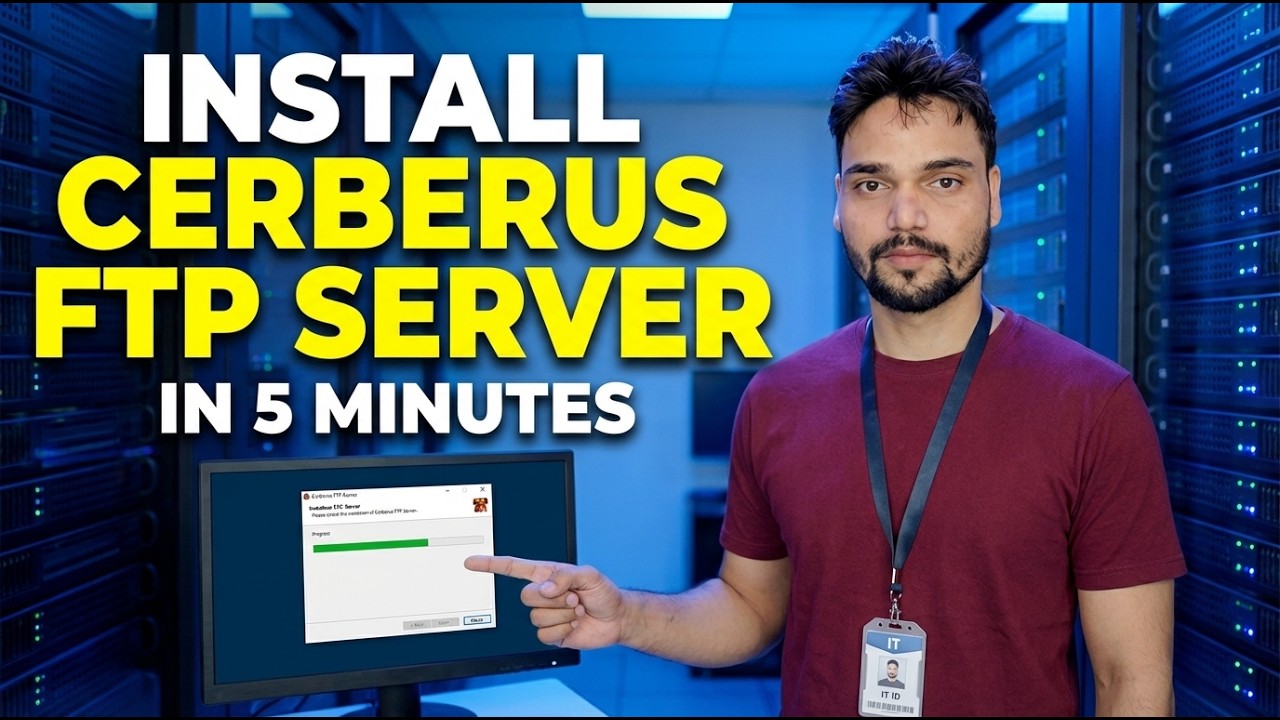
Install Cerberus FTP Server in 5 Minutes
Install Cerberus FTP Server on Windows the secure way — download, wizard setup, one user account per person, FTPS and SFTP encryption, passive port range 11000 to 13000, firewall rules and a proper test, explained honestly.
📑Chapters
- What Cerberus FTP Server is, and what to decide before installing it
- Download and install — the Getting Started wizard in Server Manager
- One user account per person, with only the folders each person needs
- Turn encryption on — FTPS and SFTP instead of plain FTP
- Passive port range 11000 to 13000 and the firewall rules that must match it
- Test on the server itself, then from a second PC on the LAN
- Read the log, and keep plain FTP off the internet
📋 Overview & Step-by-Step Guide
Before You Start — Decide the Job
Cerberus FTP Server is a Windows file transfer server that can serve FTP, FTPS, SFTP and a web client from one program. A short setup stands or falls on three decisions made before the installer even runs.
Give the server PC a fixed local IP address — the video's example is 192.168.1.100. A changing DHCP address silently breaks clients and firewall rules. Create the file root folder first, on a data drive rather than inside the Windows folder — the video's example root is:
D:\CerberusFilesFinally, decide who connects and from where — the office LAN only, or from outside as well. That one decision controls almost every security step that follows.
Install Cerberus and Run the Getting Started Wizard
Run the installer as administrator and accept the defaults. Cerberus then opens its Server Manager with a Getting Started wizard — this install part is the fast part the video's title refers to.
In the wizard, set the server name and confirm the listeners you need. For a first test on your own LAN, FTP on port 21 is enough. If the wizard offers to create or select a certificate, let it — you can replace it later. Choose to run Cerberus as a Windows service if this PC must keep serving files after you log off; a server that stops when you sign out is not a server. Click Setup Server to finish. The server is now ready for its first user account.
Create One User Account Per Person
Open User Manager in Server Manager and create one account per person, each with a strong, unique password. Cerberus has its own user system, separate from Windows accounts. Never share one common login with the whole office, and never enable anonymous write access.
Set each user's home folder to the root you prepared, and give each person access to only the folders they actually need — a delivery user does not need the accounts folder. Set permissions per folder (download only, upload only, or both) instead of full control everywhere. One account per person is what later makes the log meaningful: every connection is tied to a name.
Turn Encryption On — FTPS and SFTP
For FTPS, use the FTPS listener on port 990 (implicit TLS), or require TLS on the port 21 listener (explicit FTPS) — and set the listener or user to require a secure connection so plain logins are refused. For SFTP, enable the SSH SFTP listener on port 22. Despite the similar name, SFTP is a different protocol from FTP: it runs over SSH, encrypts everything, and needs only that one port.
Test with FileZilla or WinSCP and confirm the connection really is encrypted — in FileZilla, FTPS shows a lock and a certificate prompt the first time. And tell users plainly which protocol to use: if plain FTP stays open next to FTPS, people will keep using the insecure one.
Set the Passive Port Range and the Firewall Together
An FTP login travels on the control port, but folder listings and files travel on separate data ports that the server picks from its passive range. The Cerberus default passive range — the one used in the video — is:
11000-13000You can narrow the range in Server Manager, but keep at least a few hundred ports — each listing or transfer uses one, and a used port cannot be reused for several minutes. Whatever range is set in Cerberus is the range every other step must match exactly.
In Windows Defender Firewall, allow the Cerberus program, or create inbound rules for the control ports you actually use (21, 22, 990 or 443) plus the full passive range. Scope the rules to your LAN subnet on a LAN-only server — do not open ports to Any if the server never serves the internet. If outside access is genuinely needed, forward the same ports on the router to the server's fixed IP, and only with FTPS or SFTP from Step 4 switched on.
Test Locally, Then from a Second PC
Test in widening circles, so a failure tells you which layer broke. First, on the server itself, open Command Prompt and connect to localhost with the Windows FTP client:
ftp 127.0.0.1A 230 reply after you enter a user's name and password means the service and that account both work. Then, from a second PC on the LAN, connect to the server's fixed IP the same way — using the secure protocol for the real test:
ftp 192.168.1.100Upload a test file, download it back, and also try to open a folder that user should not be able to see. All three results matter — a login that works but shows the wrong folders is not a pass.
Read the Log Before You Call It Done
Open the Cerberus Log and confirm your tests appear with the right user, the right IP address and the right result. Because every account belongs to one person, the log can answer "who connected, who uploaded, and who failed" — if it cannot, fix the logging now, not after an incident.
One honest closing note: the install itself is quick — that is where the video's "5 minutes" framing comes from — but the securing steps on this page take longer, and they are the actual job. One account per person, encryption on, passive ports matched in the server, the firewall and the router, and plain FTP kept off the internet. Skip those, and the time was not saved — it was borrowed.
🏷️Topic Search Variables & Keywords
🎙️ Full Transcript — tap to expand
Step-by-Step Troubleshooting Guide & Solutions - INSTALL CERBERUS FTP SERVER IN 5 MINUTES. On-screen demonstration by Technical Anshu.
Install Cerberus FTP Server on Windows the secure way - download, wizard setup, one user per person, FTPS and SFTP encryption, passive port range 11000 to 13000, firewall rules and testing, explained honestly.
(transcript ends here on the source page)
❓ Frequently Asked Questions
Is this tutorial 100% free to follow?
Yes! All guides and methods demonstrated by Technical Anshu use free, legal, and educational resources.
Can beginners follow this guide?
Absolutely! Every step is demonstrated on-screen with detailed instructions so anyone can follow along easily.
Where can I ask questions if I get stuck?
Leave a comment directly on the YouTube video, and our community and Technical Anshu will help you out.
🚀 Watch the Full Tutorial on YouTube
🚀 Watch the full step-by-step video tutorial on YouTube: https://www.youtube.com/watch?v=IA_O2V2-ZFE
Subscribe to Technical Anshu for IT support, Windows troubleshooting, and server management.
▶️ Watch Full Video