Install Ubuntu Server on VMware ESXi
Installing Ubuntu Server on a VMware ESXi host step by step — creating the virtual machine and every installer screen explained, from language and network to storage, your profile and the OpenSSH checkbox.
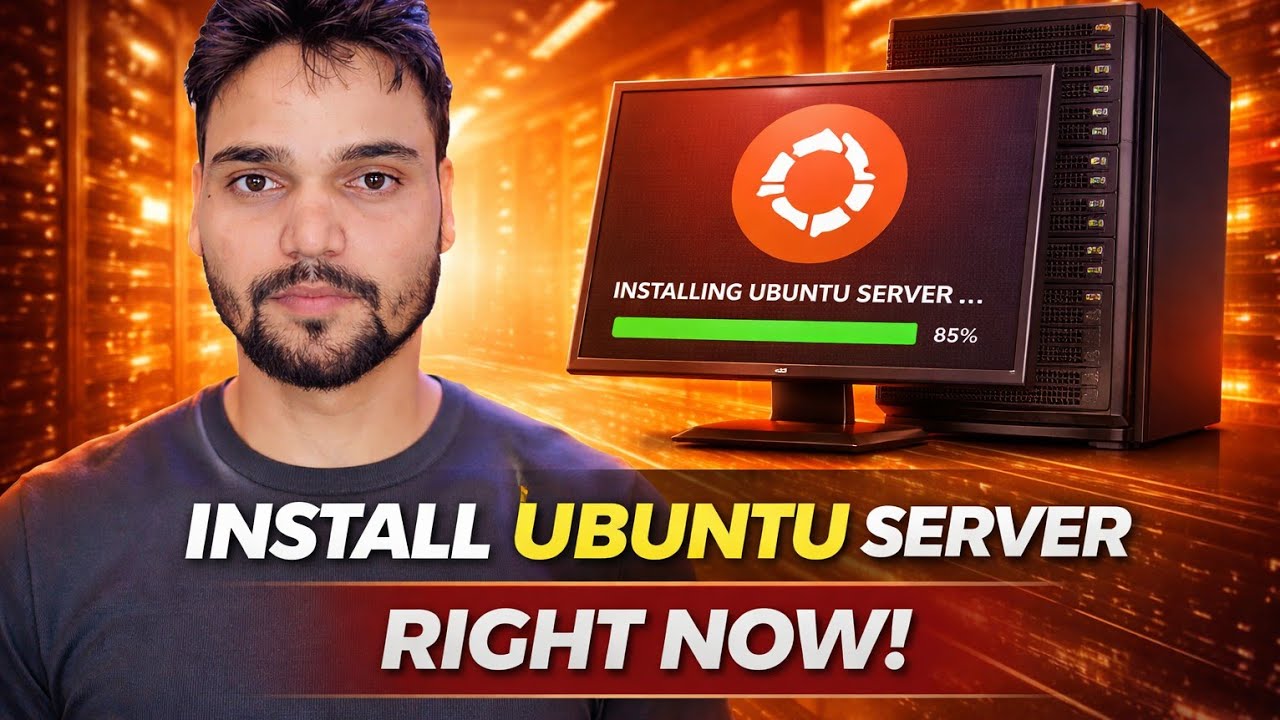
📑Chapters
- What you need before you start — an ESXi host and the Ubuntu Server LTS ISO
- Upload the ISO to a datastore on the host
- Create the virtual machine — name, guest OS, CPU, memory and disk
- Attach the ISO, power on and open the console
- Language and keyboard layout screens
- Choose the type of installation — Ubuntu Server or the minimized flavour
- Network screen — DHCP or a static address, plus the proxy and mirror screens
- Storage — the guided layout and the LVM default
- Your profile and the OpenSSH checkbox
- Featured snaps, the installation itself and the reboot
- First login checks, updating once, and switching to SSH
📋 Overview & Step-by-Step Guide
Get the ISO and Upload It to a Datastore
You need two things: an ESXi host you can log in to, and the Ubuntu Server ISO downloaded from ubuntu.com. Pick a current LTS release — the long-term support versions get years of updates and are what almost every guide assumes. Then upload the ISO to the host before creating anything: in the ESXi web client open Storage, pick a datastore with real free space, open the datastore browser and use Upload. The virtual machine will boot from this file.
Decide the basics now: a clear name for the VM, how much disk it gets, and whether it takes its address from DHCP or a fixed static address. Ubuntu's documented minimums are small — around 1.5 GB of RAM gets the installer running — but a server you actually plan to use deserves at least 2 to 4 GB of RAM and 25 GB or more of disk. You can grow a virtual disk later; shrinking it is the painful direction.
Create the Virtual Machine with the Right Settings
In the ESXi web client choose Create / Register VM, then Create a new virtual machine. The choices that matter:
Name and guest OS: give the VM a name that says its job, and select guest OS family Linux, version Ubuntu Linux (64-bit) — ESXi uses this to pick sensible defaults. Storage: the datastore you uploaded the ISO to. CPU and memory: 2 vCPUs and 4 GB RAM is a comfortable starting point for a test or small service server. Hard disk: 25 GB or more; thin provisioned is fine for a lab, thick provisioned reserves the space up front. Network adapter: choose VMXNET 3 — Ubuntu ships its driver in the kernel, so the network works during the install itself.
CD/DVD drive: point it at the uploaded ISO (Datastore ISO file) and make sure Connect at power on is ticked. Leave the firmware on its default, which is EFI on current releases — Ubuntu fully supports EFI and Secure Boot, so there is nothing to change.
Boot and Clear the Language and Keyboard Screens
Power on the VM and open its console. The boot menu offers Try or Install Ubuntu Server — select it and press Enter (it also continues on its own after a short wait). The installer first runs a quick hardware detection, then the welcome screen asks for your language. Choose it and press Continue.
Next is the keyboard layout screen. Take the ten seconds to pick the right layout and test a few keys in the box provided.
Pick the Install Type and Set the Network
Current releases offer two flavours on the type of installation screen: Ubuntu Server — the standard install with the usual collection of administration tools — and Ubuntu Server (minimized) — a smaller install meant for automated and cloud-style deployments. For a first server or a learning machine, choose the regular Ubuntu Server; minimized leaves out everyday tools you will expect to find, and adding them back one by one costs more time than it saves.
The network connections screen shows your virtual network card (it appears as ens160). By default it asks DHCP for an address, and for most home and lab installs that is all you need — note the address it receives, because that is where you will reach the server. If this server must always live at the same address — and real servers usually must — select the adapter, choose Edit IPv4, switch to Manual and fill in the four fields: the subnet in CIDR form, for example 192.168.1.0/24, the address you are giving this server, for example 192.168.1.50, the gateway, and the name servers. Pick an address inside your network but outside the range your router hands out by DHCP, so the two never collide.
The proxy screen can be left empty unless your network forces traffic through a proxy. The mirror screen picks the Ubuntu archive nearest to you and tests it — accept the default it offers.
Storage — Guided Layout with LVM
The guided storage configuration screen offers Use an entire disk. Since this is a brand new virtual disk, that is the right choice — there is nothing on it to protect. The option Set up this disk as an LVM group is ticked by default, and leaving it ticked is the sensible default for most people: LVM is a layer between the disk and the filesystems that makes growing the storage later much easier.
Press Done and the installer shows the storage configuration review screen — the partitions it is about to create, including the small EFI partition and the main LVM volume. Read it, then confirm. A final warning asks one more time, because the next step writes to the disk; on a fresh virtual disk that is exactly what you want.
Profile Setup and the OpenSSH Checkbox
The profile setup screen asks for your name, the server's name (the hostname other machines will see), a username and a password. This first user is the administrator — it can use sudo for system tasks. Pick a password you will still remember next month; you will type it at the first login.
Then comes the SSH setup screen, and the single most useful tick of the whole install: Install OpenSSH server. It is not ticked by default — tick it. A server has no desktop and no browser; after installation you will manage it almost entirely over SSH from your own computer, and installing the SSH server now saves you a console trip later. The screen also offers to import an SSH key from GitHub or Launchpad — a beginner can skip that and use password login.
The last choice screen lists featured server snaps — popular server applications offered as one-tick extras. Leave them all unticked. A clean base system is the right starting point; anything you need can be installed afterwards, deliberately.
Finish the Install and Reboot Cleanly
The installer now copies the system and shows its progress. This stage takes a while on a shared host — a slow progress screen is normal, and the log view shows it is still working. When it completes, choose Reboot Now.
First Login — Check, Update, and Move to SSH
Log in at the console with the username and password from your profile. First, confirm the address the server is actually using:
ip aLook at the ens160 adapter — the address shown there is the one you will connect to. Next, check the disk layout the installer built:
df -hThen bring the fresh system current once, before you install anything on it:
sudo apt update
sudo apt upgrade
From here, stop working in the ESXi console and manage the server over SSH from your own computer — connect with ssh yourusername@server-address, using the username from your profile and the address you just confirmed.
Missed the OpenSSH tick in step 6? At the console, install it now and confirm the service is running:
sudo apt install openssh-server
sudo systemctl status ssh🏷️Topic Search Variables & Keywords
🎙️ Full Transcript — tap to expand
Step-by-Step Troubleshooting Guide & Solutions - INSTALL UBUNTU SERVER RIGHT NOW!. On-screen demonstration by Technical Anshu....
Installing Ubuntu Server on a VMware ESXi host step by step - creating the virtual machine and every installer screen explained, from language and network to storage, your profile and the OpenSSH checkbox.
(transcript ends here on the source page)
❓ Frequently Asked Questions
Is this tutorial 100% free to follow?
Yes! All guides and methods demonstrated by Technical Anshu use free, legal, and educational resources.
Can beginners follow this guide?
Absolutely! Every step is demonstrated on-screen with detailed instructions so anyone can follow along easily.
Where can I ask questions if I get stuck?
Leave a comment directly on the YouTube video, and our community and Technical Anshu will help you out.
🚀 Watch the Full Tutorial on YouTube
🚀 Watch the full step-by-step video tutorial on YouTube: https://www.youtube.com/watch?v=J3-hMccAsTg
Subscribe to Technical Anshu for IT support, Windows troubleshooting, and server management.
▶️ Watch Full Video