SMPS Kharab Hai Ya Nahi?
Your PC shows no sign of life at all — no fan spin, no light, nothing. Before blaming the motherboard, test the SMPS itself. This guide shows the safe external checks — the paperclip trick and a PSU tester — that tell you whether the power supply is dead or the fault lies somewhere else.
📑Chapters
- The symptom — a PC with no sign of life at all
- Cheap vs branded SMPS — the same 450W claim, very different insides
- Safety first — why you never open an SMPS
- Disconnect the SMPS from everything
- The paperclip test — green wire to black wire
- Reading the result — the fan spins, or it does not
- A better check — PSU tester and the voltage rails (+12V, +5V, +3.3V)
- The verdict — replace the SMPS, or look somewhere else
📋 Overview & Step-by-Step Guide
Rule Out the Simple Things First
A completely dead PC — no fan spin, no power light, no beep — points first at the power supply, but rule out the basics before testing it. Check that the wall socket works (plug in a phone charger or another device), try a different power cable, and make sure the rocker switch on the back of the SMPS is in the ON position. Only if the PC still shows zero sign of life do you move on to testing the SMPS itself.
Safety First — Never Open an SMPS
This is the most important rule of the whole test, so it comes before anything else.
Disconnect the SMPS From Everything
Switch the SMPS off at its rear switch and unplug the mains power cord. Press the PC's power button once to drain any remaining charge, then unplug every connector the SMPS feeds: the big 24-pin ATX connector, the 4/8-pin CPU power, the PCIe power cables to the graphics card, and the SATA/Molex power plugs to drives and fans. The test must run with the motherboard completely disconnected, so the PC's other parts can neither confuse the result nor be harmed if the supply really is faulty.
Do the Paperclip Test (The Trick)
This is the trick the video is built around. Take a plain metal paperclip and bend it into a U shape. Look at the 24-pin ATX connector and find the green wire — that is the PS_ON signal wire, the one the motherboard pulls low to tell the supply to start. Push one end of the paperclip into the green wire's pin and the other end into the pin of any black wire right next to it — black wires are ground. You have now done by hand exactly what the motherboard's power button does.
Power On and Watch the Fan
With the paperclip in place, plug the mains cord back in and flip the SMPS's rear switch on. If the SMPS fan starts spinning — and the test-load fan or drive from Step 3 runs with it — the power-on circuit of the supply is alive: the SMPS can start. If absolutely nothing happens, even though the socket and cable were already proven good in Step 1, the SMPS is almost certainly dead.
Confirm With a PSU Tester or Multimeter
The paperclip test only proves the SMPS can start — not that its voltages are correct. The cleaner check is a small PSU tester: plug the 24-pin connector (and the CPU/peripheral plugs, if you want them tested too) into the tester, connect mains power, and it displays every rail and flags a fault. No opening of the unit is involved here either — everything happens at the connectors.
You can do the same job with a multimeter, probing the connector pins from outside while the paperclip test is running. On the ATX connector the wire colours are standard: yellow = +12V, red = +5V, orange = +3.3V, each measured against any black (ground) wire. Healthy readings sit within about 5% of the label: +12V between 11.4V and 12.6V, +5V between 4.75V and 5.25V, +3.3V between 3.14V and 3.47V. Also check the purple wire (+5VSB): this standby rail should show about 5V whenever the mains is connected, even before start — if it is missing, the PC can never wake up at all.
The Verdict — Dead, Weak, or Faulty Elsewhere
Now read the results together. Fan does not spin and the rails are missing or far off: the SMPS is dead — replace it, do not attempt an internal repair. Fan spins and every rail is in range, yet the PC still will not start: the SMPS has passed and the fault lies elsewhere — motherboard, front-panel power button, RAM or CPU power seating are the next suspects.
One honest limit: these are no-load and light-load tests. An aging SMPS can pass the paperclip test and still collapse when a real PC draws full power from it — if the machine starts but shuts down under load, the supply is still the prime suspect.
🏷️Topic Search Variables & Keywords
🎙️ Full Transcript — tap to expand
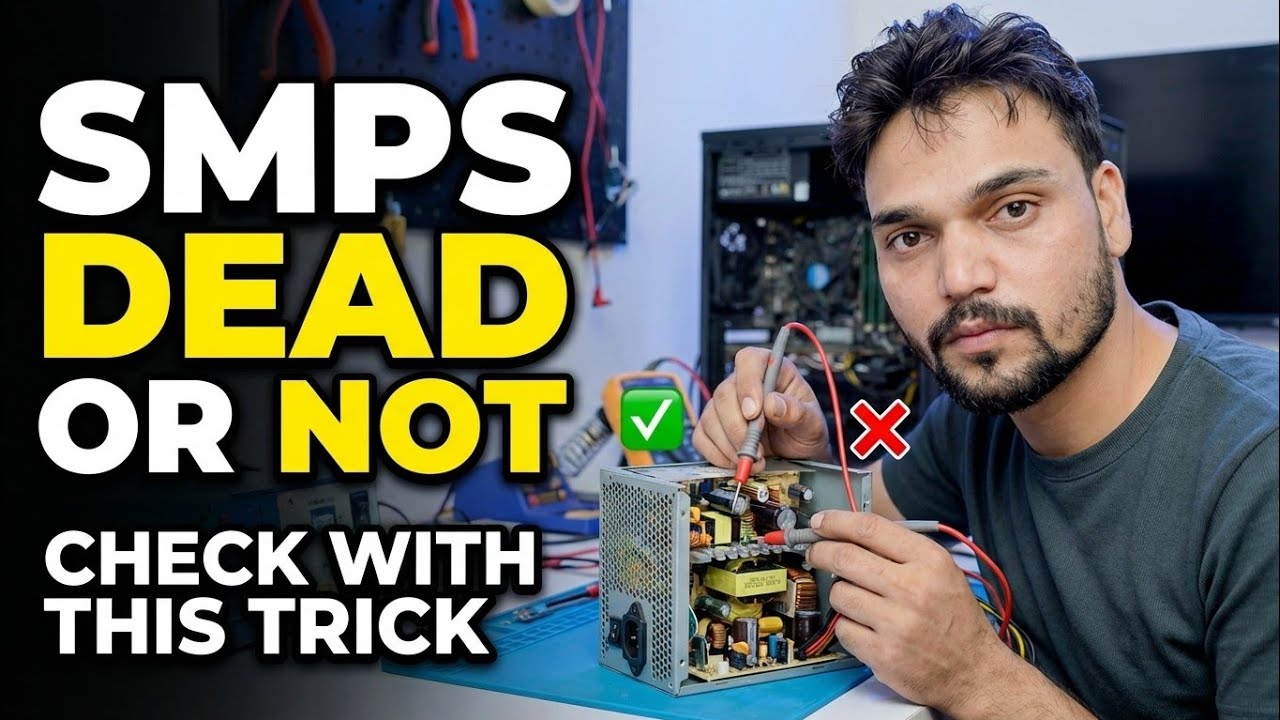
Step-by-Step Troubleshooting Guide & Solutions — SMPS DEAD OR NOT CHECK WITH THIS TRICK. On-screen demonstration by Technical Anshu.
(transcript ends here on the source page)
❓ Frequently Asked Questions
Is this tutorial 100% free to follow?
Yes! All guides and methods demonstrated by Technical Anshu use free, legal, and educational resources.
Can beginners follow this guide?
Absolutely! Every step is demonstrated on-screen with detailed instructions so anyone can follow along easily.
Where can I ask questions if I get stuck?
Leave a comment directly on the YouTube video, and our community and Technical Anshu will help you out.
🚀 Watch the Full Tutorial on YouTube
🚀 Watch the full step-by-step video tutorial on YouTube: https://www.youtube.com/watch?v=RqUrpr6glKI
Subscribe to Technical Anshu for IT support, Windows troubleshooting, and server management.
▶️ Watch Full Video