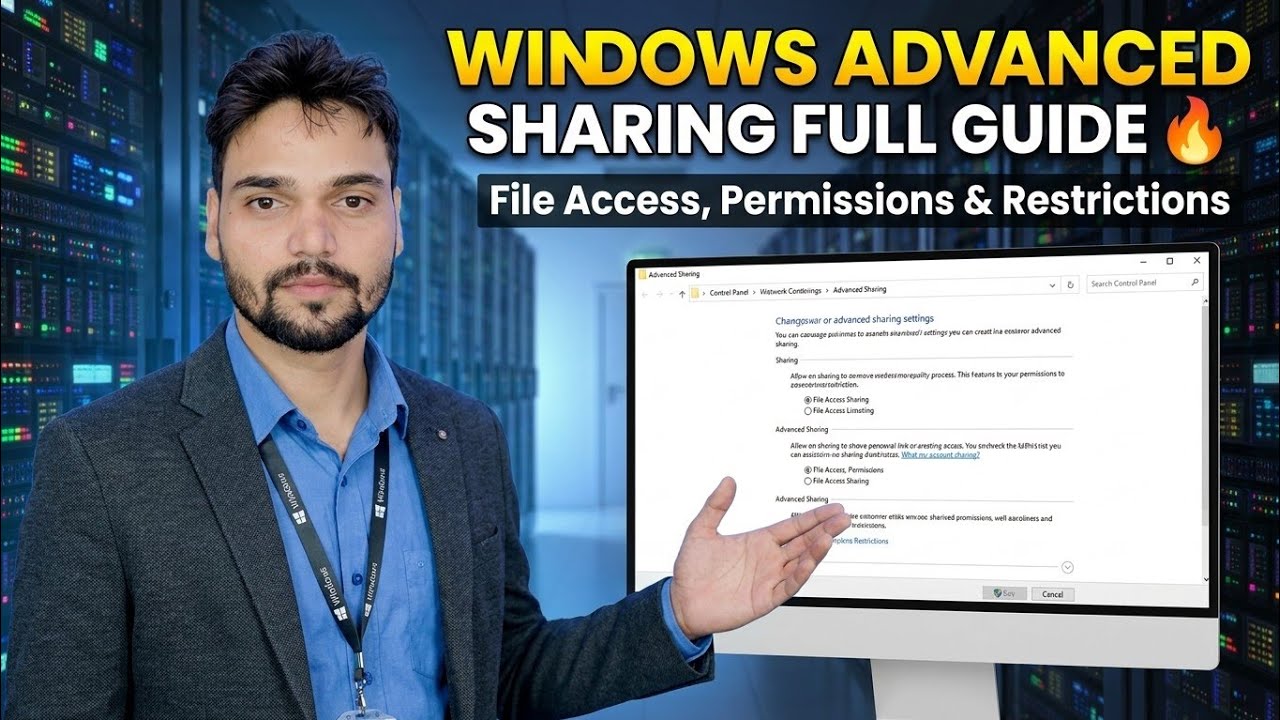
Control File Access Like IT Admin ⚡ Advanced Sharing Tutorial
Share one folder on a Windows PC and control exactly who can open, edit or delete files in it — share permissions, NTFS permissions, user groups and auditing, set up the way an IT admin does it.
📑Chapters
- The IT admin approach — control access with groups first, permissions second
- Turn on network discovery and file sharing on the host PC
- Create the Accounts-Full and Accounts-Read groups in lusrmgr.msc
- Share the folder using Advanced Sharing
- Share permissions — what each group can do over the network
- NTFS permissions — what each group can do on the disk itself
- Effective Access — verify the real result for any user
- fsmgmt.msc — live sessions, open files and disconnecting users
- Auditing with secpol.msc — log who opened or deleted a file
- Test the share from a second PC
📋 Overview & Step-by-Step Guide
Plan Access by Group, Not by Person
Before touching any setting, decide the access levels the folder needs. In this tutorial the work is split into two groups: Accounts-Full for the people who can open, edit and delete files, and Accounts-Read for the people who can only view and open files. Every permission in the next steps is given to these groups — never to individual users one by one.
Turn On Network Discovery and File Sharing
On the PC that will host the folder, make sure the network profile is set to Private. Then open Control Panel → Network and Sharing Center → Change advanced sharing settings and turn on Network discovery and File and printer sharing. Keep Password protected sharing turned on, so only people who have a user account on this PC can connect to the share.
Every user who will connect needs their own account on this host PC, and the account must have a password — by default Windows refuses network sign-in for accounts with a blank password.
Create the Groups and Add Users (lusrmgr.msc)
Press Win + R, type the command below and press Enter to open Local Users and Groups:
lusrmgr.mscOpen the Groups folder, right-click in the empty area and choose New Group. Create Accounts-Full and click Add to put the full-access users inside it. Repeat the same way for Accounts-Read and add the view-only users. If a person does not have an account yet, create it first under the Users folder in the same window.
lusrmgr.msc and secpol.msc (used in Step 9) are available on Windows Pro, Enterprise and Education editions. Windows Home does not include these consoles — on Home you can still do basic sharing from the folder Properties tabs, but without local group management.Share the Folder Using Advanced Sharing
Right-click the folder → Properties → Sharing tab → Advanced Sharing. Tick Share this folder and set a clear share name — this is the name other PCs will see on the network. The advanced dialog is where an admin shares a folder, because it gives separate control over the share name, the number of simultaneous users and the share permissions.
Adding a $ sign at the end of the share name makes it a hidden share: it does not appear when someone browses the PC, and it can only be opened by typing its full path.
Set Share Permissions for the Groups
Still in Advanced Sharing, click the Permissions button. Remove the default Everyone entry so the folder is not open to the whole network. Then add the two groups: give Accounts-Full the Full Control permission, and give Accounts-Read only Read. Share permissions have three levels — Read, Change and Full Control — and they apply only when the folder is opened over the network.
Set NTFS Permissions on the Security Tab
Now open the Security tab of the same folder's Properties and add the same two groups there. Give Accounts-Full Full Control. Give Accounts-Read only Read & Execute, List folder contents and Read — leave Modify and Write unticked, otherwise a "read-only" user can still change or delete files. NTFS permissions are the standard list of Full Control, Modify, Read & Execute, List folder contents, Read and Write, and they protect the files on the disk itself — both for network users and for anyone sitting at this PC.
If the folder has inherited entries from its parent folder that you do not want, open Advanced on the Security tab and use Disable inheritance to convert or remove them, then keep only the entries you set yourself.
Check the Real Result with Effective Access
A user who opens the folder over the network is checked by both layers, and the more restrictive result wins. So if the share permission says Full Control but the NTFS permission says Read, the user effectively gets Read. To confirm this without guessing, open the folder Properties → Security → Advanced → Effective Access tab, select a user, and Windows shows exactly what that user can and cannot do on the folder.
Watch Live Access in the Shared Folders Console (fsmgmt.msc)
Once people start using the share, open the Shared Folders console to manage it live:
fsmgmt.mscThe Shares node lists every shared folder on the PC, Sessions shows which users are connected right now, and Open Files shows exactly which shared files are open at this moment. From here you can disconnect a user, close an open file or stop sharing a folder — the daily control panel of a shared-folder admin.
Turn On Auditing to See Who Opened or Deleted a File (secpol.msc)
Permissions control what users can do; auditing records what they actually did. First switch auditing on in Local Security Policy:
secpol.mscGo to Local Policies → Audit Policy → Audit object access and enable both Success and Failure. Then open the folder Properties → Security → Advanced → Auditing tab and add the groups, choosing the actions you want recorded, such as opening files or deleting them. From then on, access attempts on that folder are written to Event Viewer under Windows Logs → Security — look for event ID 4663 — so you can see which account opened or deleted a file, and when.
Auditing creates a lot of log entries, so enable it on important folders only, not on the whole drive.
Test the Share from Another PC
On a second PC on the same network, press Win + R or use the File Explorer address bar and open the share by its network path, for example \\PC-NAME\ShareName — you can also use the host PC's IP address in place of its name. Sign in with a user account that belongs to one of the two groups.
Test like an admin: a member of Accounts-Read should be able to open files but must be refused when trying to save changes or delete a file, and a member of Accounts-Full should be able to edit and delete normally. If either test gives a different result, re-check that user's group membership and the Effective Access tab from Step 7 before changing any permission.
🏷️Topic Search Variables & Keywords
🎙️ Full Transcript — tap to expand
Step-by-Step Troubleshooting Guide & Solutions - WINDOWS ADVANCED SHARING FULL GUIDE 🔥 File Access, Permissions & Restrictions. On-screen demonstration by Technical Anshu....
Share one folder on a Windows PC and control exactly who can open, edit or delete files in it. Share permissions, NTFS permissions, user groups and auditing, set up the way an IT admin does it.
(transcript ends here on the source page)
❓ Frequently Asked Questions
Is this tutorial 100% free to follow?
Yes! All guides and methods demonstrated by Technical Anshu use free, legal, and educational resources.
Can beginners follow this guide?
Absolutely! Every step is demonstrated on-screen with detailed instructions so anyone can follow along easily.
Where can I ask questions if I get stuck?
Leave a comment directly on the YouTube video, and our community and Technical Anshu will help you out.
🚀 Watch the Full Tutorial on YouTube
🚀 Watch the full step-by-step video tutorial on YouTube: https://www.youtube.com/watch?v=XLMZsVzvPac
Subscribe to Technical Anshu for IT support, Windows troubleshooting, and server management.
▶️ Watch Full Video