Upgrade to Windows 11 Free
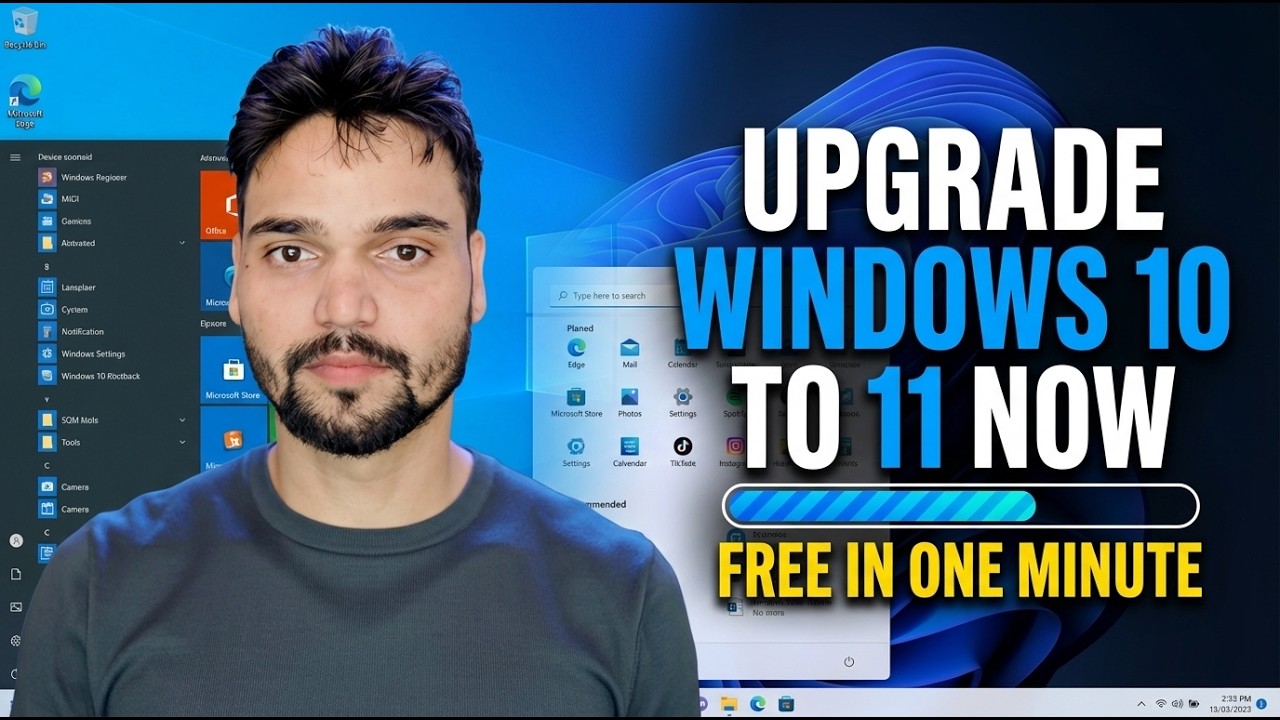
Upgrade to Windows 11 free from Windows 10 - who genuinely pays nothing, the one licence condition, the PC Health Check, both official upgrade routes and the activation check after.
📑Chapters
- The honest answer first - who genuinely pays nothing, and the one licence condition
- Check activation and note your Windows 10 version (slmgr /xpr and winver)
- Check the hardware with Microsoft's PC Health Check
- Back up your files before upgrading
- Route one - upgrade through Windows Update
- Route two - the Installation Assistant when the offer is missing
- What the upgrade keeps, and the time it takes
- After the upgrade - the activation check
- The 10-day rollback window - Go back to Windows 10
📋 Overview & Step-by-Step Guide
The Honest Answer First - Free Means Free, With One Condition
The upgrade from Windows 10 to Windows 11 costs nothing. Microsoft has never charged for it, and the free upgrade path for eligible PCs is still open - there is no payment screen hiding at the end. But free has one condition, and everything else hangs on it: your Windows 10 must be genuinely licensed and activated. The upgrade carries your existing licence forward to Windows 11 - it does not create a licence and it does not forgive a missing one. Licensed in, licensed out; unlicensed in, unlicensed out. If your Windows 10 shows the "not activated" watermark today, Windows 11 will show the same watermark after upgrading.
Check Activation and Note Your Windows 10 Version
Before touching any upgrade button, confirm the licence side. Open Settings → System → Activation - it should say Windows is activated, ideally with a digital licence. The same answer comes from Command Prompt with the video's own check:
slmgr /xprAlso note your current version - being on the latest Windows 10 (version 22H2) keeps the upgrade offer and the upgrade itself smooth:
winverCheck the Hardware With PC Health Check
Windows 11 asks for a supported 64-bit processor, 4 GB RAM, 64 GB storage, UEFI firmware with Secure Boot capability and a TPM 2.0 chip. Microsoft's free PC Health Check app - download it only from Microsoft's own Windows 11 page, never from copycat sites - tests all of it and gives a straight yes or no. Click See all results either way: each requirement gets its own line, so you can see exactly which door is closed.
Back Up Your Files Before Upgrading
This step is not optional. An in-place upgrade is designed to keep your programs, files and settings, and it normally does - but back up your important files to an external drive or cloud storage first anyway. A backup is the seatbelt you wear even on a safe road: if anything interrupts the upgrade - power loss, a failing drive, a bad restart - your files are already safe somewhere the upgrade cannot touch. Keep a laptop plugged into power for the whole process.
Route One - Upgrade Through Windows Update
This is the route the video follows, and the easiest, because Windows does the compatibility work for you. Open Settings → Update & Security → Windows Update and click Check for updates. On an eligible PC a banner appears saying the upgrade to Windows 11 is ready. Click Download and install. The download is several GB, so give it time and a stable connection. When prompted, restart - the PC restarts a few times and lands on the Windows 11 desktop with your apps, files and settings carried over.
Route Two - The Installation Assistant When the Offer Is Missing
No banner in Windows Update does not automatically mean no upgrade. Microsoft's free Windows 11 Installation Assistant, from Microsoft's own download page (microsoft.com/software-download/windows11), runs the same eligibility check and starts the same upgrade manually. It is the standard second route - not a trick and not a bypass. If the Assistant also refuses, it names the requirement your PC misses, and that message is the truth to act on. Download upgrade tools only from microsoft.com - any site selling a "free upgrade" or a cheap activation key is selling you a problem.
After the Upgrade - Check Activation and Test Your Apps
Do not just admire the new taskbar. Within the first hour, open Settings → System → Activation: on a properly licensed upgrade it reads that Windows is activated with a digital licence. The slmgr /xpr check from Step 2 gives the same answer in one line. If it says not activated, the cause came in with your Windows 10 licence state - the upgrade itself never changes that. Then run Windows Update once more and install what it offers, and open the two or three programs your day actually depends on - your accounting package, your printer, your VPN - because preserved and verified are different words.
Your 10 Days to Change Your Mind
If something essential is genuinely broken, there is a clean way home, built in. For the first 10 days after upgrading, Settings → System → Recovery → Go back returns you to Windows 10 with your personal files intact; apps and changes made after the upgrade are removed. The window depends on the Windows.old folder on your C drive surviving - so do not run cleanups that delete previous Windows installations while you are still deciding. After day 10 that door closes, which is exactly why the app testing in Step 7 belongs in the first days, not the first month.
🏷️Topic Search Variables & Keywords
🎙️ Full Transcript - tap to expand
Step-by-Step Troubleshooting Guide & Solutions - Upgrade to Windows 11 Free. On-screen demonstration by Technical Anshu.
Upgrade to Windows 11 free from Windows 10 - who genuinely pays nothing, the one licence condition, the PC Health Check, both upgrade routes and the activation check after.
(The transcript available on the source page ends at this point - watch the video above for the full walkthrough.)
❓ Frequently Asked Questions
Is this tutorial 100% free to follow?
Yes! All guides and methods demonstrated by Technical Anshu use free, legal, and educational resources.
Can beginners follow this guide?
Absolutely! Every step is demonstrated on-screen with detailed instructions so anyone can follow along easily.
Where can I ask questions if I get stuck?
Leave a comment directly on the YouTube video, and our community and Technical Anshu will help you out.
🚀 Watch the Full Tutorial on YouTube
🚀 Watch the full step-by-step video tutorial on YouTube: https://www.youtube.com/watch?v=pDUgLrrGDIQ
Subscribe to Technical Anshu for IT support, Windows troubleshooting, and server management.
▶️ Watch Full Video