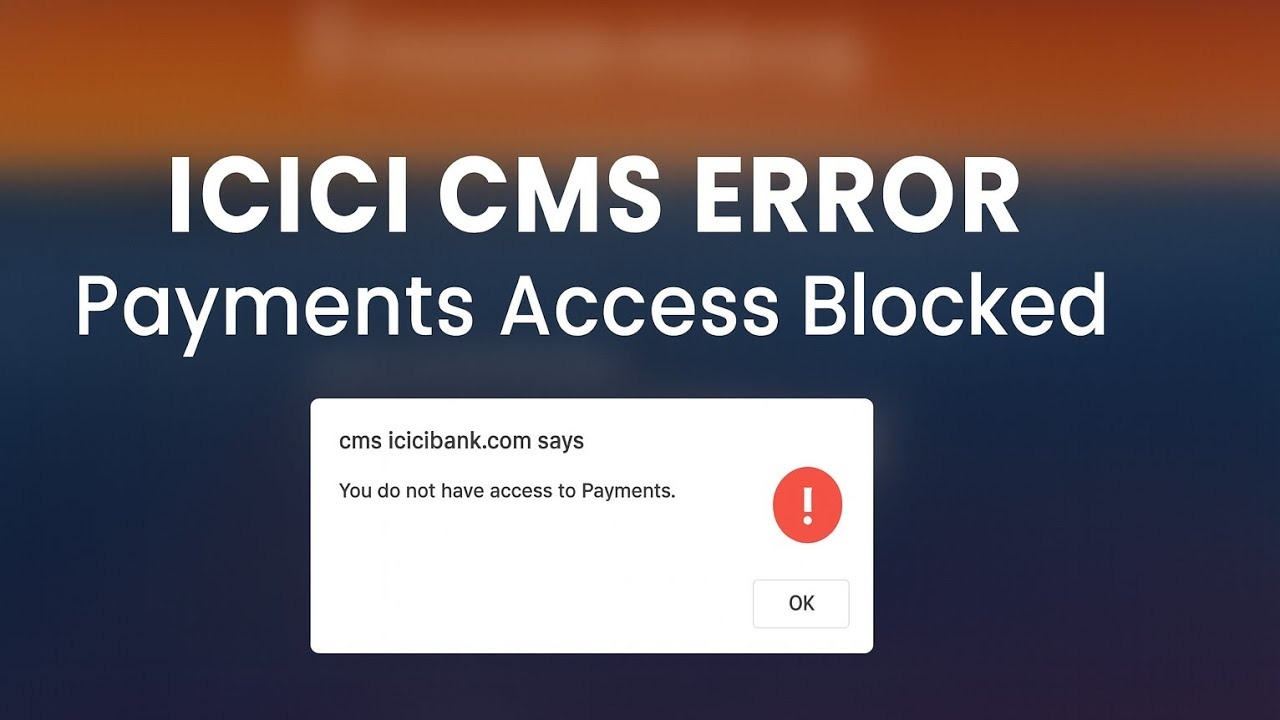
Fix icicibank Payments Access Error - Easy Solution
The ICICI Bank payment page shows Access Denied, spins forever, or refuses to open at all — while every other website works fine. Banks are deliberately strict, so their pages fail for small reasons other sites forgive. These are the safe checks, in the order that finds the fault fastest.
📑Chapters
- Safety first — reach the bank only through its official website and official app
- Reading the error — the four shapes an ICICI Bank access error takes
- Clearing cookies and cache for the bank site only
- The split test — app against browser, mobile data against Wi-Fi
- Fixing the clock and flushing the DNS cache
- Switching off VPN, proxy and ad blockers before banking
- When the bank site itself is down — why waiting is the fix
- Payment failed but money debited — the calm steps
📋 Overview & Step-by-Step Guide
Start With Safety, Then Fixing
Before any troubleshooting, make sure you are knocking on the right door. Type icicibank.com yourself in the address bar, or use your saved bookmark — never a link from an SMS, email, WhatsApp forward or a search advertisement. For the app, use only the official iMobile app installed from the Play Store or App Store. Fraud sites copy bank pages perfectly, and an access error on a fake page is the luckiest outcome possible — the page that does open is the dangerous one.
Read the Error Before You Touch Anything
Access errors look identical at a glance but split into four different problems. Take ten seconds to read yours, because matching the fix to the shape is the whole game:
Access Denied with a long reference code: a security layer in front of the bank's website refused this visit — often triggered by a VPN, a flagged network, or too many rapid retries. Note the code down; the bank's support can look it up.
"This site can't be reached", a timeout or a DNS error: the page never arrived at all — this is your browser, network or provider to fix.
The page opens, login works, then a blank or endlessly spinning screen at the payment step: the page loaded but its scripts or the payment gateway hop failed — a cookies, pop-up or extension problem.
"Your connection is not private" with a date or certificate complaint: very often your computer's date and time are wrong, which makes every secure site look suspicious.
Clear Cookies and Cache for the Bank Site Only
Stale or corrupted cookies for the bank's domain are the single most common cause of a payment page that suddenly refuses to load or loops back to the login screen. You do not need to wipe your whole browser — clear just this one site. Open the bank site, click the lock / tune icon at the left of the address bar, open Site settings (in Chrome) or the cookies/data option for this site, and choose Delete data / Clear for icicibank.com. Then close and reopen the browser, log in fresh and try the payment again.
While you are in site settings, also allow pop-ups and redirects for the bank site. Online payments hop from the bank to a payment gateway and back again — a blocked hop looks exactly like an access error, mid-payment, with your money already in motion.
Run the Split Test — App Against Browser, Data Against Wi-Fi
Every access problem lives in exactly one of three places: your browser, your network, or the bank. The split test separates them by changing one thing at a time. Axis one is the door: the website in a browser versus the official iMobile app. Axis two is the road: your home Wi-Fi versus mobile data. Try a login (or the payment) in each combination and read the verdict:
Website fails, app works on the same Wi-Fi — your browser is guilty; the fixes in Steps 3, 5 and 6 apply. Both fail on Wi-Fi, but the app works on mobile data — your network or ISP is guilty. Both fail on Wi-Fi and on mobile data — it is the bank's side, most likely (go to Step 7). Fails only on the office network, works at home — the office firewall or proxy is blocking it.
Fix Your Clock and Flush the DNS
Two quiet troublemakers sit underneath a surprising number of bank errors. First, the clock: in Windows, open Settings → Time & language → Date & time, turn on automatic time and press Sync now. On your phone, set date and time to automatic. Secure (HTTPS) banking refuses to talk to a device whose clock disagrees with reality — this is the usual cause behind certificate and "not private" warnings.
Second, DNS: your PC keeps a cache of server addresses, and stale records can point the browser at a dead or wrong server. Open Command Prompt and run this command, then restart the browser:
ipconfig /flushdnsRestart the router once as well — thirty seconds off, then on. Routers accumulate their own stale states.
Switch Off VPN, Proxy and Ad Blockers for Banking
Banks actively distrust VPN traffic: the exit addresses are shared by thousands of strangers, some are already flagged for abuse, and a login from another country does not match your account's normal pattern — so the security layer simply says Access Denied. Before paying, disconnect any VPN app or browser VPN extension completely (do not just pause the tab). Then check Windows Settings → Network & internet → Proxy — a manual proxy should be off unless your office set it. Finally, pause ad-blocker and privacy extensions for the bank site: their filters can break the payment gateway's scripts and produce the blank, spinning page.
Reload the bank site and try once, cleanly. Make this a permanent habit: banking happens in a clean window — no VPN, no extensions, on your own network.
If the Bank Itself Is Down, Waiting Is the Fix
If the split test in Step 4 points at the bank — the site and the app both fail, on Wi-Fi and on mobile data — the website is down or under maintenance, and no setting at your end can fix it. Banks take their portals down for maintenance and, occasionally, under heavy load; when that happens the "error" is simply the truth.
If the Payment Failed but Money Was Debited, Do This
A failed payment with a visible debit frightens everyone the first time. The calm truth: when a transaction breaks midway, the money usually sits in a pending state between the bank and the merchant, and failed transactions are normally reversed automatically within a few working days — you rarely need to chase it.
Do not pay again immediately — a second attempt can succeed while the first debit is still unwinding, and then you have paid twice and must recover one. Open the official iMobile app and check the transaction's real status, and keep its reference number or a screenshot. Wait the few working days for the automatic reversal, checking the statement in the app. Still missing after that? Raise a complaint through the app or the bank's official grievance channel with the reference number — that starts a tracked case, and banking rules protect you when reversals drag beyond the set timelines.
🏷️Topic Search Variables & Keywords
🎙️ Full Transcript — tap to expand
(The transcript could not be loaded from the source page for this tutorial — watch the video above for the full step-by-step walkthrough.)
❓ Frequently Asked Questions
Is this tutorial 100% free to follow?
Yes! All guides and methods demonstrated by Technical Anshu use free, legal, and educational resources.
Can beginners follow this guide?
Absolutely! Every step is demonstrated on-screen with detailed instructions so anyone can follow along easily.
Where can I ask questions if I get stuck?
Leave a comment directly on the YouTube video, and our community and Technical Anshu will help you out.
🚀 Watch the Full Tutorial on YouTube
🚀 Watch the full step-by-step video tutorial on YouTube: https://www.youtube.com/watch?v=7pwcAgkSmWA
Subscribe to Technical Anshu for IT support, Windows troubleshooting, and server management.
▶️ Watch Full Video