Rufus 4.14 Beta Bug 😳 Silent Install Feature Broken?
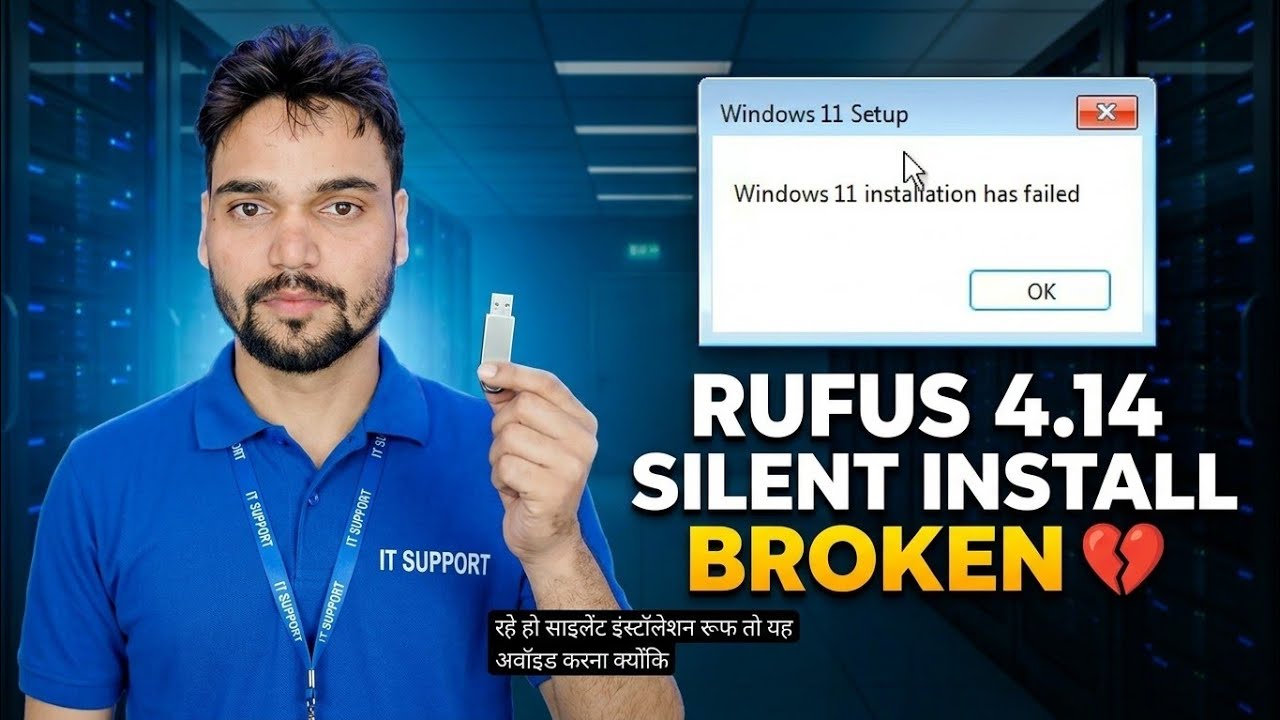
Rufus 4.14's brand-new Silent installation option promised a fully hands-free Windows install — but in the first builds it failed on many PCs, most famously stuck around 75 percent. Here is what exactly broke, who it hits, and the safe route around it.
📑Chapters
- The new Silent installation option in Rufus 4.14 — what it promises
- The bug — silent installs failing, most famously stuck around 75 percent
- Who it hits — anyone whose USB was made with the first 4.14 builds
- The official fix — Rufus 4.15 repairs the 75 percent failure
- The safe route — update, recreate the media, disconnect every other disk
- The safer everyday choice — the normal Windows User Experience install
📋 Overview & Step-by-Step Guide
What the Silent Installation Option Does
Rufus 4.14 added a new option to the Windows User Experience dialog that appears after you press START: Silent installation. In Rufus's own changelog words, it "automatically, and WITHOUT PROMPT, installs Windows on the first detected disk on the target platform". Rufus writes its choices into an answer file on the media, so Windows Setup runs from start to finish on its own — no disk selection, no region or keyboard screens, no account prompts. For technicians installing Windows again and again, that sounds perfect. In the first 4.14 builds, it was not.
How the Bug Shows Up — Stuck Around 75 Percent
Boot a PC from a USB created with an early 4.14 build and the silent install begins normally — files copy, Setup runs unattended — and then it stalls or fails partway, most famously around 75 percent. This is not your hardware, your ISO or your USB stick failing: it is a bug in how the first builds generated the silent installation. Rufus's own 4.15 changelog later confirmed it plainly, listing the fix as: "Fix 'silent' Windows installation failing at 75% in most cases."
If Your Install Is Already Stuck — Stop Retrying the Same USB
If a silent install is sitting at 75 percent, waiting longer or rebooting into the same USB will not fix it — the broken instructions are baked into that media. Power the machine off, leave the half-installed disk as it is for the moment, and fix the media first (Steps 4 and 5). The fresh install that follows will repartition and rewrite the target disk anyway, so nothing from the failed attempt needs to be rescued — as long as any data you cared about was backed up before you started.
Update Rufus — The Fix Is in 4.15
Download the latest Rufus from the official site, rufus.ie — never from a download portal or a random mirror. Rufus 4.15 fixes the silent installation failing at 75 percent in most cases, and also improves the guards around using the silent option. The version number is shown right in the Rufus window title, so you can confirm you are no longer on a 4.14 build before you create anything. Updating takes a minute: Rufus is a small portable program with nothing to install.
Recreate the Bootable USB with the Updated Rufus
An old USB does not heal itself — the answer file on it was written by the buggy build. Plug the stick in, select the same Windows ISO in the updated Rufus, press START, and in the Windows User Experience dialog tick the Silent installation option again. Rufus rewrites the media with the fixed logic.
Disconnect Every Other Disk Before You Install
This step matters with silent installation more than with any normal install. Because the media installs on the first detected disk without asking, a PC with two or three drives attached gives Setup the chance to pick the wrong one — and a silent install will wipe and use it without a single confirmation screen. Before booting from the USB, physically disconnect every other internal and external drive and leave only the disk that is meant to receive Windows. Reconnect the extra drives after the installation completes.
Or Skip Silent — Use the Normal Install Instead
For a one-off install on your own PC, the silent route saves a few clicks and adds real risk. Leaving the Silent installation option unticked gives you the classic Rufus experience: the other Windows User Experience options (like the Quality of Life option) still apply, but Windows Setup stops at the normal screens and you choose the target disk yourself. Keep silent installs for what they are really for — repeated, identical installs on machines you control, with the media made by a fixed Rufus build and only the target disk attached.
🏷️Topic Search Variables & Keywords
🎙️ Full Transcript — tap to expand
Step-by-Step Troubleshooting Guide & Solutions - RUFUS 4.14 SILENT INSTALL BROKEN. On-screen demonstration by Technical Anshu.
Rufus 4.14 added a Silent installation option that installs Windows with no prompts - and in the first builds it failed on many PCs, most famously stuck around 75 percent. What exactly broke, who it hits, and the safe route: update, recreate the media, and disconnect every other disk.
(transcript ends here on the source page)
❓ Frequently Asked Questions
Is this tutorial 100% free to follow?
Yes! All guides and methods demonstrated by Technical Anshu use free, legal, and educational resources.
Can beginners follow this guide?
Absolutely! Every step is demonstrated on-screen with detailed instructions so anyone can follow along easily.
Where can I ask questions if I get stuck?
Leave a comment directly on the YouTube video, and our community and Technical Anshu will help you out.
🚀 Watch the Full Tutorial on YouTube
🚀 Watch the full step-by-step video tutorial on YouTube: https://www.youtube.com/watch?v=ySd4B3EVQe4
Subscribe to Technical Anshu for IT support, Windows troubleshooting, and server management.
▶️ Watch Full Video